Enscape Envision
Object Details
This page outlines the available object creation options as well as the object properties available in the Details tab.
Last updated 27 May 2026
This page outlines the available object creation options as well as the object properties available in the Details tab.
Overview
The properties for all object types are available in the Details tab after object selection. Objects can be selected from the Objects tab.
The available types of objects are:
- Plane
- Box
- Sphere
- Torus
- Dummy
Create an Object
Objects are created either from the Create menu options or from the toolbar buttons. Some objects are available for creation only in Advanced mode.
Object creation from the menu:
- ||Create menu|| > Select an object to create
Object creation from the toolbar:
- ||Toolbar|| > Plane to create a plane object
- ||Toolbar|| > Box to create a box object
- ||Toolbar|| > Sphere to create a sphere object (Make sure the Advanced mode is enabled.)
- ||Toolbar|| > Torus to create a torus object (Make sure the Advanced mode is enabled.)
- ||Toolbar|| > Dummy to create a dummy object (Make sure the Advanced mode is enabled.)
To create a plane, click the Plane toolbar button or select the Plane option from the Create menu. Then click in the viewport and drag the cursor. Release the mouse button when ready.
Plane creation is available in both Easy and Advanced modes.
youtu.be
To create a box, go to Create menu > Box or click the Box toolbar button. Then click in the viewport and drag the mouse cursor to define the base of the box. Release, then move the mouse upward to set the height and click to finish.
Box creation is available in both Easy and Advanced modes.
youtu.be
To create a sphere, first enable the Advanced mode toggle. Then click the Sphere toolbar button or select the Sphere option from the Create menu. Click in the viewport and drag the cursor. Release the mouse button when ready.
Sphere creation is available only in Advanced mode.
youtu.be
To create a torus, make sure the Advanced mode is active. Then select Create menu > Torus or click the Torus toolbar button. Click and drag in the viewport to define the torus radius. Release, then move the mouse to set the tube thickness and click to finish the torus.
Torus creation is available only in Advanced mode.
youtu.be
Actions with Objects
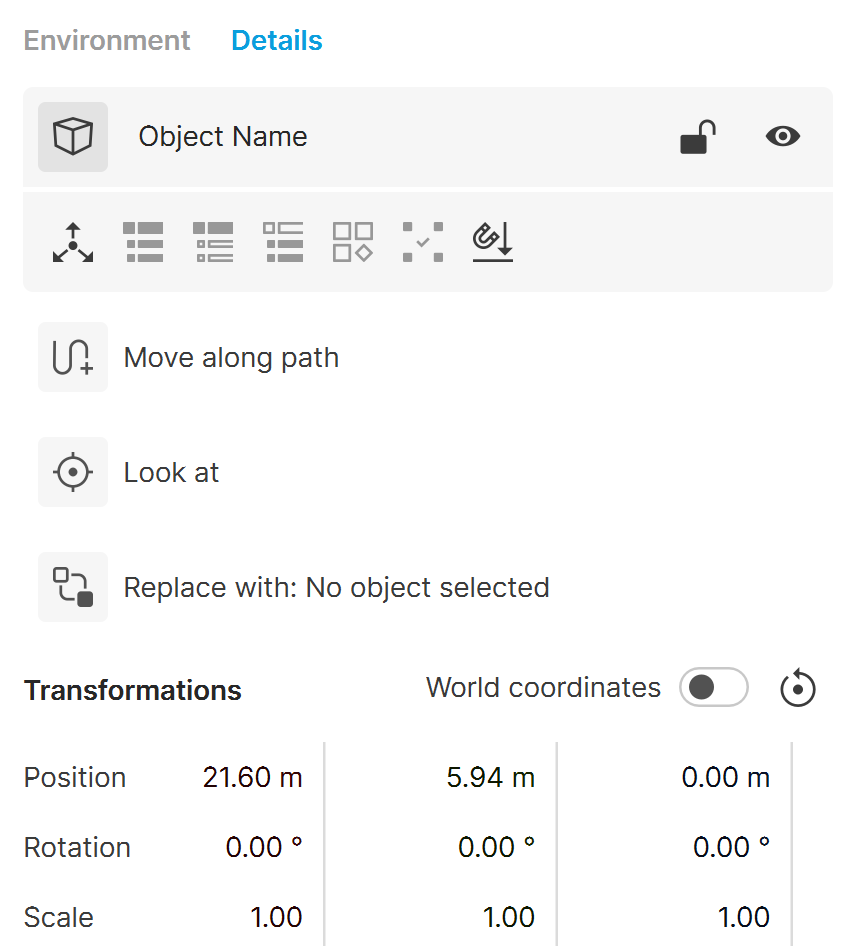
A field showing the name of the selected object, allowing you also to rename it. The new name is automatically displayed in the respective Object filter tab. |
A field showing the name of the selected object, allowing you also to rename it. The new name is automatically displayed in the respective Object filter tab. | |
Lock – Disables the transformation options (position, rotation and scale) of the selected object(s). The options become greyed out. Click to enable the options for manipulation again. | |
Hide – Toggles the visibility of the element on and off. Invisible objects are indicated by and are not rendered. | |
Move pivot – Opens the Pivot Point Adjustment settings. There you can move the pivot point. | |
Select hierarchy All – Selects the parent and all children of the current selection from within the scene hierarchy. | |
Select hierarchy Parent only – Selects only the parent of the current selection from within the scene hierarchy. | |
Select hierarchy All children – Selects the rest of the children in the scene hierarchy group the current selection belongs to. | |
Make instance unique – Excludes the selection from the rest of its instances and makes it unique. The action is disabled if the selection has no instances. | |
Select all instances – Selects all instances the selected object(s) has in the scene. | |
Land to surface – Moves the selected object downwards (along the Z axis) until its bounding box collides with the first object below it. | |
Move along path – Associates the selected object with a path to define its direction of movement | |
Move along path settings – Opens the Move along path settings. Available when the Move along path button is activated and a path is selected. | |
Look at – Picks a target the selected object should look at during animation. | |
Replace with – Replaces the selected object with a new one from the Asset Library. You can replace either the current instance of the selected object or all instances of the object. Find more information on the Objects Tab page. | |
Revert the transformation – Restores all position, rotation and scale values to their default values, i.e to zero. |
Transformation
World coordinates – When enabled, object transformations are done using world coordinates, i.e. the global scene axes. When disabled, transformations are done using local coordinates, i.e. objects' own axes.
Position – Moves the object along the X, Y and Z axes.
Rotation – Rotates the object along the X, Y and Z axes.
Scale – Scales the object along the X, Y and Z axes.
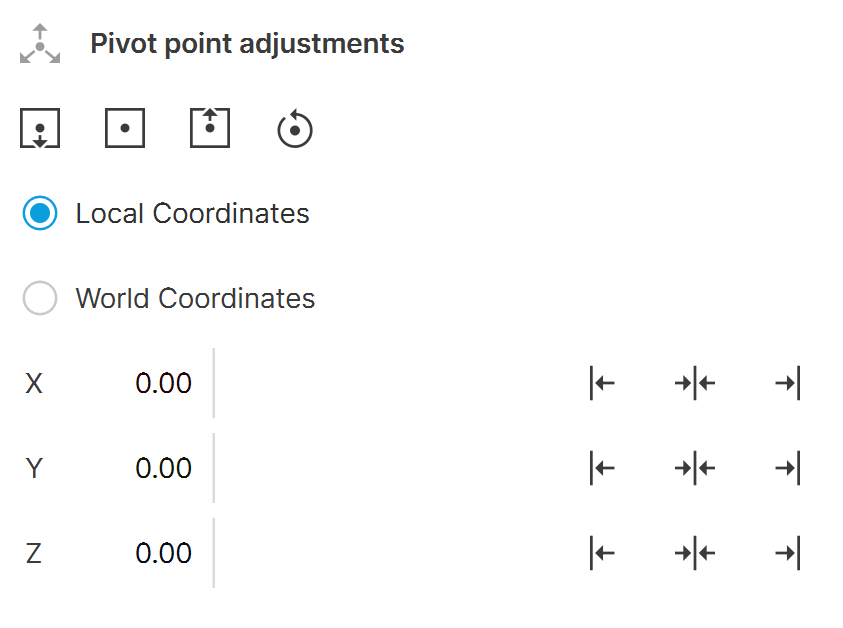
Pivot Point Adjustments
Moves the pivot to the bottom center of the bounding box. |
Moves the pivot to the bottom center of the bounding box. | |
Moves the pivot to the center of the bounding box. | |
Moves the pivot to the top of the bounding box. | |
Resets the pivot to its initial position. | |
Minimum bounding box value on X / Y / Z axis. | |
Center bounding box value on X / Y / Z axis. | |
Maximum bounding box value on X / Y / Z axis. |
Local Coordinates – Uses the local coordinate when adjusting the pivot point. The local coordinate system is specific to each individual object. The X, Y, and Z axes are aligned relative to the object's transformation.
World Coordinates – Uses the world coordinate when adjusting the pivot. The world coordinate system is the global reference frame for the entire scene. The X, Y, and Z axes are always aligned with the scene’s global orientation.
X – Displays and specifies the selected pivot's position on the X axis. The value is World or Local coordinate space dependent.
Y – Displays and specifies the selected pivot's position on the Y axis. The value is World or Local coordinate space dependent.
Z – Displays and specifies the selected pivot's position on the Z axis. The value is World or Local coordinate space dependent.
Move Along Path
Speed – Specifies the speed of the object while moving along the path.
Offset – Specifies the object's forward offset from the starting point of the path, measured in scene units. Useful e.g. for making the animation start from the middle of the path.
Animation – Specifies the behavior of the animation after being played. It can loop, stop, hide, or extrapolate.
Follow Path – When enabled, the object aligns with the centerline of the path, automatically following its path and maintaining the same direction as the path.

Plane Parameters
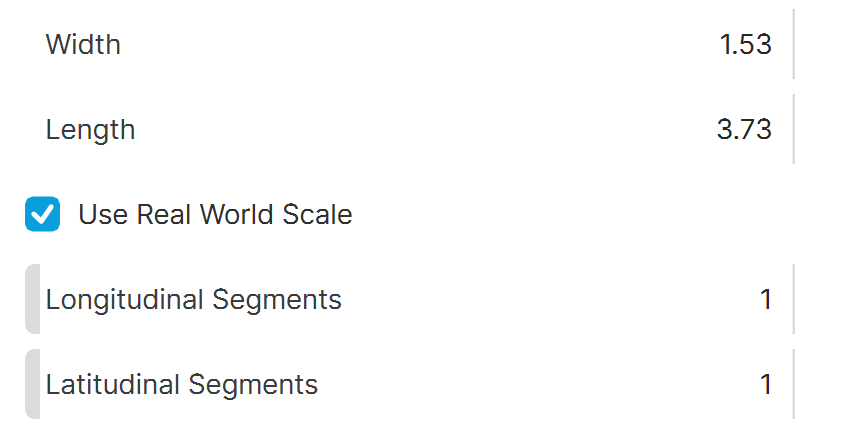
Width – Specifies the width of the plane in meters.
Length – Specifies the length of the plane in meters.
Use Real World Scale – Enables mapping in actual scale. This is useful when importing Chaos Cosmos materials which use an actual scale.
Longitudinal Segments – Specifies the number of segments along the horizontal axis.
Latitudinal Segments – Specifies the number of segments along the vertical axis.
Box Parameters
Width – Specifies the width of the box in meters.
Length – Specifies the length of the box in meters.
Height – Specifies the height of the box in meters.
Use Real World Scale – Enables mapping in actual scale. This is useful when importing Chaos Cosmos materials which use an actual scale.

Sphere Parameters
Radius – Specifies the radius of the sphere.
Use Real World Scale – Enables mapping in actual scale. This is useful when importing Chaos Cosmos materials which use an actual scale.
Longitudinal Segments – Specifies the number of segments along the horizontal axis.
Latitudinal Segments – Specifies the number of segments along the vertical axis.

Torus Parameters
Major Radius – Specifies the major radius of the torus, i.e. the distance from the center of the torus to the center of the tube. This defines the size of the overall ring of the torus.
Minor Radius – Specifies the minor radius of the torus, i.e. the radius of the circular cross-section of the tube. This defines the thickness of the torus tube.
Use Real World Scale – Enables mapping in actual scale. This is useful when importing Chaos Cosmos materials which use an actual scale.
Toroidal Segments – Segments/smoothness of the Major Radius of the torus.
Poloidal Segments – Segments/smoothness of the cross-section or Minor Radius of the torus.
