Enscape Envision
Objects Tab
This page provides information about the Objects tab in Enscape Envision.
Last updated 27 May 2026
This page provides information about the Objects tab in Enscape Envision.
Overview
The Objects tab provides searchable lists, i.e. filter tabs, of all objects in the project, grouped by type: geometry, scatter, path, light, camera, Cosmos assets, sensors, anima crowds, anima traffic, replacement objects, and live link objects. Some of the filter tabs are available in Advanced mode only. When an object is selected, its parameters are displayed in the Details tab in the right-hand side panel.
All - A tab for all types of objects in the project. |
All - A tab for all types of objects in the project. | |
Meshes – A filter tab for all meshes in the project. | |
Scatters – A filter tab for all scatter objects in the project. | |
Path – A filter tab for all path objects in the project. | |
Lights – A filter tab for all lights in the project. | |
Cameras – A filter tab for all cameras in the project. | |
Cosmos – A filter tab for all Cosmos assets in the project | |
Sensors – A filter tab for all Sensors objects in the project. Available in Advanced mode only. | |
Anima Crowd – A filter tab for all Anima crowd objects in the project. Available in Advanced mode only. | |
Anima Traffic – A filter tab for all Anima traffic objects in the project. Available in Advanced mode only. | |
Asset Replacer – A filter tab for all objects that have been replaced and their replacements. | |
Live link – A filter tab for the live link object created when using Live Link between Envision and a CAD/BIM application. |
Actions with Objects
Search objects – Searches for a specific object or objects. It filters the objects and shows only those that match the search. Click the X button on the right to clear the search. |
Search objects – Searches for a specific object or objects. It filters the objects and shows only those that match the search. Click the X button on the right to clear the search. | |
Expand/Collapse all – Expands or collapses objects that are in a hierarchy (parents and children). | |
Filter by scene – Filters the objects list by scene when multiple scenes are imported. | |
Lock – Disables the objects transformation options - position, rotation and scale. The options become greyed out. Click to enable the options for manipulation again. | |
Hide – Toggles the visibility of the element on and off. Invisible objects are indicated by and are not rendered. When a parent element is invisible in a hierarchy, the child object is indicated by a dot and also inherits the invisibility. | |
Group/ungroup nodes – Right-click menu options that group and ungroup objects. The folder icon is an indicator for grouped objects. See the Menu Options section for more details. | |
Drag-and-drop – Places objects in hierarchy. |
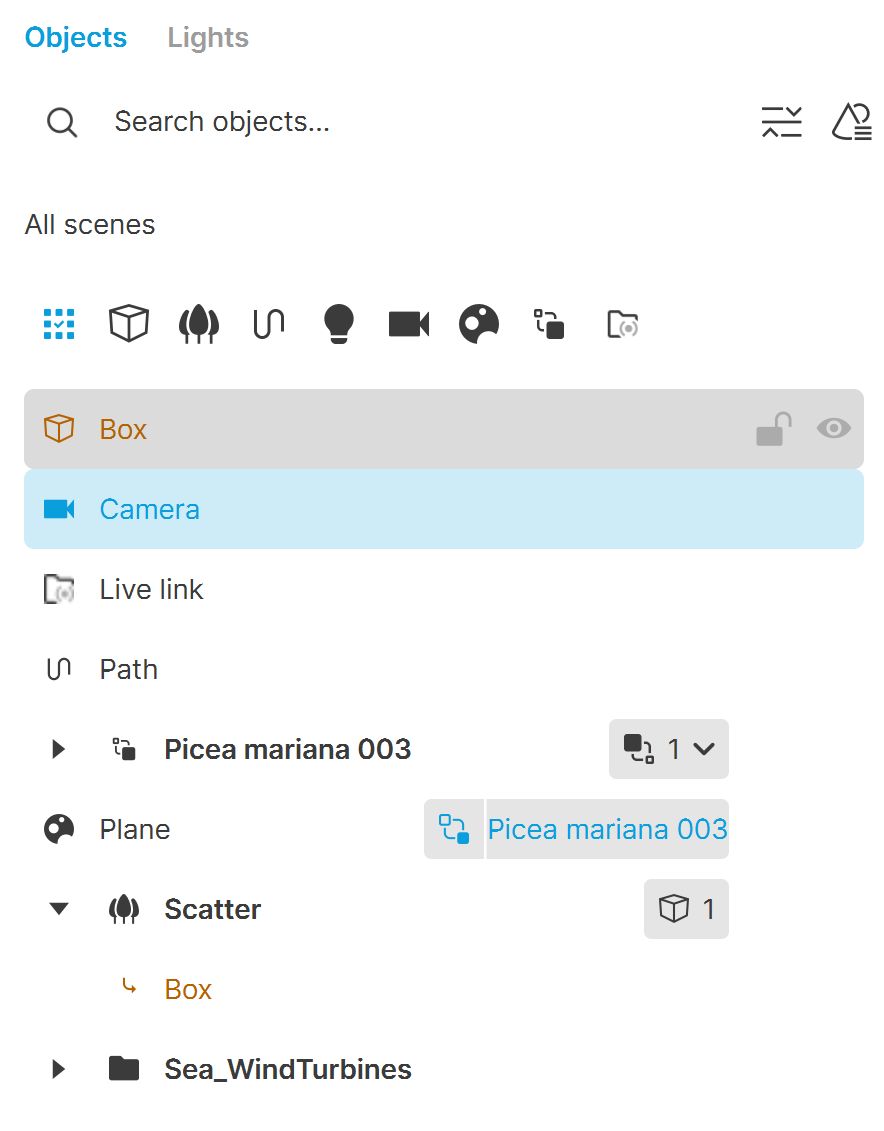
Easy Mode
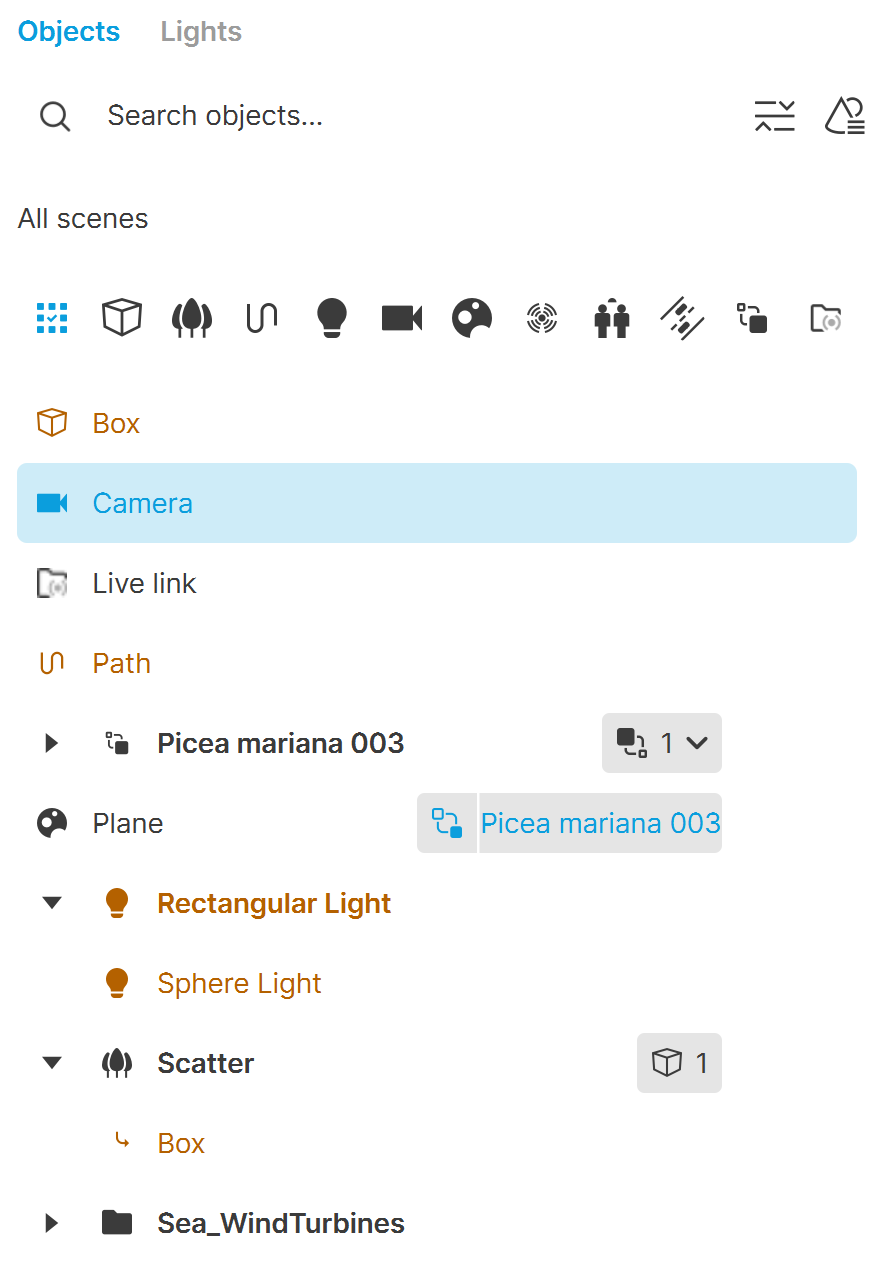
Advanced Mode
Replace Objects

Object replacement is done through the Replace with () button in the Details tab (right panel). You can replace either the current instance of a selected object or all of its instances at once. All replaced objects and their replacements are then listed in the Asset Replacer filter tab. The replacement object is on top, and the replaced object is added below as a child element.
For more information, please refer to the Replacing Objects page.
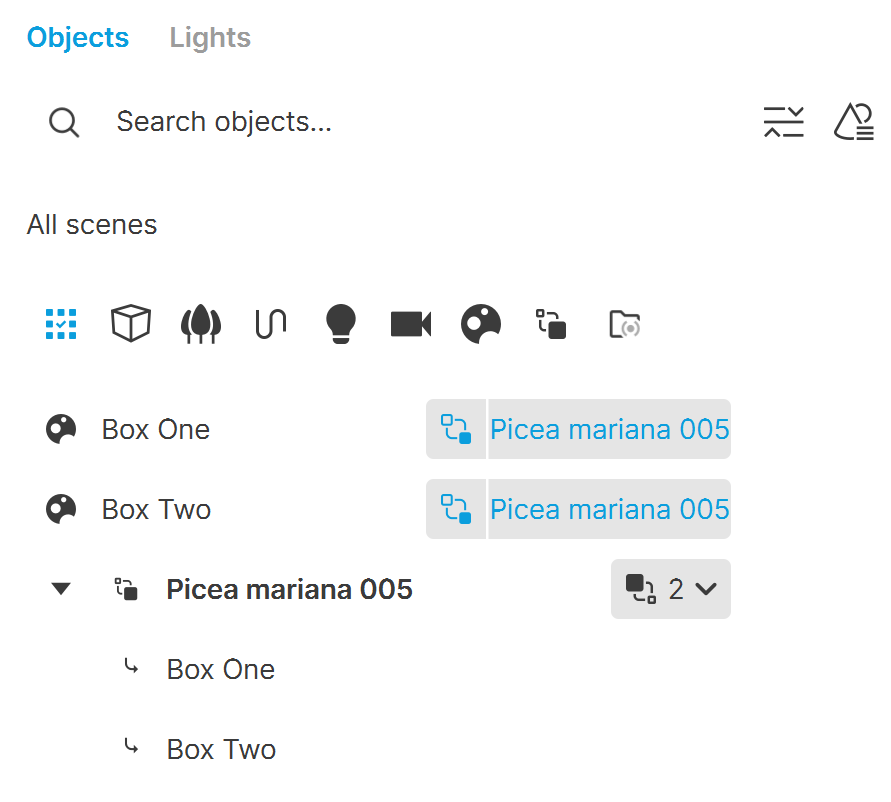
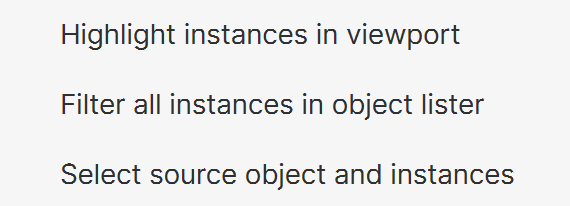
Clicking on the dependency indicator opens a dropdown menu with the following options:
Highlight instances in viewport – Highlights the instances of the replaced object in the viewport.
Filter all instances in object lister – Shows only the instances of the replaced object in the Objects tab.
Select source object and instances – Selects the source object and its instances in the viewport and shows only them in the Objects tab.
Dependent Objects
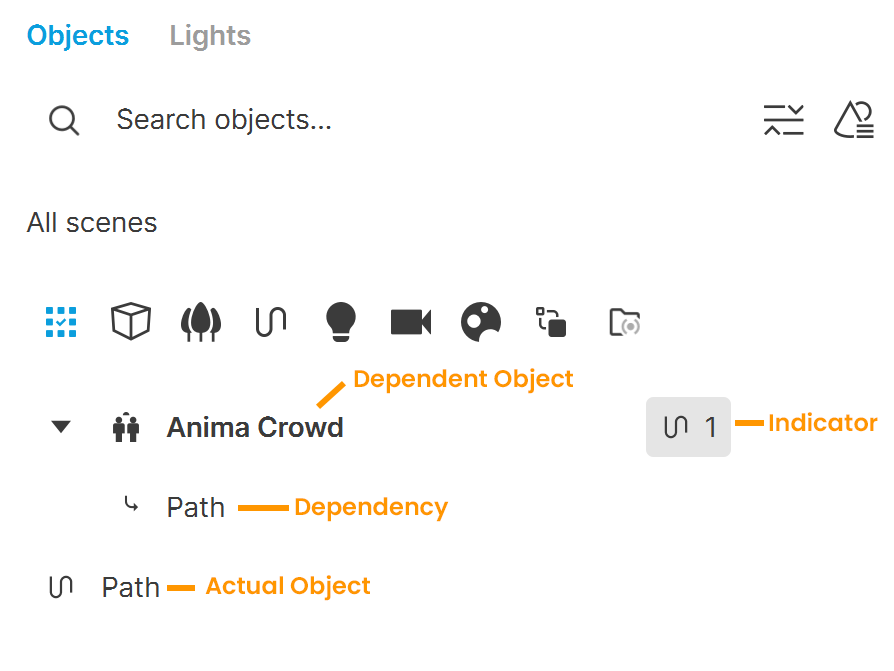
When an object or system depends on another object, its dependency is indicated by an icon on the right of the dependent object. The dependencies are shown as child items under their dependent object in the Object list. Thus, you can quickly identify and access all dependent objects in the scene.
A dependent object is tied to another object to reproduce a specific visual behavior. Scatter objects, crowds, traffic systems, and objects and cameras animated along a path or with a look at target are dependent objects.
A dependency is the object that a dependent object relies on. Paths, objects with Scatter applied, and objects serving as a Look at target are dependencies.
An actual object is the original object used as a dependency. Note that one actual object may be referenced by multiple dependent objects.
See the following video for more information:
youtu.be
Menu Options
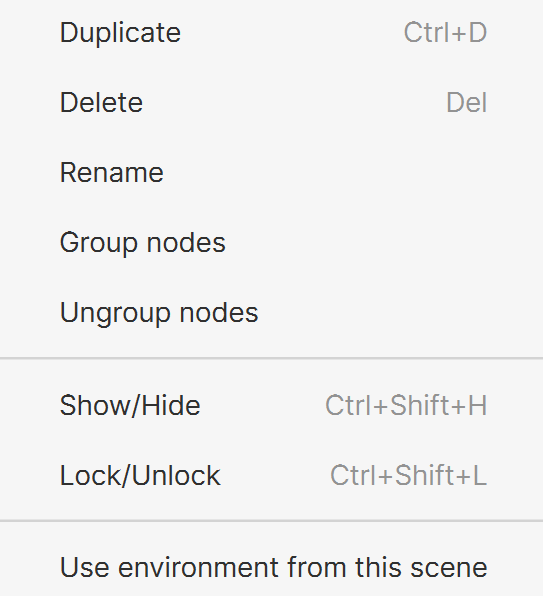
A menu is available when you right-click on an object in any filter tab. The menu contains the following options:
Duplicate – Duplicates the selected object. Shortcut: Ctrl+D
Delete – Deletes the selected object. Shortcut: Del
Rename – Renames the selected object.
Group nodes – Creates a group and adds the selected node(s) to the group.
Ungroup nodes – Ungroups the selected object(s).
Show/Hide – Toggles on and off the visibility of the selected object. Shortcut: Ctrl+Shift+H
Lock/Unlock – Locks or unlocks the transformation options in the Details tab of the selected object. Shortcut: Ctrl+Shift+L
Use environment from this scene – Copies the environment from the referenced scene to the environment of the main project. To do this, right-click specifically on the main component (top-level folder) of the imported scene.
See also: