Use the Quick image export and Quick video export windows to export images and animations in Envision.
Overview
Envision's Easy mode gives you quick export settings. Use the Quick image export window to render and export images. Use the Quick video export window to render and export animations.
UI path
Open the Quick image export settings from either location:
||Render menu|| > Quick image export
||Envision toolbar|| > Quick image export button
Open the Quick video export settings here:
Timeline > Export button
Quick image export settings
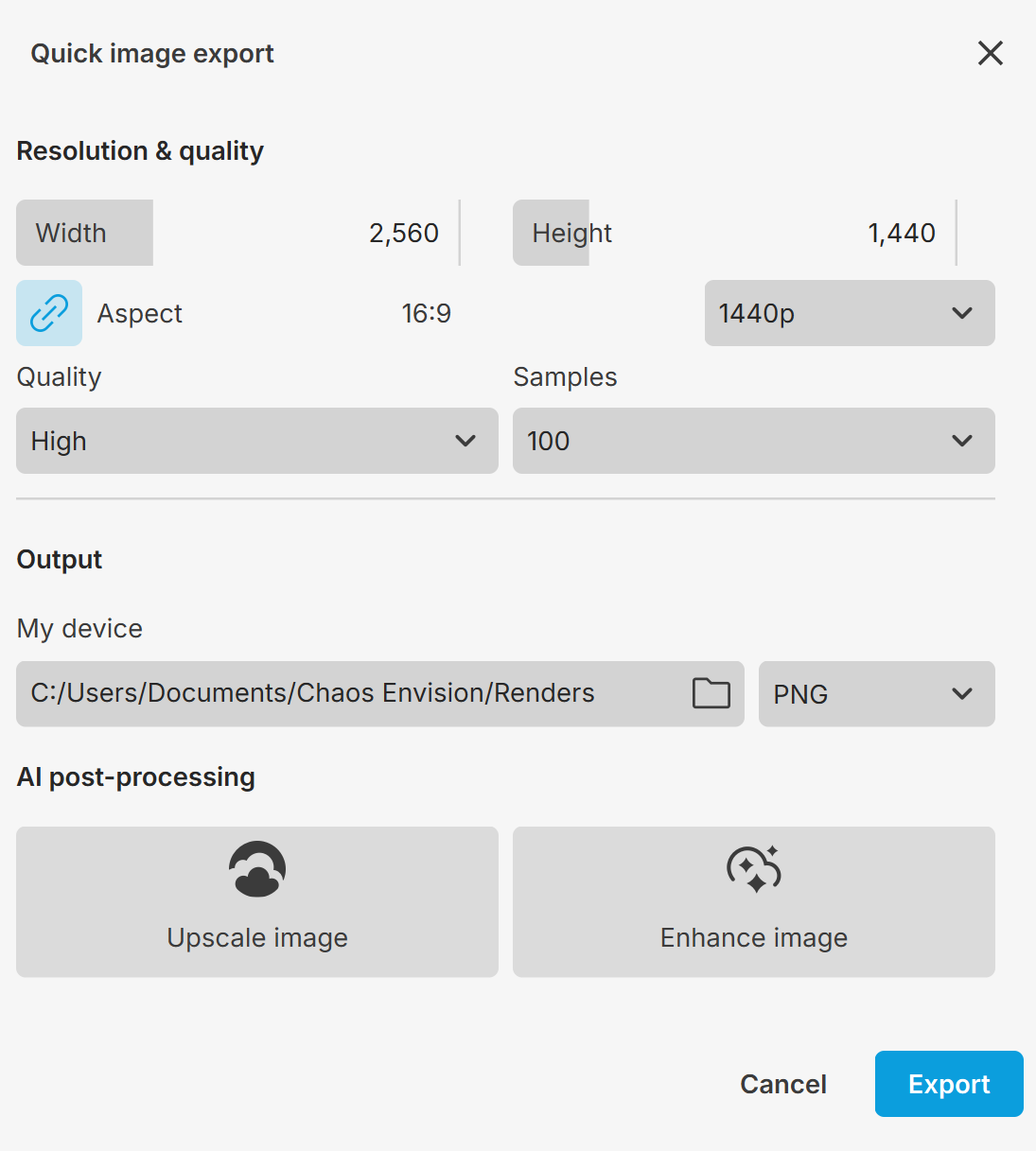
Resolution & quality
Width sets the exported image's width in pixels.
Height sets the exported image's height in pixels.
Aspect sets the export resolution's aspect ratio.
Preset lets you choose from these predefined export resolutions:
720p uses 1280x720.
1080p uses 1920x1080.
1440p uses 2560x1440.
2160p uses 3840x2160.
Custom lets you set the width and height.
Quality sets the export quality using 4 presets: Low, Medium, High, Ultra.
Samples sets the samples per pixel used to refine the image. Increasing this value improves image quality but takes longer to export.
Output
My device sets the file path where the exported image is saved on your computer.
File format sets the exported image's file format.
AI post-processing
Upscale image increases the image resolution by 2x or 4x. Chaos Cloud processes the image after your local render finishes. Supported formats are PNG, JPEG, TIFF, and EXR.
Enhance image uses AI post-processing to improve image quality, particularly for people, vegetation, and large surfaces. Chaos Cloud processes the image after your local render finishes. Only EXR files are supported.
Chaos Cloud upload destination opens the Cloud collaboration window. Here you can create or select a Cloud Collaboration project for the image upload after export. To enable Cloud collaboration in Envision, see Chaos Cloud Collaboration. For details about its features, see the Chaos Cloud documentation.
Cancel closes the Quick image export window without exporting the image.
Export starts the image export with your chosen settings.
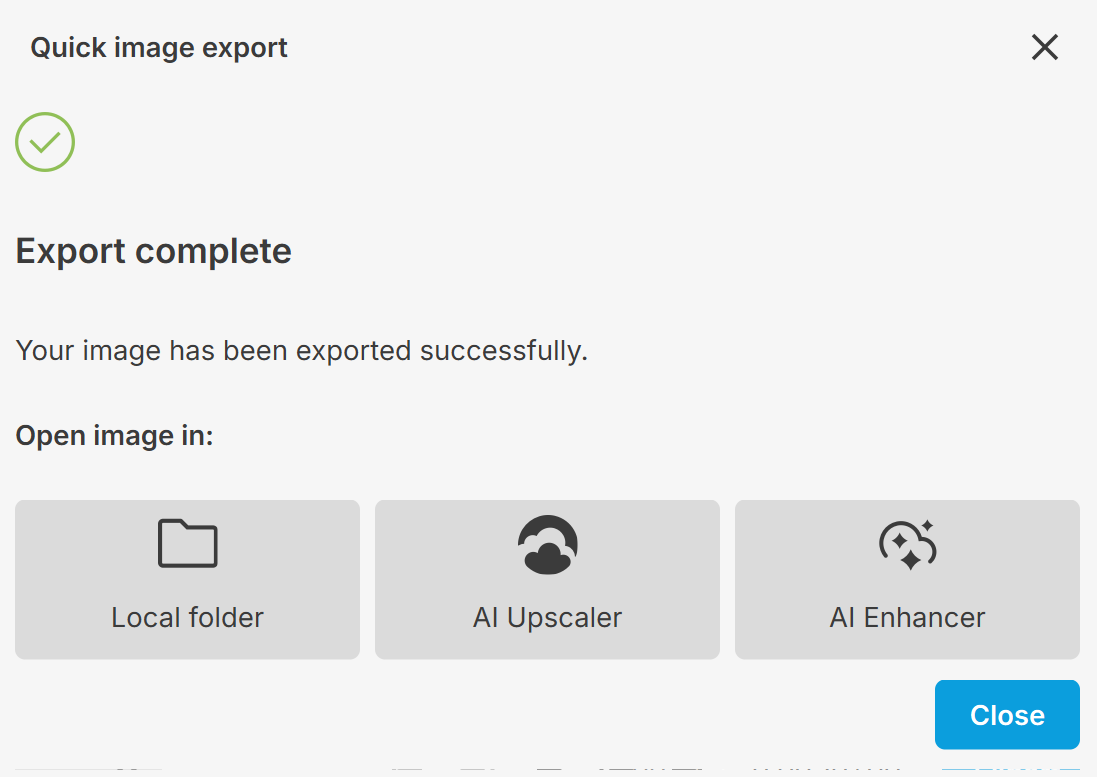
After the image export finishes, these options become available:
Local folder opens the exported image on your device.
AI Upscaler opens the image in Chaos Cloud Collaboration so you can upscale it.
AI Enhancer opens the image in Chaos Cloud Collaboration so you can enhance it.
Close closes the Quick image export window.
Quick video export settings
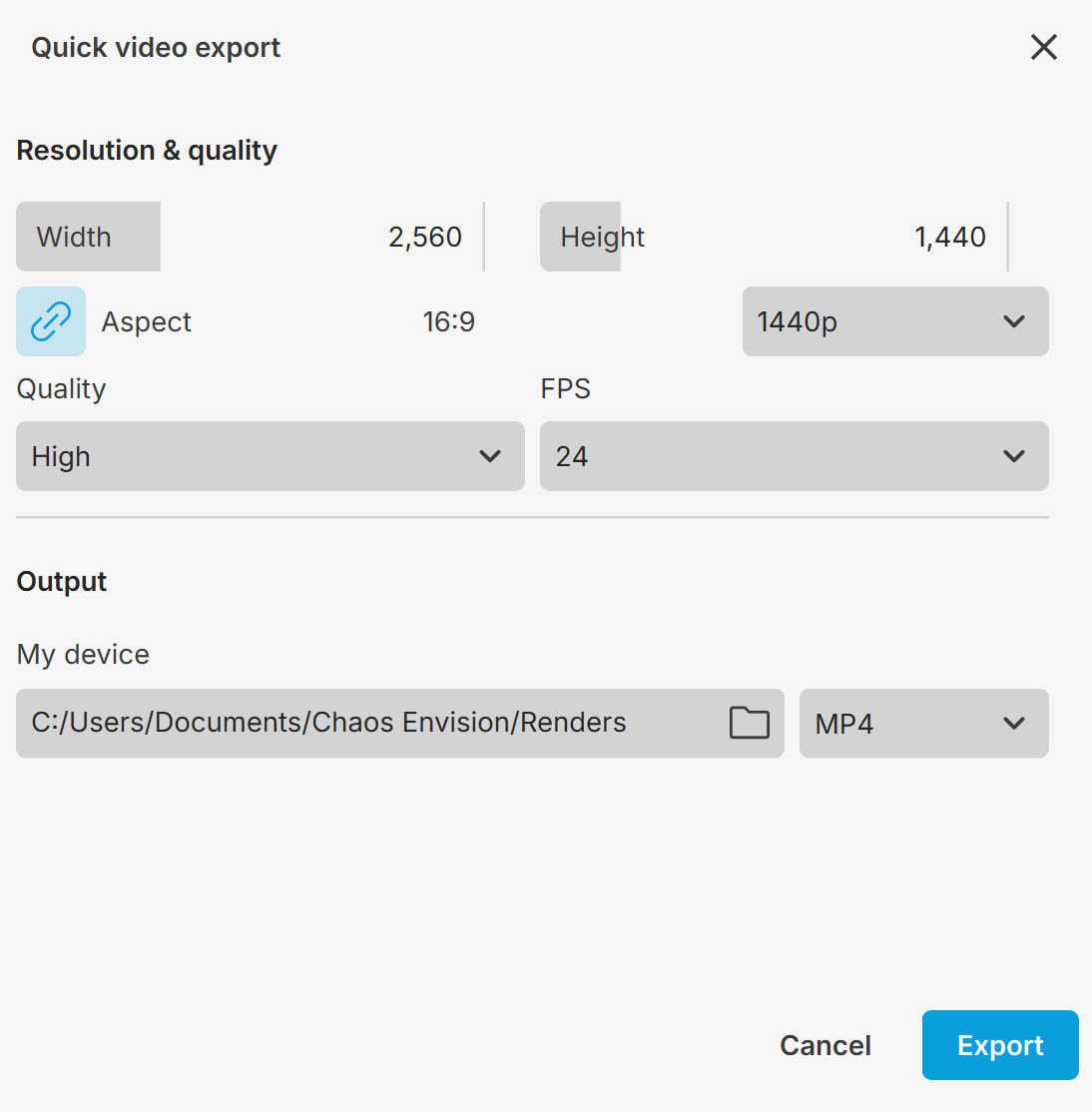
Resolution & quality
X/Y sets the exported animation's width and height in pixels.
Aspect sets the export resolution's aspect ratio.
Quality sets the export quality using 4 presets: Low, Medium, High, Ultra.
FPS sets the animation's frames per second.
Output
My device sets the file path where the exported video is saved.
File format sets the video file type for the exported sequence.
Cancel closes the Quick export window.
Export starts the export with your chosen render settings.
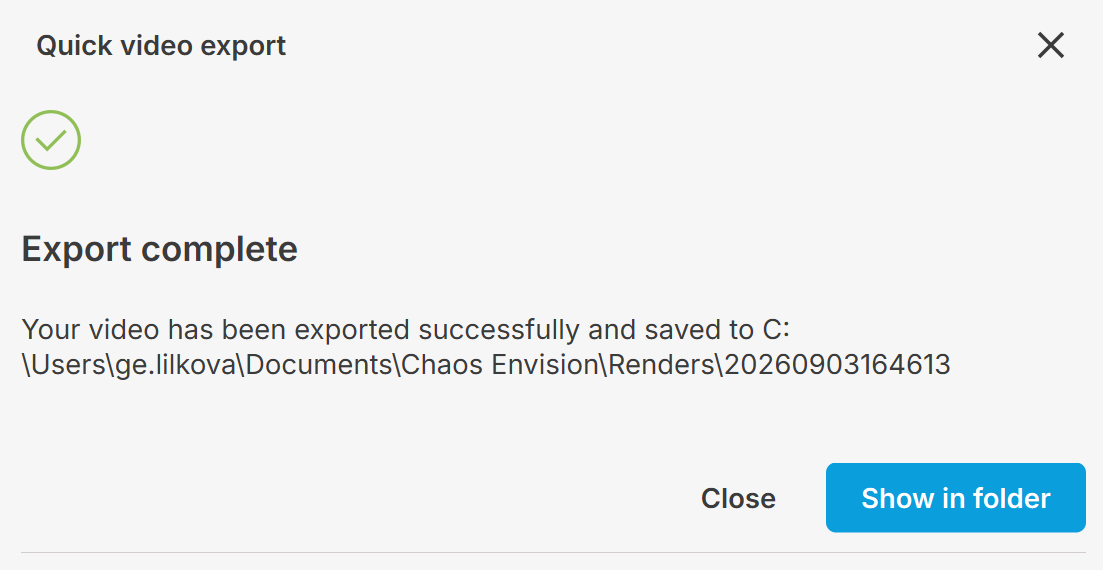
Show in folder opens the location on your device where the exported animation is saved.
See also: