Use render channels (render elements) in Enscape Envision to adjust parts of your rendered image in a compositing or image editing application.
Overview
Render channels separate a render into parts such as diffuse colour, reflections, shadows and mattes. You can adjust these parts in a compositing or image editing application, then combine them into the final image. Render channels are also called render elements or render passes.
Choose the render channels you need before rendering. Enscape Envision generates them during the render.
See the list of supported render channels below for the complete list.
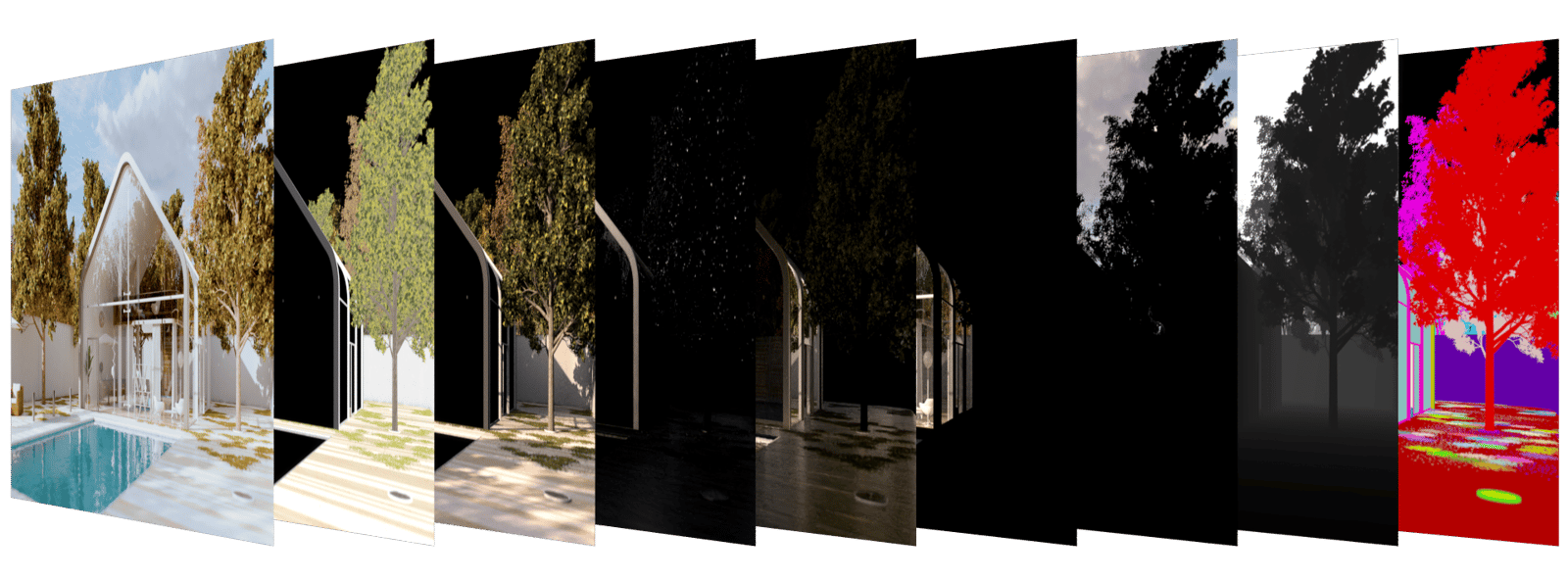
Where to find render channels
To open the Render Channels dialogue, follow this path:

||Render menu|| > Render image(s)... > select either Still Image or Sequence tab > Render settings > button
Render channel groups
Enscape Envision has three main groups of render channels:
- Beauty render channels form Envision's pre-composited final render pass.
- Geometry render channels generate geometry data for compositing.
- Mask render channels help you mask selections during compositing.
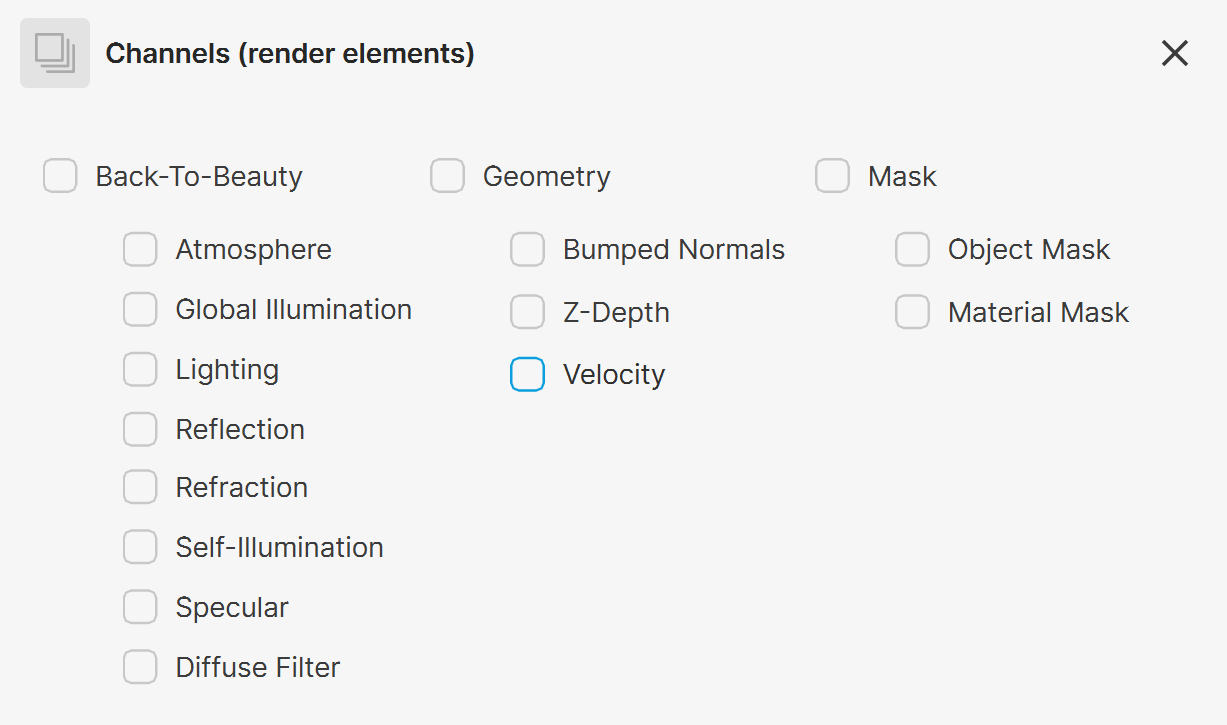
Supported render channels
Enscape Envision supports the following render channels.
Render channel name | Colour depth for PNG, JPEG channels | Colour depth for EXR floating-point channels | Description |
|---|
Render channel name | Colour depth for PNG, JPEG channels | Colour depth for EXR floating-point channels | Description |
|---|---|---|---|
Beauty | |||
Back-to-beauty group | 8bit | 16bit | Enables all beauty elements for rendering. |
Atmosphere | 8bit | 16bit | Atmospheric effects. |
Global Illumination | 8bit | 16bit | Diffuse global illumination on surfaces. |
Lighting | 8bit | 16bit | Diffuse direct lighting on surfaces. |
Reflection | 8bit | 16bit | Reflections on surfaces. |
Refraction | 8bit | 16bit | Refractions on surfaces. |
Self-Illumination | 8bit | 16bit | Self-illumination of surfaces. |
Specular | 8bit | 16bit | Specular highlights on surfaces. |
Diffuse Filter | 8bit | 16bit | Pure diffuse surface colour. |
Geometry | |||
Bumped Normals | 8bit | 16bit | Normals generated by bump maps, in screen space. |
Z-Depth | 8bit | 16bit | The scene's z-depth. |
Velocity | 8bit | 16bit | Surface velocity. |
Mask | |||
Object Mask | 8bit | 16bit | Object IDs, randomly assigned when the project first loads. |
Material Mask | 8bit | 16bit | The object's material ID. Material IDs are randomly assigned when the project first loads. |
Examples
These examples show how you can use individual render channels to adjust the final image in a compositing or image editing application. Click any image to view it at a higher resolution.
Back to Beauty composite
This example shows how individual render channels combine to form a beauty image.
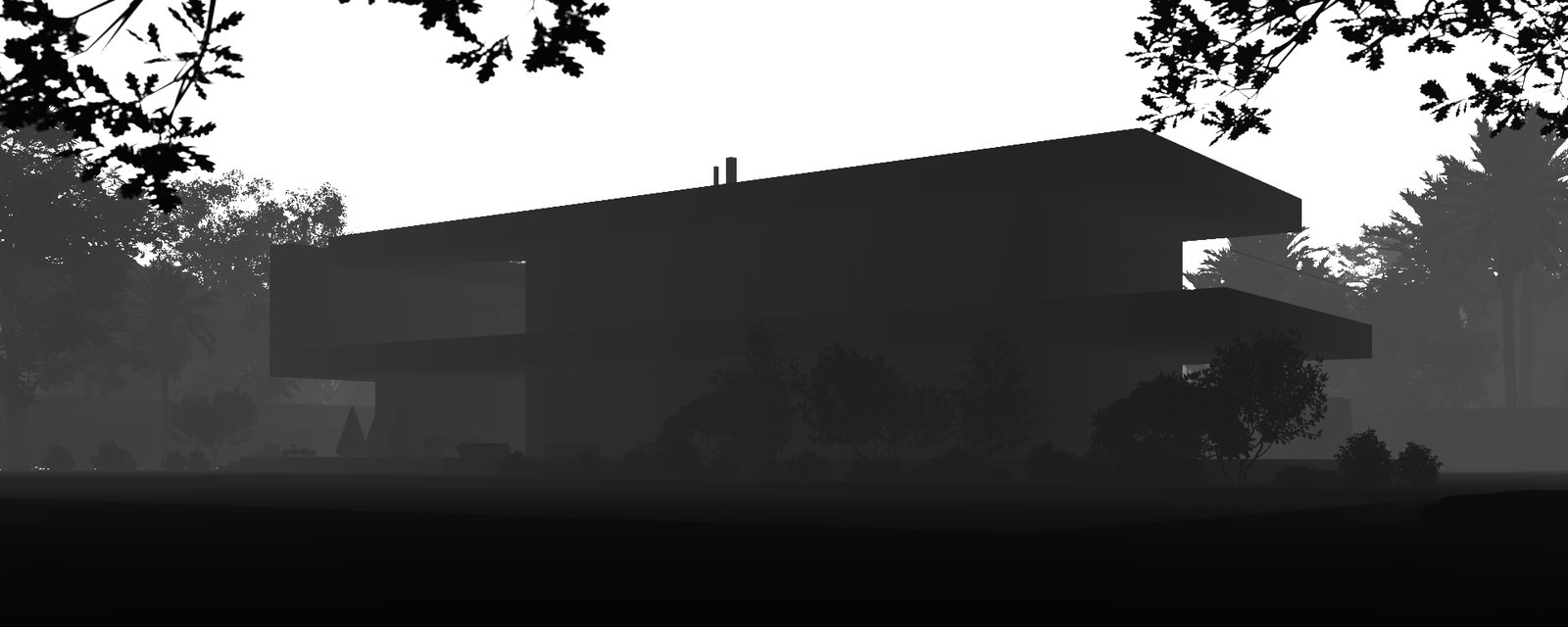
Atmosphere
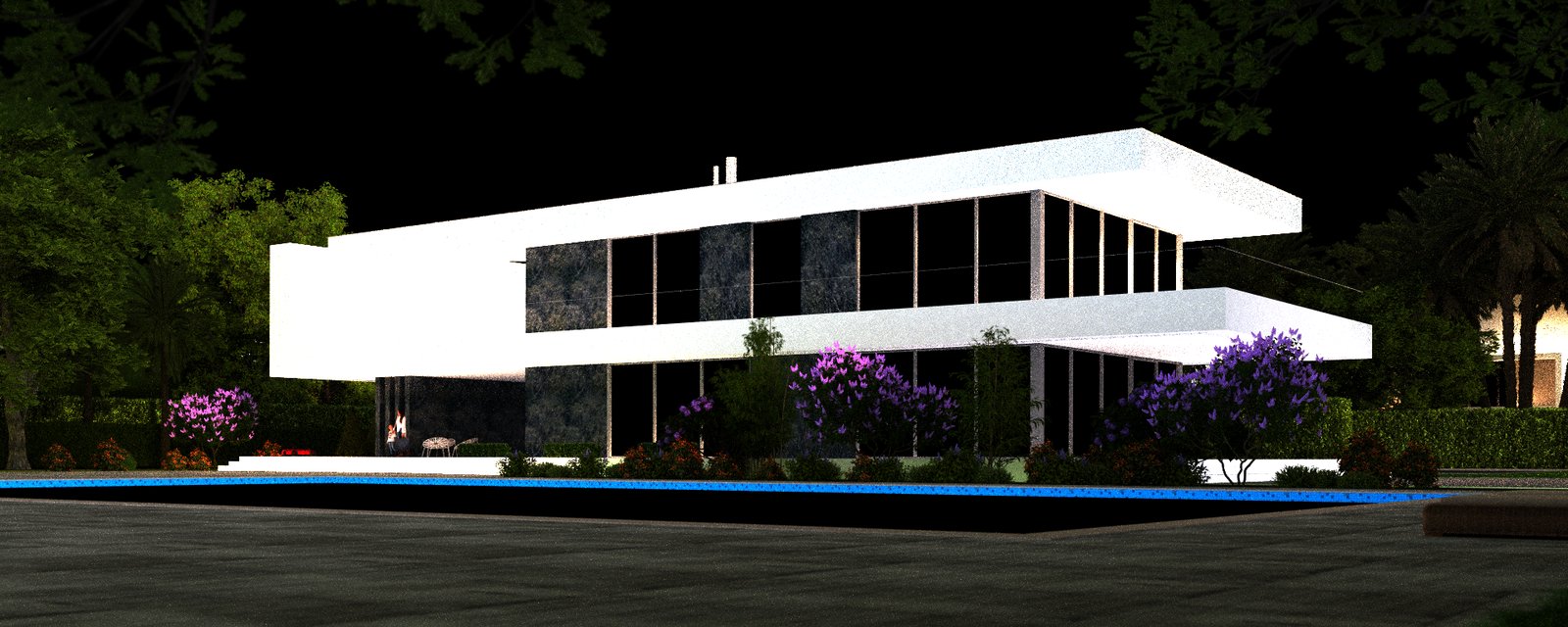
Global Illumination
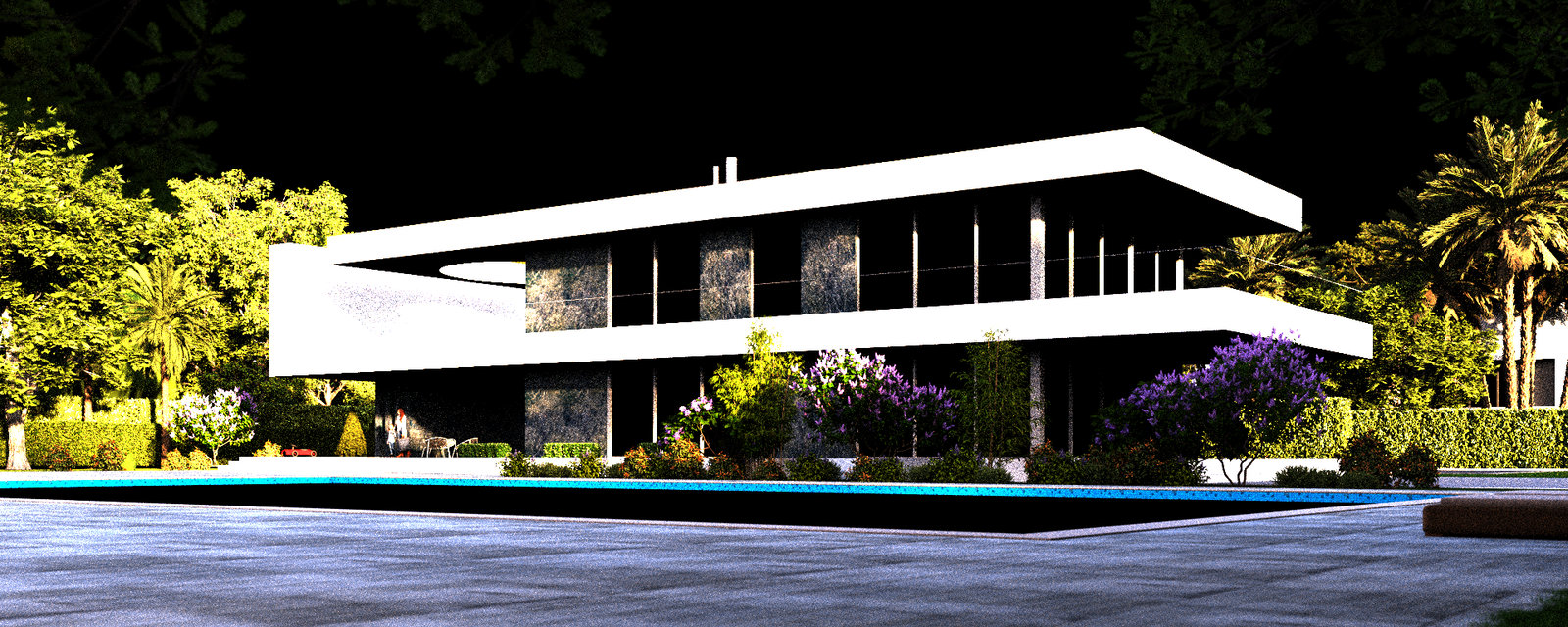
Lighting
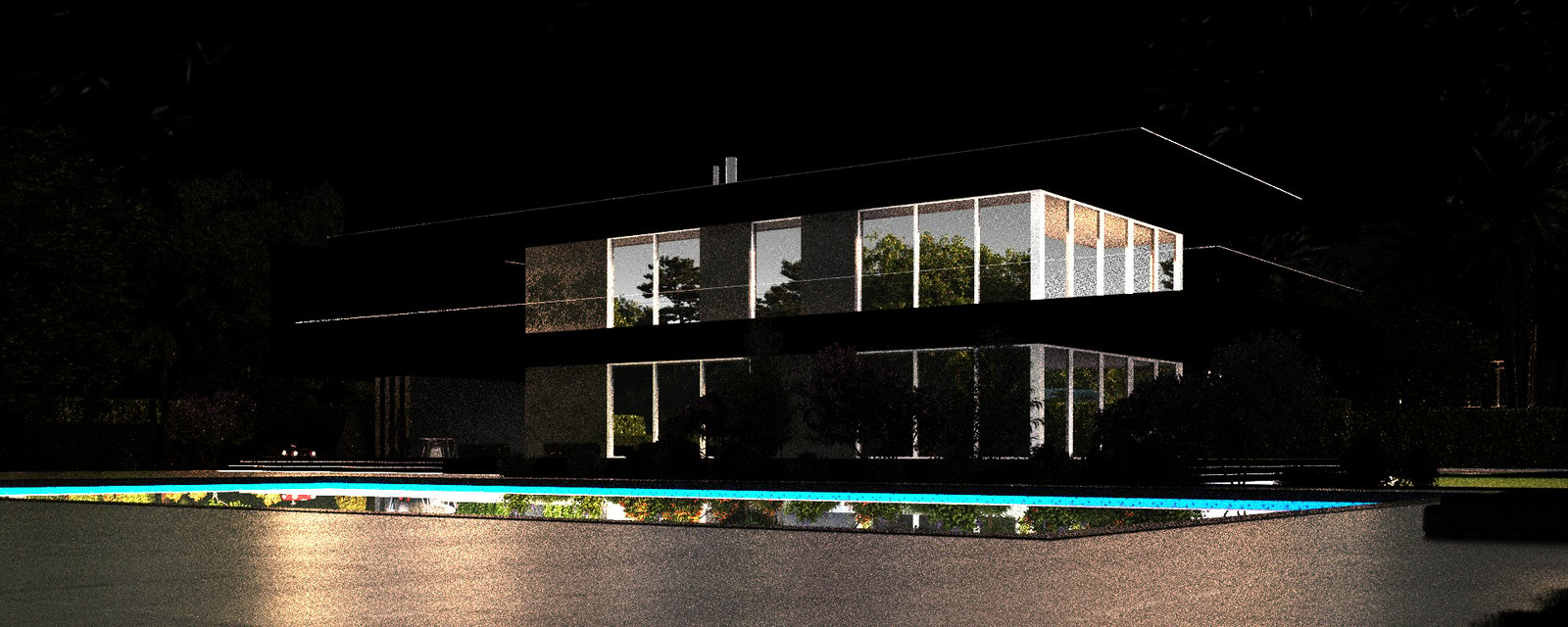
Reflection
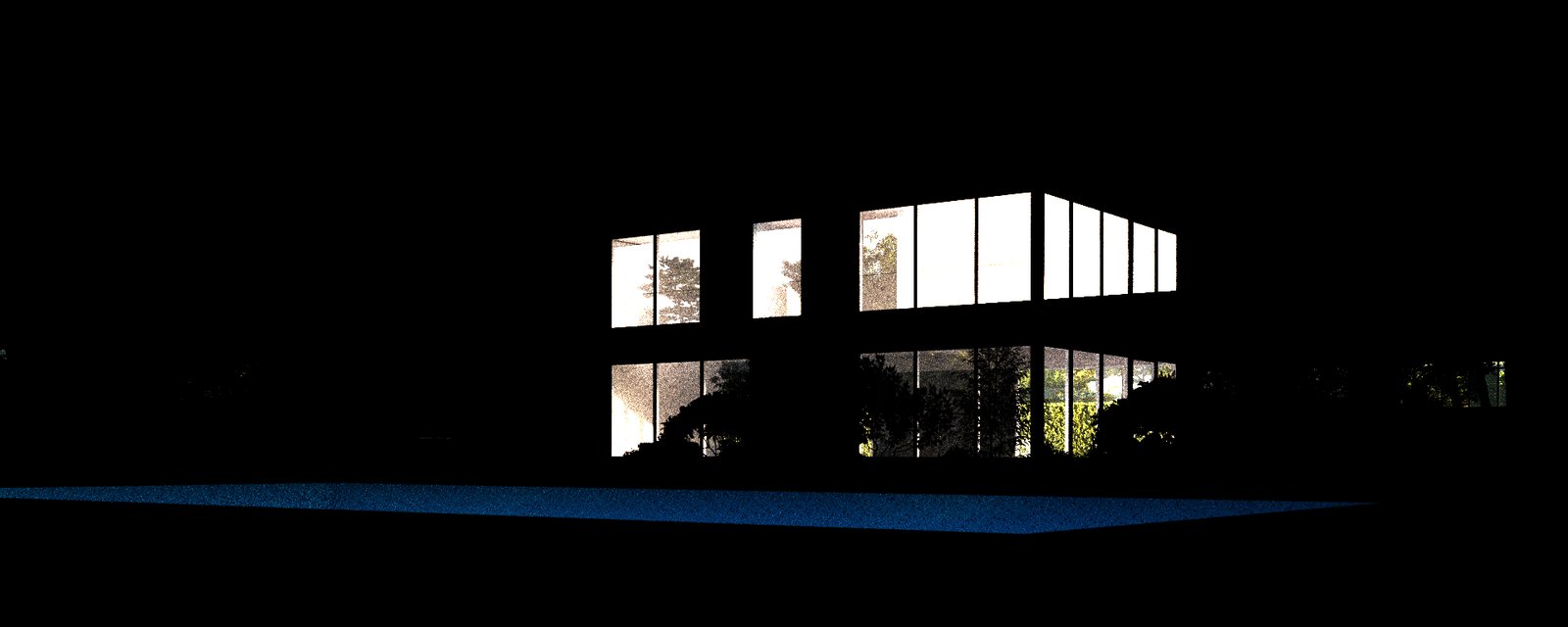
Refraction
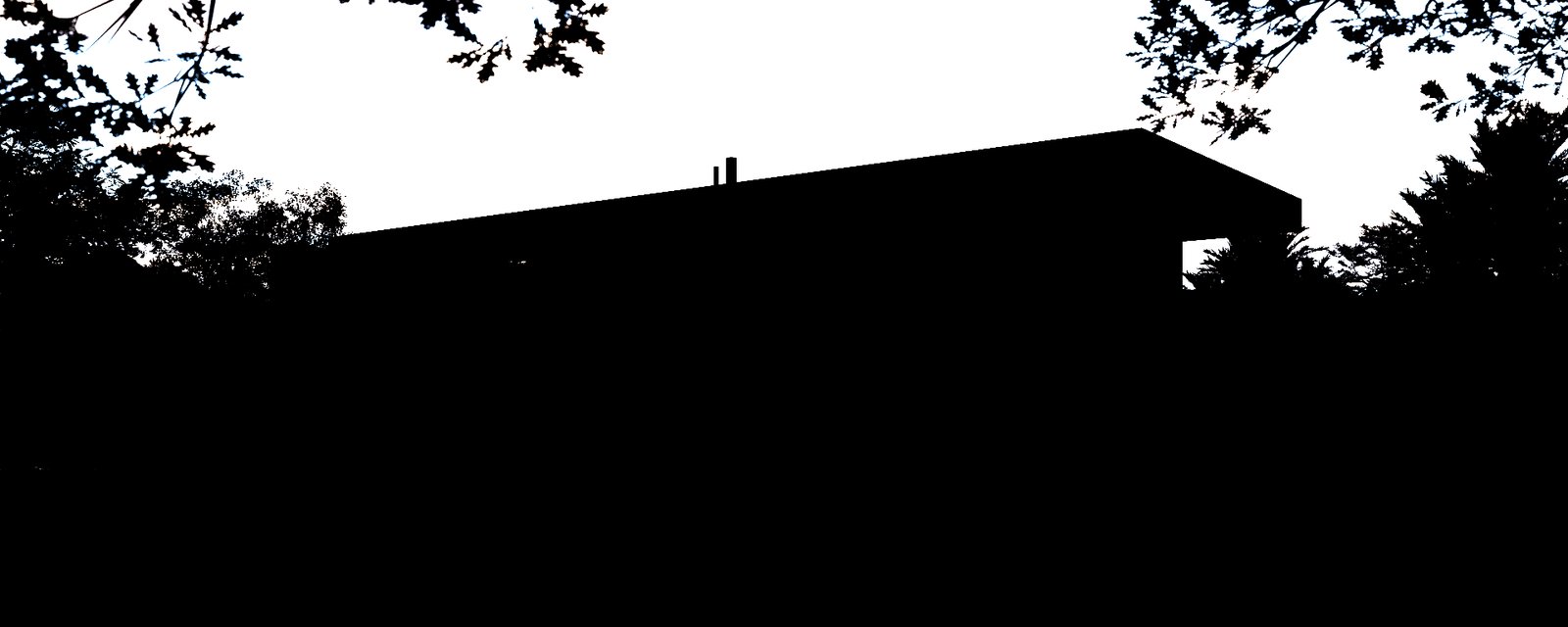
Self-Illumination
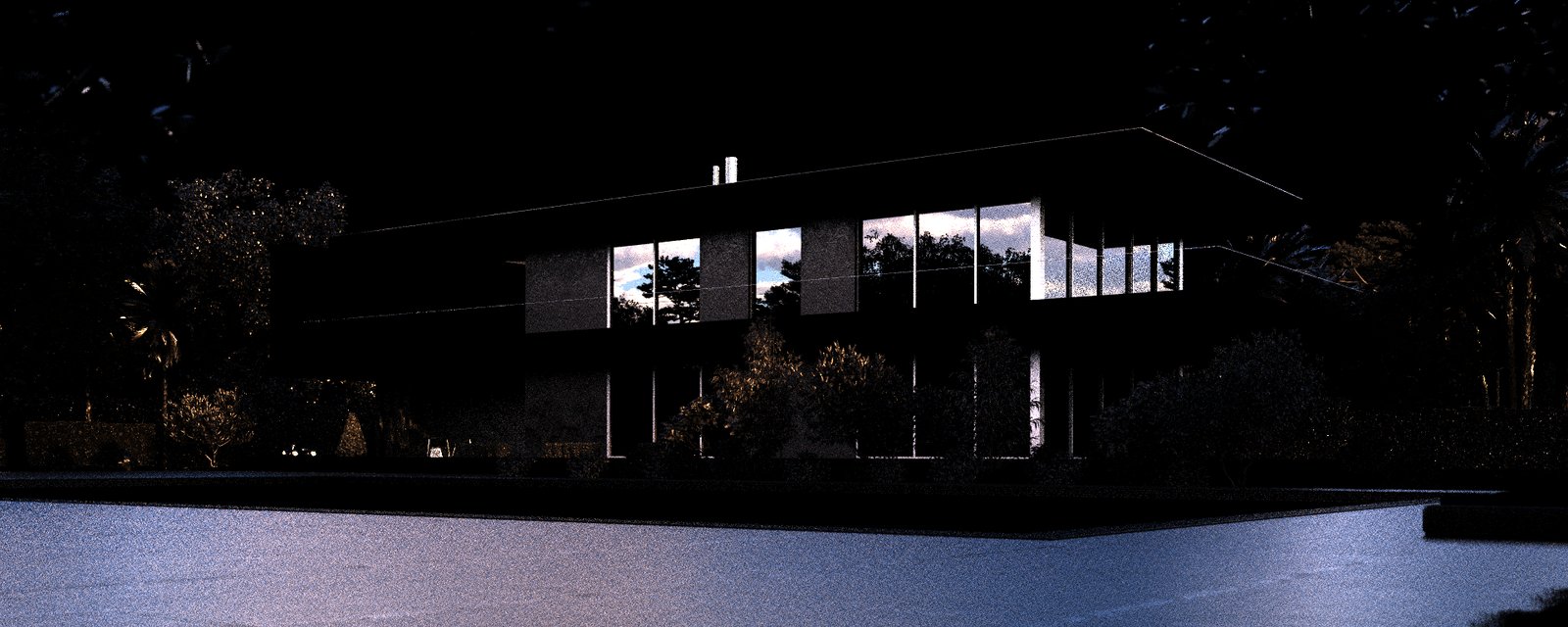
Specular
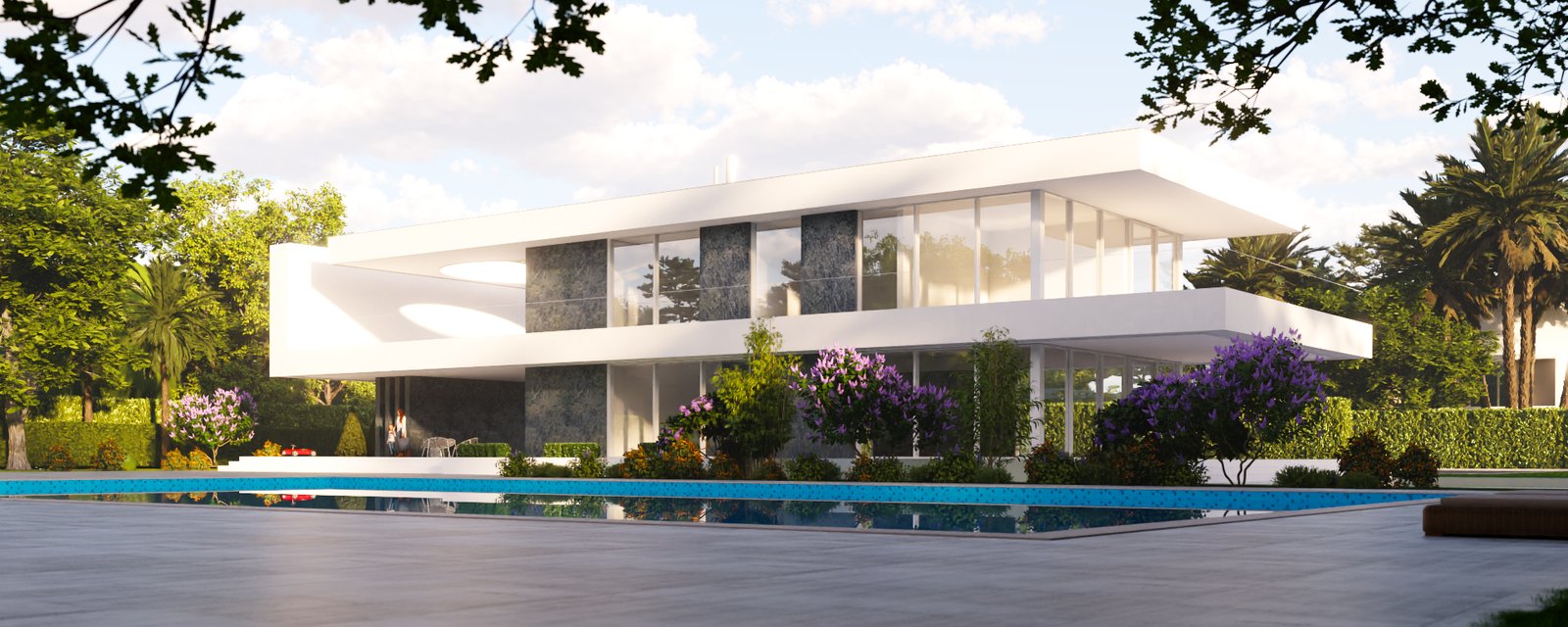
Beauty
Self-Illumination channel
Use the Self-Illumination channel to change the appearance of a self-illuminated surface after rendering. This example shows the adjustment in a compositing or image editing application.
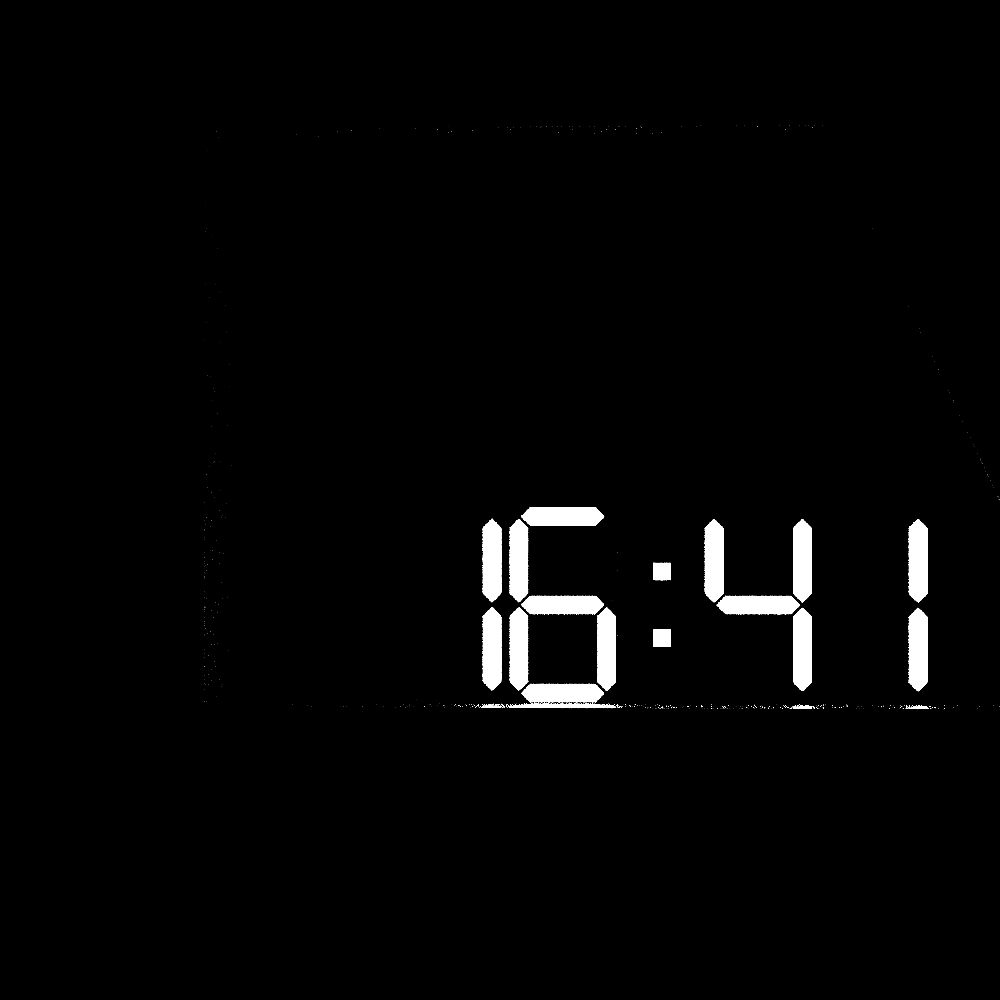
Self-Illumination
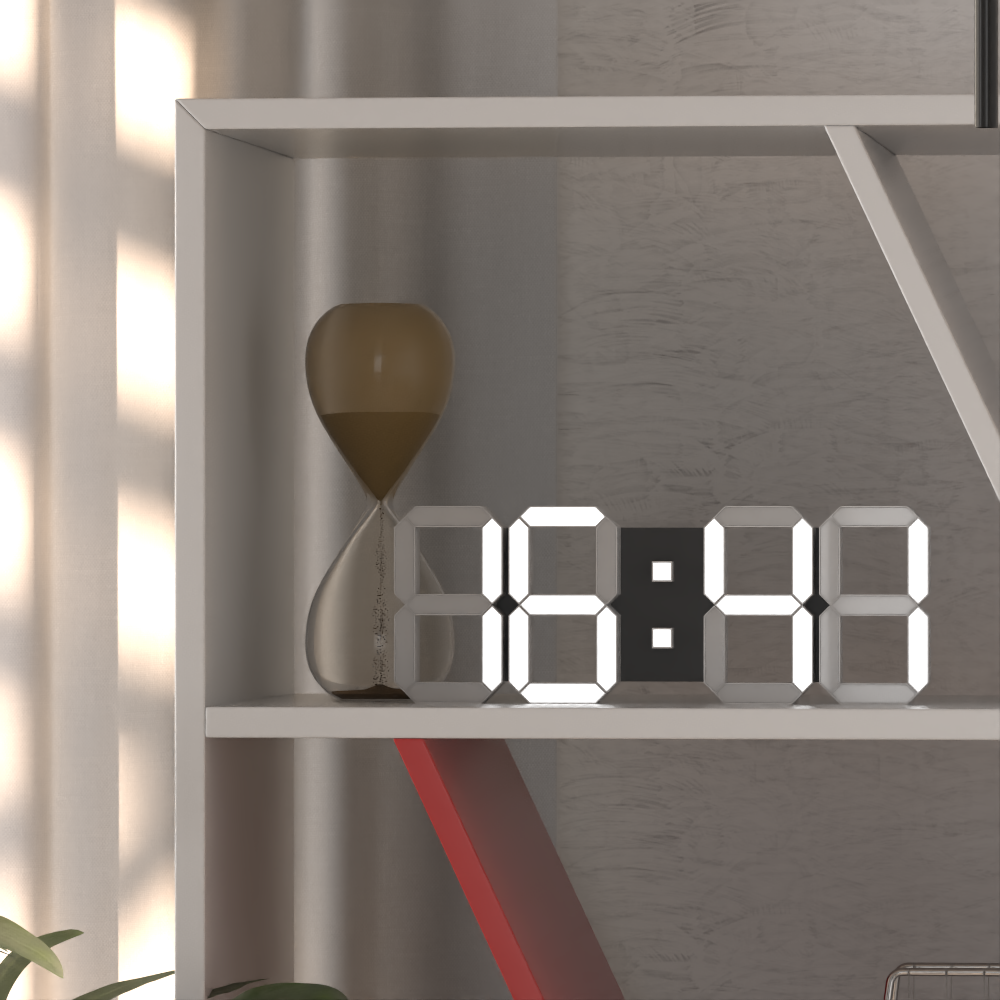
Beauty
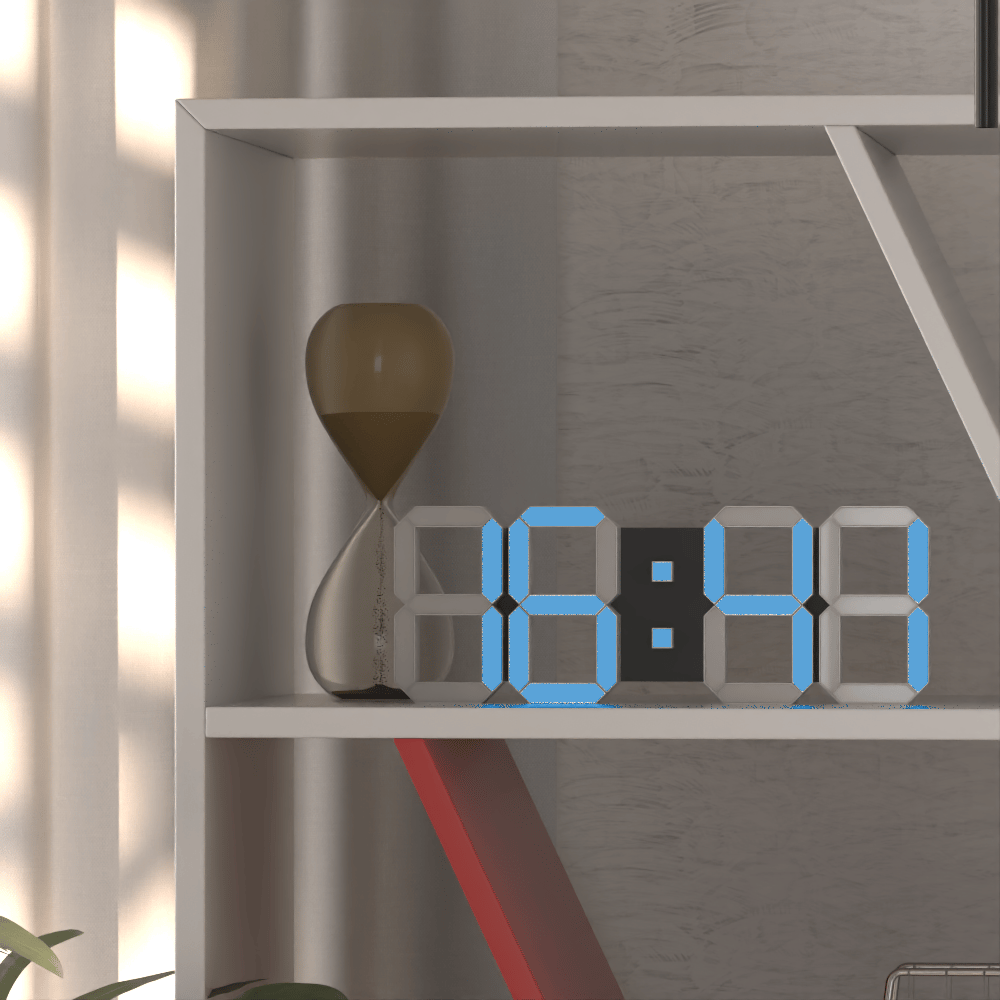
Beauty with changed colours
Lighting channel
Use the Lighting channel to adjust direct illumination in a compositing or image editing application. This example adds a warm tone to the lights during compositing.
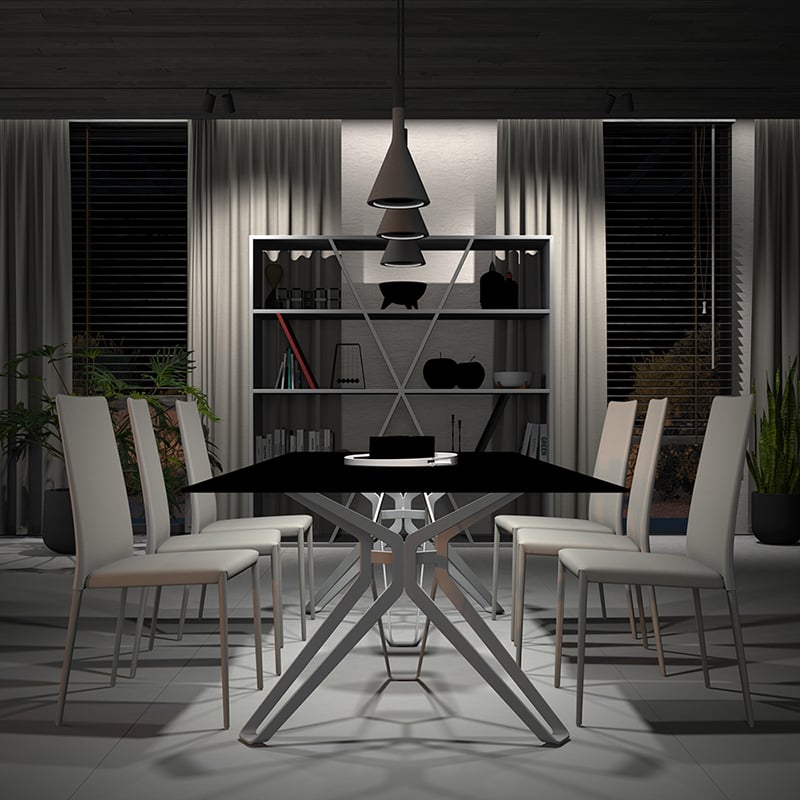
Lighting
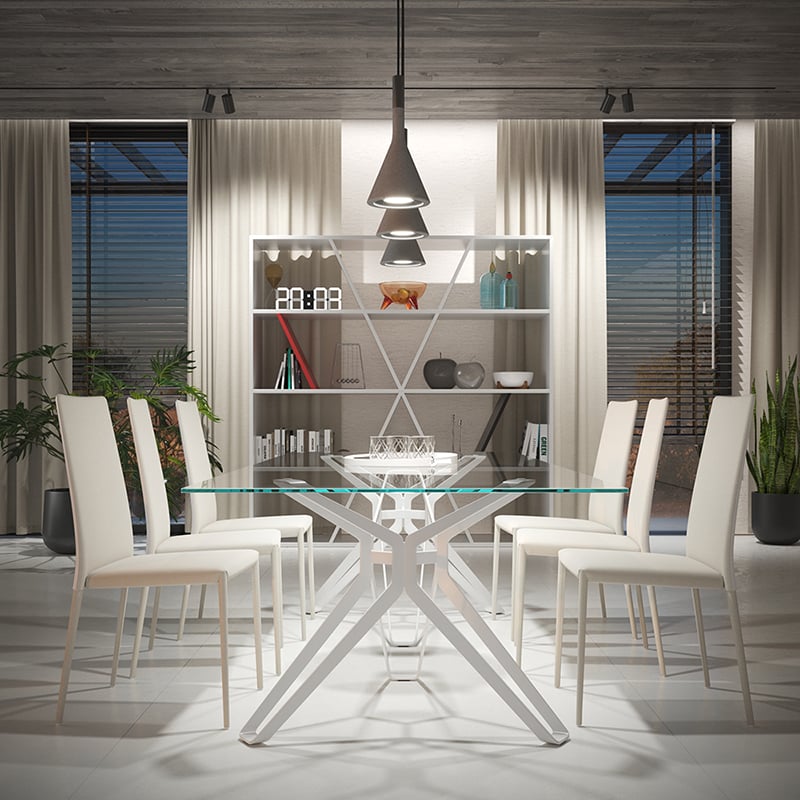
Beauty
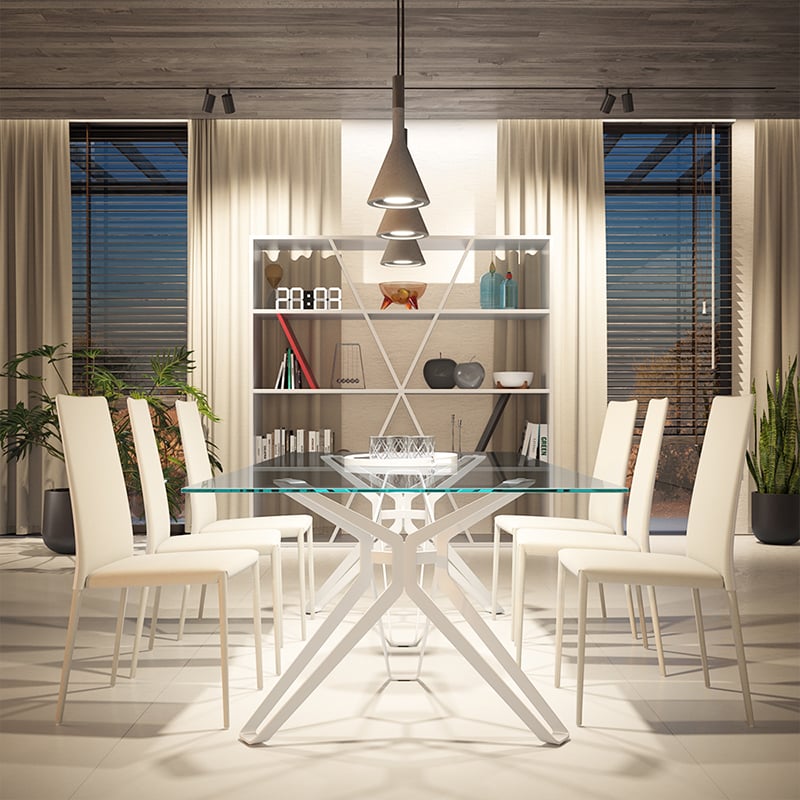
Beauty with warmed colours
The following examples show how to use geometry render channels.
Z-Depth
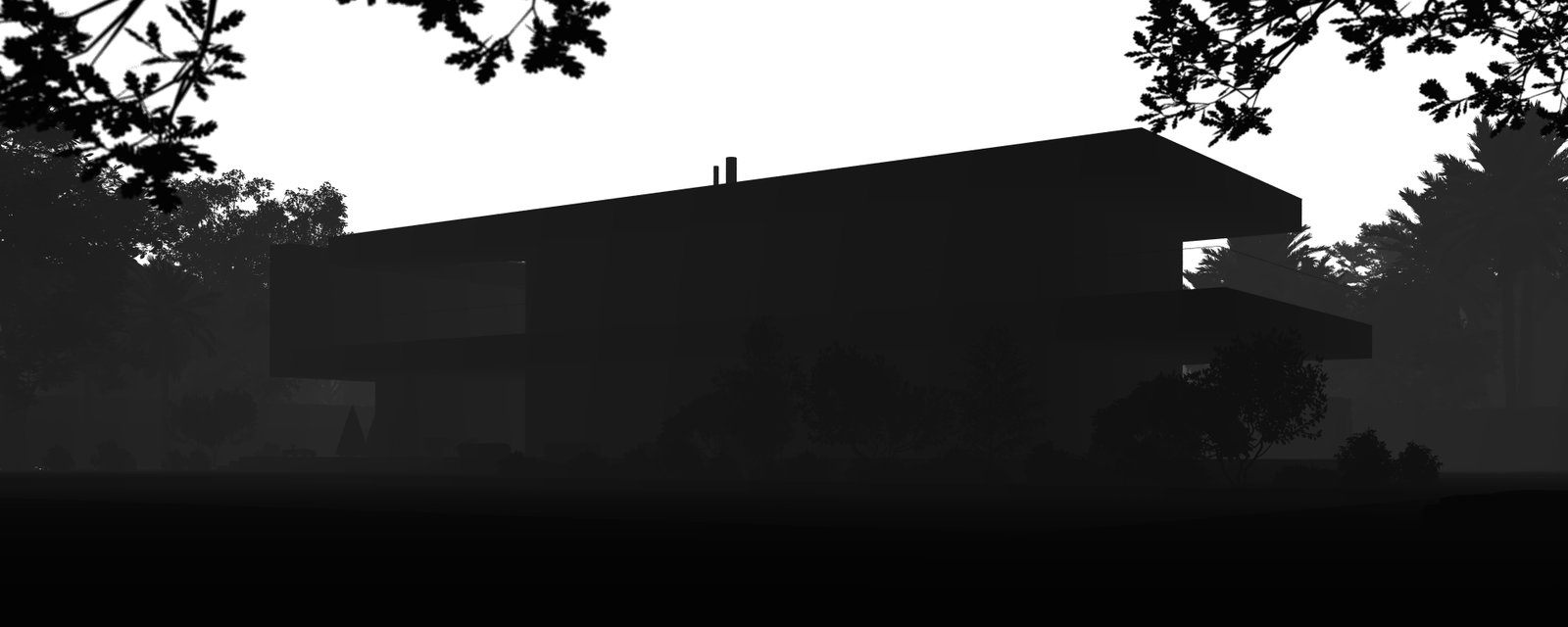
Z-Depth
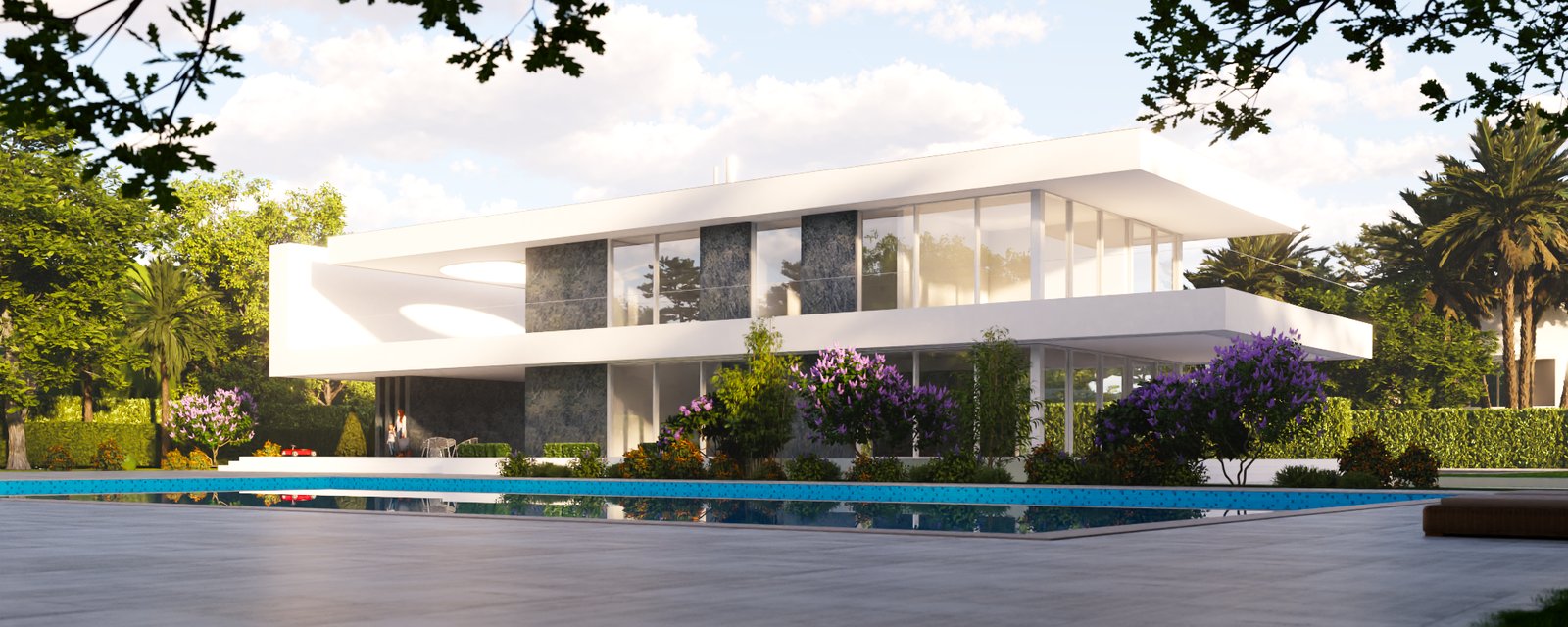
Beauty
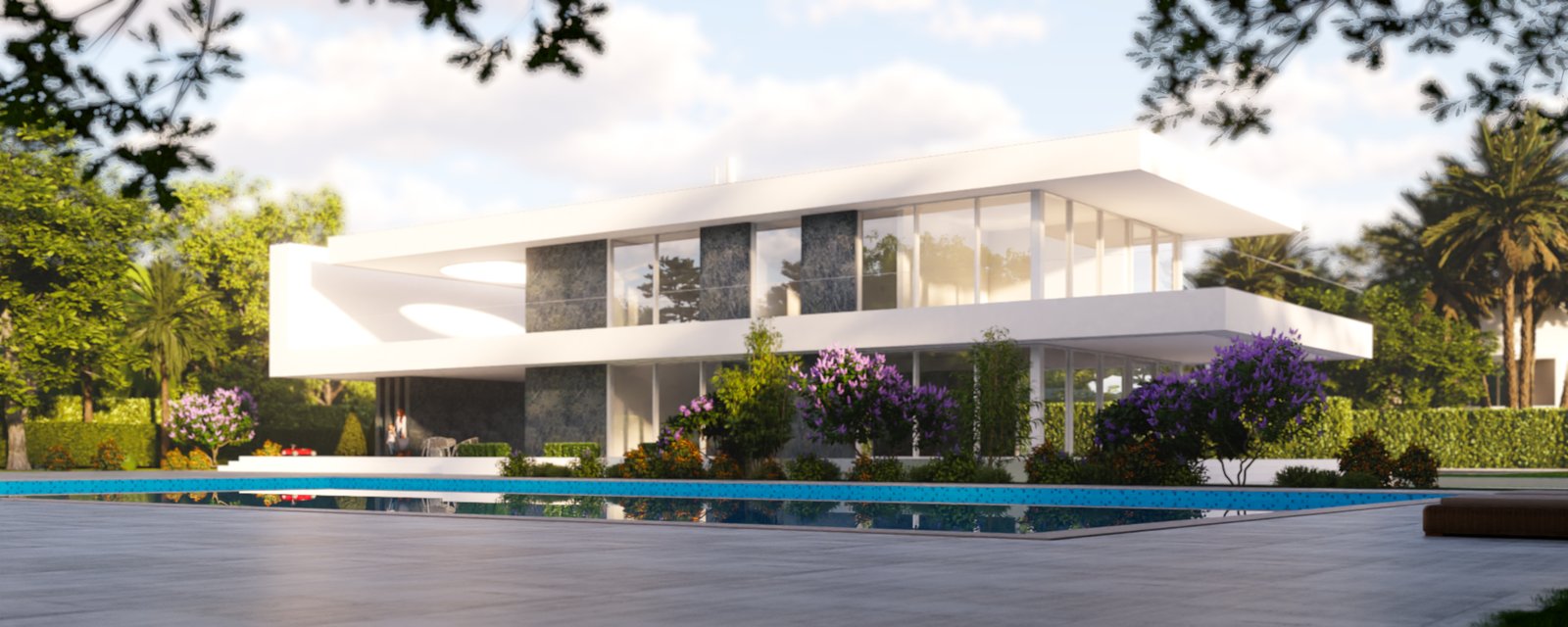
Depth of field applied to the composite using the Z-Depth render channel
The following examples show how to use mask render channels.
Object Mask channel
Use the Object Mask channel to isolate an object in a compositing or image editing application. This example isolates the pillow and changes its colour.
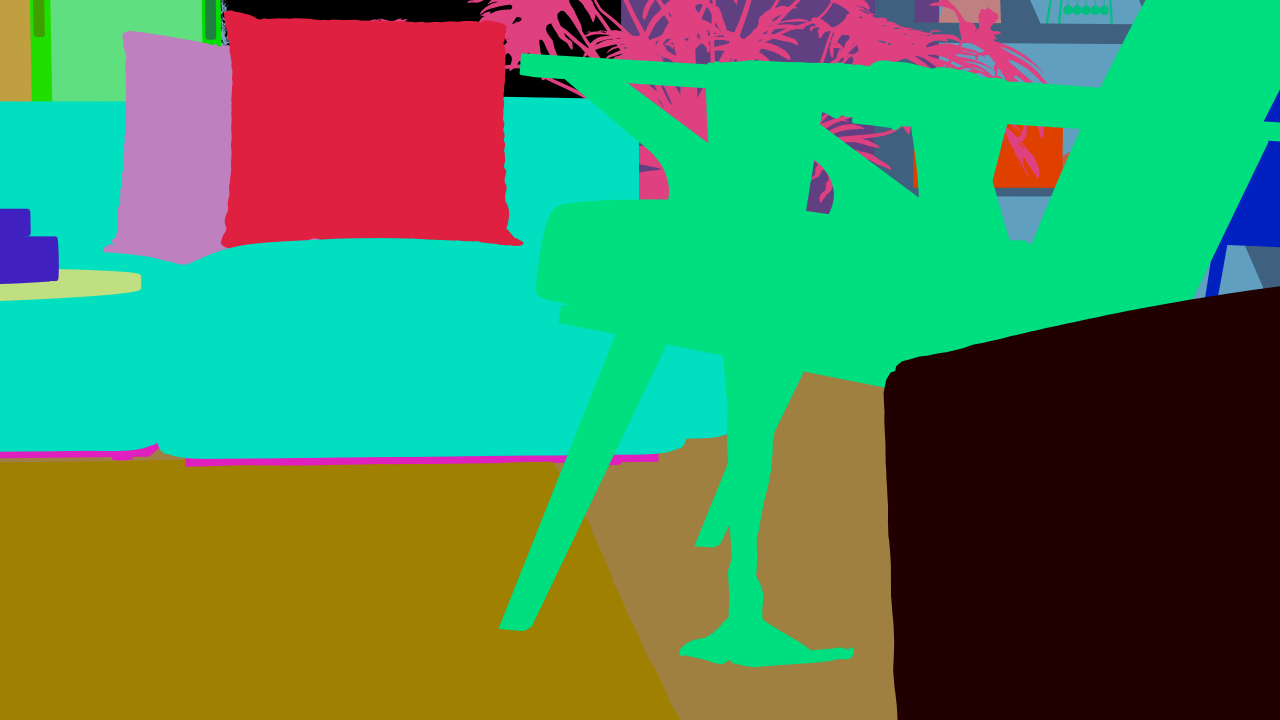
Object Mask
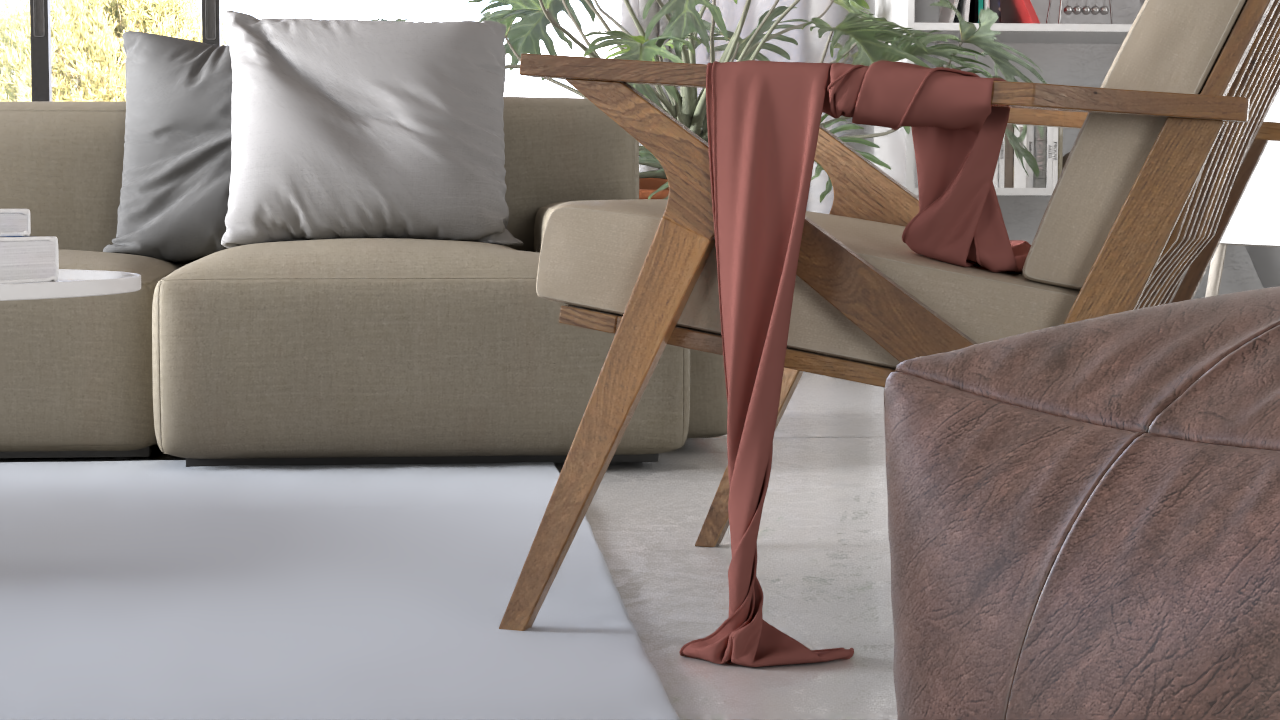
Beauty
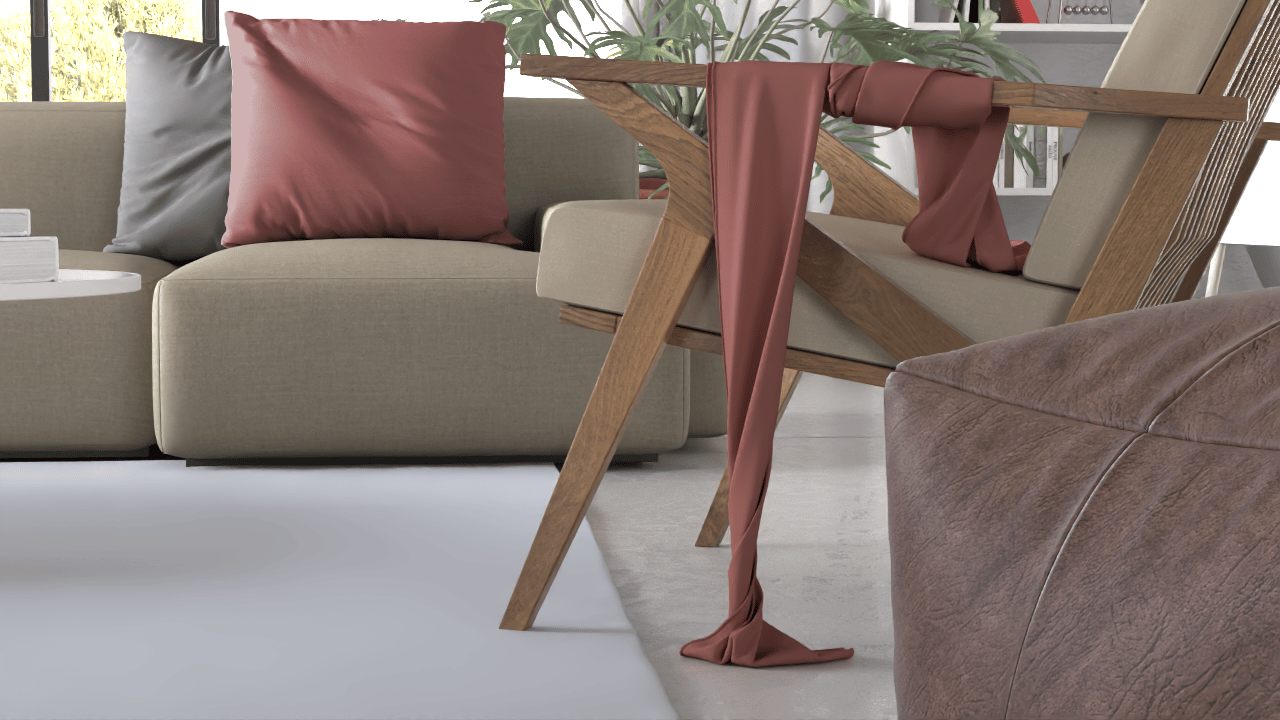
Beauty with changed colours
Material Mask channel
Use the Material Mask channel to isolate a material in a compositing or image editing application. This example isolates the ottoman's material and corrects its colour.
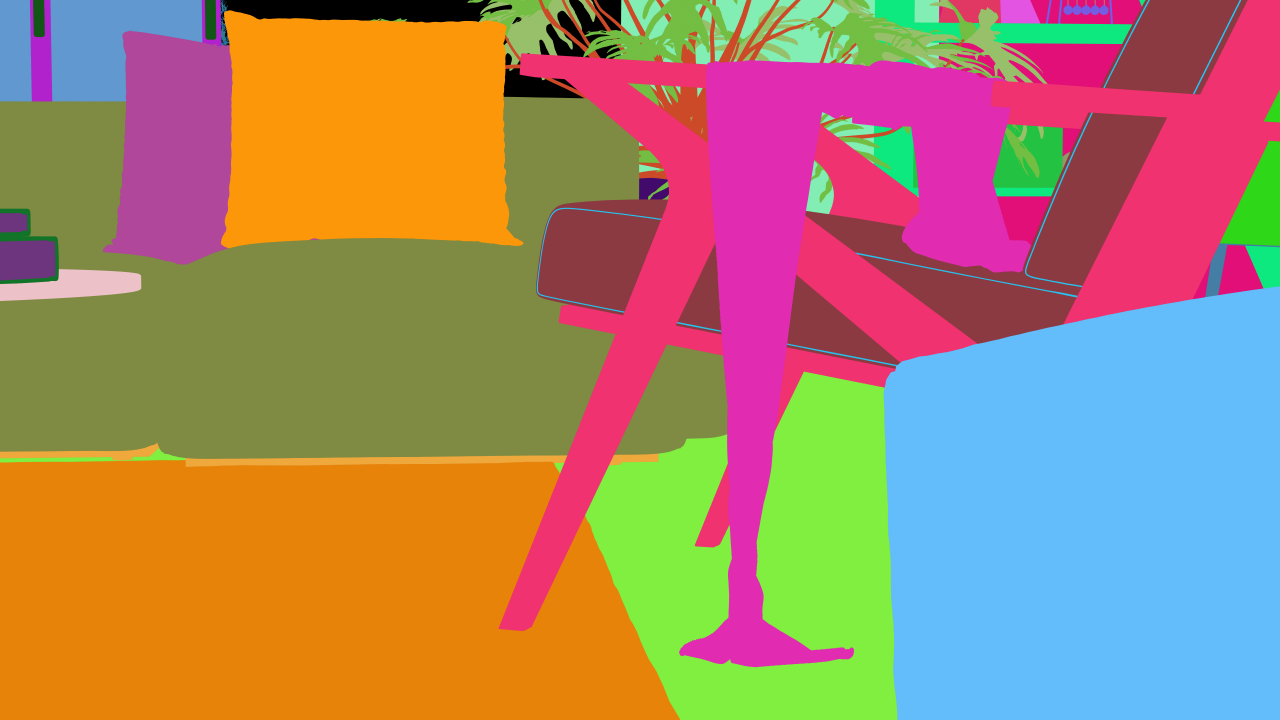
Material Mask
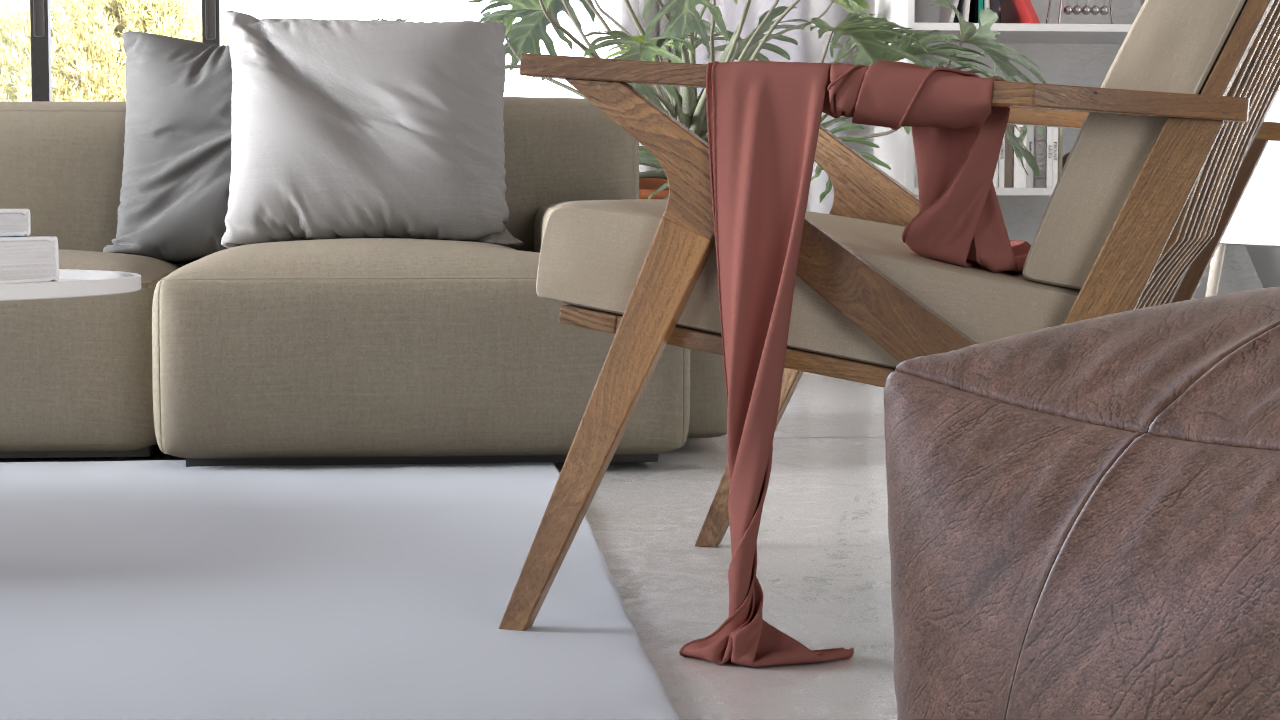
Beauty
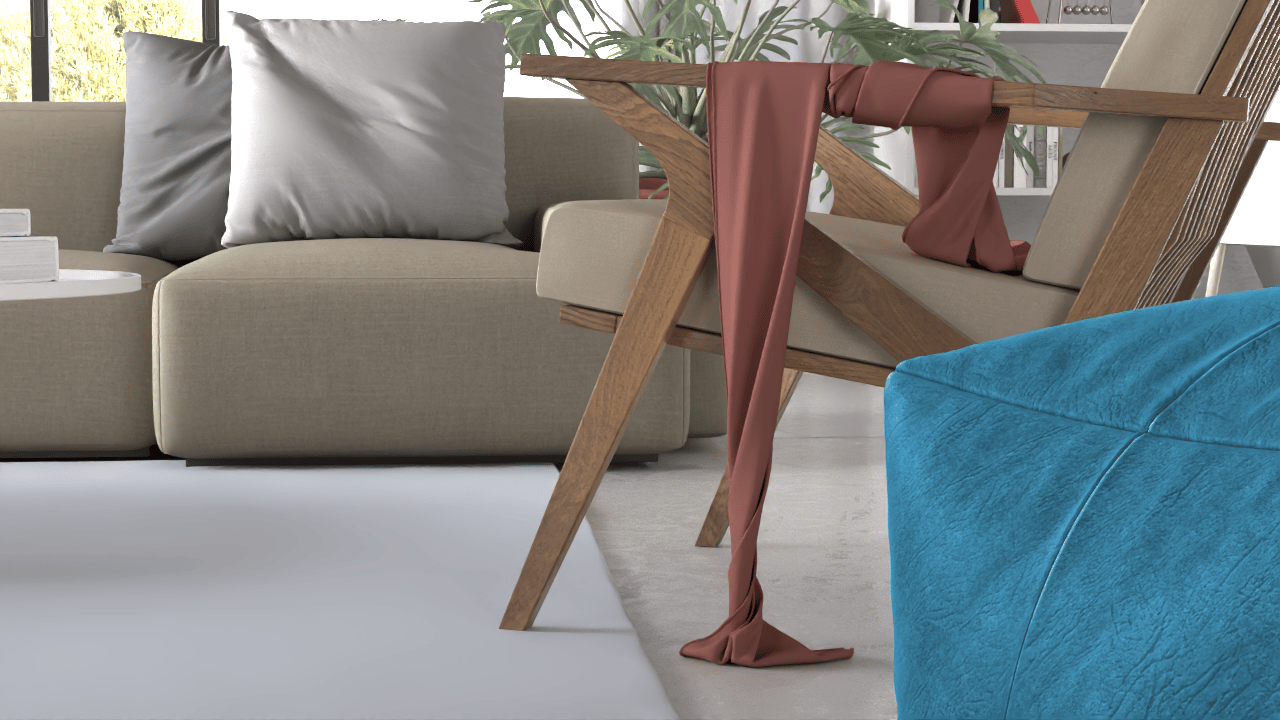
Beauty with changed colours
Notes
- Render channels are available only when you render a still image or an image sequence. Video files do not support render elements.