Replace individual objects or groups of objects with Cosmos assets in Enscape Envision.
Overview

Use the Replace with () button to replace objects individually or in bulk. It appears in the Details tab when you select one or more objects. To see the replaced objects and their replacements, turn on the Asset Replacer filter in the Objects tab on the left.
Replace objects with Cosmos assets
Select the object in the viewport first. To select multiple objects, use the Select by box tool or hold CTRL while selecting each object.
- With the objects selected, open the Details tab and click the Replace with () button. The Asset library opens so you can choose a Cosmos asset.
- Click the Cosmos asset's Import () icon to see the replacement options. You can replace the current selection or all instances of the selected objects.
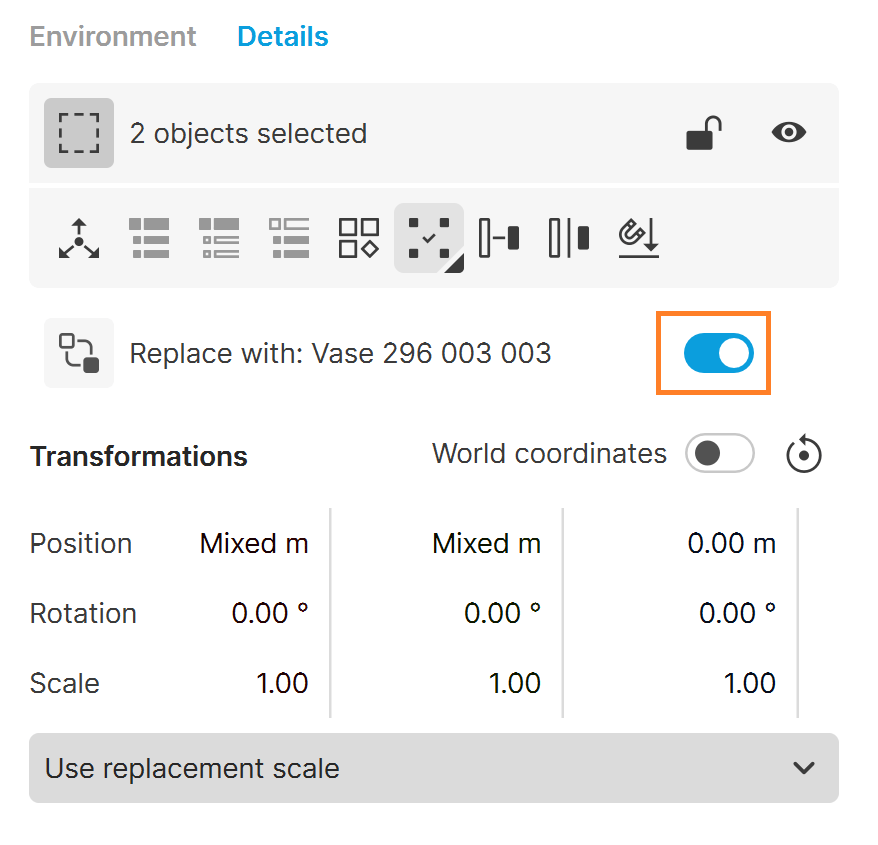
- After you replace the objects, a toggle appears next to the Replace with button. Use it to turn the replacement on or off.
- Turn on the Asset Replacer filter in the Objects tab to see the replaced objects and their replacements. The replacement object appears above the replaced objects, which are listed as child elements.
Video
Remove a replacement object
Turn off the toggle next to the Replace with () button to hide the replacement object. The link between the replaced objects and the replacement object remains.

To delete the replacement object completely, hover over the Replace with () button and click.
More information: