Enscape Envision
Standard Material
This page provides details about the Standard material in Enscape Envision.
Last updated 27 May 2026
This page provides details about the Standard material in Enscape Envision.
Overview
The Standard material parameters are grouped into base properties and effects. The base properties include parameters for managing base color and texture, bump, reflection, and refraction. The effects help you achieve specific looks such as opacity, coat, sheen, anisotropy, and much more.
The Standard material parameters are available in the Details tab when the Material configuration is set to Standard. They have two modes - Easy and Advanced.


Effects
Coat / Varnish
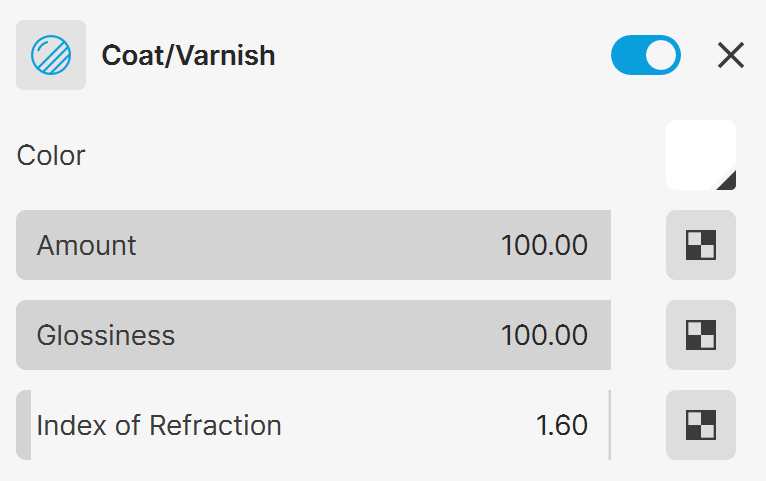
Coat/Varnish – Adds a coat/varnish layer on top of the material. See the Coat example below.
Amount – Controls the blending weight of the coat layer. A value of 0 does not add a coat layer, while higher values blend the coat gradually. A texture map can be used here.
Advanced Mode
The following parameters are available in Advanced mode only.
Color – Specifies the coat/varnish layer's color. A texture map can be used here. See the Coat example below.
Glossiness – Controls the sharpness of the coat layer reflection. A value of 1.0 means perfect glass-like reflection; lower values produce blurry or glossy reflections. A texture map can be used here.
Index of Refraction – Specifies the Index of Refraction (IOR) for the coat/varnish layer. Higher values make the material appear more reflective. A texture map can be used here.

Easy mode
Advanced mode
Cutout
Cutout – Adds a cutout texture to simulate perforations etc. Texture values below RGB 128 result in full transparency, while RGB 128 and higher result in full opacity.
Cutout texture – Allows picking the file to be used as the cutout texture.

Foliage
Foliage – Allows seeing the light on the backside of the objects. This effect is recommended for thin translucent surfaces such as foliages, but also paper, cloth curtains etc.
Translucency – Controls the translucency of the material. Higher slider values increase the translucency. If a texture is used, black color means no translucency, whereas white color means maximum translucency.

Self-illumination
Self-illumination – Allows the material to emit light.
Color – Controls the emission color of the surface. A texture can also be used as well as a mix between a color and a texture.
Intensity – Controls the intensity of the self-illumination.
Advanced Mode
The following parameters are available in Advanced mode only.
Texture – Specifies a texture for the self-illumination.

Easy mode

Advanced mode
Displacement
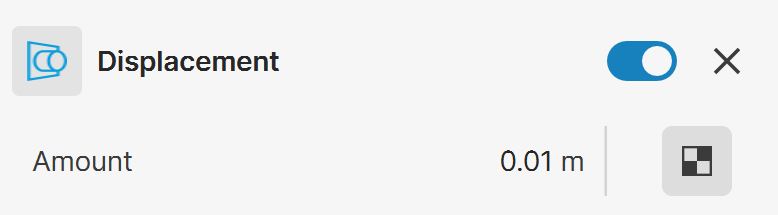
Displacement – Adds displacement to the material surface.
Amount – Specifies the amount of displacement. A value of 0.0 means the object appears unchanged. Higher values produce a greater displacement effect. This value can also be negative, in which case the displacement pushes geometry inside the object.
Texture – Specifies the displacement map.
Advanced Mode
The following parameters are available in Advanced mode only.
Shift – Specifies a constant which is added to the displacement map values, effectively shifting the displaced surface up and down along the normals. This value can be either positive or negative.
Easy mode

Advanced mode
Strands
Strands – Adds strands to the material surface. See the Strands Effect example below.
Distribution – Specifies how the density of strands is determined when they are spread over the source object.
Per face – The number of strands is calculated per triangular face of the source object. Every triangle generates the specified number of strands. Smaller faces have fewer strands, larger faces have more strands. Every face has at least one strand.
Per area – The number of strands is calculated per squared scene unit.
Density – A multiplier for the strand density. A texture map can be used here. See the Strands Density example below.
Length – Specifies the length of the strands. A texture map can be used here. See the Strands Effect example below.
Thickness – Specifies the thickness of the strands. A texture map can be used here.
Gravity – Controls the force that pulls strands down along the scene up-vector. Works together with the Bend parameter. A texture map can be used here. See the Strands Gravity example below.
Bend – Controls the elasticity of the strands. When set to 0.0, the strands are stiff and created as perfectly straight lines. Greater values cause the strands to bend (e.g. under the influence of gravity). A texture map can be used here.
Taper – Controls the taper of the individual strands. Increasing this value makes the tips thinner and the root wider.

Vairance
The settings in this tab allow adding variation to the corresponding strands parameters. Values range from 0.0 (no variation) to 1.0 (maximum variation).
Direction – Adds variation to the Direction parameter. Values range from 0.0 (no variation) to 1.0.
Length – Adds variation to the Length parameter. Values range from 0.0 (no variation) to 1.0.
Thickness – Adds variation to the Thickness parameter. Values range from 0.0 (no variation) to 1.0.
Gravity – Adds variation to the Gravity parameter. Values range from 0.0 (no variation) to 1.0.

Material
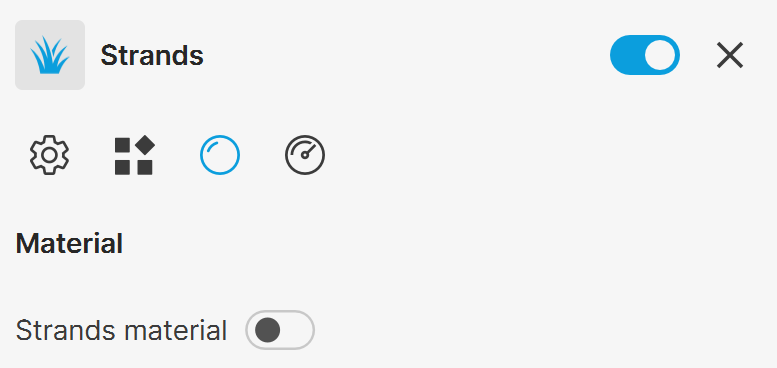
Strands material – Allows adding individual material to the strands. This feature is WIP.
Optimizations
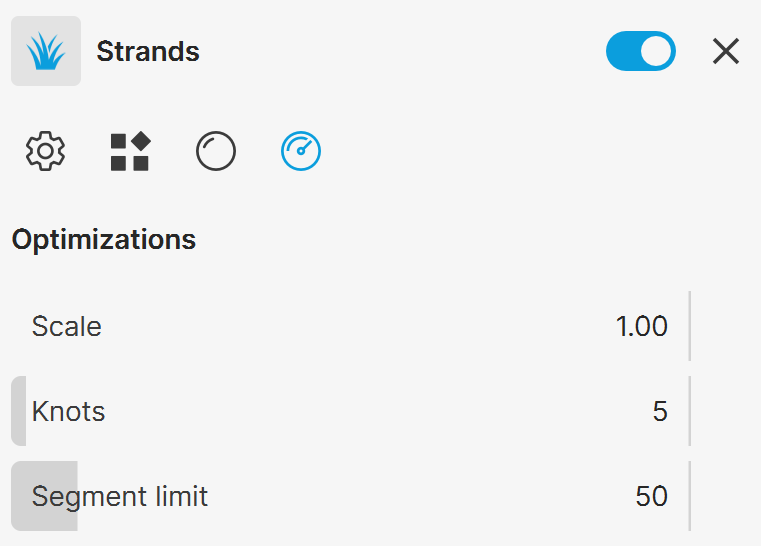
Scale – An overall multiplier for the strand scale.
Knots – Strands are rendered as several connected straight segments; this parameter controls the number of segments. More segments make the strands smoother, but also add to the render time. More segments are usually needed when the strands are curved. The more straight the strands are, the less segments are needed for a smooth result.
Segment limit – A limit for the number of segments to generate for this strand object. The limit is evenly distributed between the source objects. For example, with a limit of 50 million segments and 5 source objects, each source object will generate up to ~10 million segments.
Rounded Corners
Rounded corners – Rounds the corners of the surface the material is applied to.
Width – Specifies the width of the edges in scene units.
Advanced Mode
The following parameters are available in Advanced mode only.
Convex and concave edges – Rounded corners are applied to both convex and concave edges.
Convex edges only – Rounded corners are applied only to convex edges.
Concave edges only – Rounded corners are applied only to concave edges.
Affect edges that intersect other objects – When enabled, rounded corners are produced along the edges where the object assigned with that material intersects with other objects assigned with different material/s.

Easy mode

Advanced mode
Base Properties
The base properties are grouped into three sections: Base, Reflection and Transparency.
Base Properties
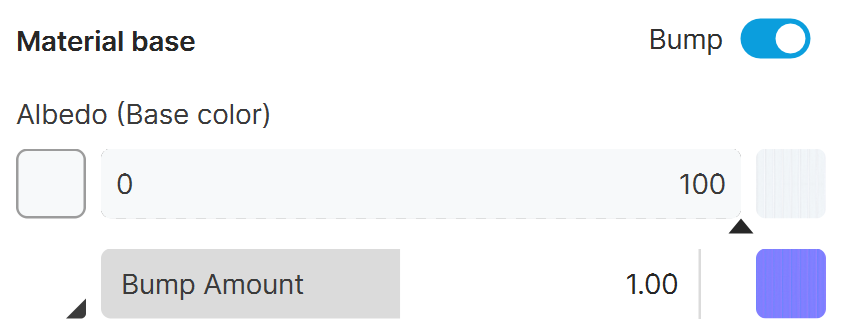
Bump – Enables the use of a bump/normal map.
Albedo (Base color) – Specifies the base color of the material. Use a color or a texture, or use the slider to blend between the two. See the Base Color example below.
Bump Type – Specifies whether a bump or normal map is going to be used.
Bump Amount – Bump allows for adding map-based relief to the material surface. Add a Bump texture and use the Bump Amount slider to control the amount of bump. Larger values make the bump effect more visible, whereas a value of 0 hides it completely.
Reflections
Amount – Controls the amount of reflectivity of the material. Set the amount using the slider, or via a color or a texture. A value of 0 or black means no reflectivity. A value of 100 or white means maximum reflectivity.
Advanced mode
The following parameters are available in Advanced mode only.
PBR – Toggles the Physically Based Rendering (PBR) mode. When enabled, you control the material's reflection appearance using roughness and metalness parameters. When disabled – using glossiness and strength.
PBR mode disabled:
Amount – Controls the amount of reflectivity of the material. Set the amount using the slider, or via a color or a texture. A value of 0 or black means no reflectivity. A value of 100 or white means maximum reflectivity.
Glossiness – Controls the sharpness of reflections. A value of 1.0 means perfect mirror-like reflection; lower values produce blurry or glossy reflections. See the Glossiness example below.
Strength – Allows finer control over the strength of the reflections. Higher values produce more intense metallic-like reflections. When Glass is toggled off, the Strength parameter corresponds to IOR. When Glass is toggled on, the Strength parameter adjust the strength of the reflections independently from the IOR.
PBR mode enabled:
Amount – Controls the reflectivity of the material. For physical accuracy, when PBR is enabled, the reflection amount i set automatically to 100%.
Roughness – Controls the blurriness of reflections. A value of 0.0 means perfect mirror-like reflection; higher values produce blurry or glossy reflections. See the Roughness example below.
Metalness – Specifies the reflection model of the material, i.e. how metallic the material appears. A value of 0.0 means non-metal surface (dielectric) such as plastic or ceramic. A value of 100.0 means fully metal surface such as silver or gold. While intermediate values are valid, they do not correspond to any physical material. See the Metalness example below.
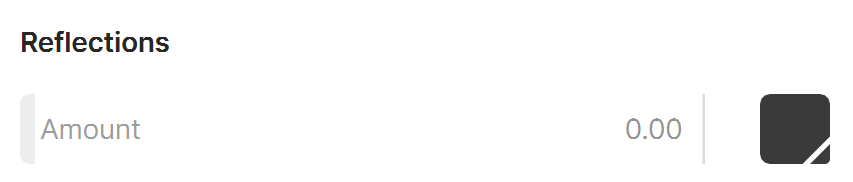
Easy mode

Advanced mode, PBR is OFF
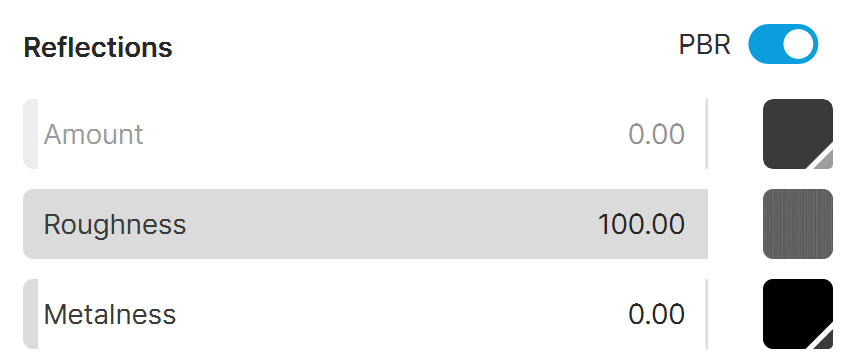
Advanced mode, PBR is ON
Transparency
Glass – Instantly makes the material appear as glass and unlocks additional glass-related properties.
The following option is available when Glass is disabled.
Opacity – Specifies the transparency of the material. When set to 0.0, the material is fully transparent. When set to 100.0, the material is fully opaque.
The following options are available when Glass is enabled.
Amount – When Glass is enabled, controls the transparency of the material. A value of 0.0 means that the material is fully opaque. A value of 100.0 means that the material is fully transparent. When using a color or texture, black color indicates no transparency, white means full transparency.
Index of Refraction – Defines how the material refracts light (this affects how much objects behind this material are distorted) and how reflective it is. Typical values are 1.52 for glass and 1.33 for water. A value of 1 means that the light doesn't change direction.
Frost – Defines the roughness of the material's refraction. Higher values produce a frosted glass look.
Tint – A combined color/texture slot that defines the color tint for the material's refraction. The slider controls the tint strength. Larger values increase the tint strength, making the material more opaque.
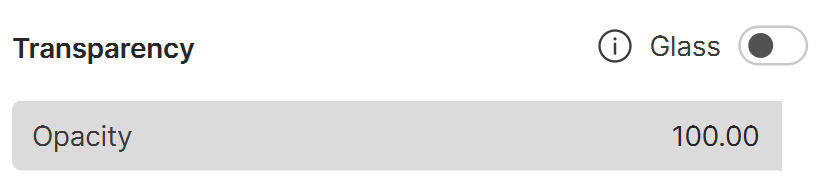
Glass is disabled.

Glass is enabled.
Examples
The following examples demonstrate the effect that individual Standard material parameters and effects have on the material appearance. Click on any image to view it at a higher resolution.
Example: Base Color
This example shows the effect of the Base color parameter.

Base color is white
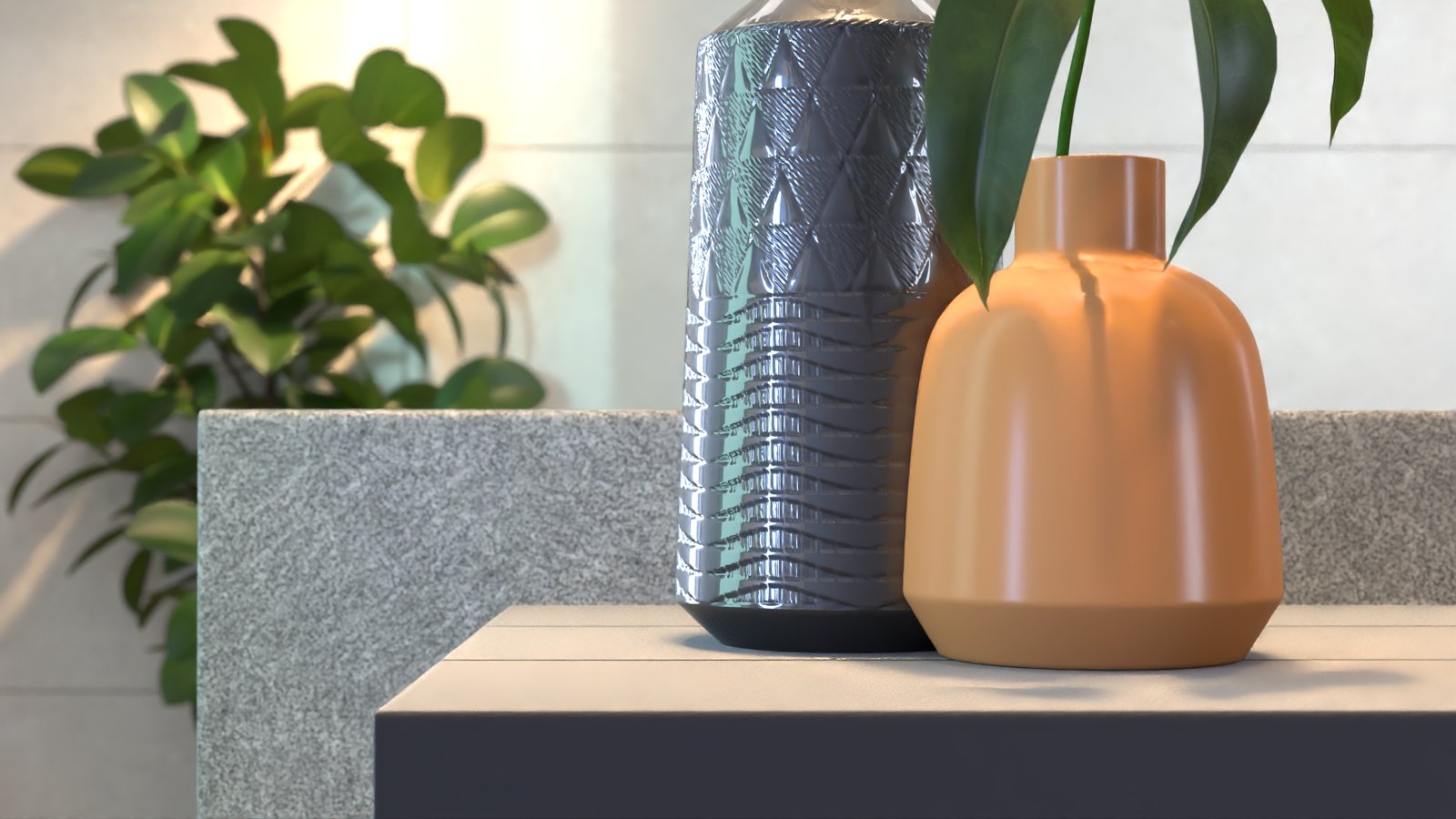
Base color is orange
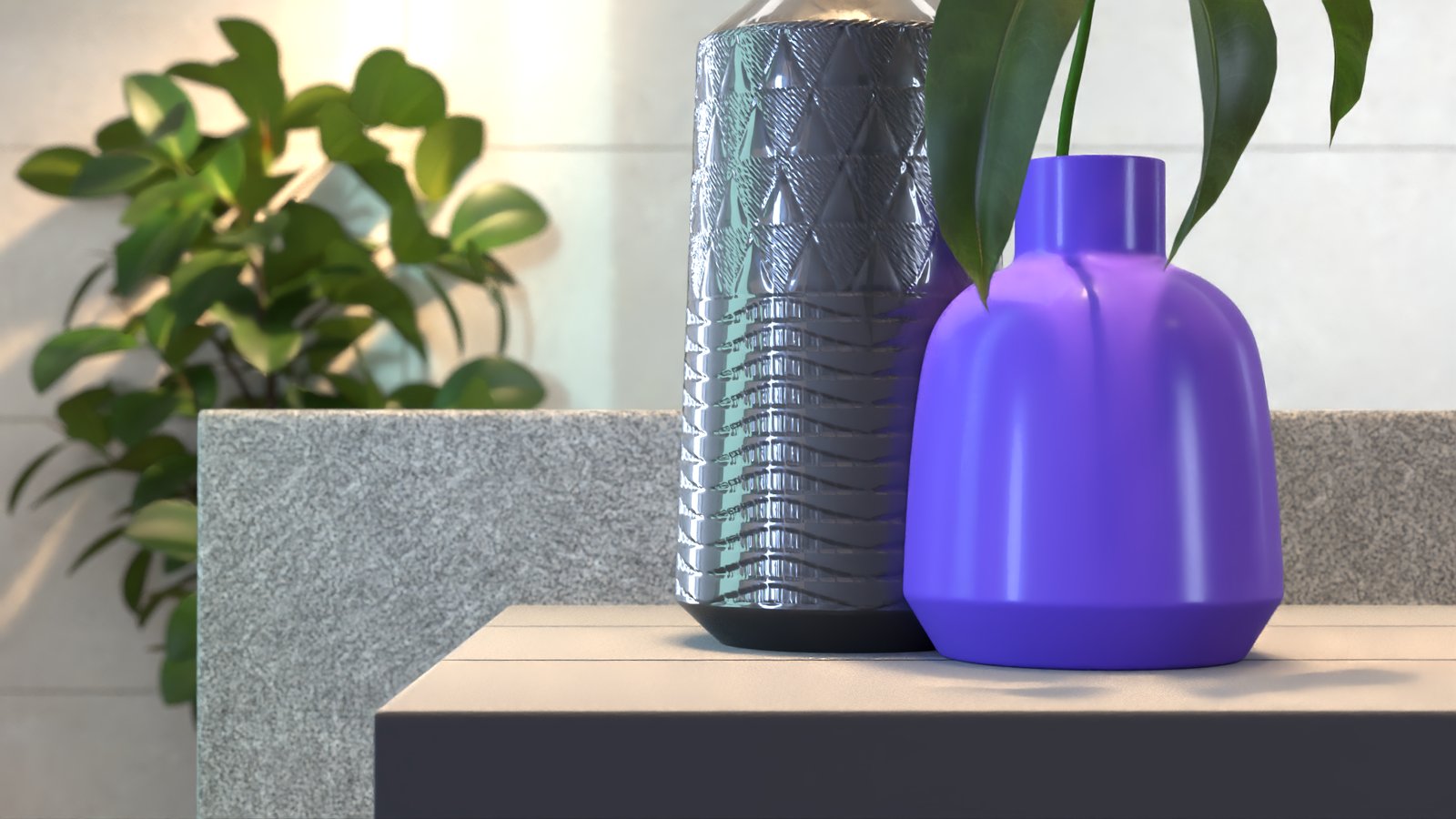
Base color is purple
Example: Roughness
This example shows the effect of the Roughness parameter when PBR Reflections are enabled. The higher the value, the less reflective the material becomes.

Roughness = 0

Roughness = 25
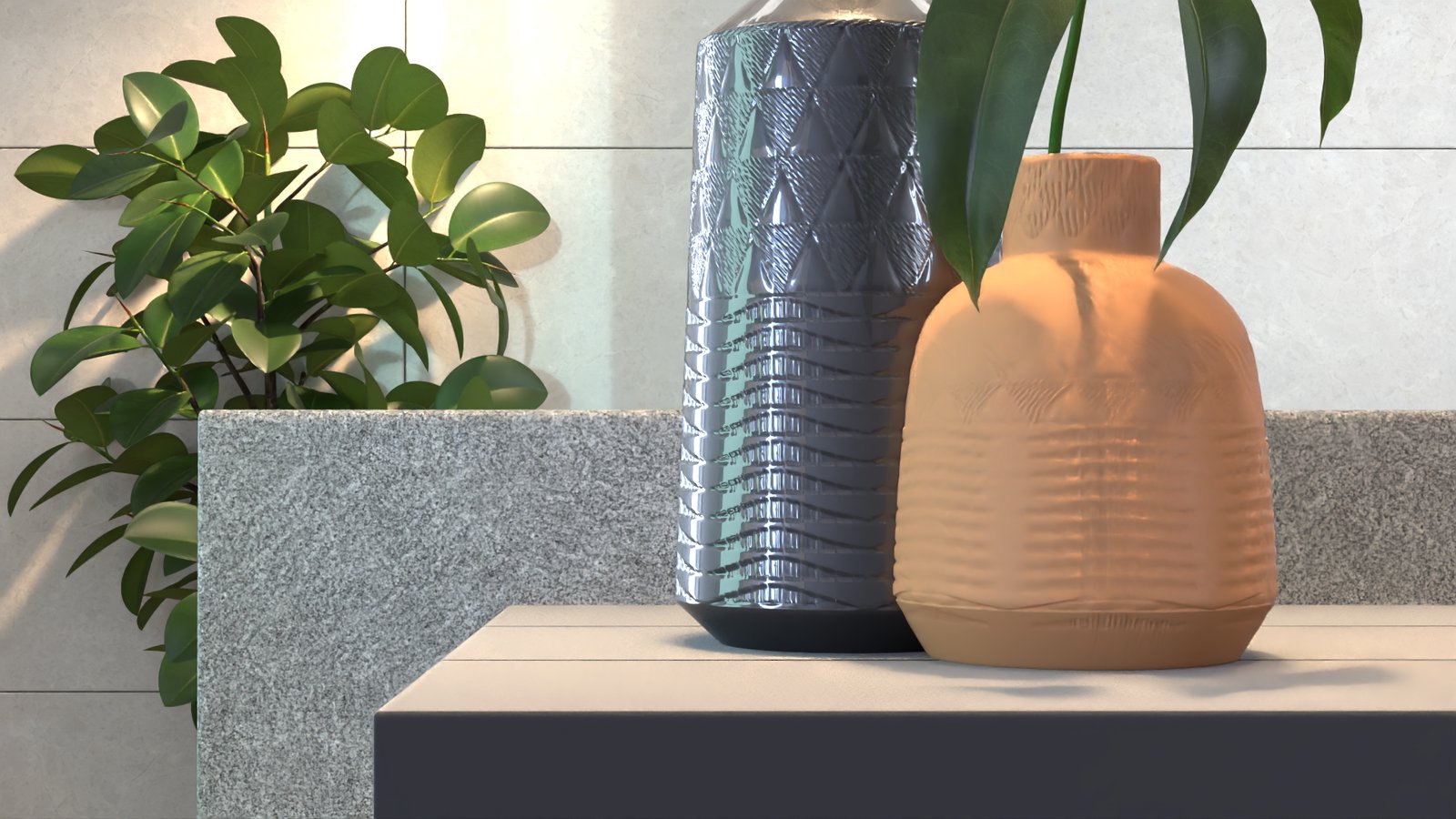
Roughness = 50
Example: Glossiness
This example shows the effect of the Glossiness parameter when PBR Reflections are disabled. The higher the value, the more reflective the material becomes.

Glossiness = 0
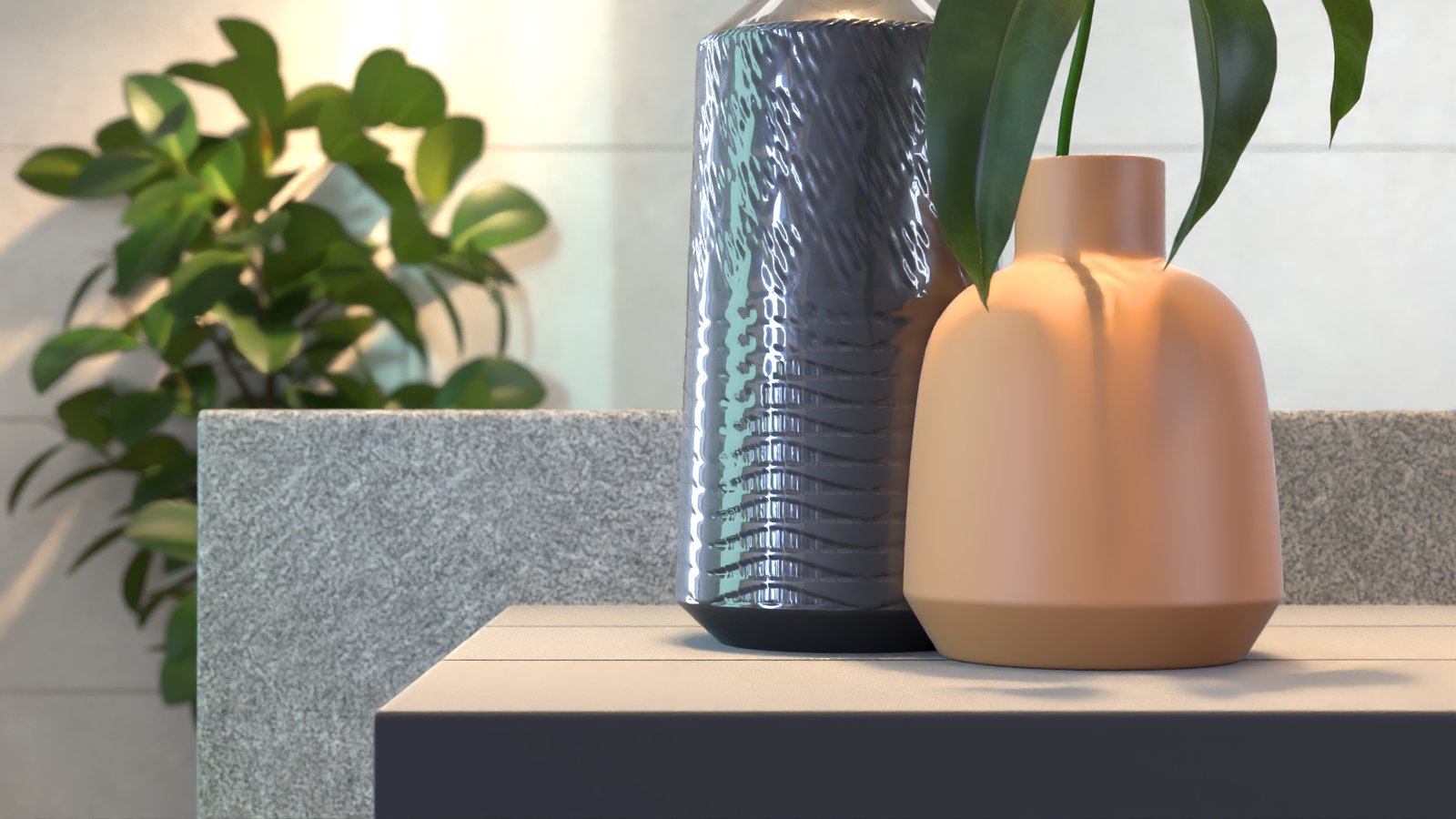
Glossiness = 50

Glossiness = 100
Example: Metalness
This example shows the effect of the Roughness parameter when PBR Reflections are enabled.
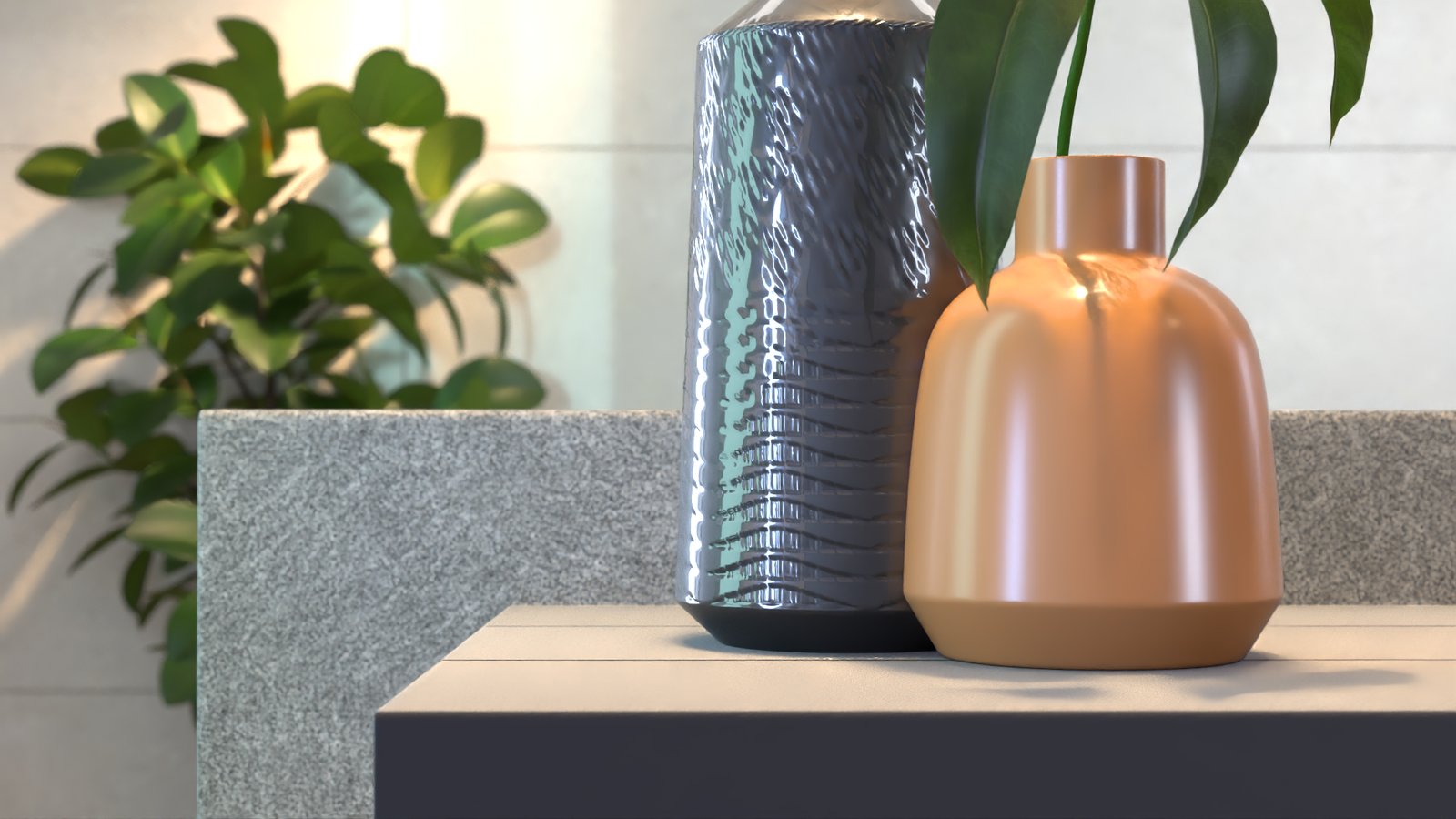
Metalness = 0

Metalness = 50

Metalness = 100
Example: Coat Effect
This example shows the effect of the Coat effect.

Coat is disabled
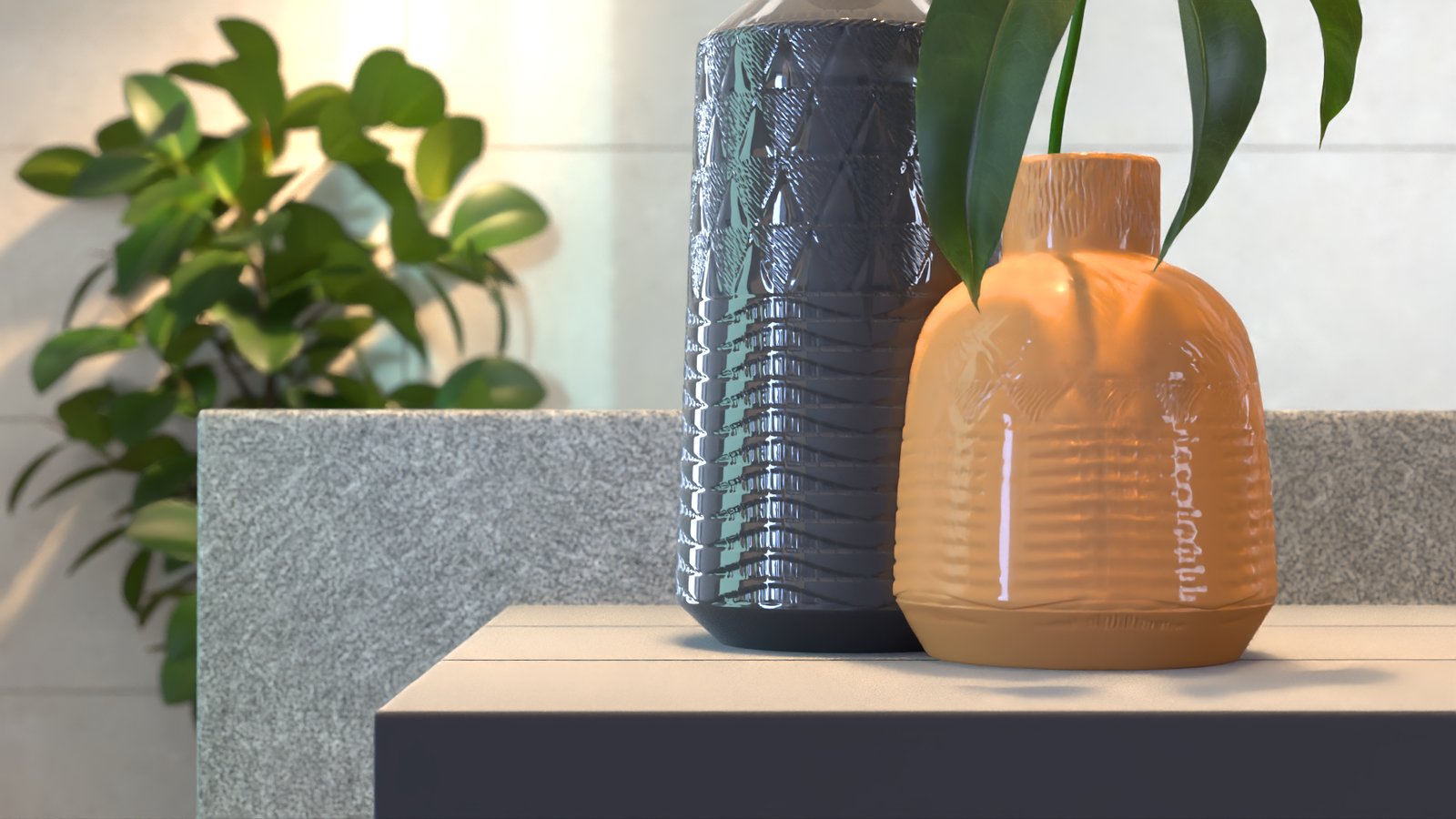
Coat is enabled, Coat Color is white
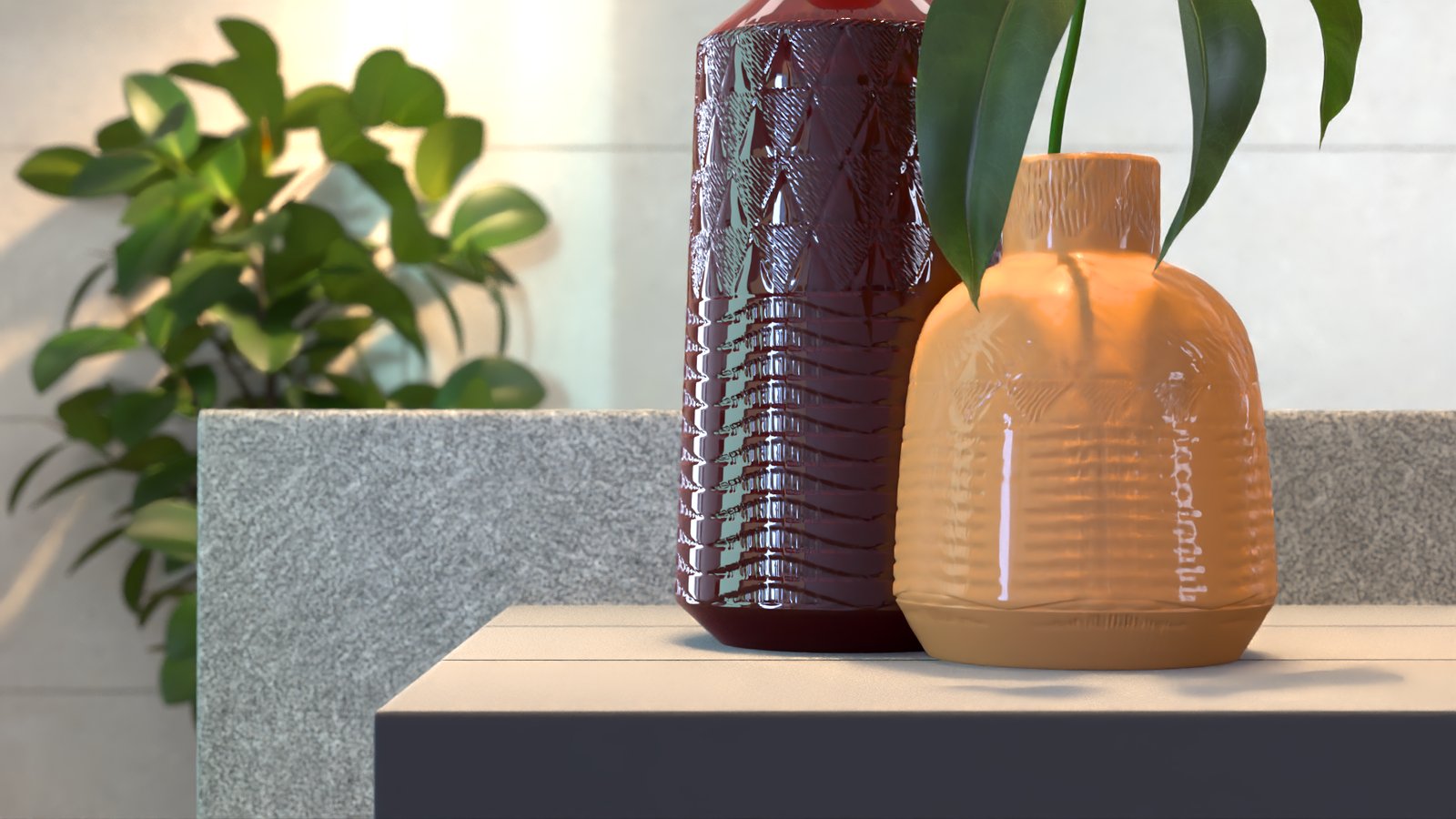
Coat is enabled, Coat Color is red
Example: Strands Effect
This example shows the effect of the Strands effect.

Strands is disabled

Strands is enabled, Length = 0.05

Strands is enabled, Length = 0.5

Strands is enabled, Length = 1
Example: Strands Density
This example shows the effect of the Density parameter.

Density = 1
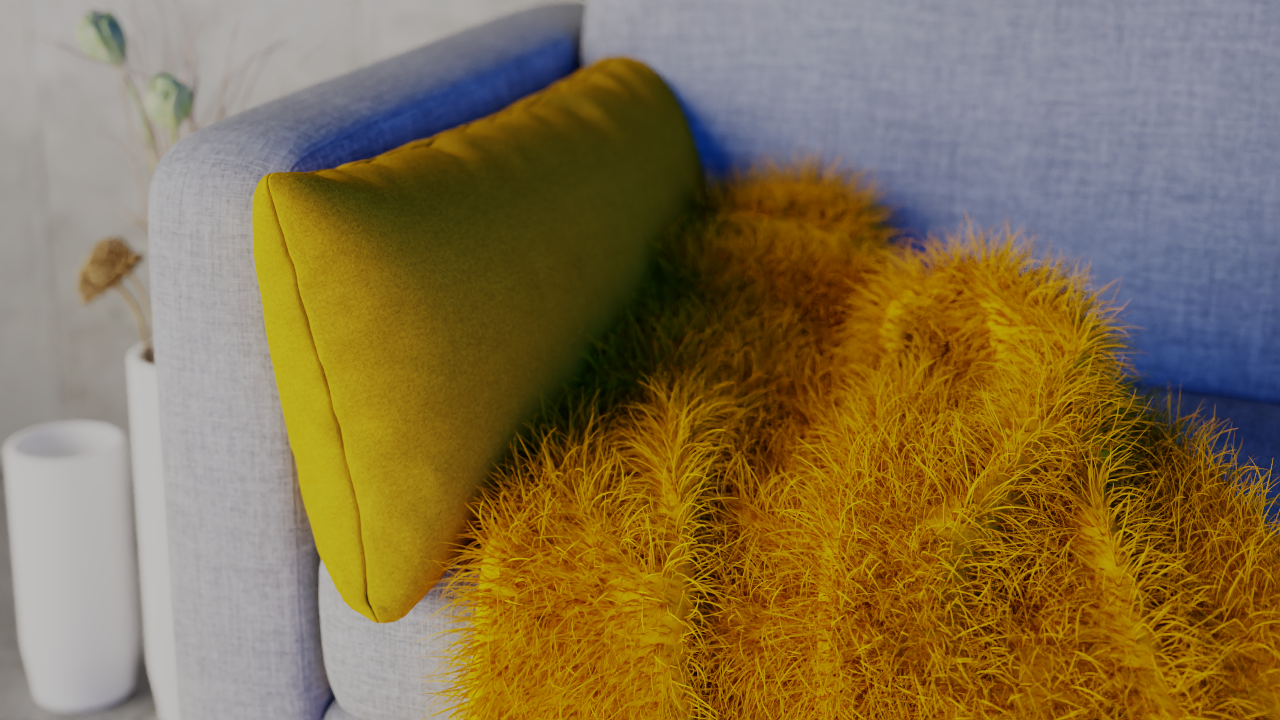
Density = 5
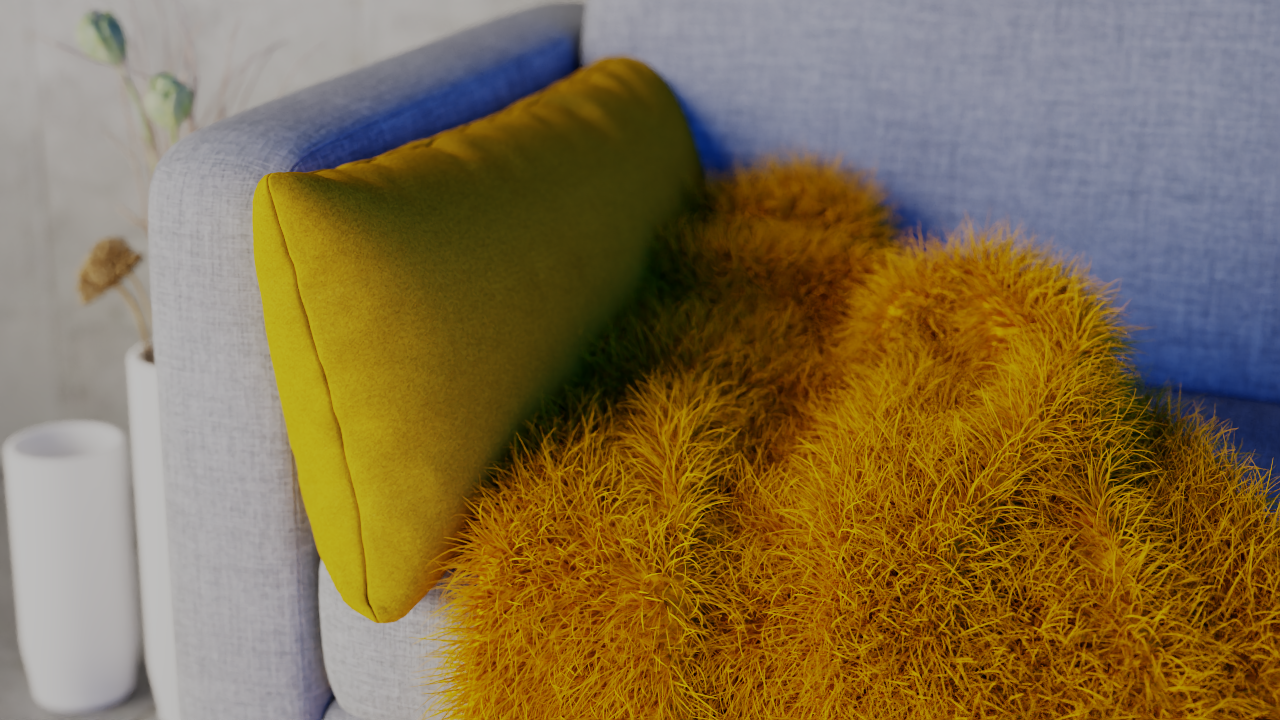
Density = 10
Example: Strands Gravity
This example shows the effect of the Gravity parameter.

Gravity = -3

Gravity = 0

Gravity = 1
See also: