Enscape Envision
Variation Tab
This page provides information about the Variation tab in Enscape Envision.
Last updated 27 May 2026
This page provides information about the Variation tab in Enscape Envision.
Overview
Enscape Envision lets you create and manage as many variations of your current project as you need. You can use these variations to explore design options or even animate between them.
There are two types of variations that you can create:
- Scene – Refers to the objects in your project. Across these variations, you can change the position, scale, rotation, or visibility of selected objects.
- Environment – Refers to the environment lighting of the project. Across these variations, you can modify all environment lighting parameters found in the Environment tab, and achieve different lighting scenarios.
In the Variations tab, you can create scene variations.

Within the Envision timeline, the scene variations have their own track, allowing you to creatively combine and transition between them. The Timeline preview can be toggled on and off via the Toggle timeline preview mode () button to display either the scene state in the current playhead time, or the selected variations in the Variations tab. See the Animation page for more details.
Selecting a variation from the variations list updates the viewport immediately in real time. Alternatively, you can switch between variations from the current view quick settings.

Manage Variations

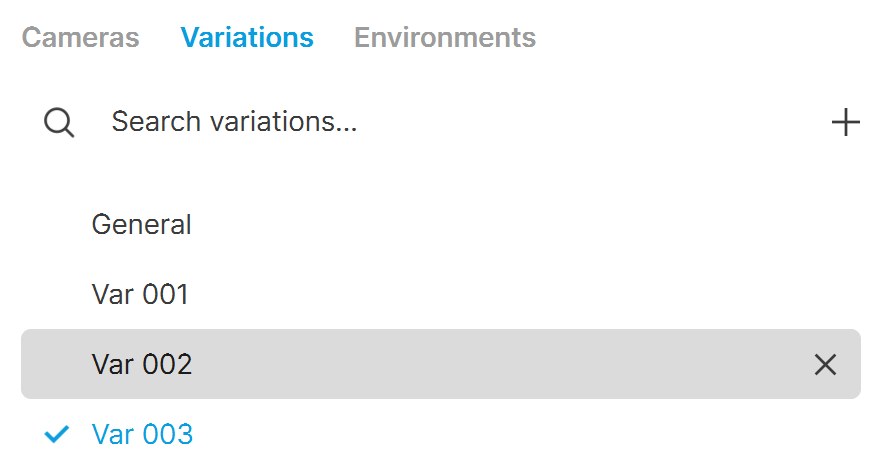
The currently applied variation is highlighted in blue and indicated with a check mark () in the variations list. You can search, create and delete variations as described in the table below.


Search variations – Searches for a specific variation. It filters the variations list and shows only those variations that contain the entry from the search field. Click thebutton on the right to clear the search.

Create a new variation – Creates a new scene variation.
Remove – Deletes the selected variation.

Actions with Variations
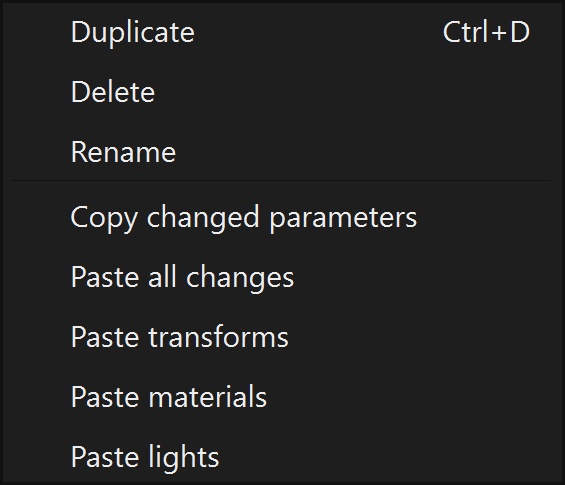
A context menu is available when you right-click on a variation, allowing you to perform some additional actions with variations.
Duplicate – Duplicates the selected variation. Shortcut: Ctrl+D
Delete – Deletes the selected variation.
Rename – Renames the selected variation.
Copy changed parameters – Copies the changed parameters of the selected variation.
Paste all changes – Pastes all changes from one variation to another.
Paste transforms – Pastes all transformation changes from one variation to another.
Paste materials – Pastes all materials from one variation to another.
Paste lights – Pastes all lights from one variation to another.
See Also: