Enscape
Panorama and Cardboard
This page provides information about the Panorama and Cardboard options in Enscape.
Last updated 1 September 2026
This page provides information about the Panorama and Cardboard options in Enscape.
Overview
Enscape allows you to generate 360° panoramas in both stereo and mono. Stereo exports can be used with Google Cardboard. Panoramas exported from Enscape can be saved locally as a file or uploaded into Chaos Cloud, where mono panoramas from the same CAD project can be combined to make a Gallery or a Tour that can help to showcase a project.
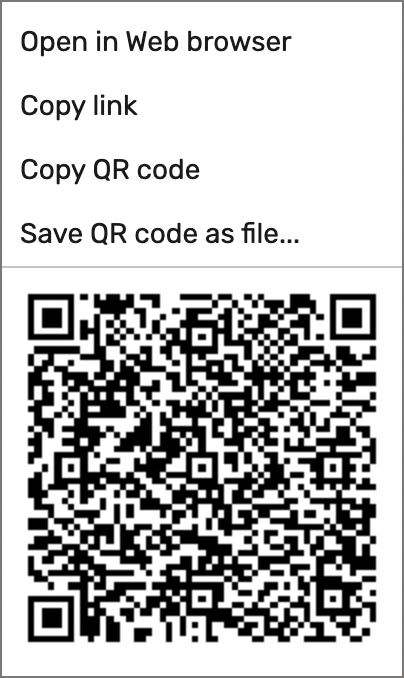
Once a panorama has been uploaded to Chaos Cloud, whether single panoramas or sets of panoramas that are created as either a Gallery or Tour, they can be shared via a link, a QR code, or directly via email. These can then be viewed with a web browser on both desktop computers and mobile devices.
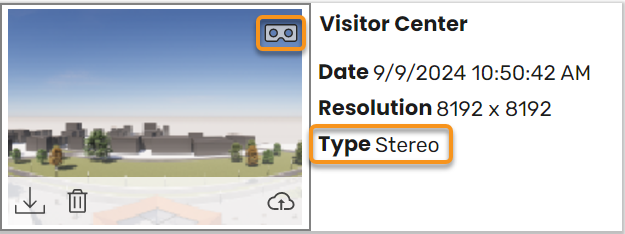
If you render a stereo panorama for Google Cardboard, you can enable the Cardboard mode on your mobile device by clicking on the Cardboard ‘glasses’ symbol on the device when the panorama is open.
Adjust the Parameters
In the Enscape settings, you can modify the overall rendering quality of panorama files, and this can be found in the Visual Settings‘ Output tab. This also affects the panorama rendering time and quality. Medium generally produces great results at a high speed, Ultra provides the highest quality but takes the longest time.
The resolution can be specified in the Output tab from the Panorama – Resolution drop-down menu. Be aware that only the height is taken into account. The width is adjusted accordingly.
Resolution | Mono | Stereo |
Resolution | Mono | Stereo |
Low | 2048×4096 | 4096×4096 |
Normal | 4096×8192 | 8192x 8192 |
High | 8192×16384 | 16384×16384 |
If you are not happy with the exposure brightness in your final panorama, disable Automatic Exposure in the Visual Settings’ Main tab and set a manual exposure that works for you. If Auto Exposure is enabled, Enscape measures a good exposure when starting the panorama capture that might not be ideal for the overall panorama.
When issues arise with exporting ultra-high-resolution/stereo panoramas, Enscape’s Rendering options should be used.
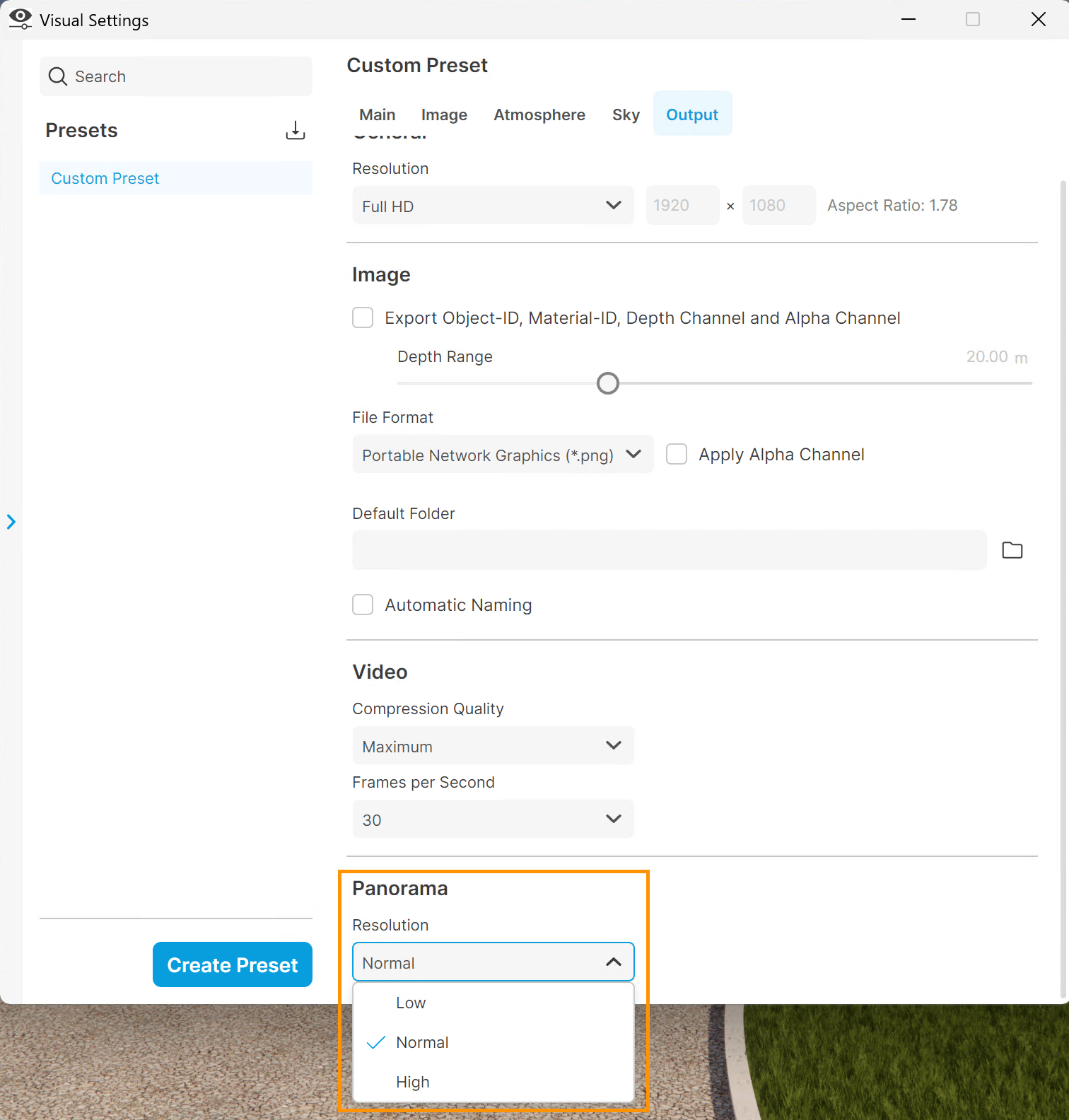
Panorama Resolution menu
How to Export a Panorama
Load a project into your CAD, start Enscape, open the Visual Settings window, and set the Projection to Perspective. Optionally, you can adjust the Panorama Resolution in the Visual Settings > Output tab. Higher panorama resolutions export slower.
Navigate to a position in the Enscape Viewport where you want the panorama to be captured from.
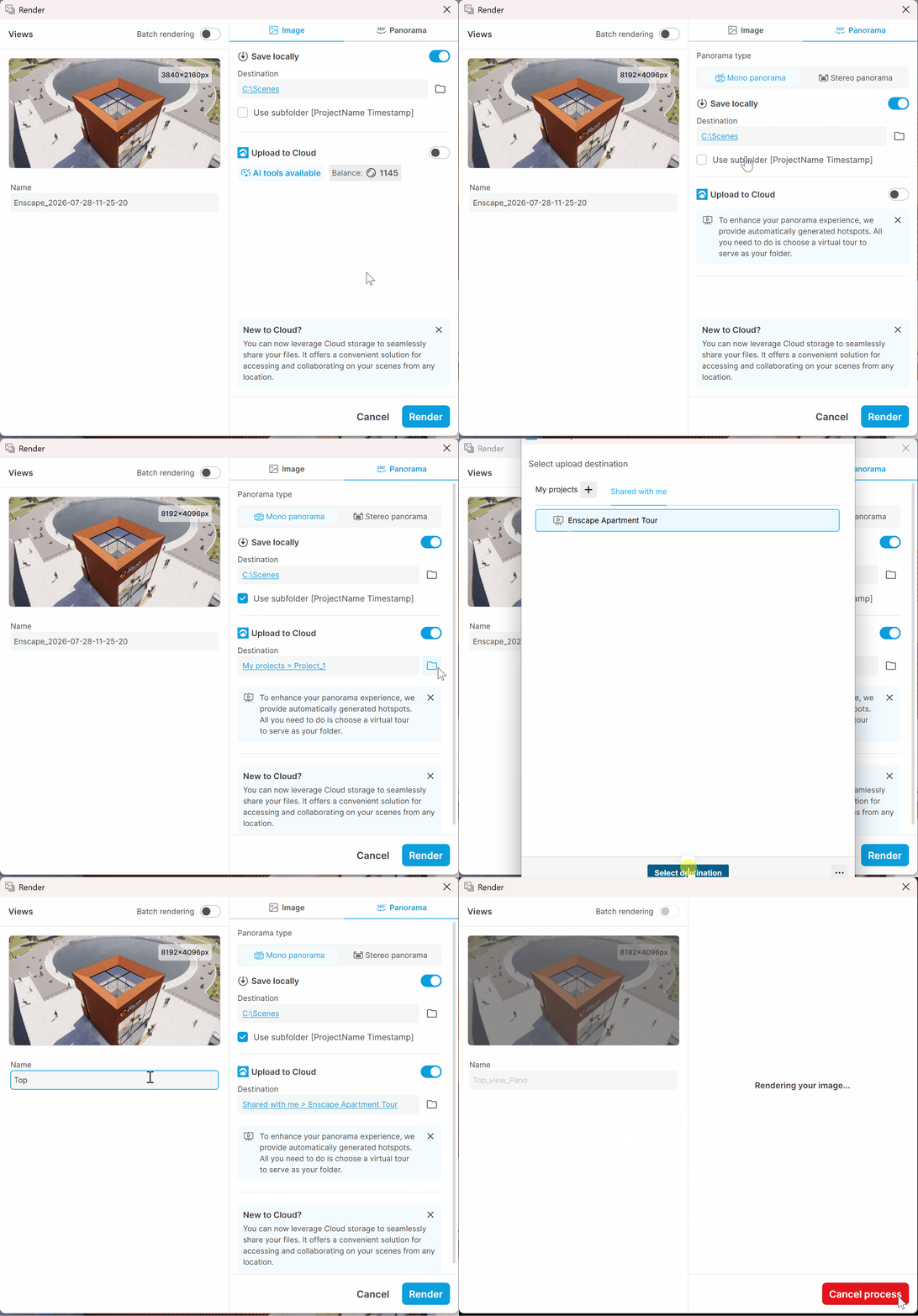
Click on the Render button in the Enscape toolbar. This opens the Render window. Set the mode to Panorama and choose the panorama type - Mono Panorama or Stereo Panorama (viewed in Google Cardboard).
Select the destination folder. This is where the render is saved when complete. Enabling the Use subfolder option creates a subfolder within the destination folder. The subfolder is named after the project and the start time of the render.
For presentations, it is recommended to enable the Upload to Cloud option, as Chaos Cloud creates automatic hotspots for a virtual tour of your scene. For more information, see the Cloud Export page.
If you want to render many views as panoramas, enable the Batch rendering option and select from the list of available views. For more information, see the Batch Rendering page.
When both the Save locally and Upload to Cloud options are enabled, the panorama is both saved on your machine and is uploaded to Chaos Cloud.
After Export
Once rendered, the panorama can be accessed via Chaos Cloud and shared with anyone via email, link, or QA code.

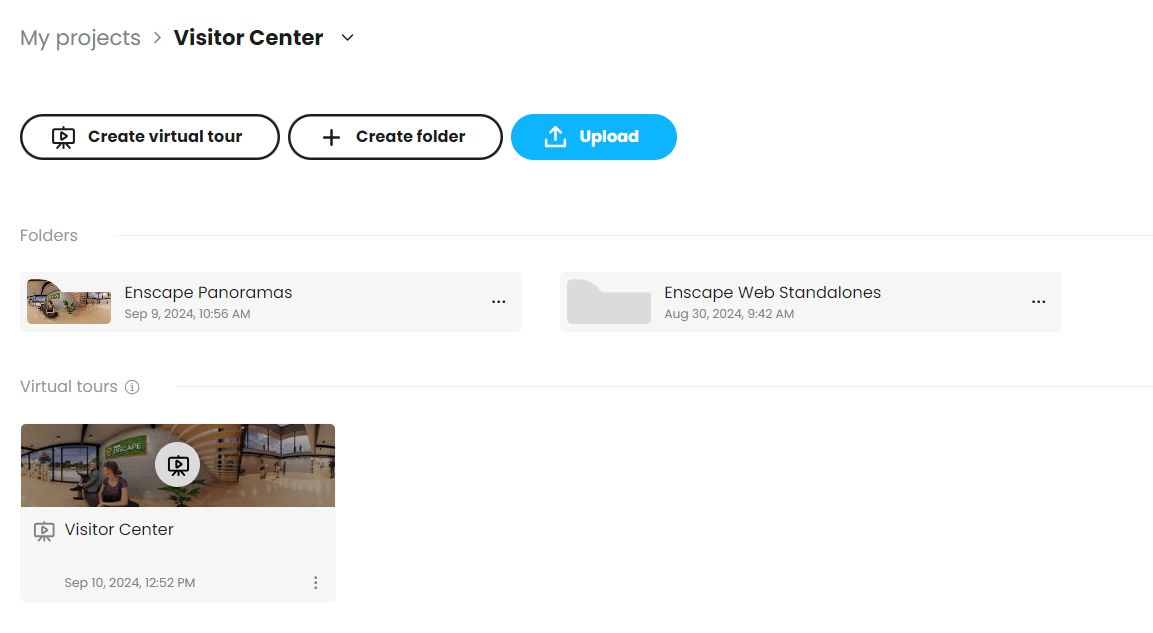
Click on the View in Cloud button ( ) to open the panorama image in Chaos Cloud. There, you can enhance the image using the Chaos AI Enhancer, upscale it using the AI Upscaler, create Virtual Tours, edit and share the panorama for collaboration. For more details on all the capabilities, see the Virtual Tours documentation.
Click on the Share button ( ) to open the Share image window. Here, you can share with members of your Chaos Organization, share via email, copy a link to the panorama, embed it in a webpage or generate a unique QR code, so the panorama can be accesses on a smartphone device. For more details on the sharing options in Chaos Cloud, see the Sharing page.
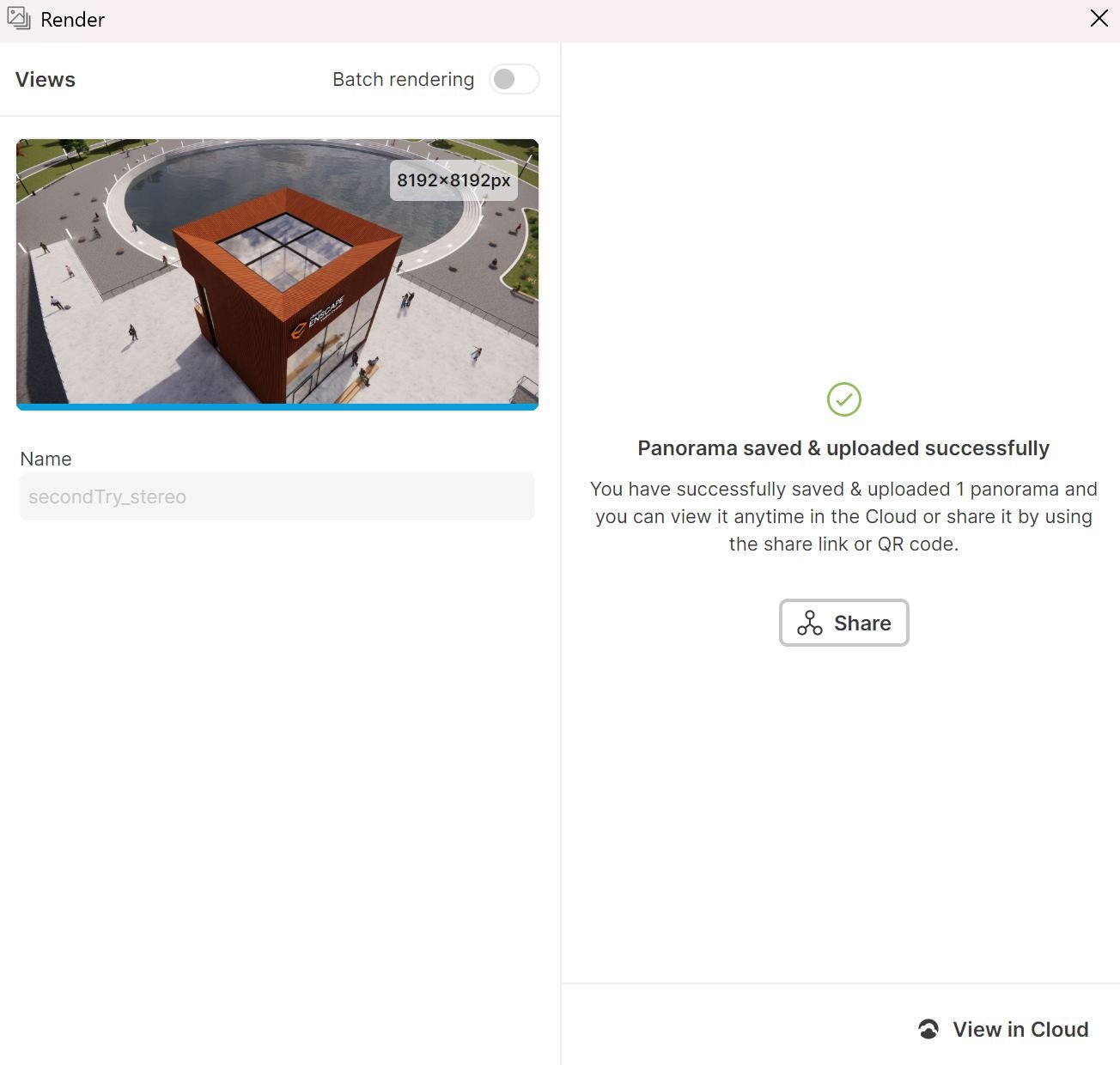
Render Complete window
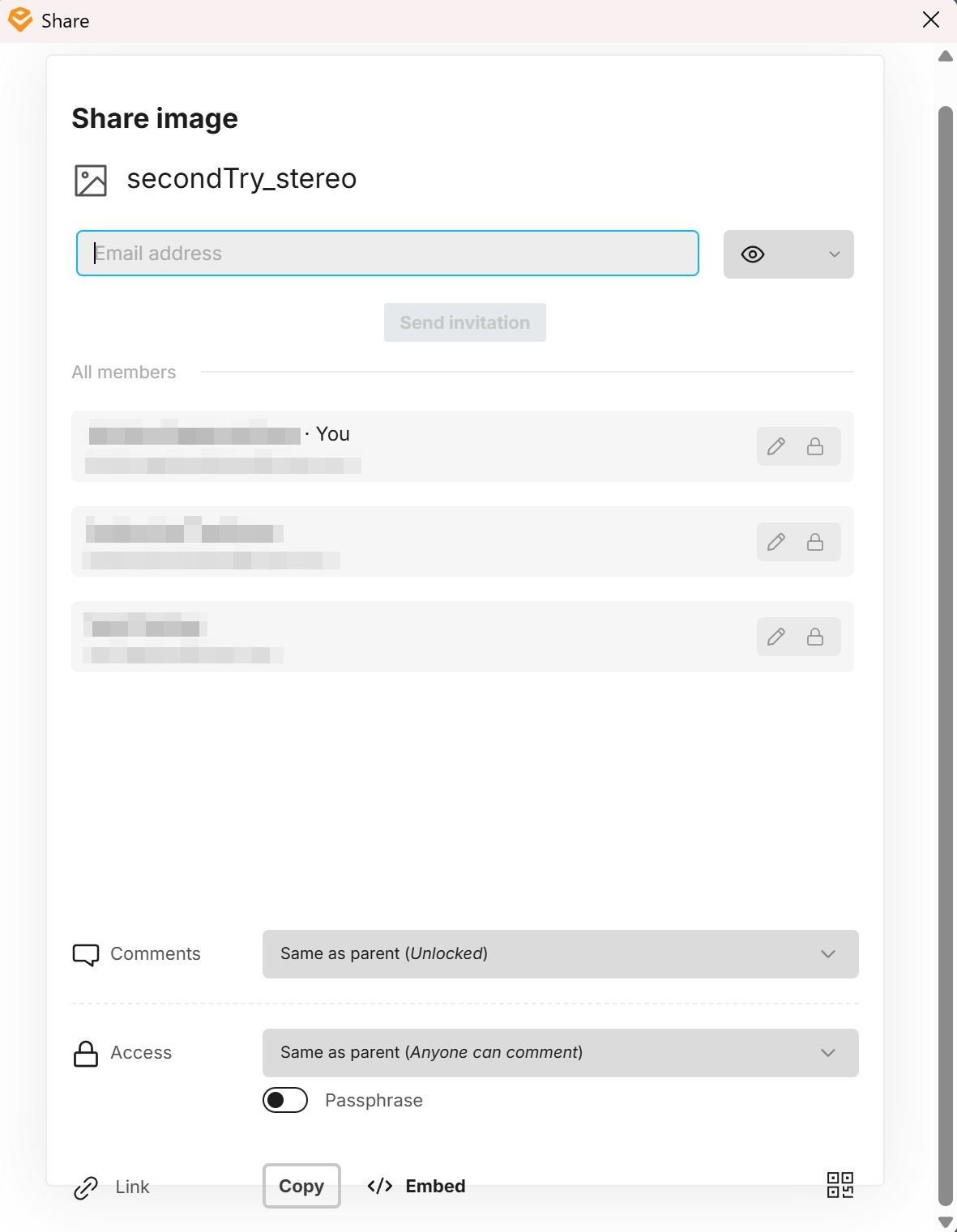
Share window
After Export for Enscape versions 4.1.1 up to 4.18.1
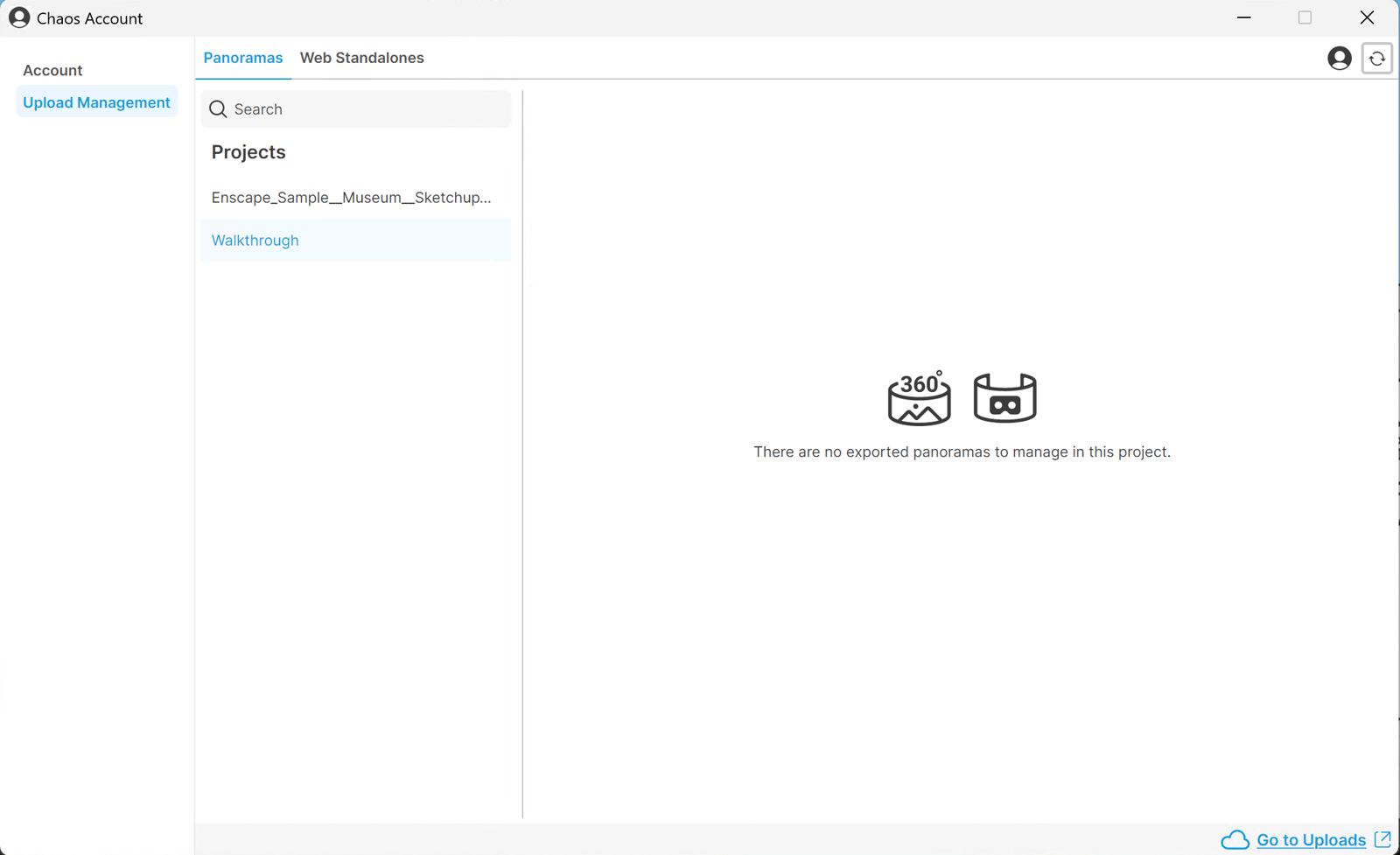
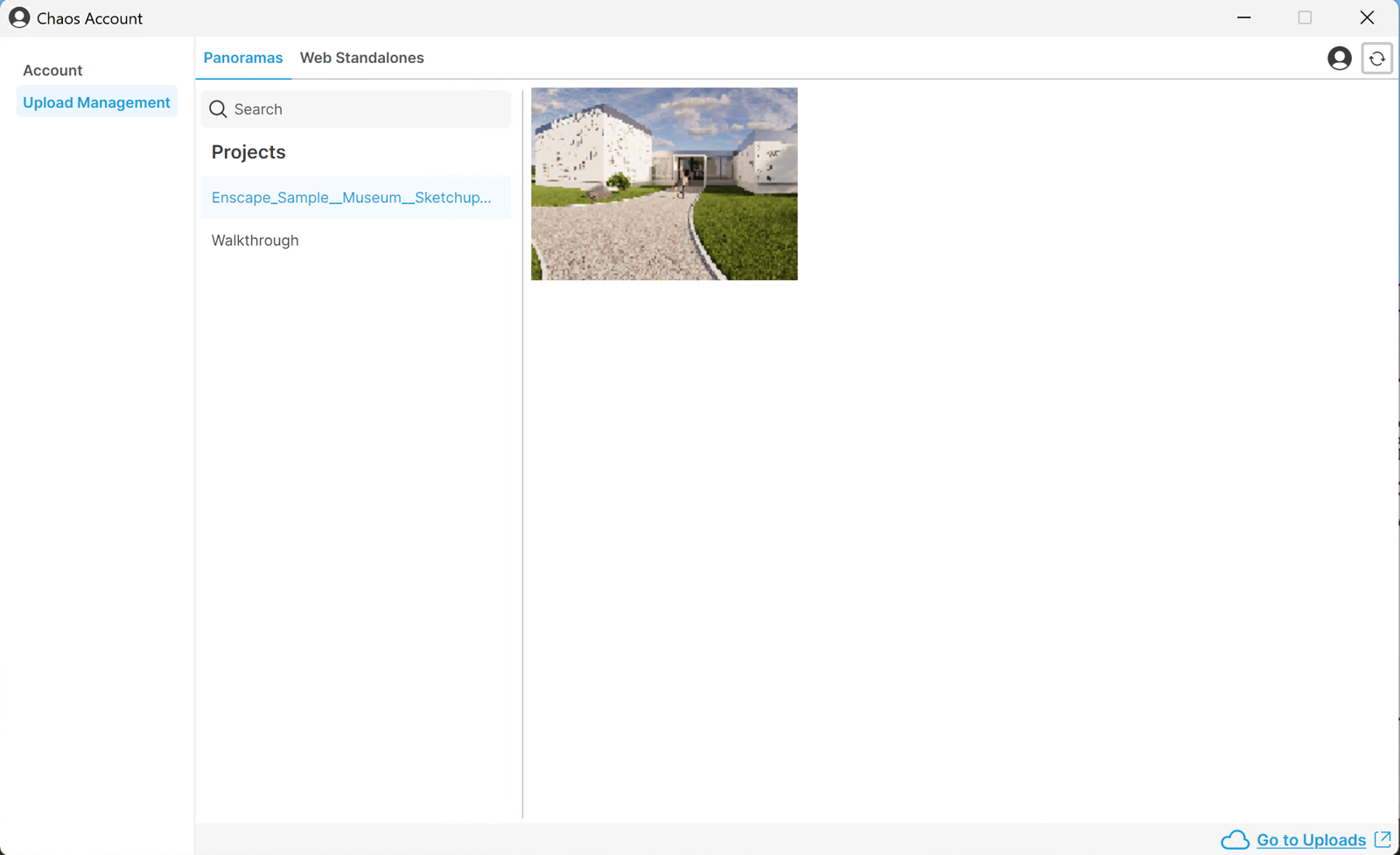
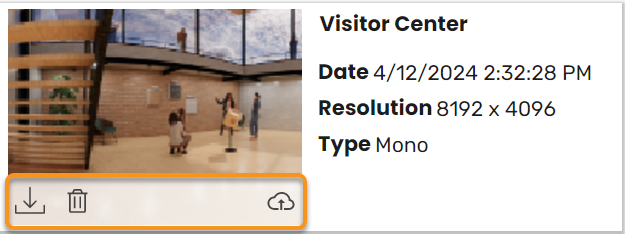
Expand the panel to view the steps to sharing and managing exported panoramas in older Enscape versions.
Enscape versions 4.1.1 to 4.18.1

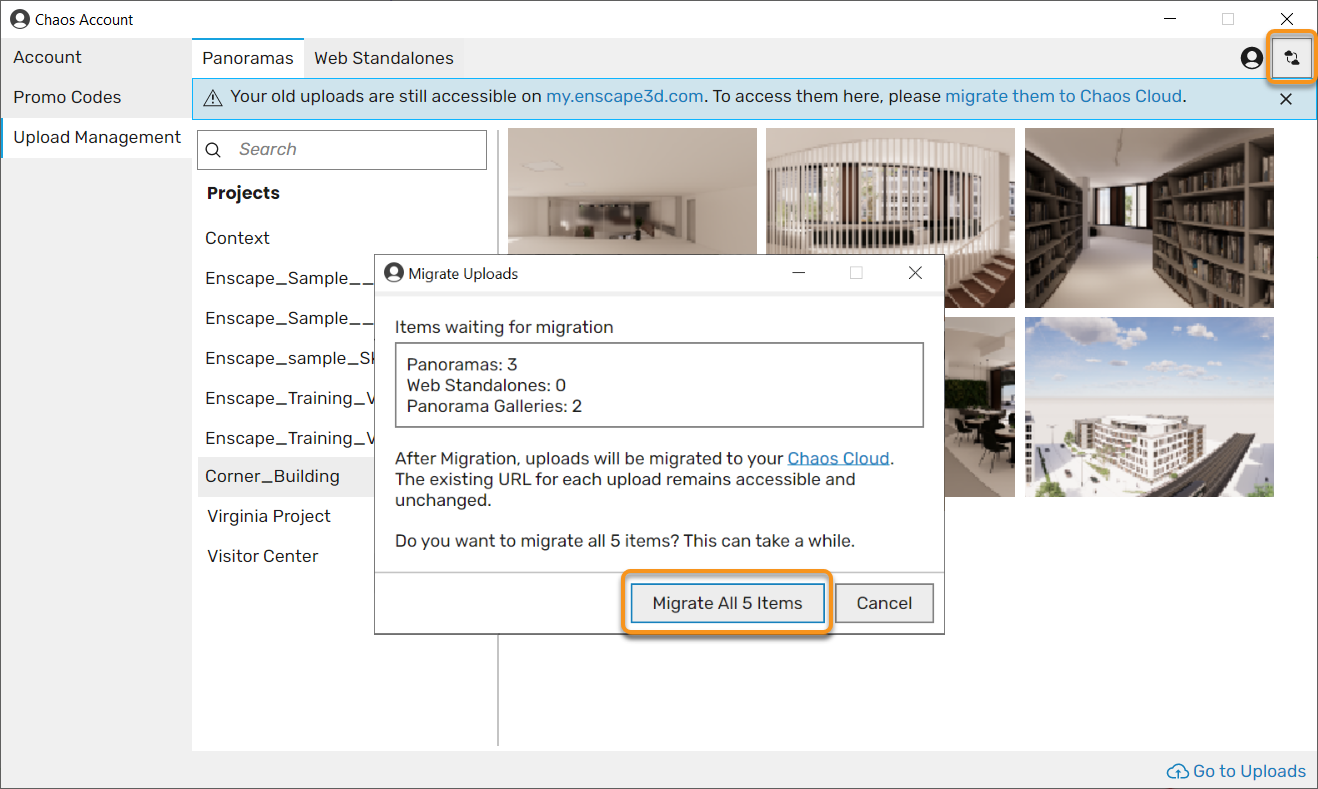
Migration to Chaos Cloud
Preview Panorama
You can preview the panoramas in Chaos Cloud.
Open the File settings panel. You can do so either from the three dot menu > File Info > General > Edit, or from the Edit button > Settings. This panel contains information about the date of creation, size, format and creator of the file.
Panorama mode – When in this mode, panorama images are displayed like such. When switched off, the panorama image appears flat.
For information on the panorama orientation types, see the File Settings page.
youtu.be
View it in Cardboard
Use a QR code scanner on your mobile phone to open the panorama. We recommend using Google Chrome or Safari to view it properly.
Click the cardboard icon in the lower-right corner to enable stereo mode. You will then be asked to put your phone into a cardboard device.
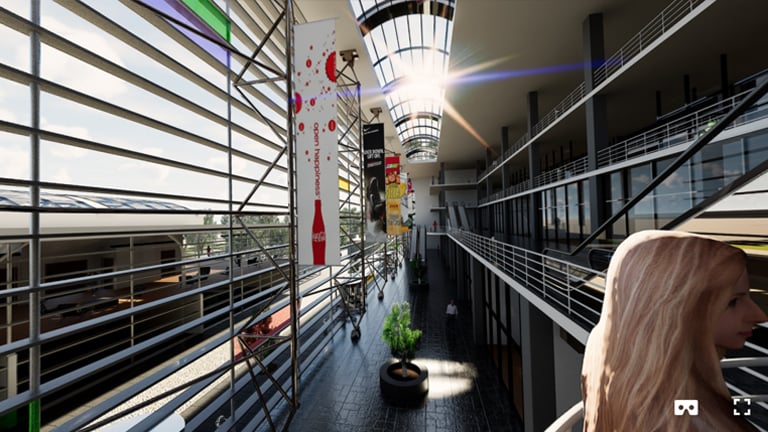
Panorama in Cardboard in Mono mode
Insert Links to Navigate
Enscape gives you the panorama in mono and stereo via a normal image file or uploads it to the web. If you want to go further, you can connect the panoramas with clickable arrow links to make it more interactive. A variety of tools exist to do that, for example krpano.
For Software Developers
If you want to host the panorama on your own webspace, follow the Google VR guidelines. This is for users with a software development background only – usually, our one-click cloud upload is a great solution for reliably and quickly hosting your panorama.
Security & Privacy Policy for Cloud Service
For our Security and Privacy policy for Cloud Services, please refer to Chaos EULA.