Enscape
Rendering Quality in Enscape
This page provides information about the Rendering Quality options in Enscape.
Last updated 27 May 2026
This page provides information about the Rendering Quality options in Enscape.
The Rendering Quality options
Make sure Enscape is running, then click the Visual Settings button.
At the bottom of the Main tab Rendering Quality options are listed.

The Visual Settings button
These options determine the computational effort Enscape dedicates to calculating scene lighting, directly impacting real-time performance. If you encounter a drop in framerate due to extreme project complexity or entry-level hardware, lowering this setting will significantly improve rendering speed and responsiveness.

Draft
When rendering in Draft mode, only direct light will illuminate your scene. In real life, light bounces off surfaces, lighting up the environment. With Draft Mode, this process is disabled, ensuring maximum performance in Enscape. Reflections are also affected by this setting, and in Draft Mode, reflections are heavily simplified, showing more of an estimation of the environment of your project than the project itself. This mode, however, apart from granting great performance, can be useful for anybody not interested in lighting their scene at all. You’ll get almost an equal brightness, regardless of where in your project you are, although the result, of course, won’t look as impressive.

Rendering Quality - Draft
Medium
Medium Quality is where Enscape begins to show off its impressive Path Tracing abilities. Light will now bump off the first surface it hits, taking information such as the surface's color and intensity, eventually hitting a second surface and illuminating that too. Reflections will begin to display the actual environment, though Enscape still uses a complex algorithm to determine which objects to display and which to hide based on their size and complexity, as we want to maintain an acceptable frame rate, after all.
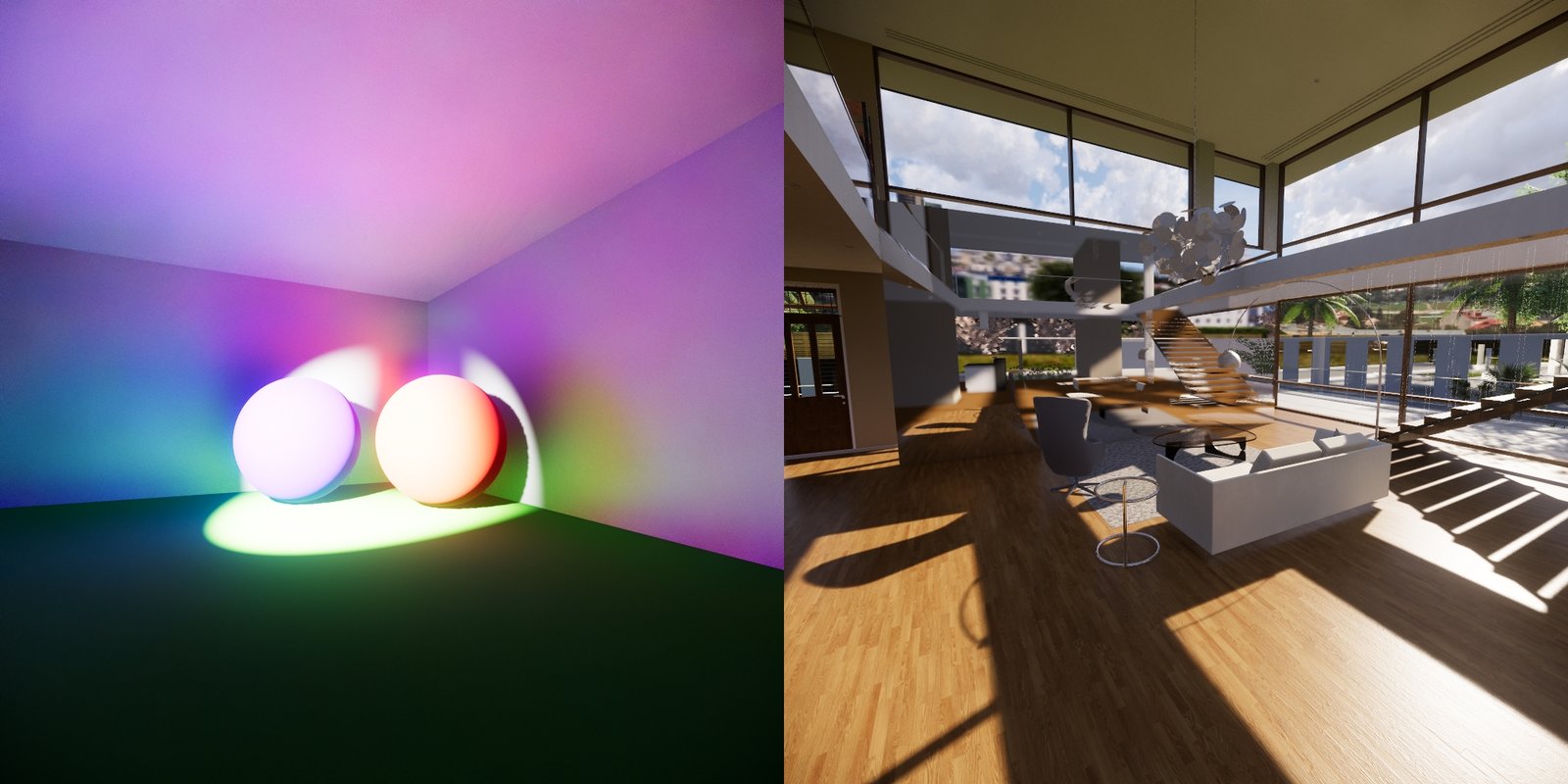
Rendering Quality - Medium
High
Setting the Rendering Quality to “High” will improve the aforementioned procedures – lighting is calculated with even more precision, and reflections will hide fewer objects than on the “Medium” setting. Colored glass will also affect reflections, indirect lighting, and fog. Fog looks more realistic when lit by complex geometry, such as vegetation or small holes.
In high-quality walkthrough mode, two performance optimizations are applied that do not affect captures:
- The Fresnel term is skipped when calculating colored shadow reflections, which may reduce detail in reflections of curved glass surfaces (saving approximately 2–4% of frame time);
- The average albedo texture color is used instead of the full texture for diffuse GI when glass has a base texture applied (saving approximately 3% of frame time).
Captures in High quality apply neither approximation and render at full quality."
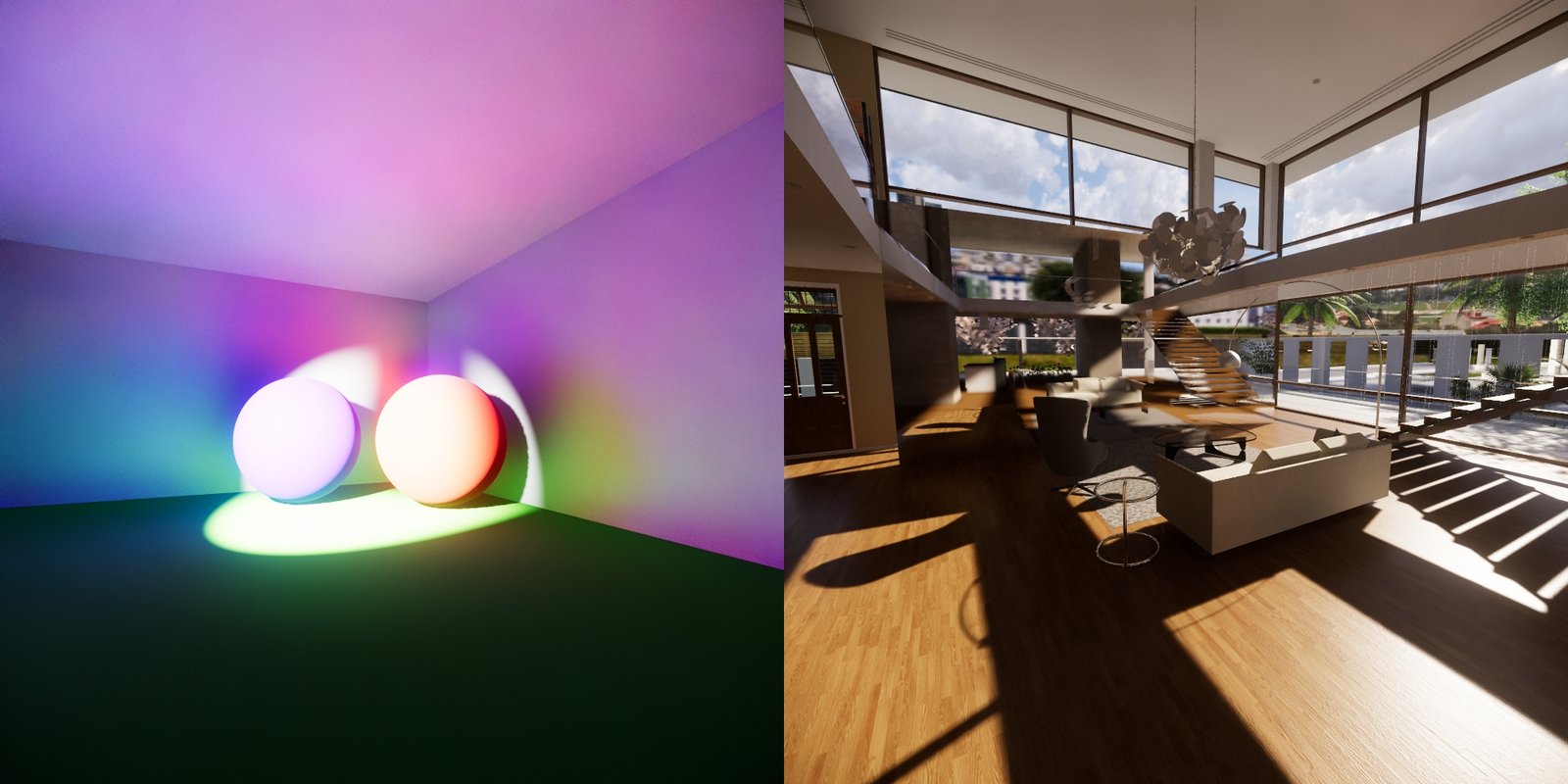
Rendering Quality - High
Ultra
Lastly, the Ultra setting. The difference to “High” isn’t all that drastic and is essentially that two bounces of light rays are being calculated instead of just one bounce, resulting in an even more realistic image – but, frankly, you’ll rarely see the difference to the “High” setting at all. Not in non-VR, that is!
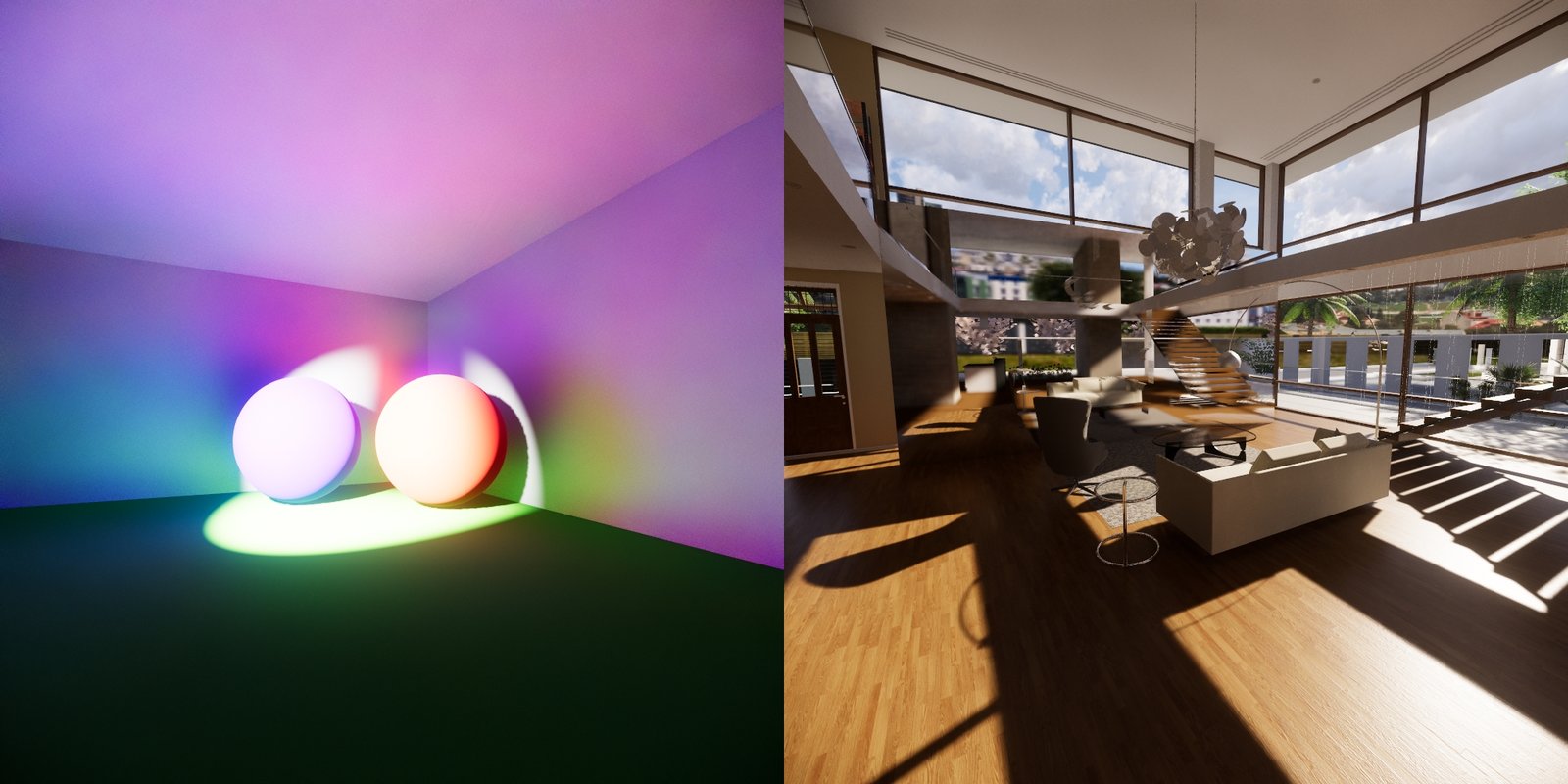
Rendering Quality - Ultra
Rendering Quality in VR
Since Virtual Reality has far higher hardware demands than non-VR Enscape, we’re using techniques to ensure you still get the most fluent experience possible. This is why, when VR is enabled, the rendering quality settings can generally be treated as one level of quality lower.
This means the “Draft” setting will behave as a more simplified version of the non-VR “Draft” setting, “Medium” can be compared to non-VR “Draft”, “High” will introduce the Path Tracing process mentioned above, and so on.
Other Settings Affecting Real-Time Performance
Windows Specific
In addition to the Rendering Quality options, Enscape offers a suite of performance options located in the Rendering tab of the General Settings window. To maintain optimal performance, Enscape utilizes dynamic resolution. If the software detects hardware strain during a walkthrough, it automatically downgrades the resolution to stabilize the frame rate. Consequently, if your scene appears blurry, reducing the Rendering Quality can alleviate the strain and restore visual sharpness.

Windows Specific
macOS specific
In addition to the Rendering Quality slider, there are further options that can affect the performance of your real-time rendering in Enscape. These are located in the Enscape General Settings window’s Rendering tab.
Ray-Traced Sun Shadows for captures - Using software Ray-Tracing to calculate sun shadows instead of shadow maps while creating captures. This will provide a higher level of shadow detail.
NVIDIA Shadow Denoiser – Improves denoising of ray-traced diffuse and specular global illumination, powered by NVIDIA Real-Time Denoisers (NRD) SDK.
Auto Resolution – Dynamically reduces the resolution to ensure a smooth navigation and frame rate. If deactivated, the native window resolution will be used. This has no effect on the rendered export.
Auto Upsampling – Upsampling is automatically activated in case the graphics card runs out of memory during capturing. Disable in case of quality degradation.
Grass/Carpet Rendering – When disabled, a slight performance increase can be had, but carpet and grass geometry will not be rendered.
Restmode – When enabled, animations will stop a few seconds after you cease movement in the Enscape viewport.
Enscape utilizes dynamic resolution for its real-time display, aiming to render at the highest quality your monitor allows. However, to prevent stuttering on strained hardware, you can enable the Auto Resolution checkbox. When activated, Enscape will automatically downscale the rendering resolution whenever it detects a drop in frame rate, ensuring a fluid and responsive walkthrough experience.
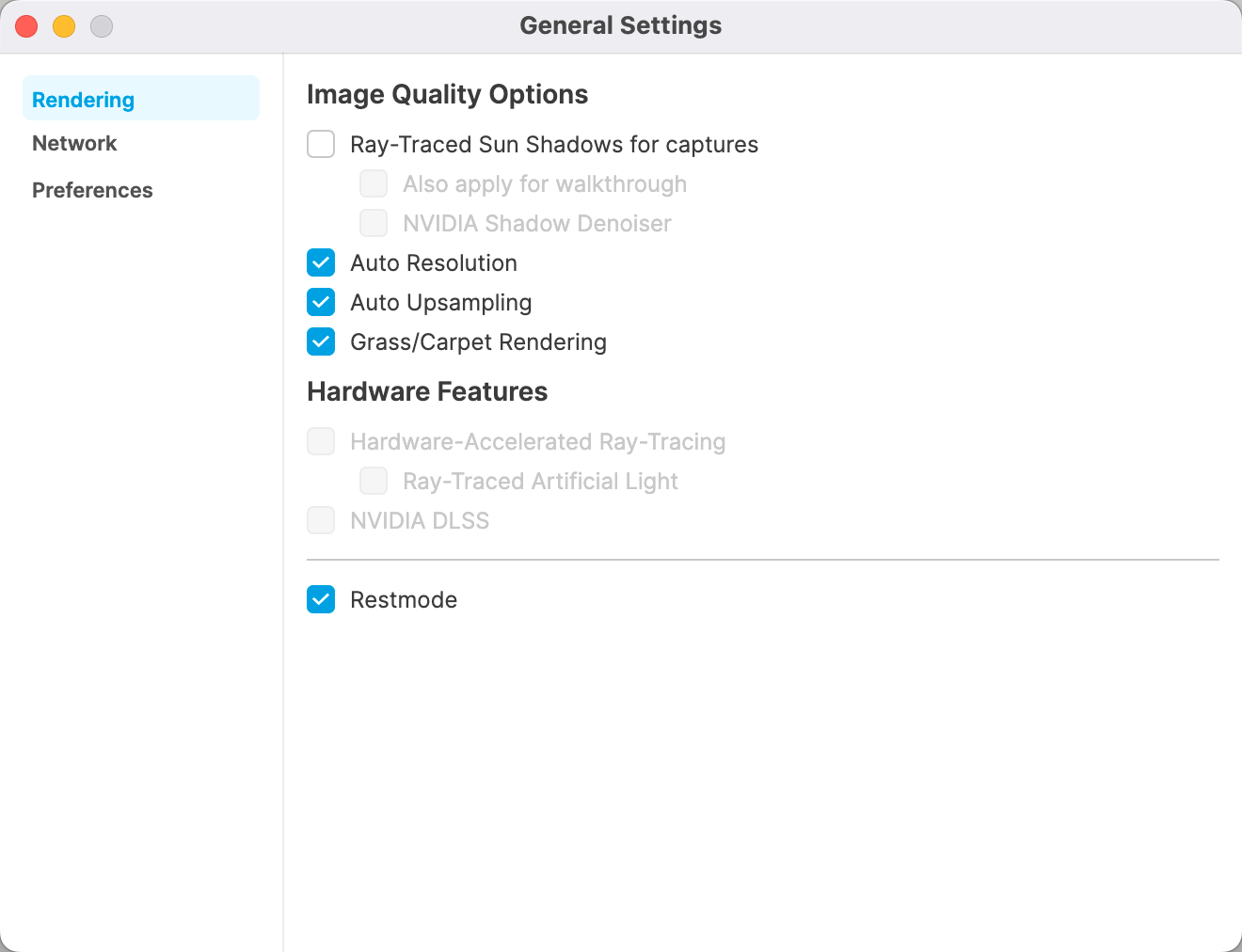
MacOS specific
HWRT vs SWRT
The availability of certain features depends on whether Hardware-Accelerated Ray-Tracing (HWRT) or Software Ray-Tracing (SWRT) is in use:
Feature | HWRT Walkthrough | HWRT Capture | SWRT Walkthrough | SWRT Capture |
|---|
Feature | HWRT Walkthrough | HWRT Capture | SWRT Walkthrough | SWRT Capture |
|---|---|---|---|---|
Ray-traced sun shadows | All modes | All modes | All modes (Requires "Also apply for walkthrough" to be enabled - off by default in SWRT) | All modes |
Colored sun shadows | All modes | All modes | Ultra only | All modes |
Colored shadows (artificial/ReSTIR) | High & Ultra | High & Ultra | N/A | N/A |
Colored shadows in GI reflections | High & Ultra | High & Ultra | N/A | N/A |
Colored shadows in fog | High & Ultra | High & Ultra | Ultra only | High & Ultra |
Render Export Quality Settings
Apart from the mentioned settings, there are also a few settings affecting only the export quality of still image renderings, panoramas, and video files, but not the real-time performance.
To be precise, you could probably call most of the available settings “quality” settings, depending on your personal taste, but these four will improve output quality while either increasing render time or output size.
All of these options are located in the Visual Settings window under the Output settings tab.
Resolution – Select the export resolution for both your still image renderings as well as your video exports using this dropdown menu. You can either choose your window resolution, any of the given presets, or a custom resolution up to 8192 x 8192 pixels. Please be aware that exporting renderings in such high resolutions can overwhelm your graphics card, in extreme cases, causing Enscape to shut down.
Compr. Quality – The compression quality slider determines the output bitrate of your video files. This setting does not affect render time, only the resulting video file size. So feel free to dial this setting up to Maximum. For even higher quality, dial it all to the right to ‘Losless’ – this, however, will result in a series of PNG images – easily hundreds of them – that you can then combine to a video file using third party software.
FPS – The FPS (Frames Per Second) setting decides how many images are generated per second of your video. Twice the amount of frames per second, for example, 30 -> 60, will result in twice the time it takes to render the video, but will also make for a smoother playback.
Panorama Resolution – Allows you to choose the quality of the panoramas generated using Enscape. You can choose a resolution from “Low” (2048 x 1024 pixels), “Normal” (4096 x 2048 pixels) to “High” (8192 x 4096 pixels).
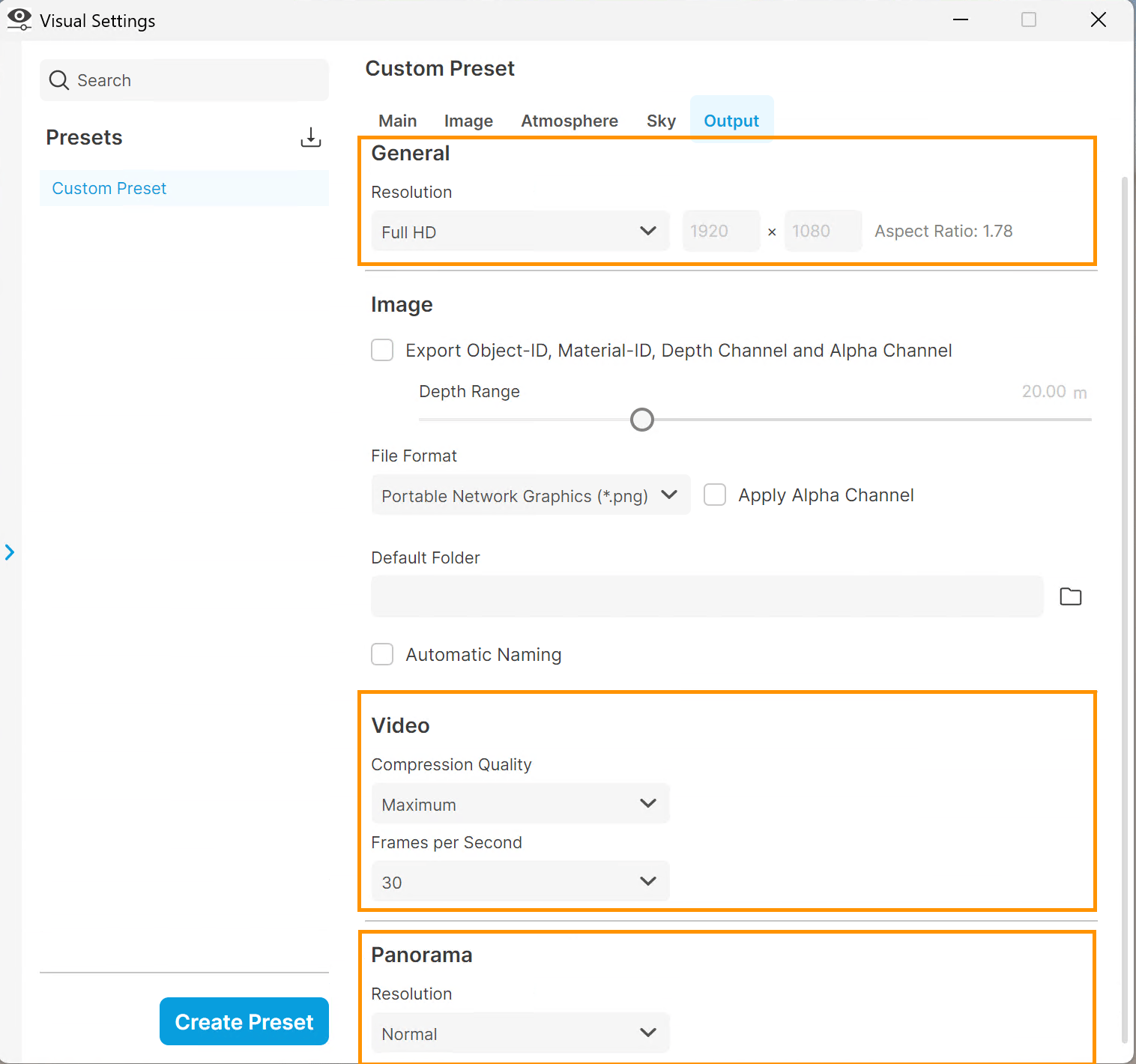
The Rendering Export Quality settings