Enscape
Settings Presets
This page provides information about Presets in Enscape Visual Settings.
Last updated 4 June 2026
This page provides information about Presets in Enscape Visual Settings.
Overview
Presets are created, shown, saved, and loaded within the Visual Settings menu.
There are two ways to manage Visual Settings in Enscape:
- saved as an external .json file
- stored in the CAD project file (by default)
In Enscape, selecting a Settings Preset immediately applies its predefined configuration. Conversely, any manual adjustments made to the active settings will automatically overwrite the loaded preset.
The currently active Settings Preset serves as a value repository until it is saved as a new Settings Preset or an entirely new preset is created.
Accessing the Settings
Start Enscape and find the Visual Settings icon on the right side of the Enscape User Interface (UI) toolbar.

Visual Settings button in the Enscape UI
Once the Visual Settings dialog is open, if the Presets are not visible, click the small chevron in the middle-left of the dialog to expand the Settings Presets panel.
Opening / Closing the Presets List
Create a Settings Preset
Click the blue Create Preset at the bottom of the window.
Write the Preset name or keep the automatic name suggestion.
Choose
for refusing creation and
for completing creation.
Creating a Preset
Preset Menu Options
By default, there is always one Settings Preset listed, named Custom Preset.
Right-clicking the chosen preset opens the following options:
- Rename
- Duplicate
- Save as file…
- Reset to default
- Delete (which is only available if more than one Settings Preset exists)

Preset Menu Options
Load Preset Options
Hover the mouse over, and the icon displays its tooltip.
Click the Import button, and an Open dialog window opens.

Import / Open Settings Presets button
The drop-down menu at the bottom right of it offers:
- All Supported Formats (*.json;*.xml) – Which will load either of the above.
- Visual Settings Presets (*.json) – All Settings Presets created after Enscape v2.6.
- Legacy Settings (*.xml)– Settings Presets created in versions of Enscape prior to v2.6. For macOS, Settings Presets created in versions of Enscape prior to v2.6 for Windows cannot be opened.
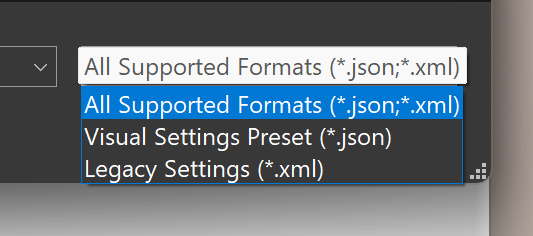
Load Presets options
Saving Preset Options
All Settings Presets are saved to the CAD project file itself.
Save as file… option exports .json file, which can be used in another CAD project as well.
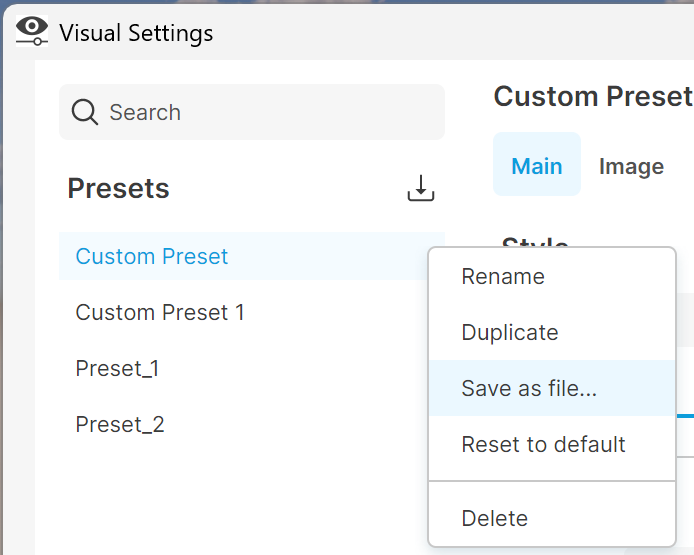
Save as file…
Import Legacy Settings
Legacy Settings Presets from Enscape versions prior to 2.6 can be loaded via the Import button.
Once imported, the settings can be exported as a .json file to use them in other projects.
Otherwise, the settings are automatically saved to the CAD project.

Imported Legacy Settings
Enscape for Revit Specific
If you get an error message when syncing a project stored on a shared drive and more than one user is working on a specific part of the project, a manual sync is required to overcome errors that may be thrown when Revit attempts to auto-sync.
This can also occur if one user is editing a project and the other is opening it read-only (to open a View in the associated project, for instance).
Before attempting to change any of the following: Visual Presets, Collaborative Annotations, or Views, make sure that the user has the latest version of the BIM360-shared project available locally by clicking the Sync with Central button.