Enscape
V-Ray Scene Export
This page provides information about the V-Ray Scene Export in Enscape.
Last updated 28 May 2026
This page provides information about the V-Ray Scene Export in Enscape.
Overview
V-Ray Scene Export button in Enscape expands your visualization workflow using Chaos products. The .vrscene files can be imported to different Chaos 3D modeling applications to get the perfect design. Transferred are geometry, assets, lights, materials, and some rendering settings.

Scene Export
What is included in the V-Ray Scene file?
- All materials and their corresponding textures;
- All 3D assets that were used from the library;
- All types of artificial lights;
- The basic aspects of the environment lighting such as Sun position, intensity, the clouds on the sky;
- The camera position and orientation of the exported view.
Export a V-Ray Scene
In order to export a .vrscene file and to make the V-Ray Scene Export button active, first, at least one named view needs to be created inside Enscape. Once the V-Ray Scene Export button is clicked, a new window pops up showing a list of all the named views available for the project. After the selection is made, click Export.
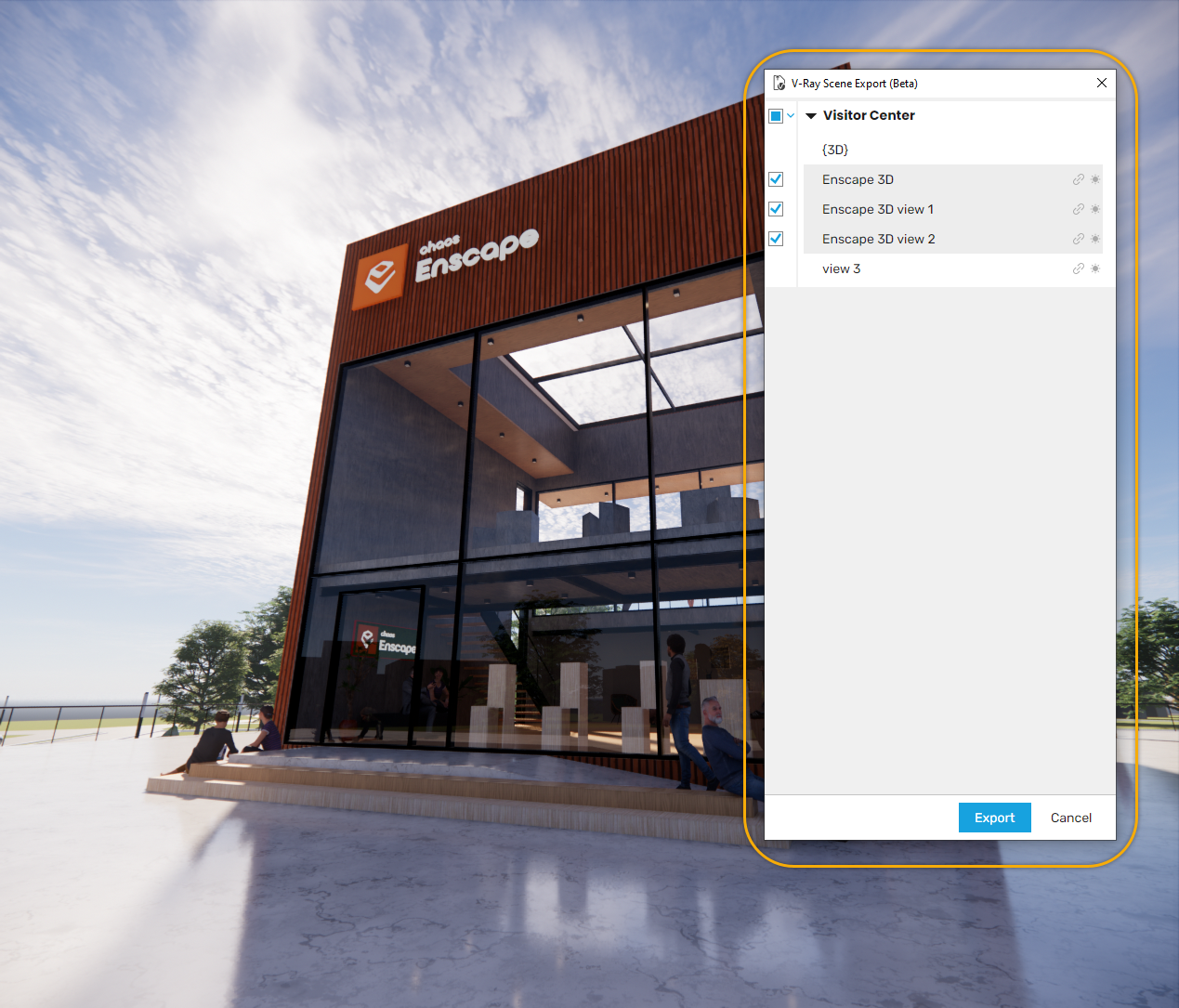
V-Ray Scene Export selection window
After clicking the Export button, a location for the export needs to be specified. Then an export status window appears on the screen and remains on top until all the selected scenes are successfully exported to the .vrscene file format to our specified location.
Now the exported .vrscene files can be imported into multiple 3D modeling applications, transferring geometry, assets, lights, materials, and some rendering settings.

V-Ray Scene Export status window
Known Limitations
- Support for water materials is not included yet.
- The Enscape Artistic Visual Modes are not yet supported by the Envision render engine.
- Enscape camera paths are not supported yet.
For more information, see the Importing Files page for Enscape Envision.