Adjust assets in the Model Tab in Veras.
Overview
You can adjust assets placed in the 3D scene.
Options
Icon | Name | Description |
|---|
Icon | Name | Description |
|---|---|---|
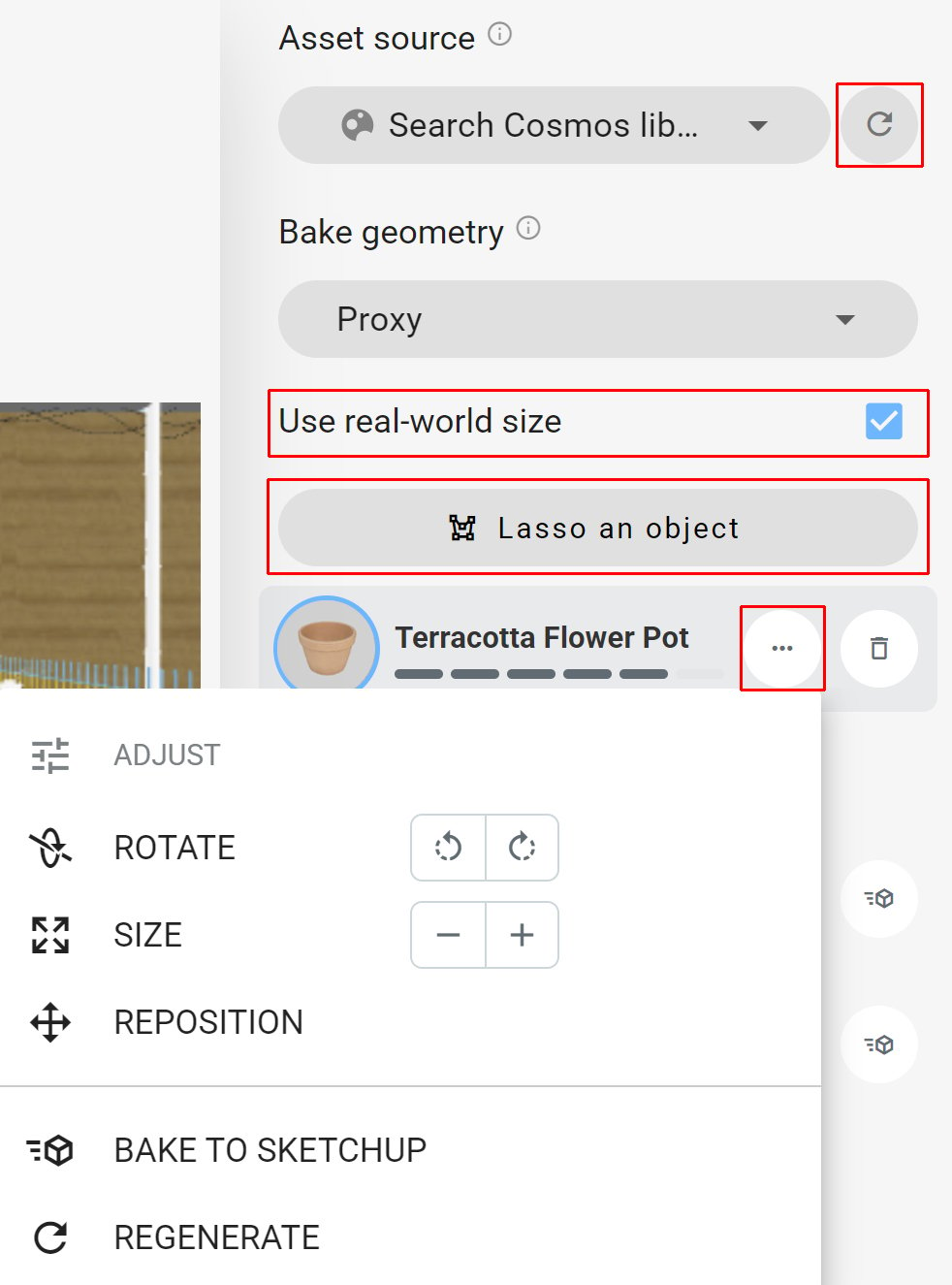
Detect objects again | Update object detection by replacing the current objects. The 3D models stay in the scene. | |
Use real-world size | Place library assets at their real-world size rather than scaling them to fit the detected object. Assets already in the scene also resize without changing position. This setting is on by default in Revit, Rhino, SketchUp, and Vectorworks, where the host application specifies its units. It is off in other applications where the uploaded model's units are unknown. You can override it for an individual object in that object's three-dot menu. | |
Lasso an object | Select an object or group of objects by placing several points in the viewport. Click the first point or press Enter to close the loop. Press Esc to cancel. Use this as a free alternative to AI object detection. |
Asset three-dot menu
Icon | Name | Description |
|---|
Icon | Name | Description |
|---|---|---|
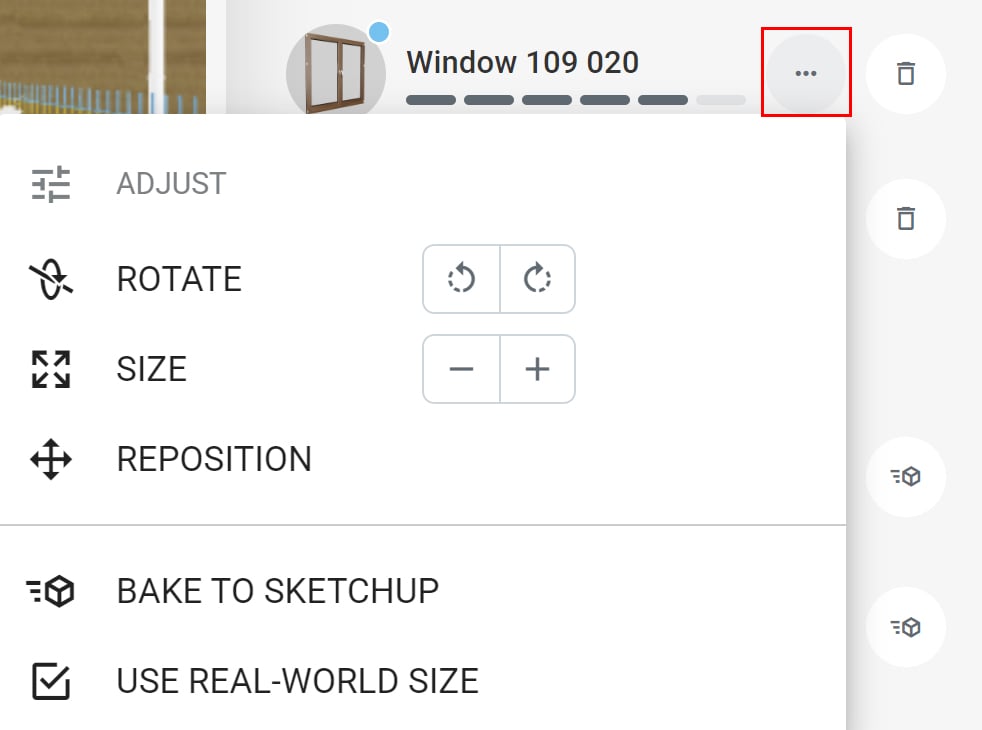
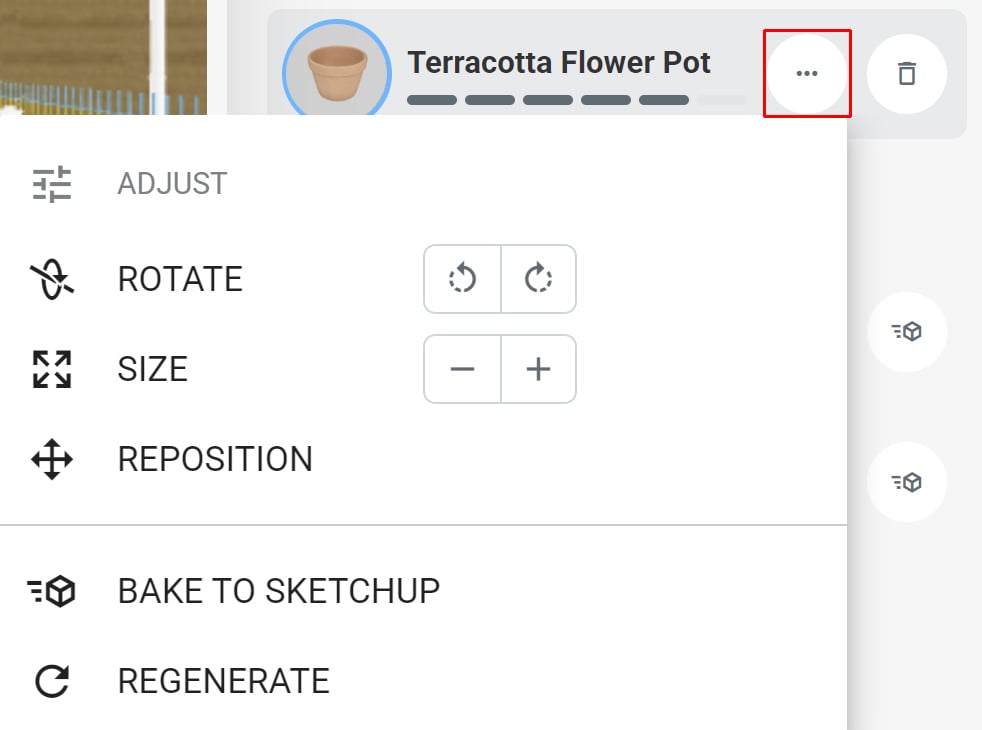
Rotate | Rotate the asset in the 3D scene. | |
Size | Resize the asset in the 3D scene. | |
Reposition | Manually replace the asset in the 3D scene. | |
Bake to SketchUp | Bake the asset into the SketchUp model at its placed position. | |
Use real-world size | Place library assets at their real-world size rather than scaling them to fit the detected object. Assets already in the scene also resize without changing position. This setting is on by default in Revit, Rhino, SketchUp, and Vectorworks, where the host application specifies its units. It is off in other applications where the uploaded model's units are unknown. You can override it for an individual object in that object's three-dot menu. | |
Regenerate | Regenerate the 3D model. |