Veras
Compose Tab
This page provides information about the Compose Tab in Veras.
Last updated 1 September 2026
This page provides information about the Compose Tab in Veras.
Overview
A place for creative ideas and prompting. The Prompt field is used for achieving specific aesthetic content in the generated rendering, and is linked to the Prompt Strength slider.
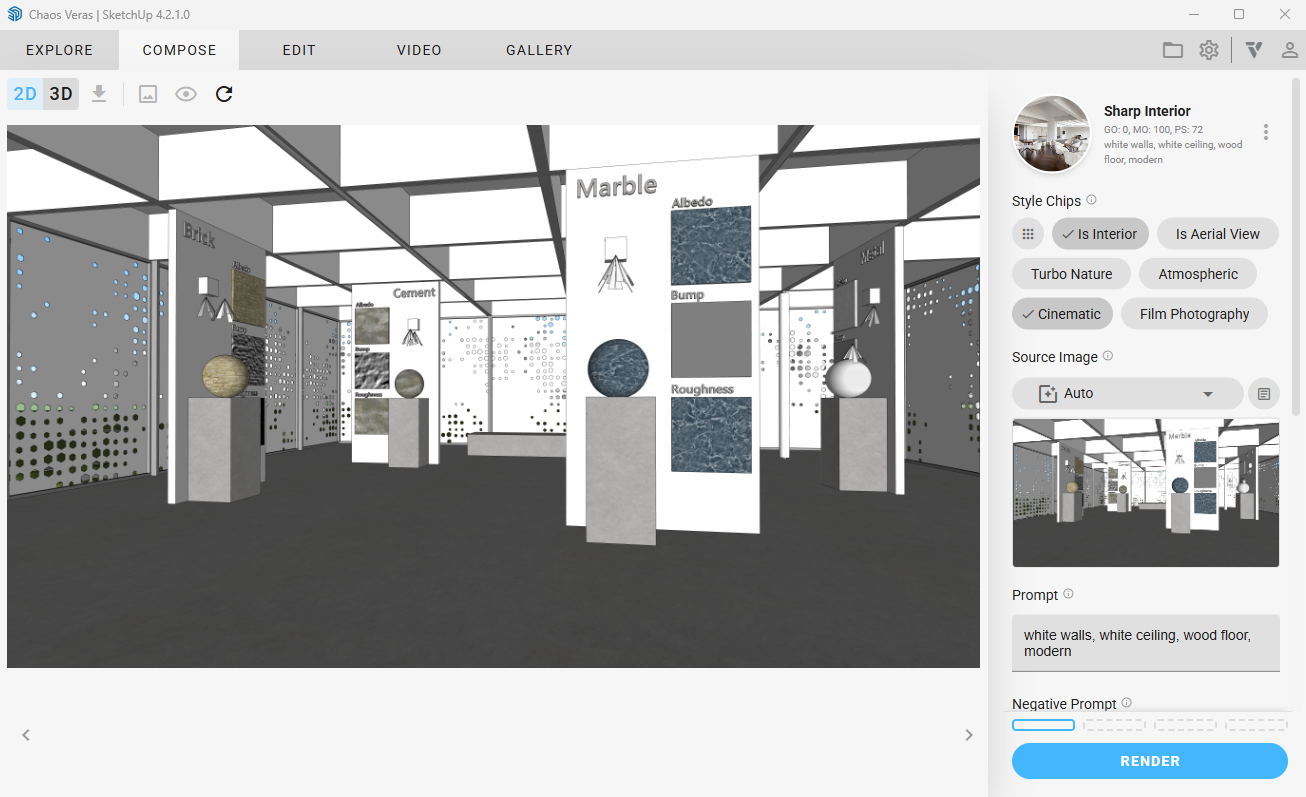
Compose Tab
Style Chips
Style Chips – Append predefined text to the user prompt when rendering. Click the 9 dotted icon to open the Style Chips panel.
- My Style Chips – Your custom style chips. Click a chip to add it to your prompt, or use the pencil icon to edit.
- Veras Style Chips – Built-in style chips curated by Veras for common rendering styles.
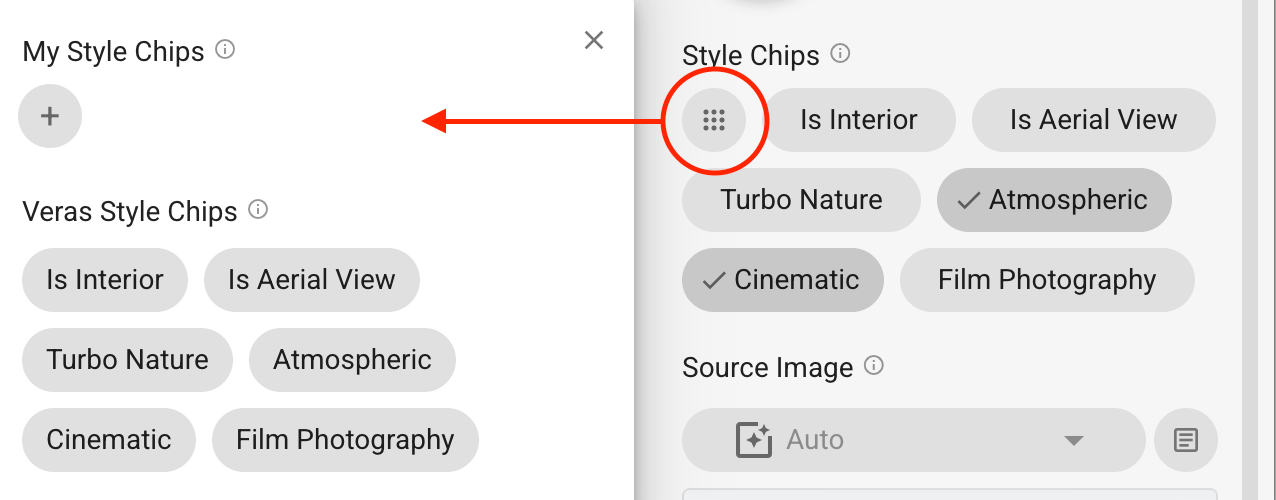
Style Chips
Source Image
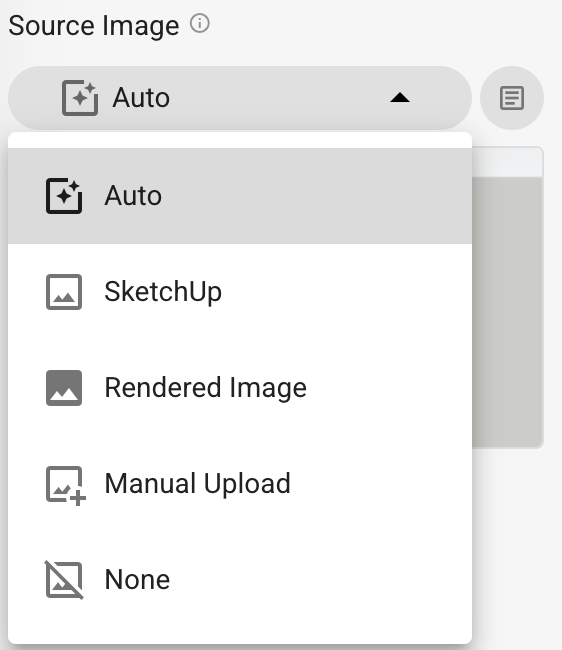
Source Image – This image will guide the starting point for your rendering. Choose:
- Auto
- Host platform (here SketchUp is shown)
- Rendered Image
- Manual Upload
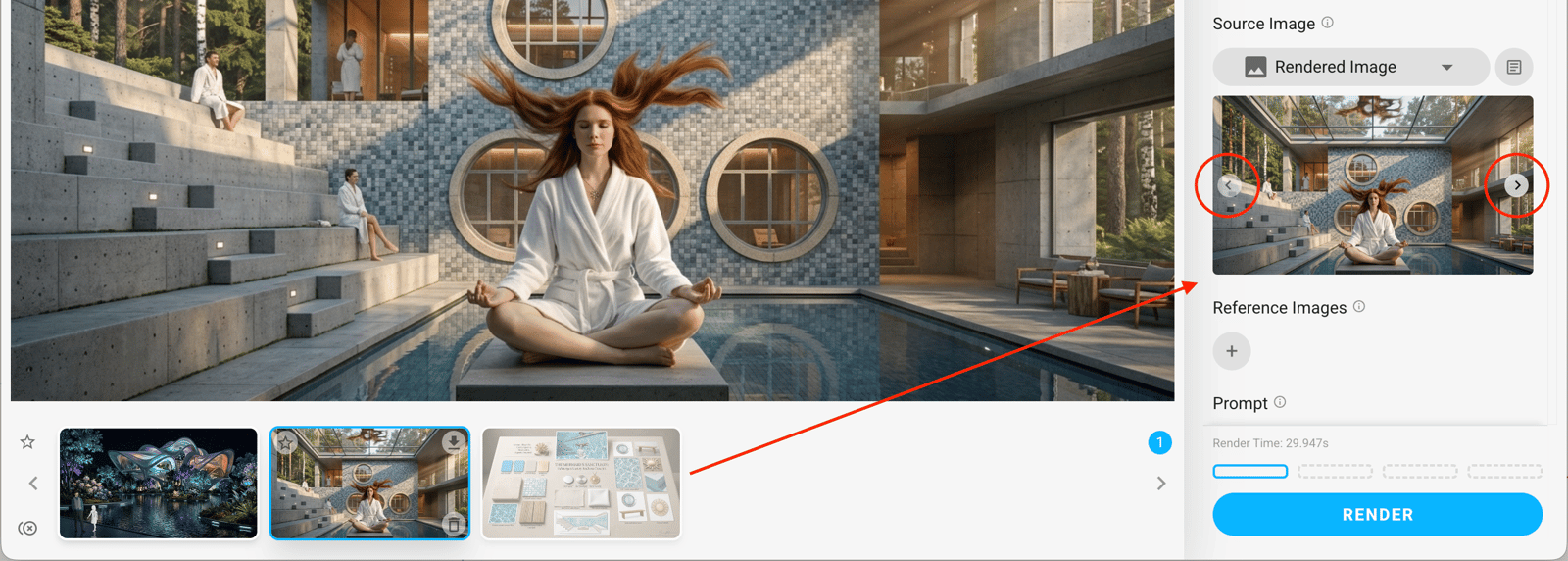
Multiple images upload
- None
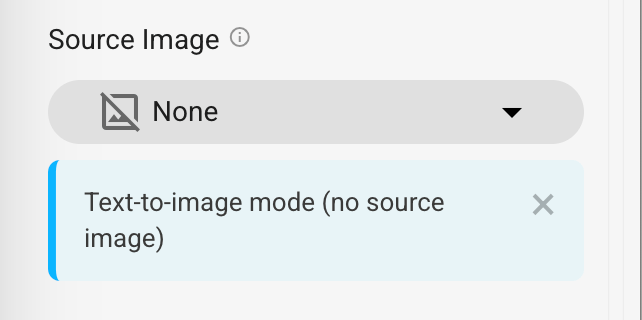
None Source Image
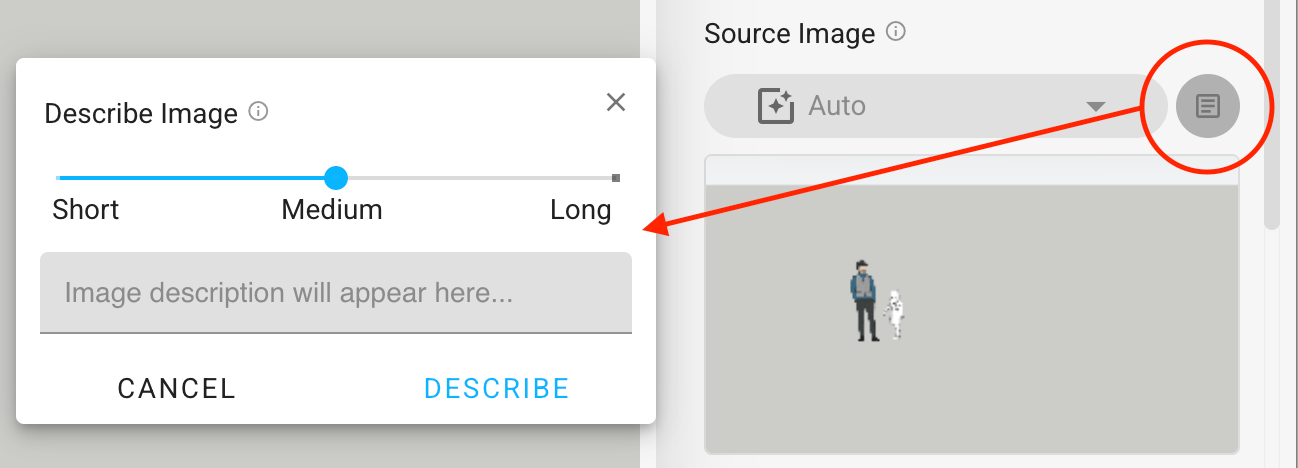
Describe Image
Describe Image - powered by a new AI model, Florence 2, it generates a written description of your source image at the detail level you choose: Short, Medium, or Long.
This image-to-prompt functionality may be used when you struggle to find the right words, creating rich, descriptive content from visual inputs and enhancing the creative process by providing contextually relevant text for further artistic exploration or documentation.
Use it as a starting point for your prompt, copy the description to the clipboard with one click, or cancel mid-request if you change your mind. Changing the source image automatically clears the prior description to always know what is being described.
Reference Images
Reference Images - Add images to guide the AI.
The specific function of the image(s) is defined as:
- Style Reference
- Material Reference
- Color Reference
- Object Reference
- Design Lock
- Custom
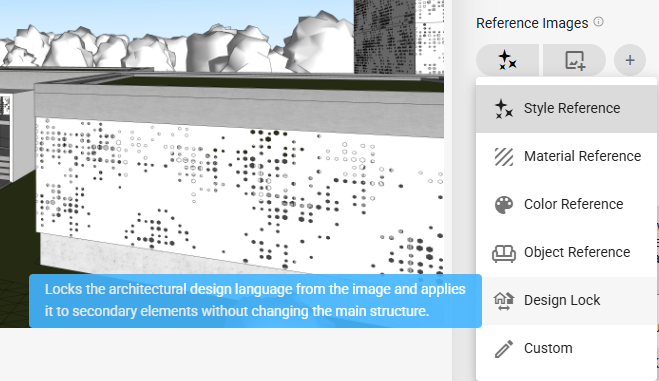
Design Lock
The type of the image can be:
- Manual Upload
- Host platform (here SketchUp is shown)
- Rendered Image
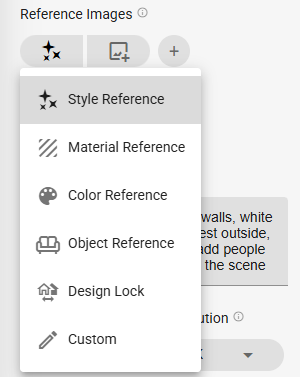
Reference Images function
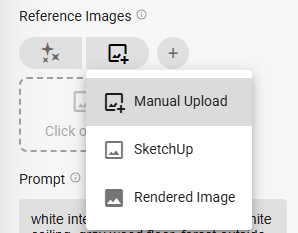
Reference Images type
Prompt
Prompt is the text description given to Veras that tells it what to create, including the subject, style, mood, and details.
Render Engine
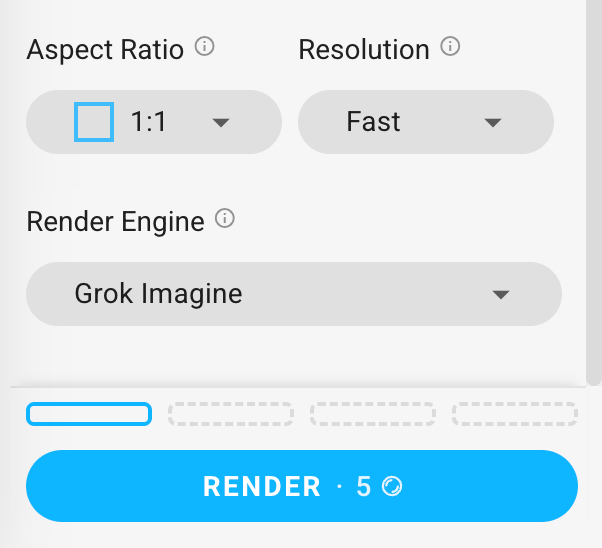
Aspect Ratio - Select the Aspect Ratio for renders.
Resolution - Select the Output Resolution.
Render Engine - Choose between the available choices.
For more information, see the Render Engines page.
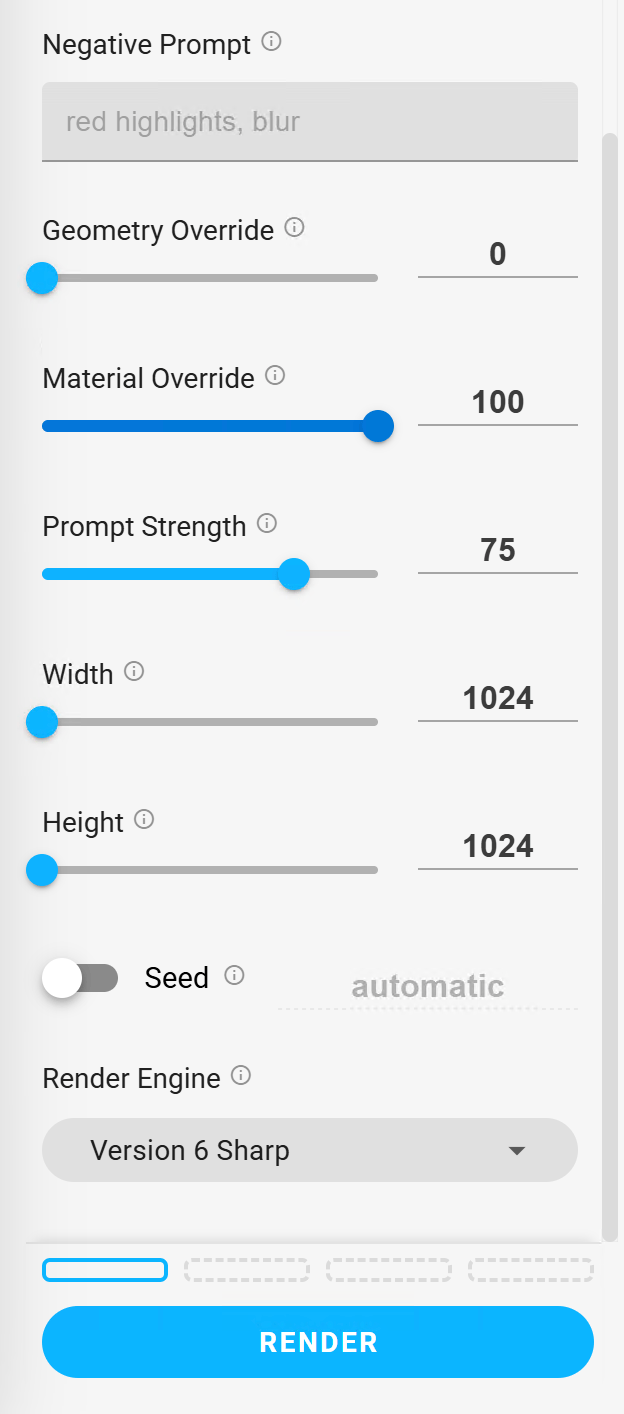
Negative Prompt – Is used for reducing and removing specific content, aesthetic, or style in the generated rendering, and is linked to Prompt Strength.
Geometry Override – The amount the geometry will change from the original model. Low values promote the retention of geometric detail, while high values can generate more creative results.
Material Override – Low values stay closer to the original aesthetic, while high values alter it, producing more dynamic colors.
Prompt Strength – Low values produce muted results, while high values produce more dramatic results.
Width – The rendering resolution's width.
Height – The rendering resolution's height.
Seed – The render seed is used to reproduce previous render results, even with different geometry. When enabled, select a past rendering to use its seed, or enter one manually.