Use the Nodes Tab in Veras to build workflows for images and videos.
Overview
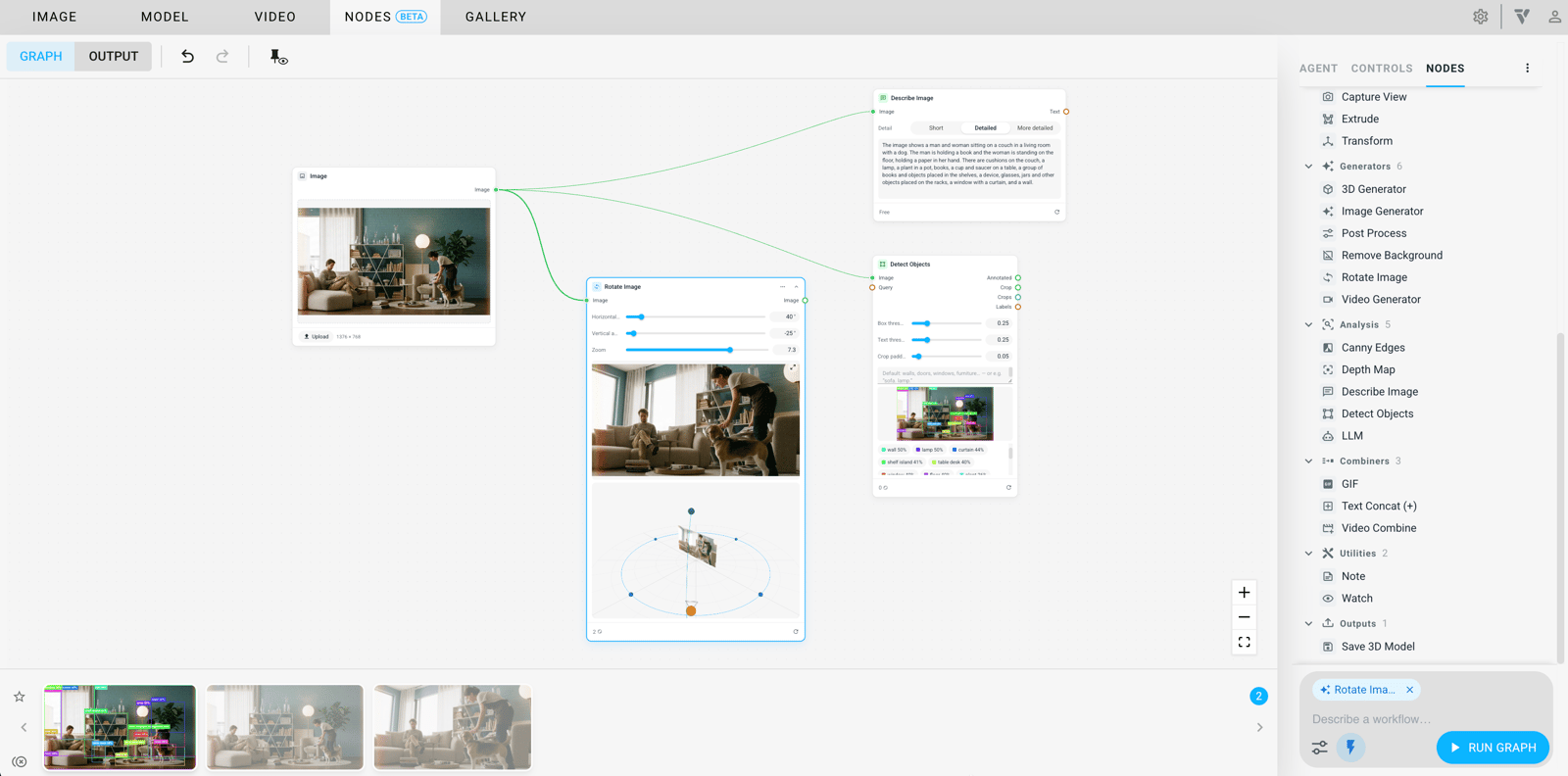
The Nodes Tab gives you access to almost all Veras options as nodes. Build a workflow on the blank canvas, then save it or edit it later. You can work with images and videos. Switch between Graph and Output to check the results.
Describe the workflow you want with help from the Agent.
Open the Controls panel on the side to access the main settings.
Find and combine options in Nodes.
Toolbar


Icon per mode | Action | Icon per mode | Action |
|---|
Icon per mode | Action | Icon per mode | Action |
|---|---|---|---|
GRAPH mode enabled | OUTPUT mode enabled | ||
Undo & Redo operations. Click an icon or use Ctrl/Cmd+Z for Undo and Ctrl/Cmd+Y or Ctrl/Cmd+Shift+Z for Redo. | |||
Pin the main output. If several nodes contain render results, hover to see which output is the main output. | |||
Download | |||
Show Original |
Node options
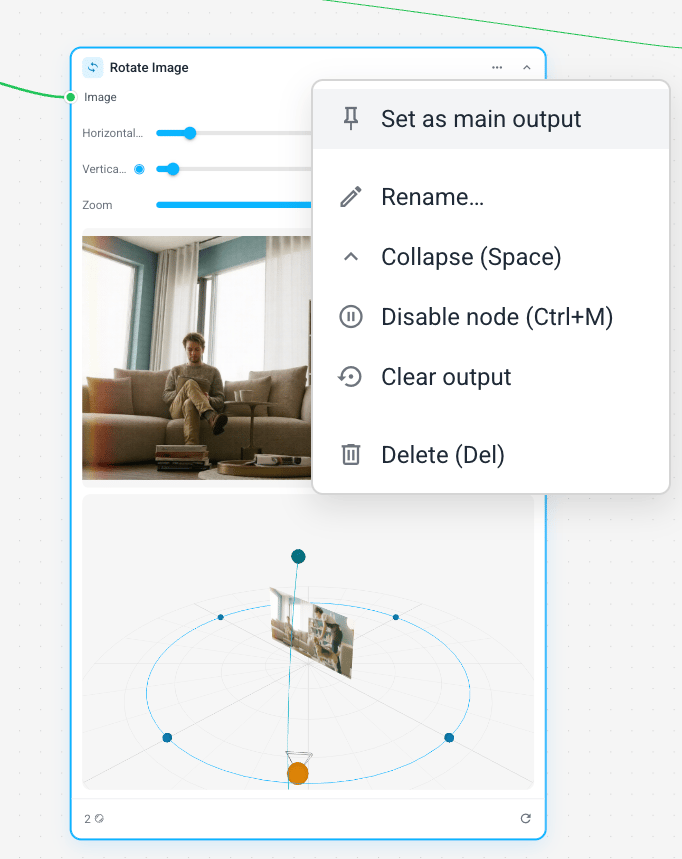
Right-click a node to see the options for its node type.
Choose from these options:
- Set/Unset as main object
- Rename
- Collapse (Space)
- Disable node (Ctrl+M)
- Clear output
- Delete
Right-side panel
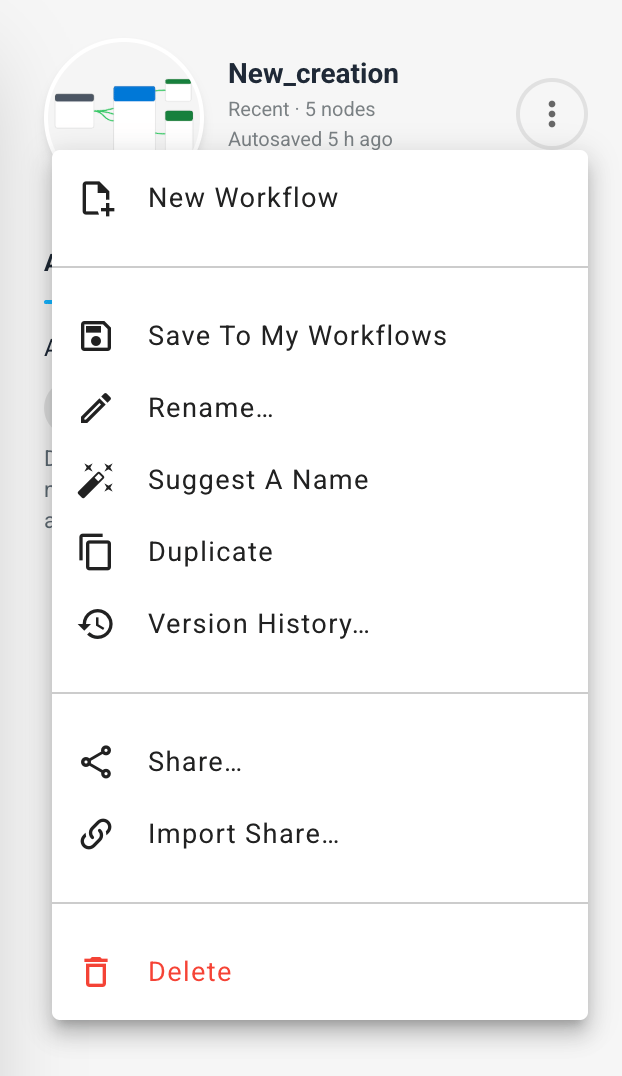
Click the Workflow name to rename it, or open the three-dots menu to choose from these options:
- New Workflow
- Save To My Workflows / Remove From My Workflows (if the workflow is already saved)
- Rename
- Suggest A Name
- Duplicate
- Version History
- Share
- Import
- Delete
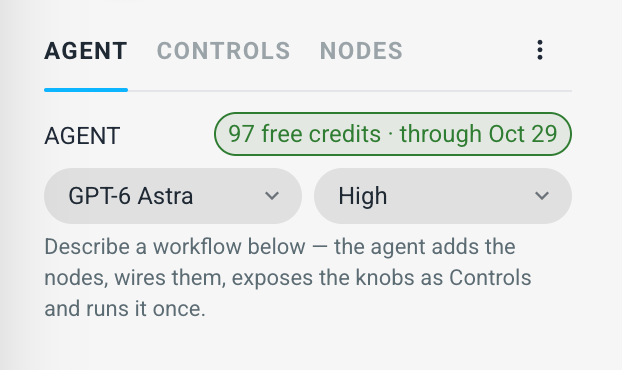
Agent
Check how many credits you have left.
Choose the Agent type:
- GPT-6 Astra
- Claude Opus 5.5
Choose how much reasoning effort the model uses each turn:
- High
- Extra high
- Medium
- Low
Controls
Keep the options you adjust most in an organised list. This helps you and others focus on those controls when reusing or sharing the workflow.
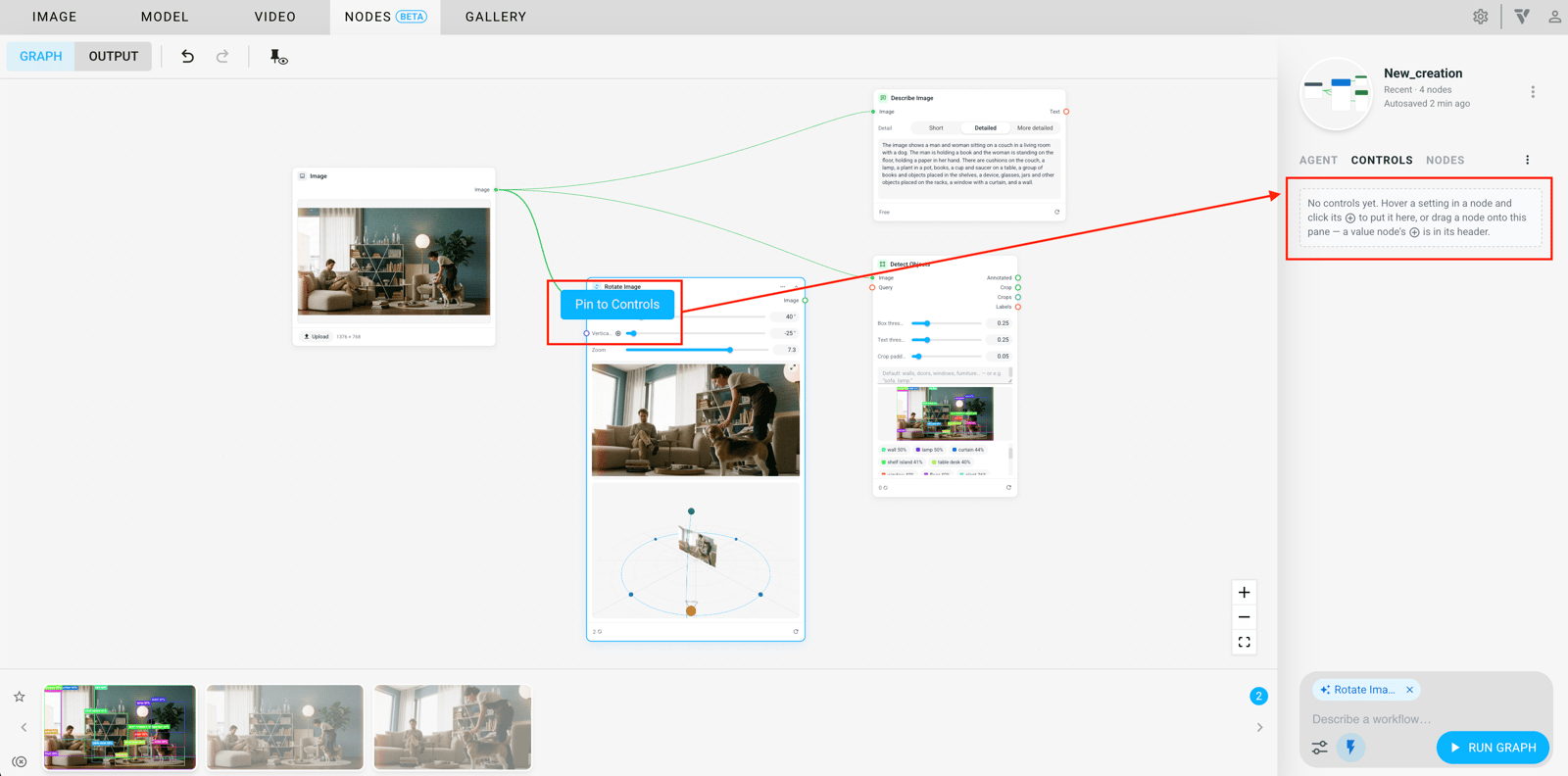
Pin to Controls
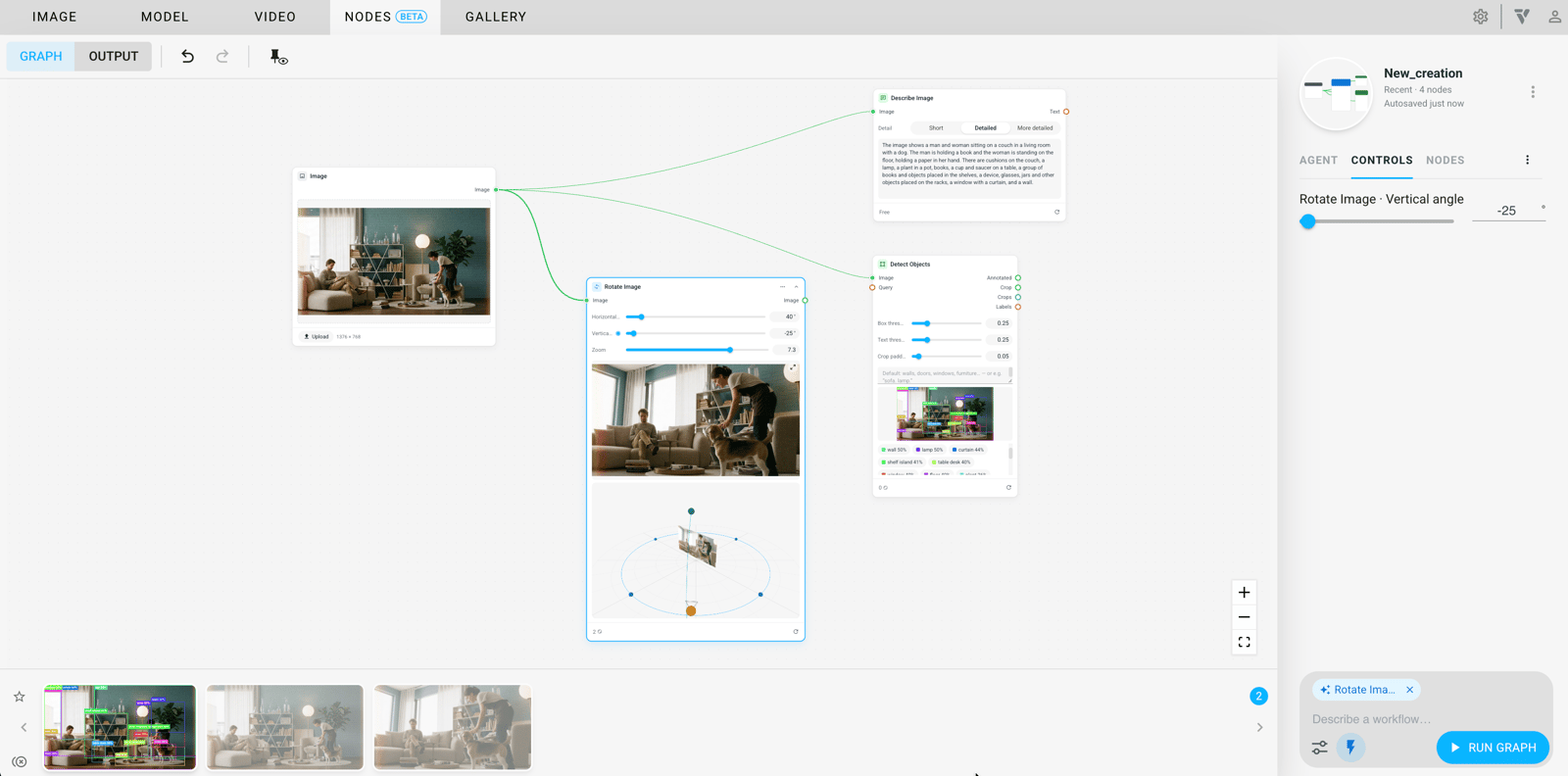
Pinned
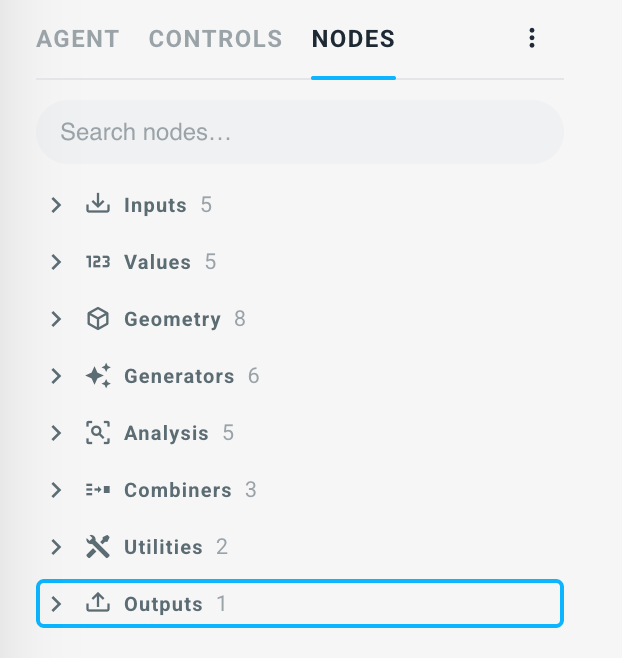
Nodes
Use the Search bar or browse these sections:
- Inputs
- Values
- Geometry
- Generators
- Analysis
- Combiners
- Utilities
- Outputs
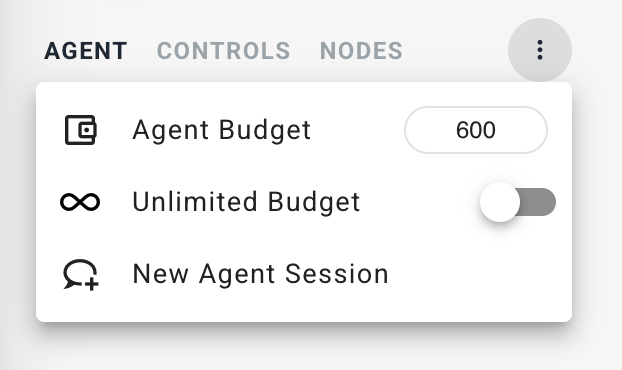
Set a budget and start a new Agent Session
Use Agent Budget to set the budget limit.
Click the slider to turn Unlimited Budget on or off. When it is on, Agent Budget automatically changes to Unlimited and is greyed out.
Select New Agent Session to start a new session.
Run
Follow Edited Node pans the graph to a node outside the current view when you change its setting in Controls. The node briefly glows. This does not apply in the Output view.
Run All (Ignore Cache) shows the full cost before running every node again, including nodes with cached results.
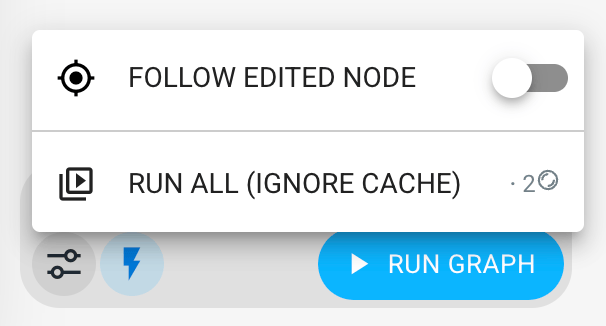
Click the icon to turn Auto-run fast nodes on or off. When it is on, fast, free Nodes (values, text, uploads, geometry, post-process) run again after every change. Nodes that call a service or spend credits never run automatically. They are marked Stale and wait for Run.
Run Graph runs every enabled Node in the Graph. It skips disabled Nodes and the Nodes they feed. Nodes reuse their previous result for free if their inputs and settings have not changed since the last run. Use Ctrl+Enter as the shortcut.