V-Ray for Maya
VRayBumpMtl
This page provides details on how to use the optimized Bump Material in V-Ray.
Last updated 9 December 2025
This page provides details on how to use the optimized Bump Material in V-Ray.
Overview
The VRayBumpMtl gives the ability to add bump map and normal map effects when using any material.
Simply connect a material to the VRayBumpMtl node to add additional bump or normal map functionality. Stacking multiple VRayBumpMtl nodes together can create a more complex surface material by allowing the easy use of several bump and/or normal maps.
For more information, refer to the "Bump and Normal Mapping in V-Ray" article.
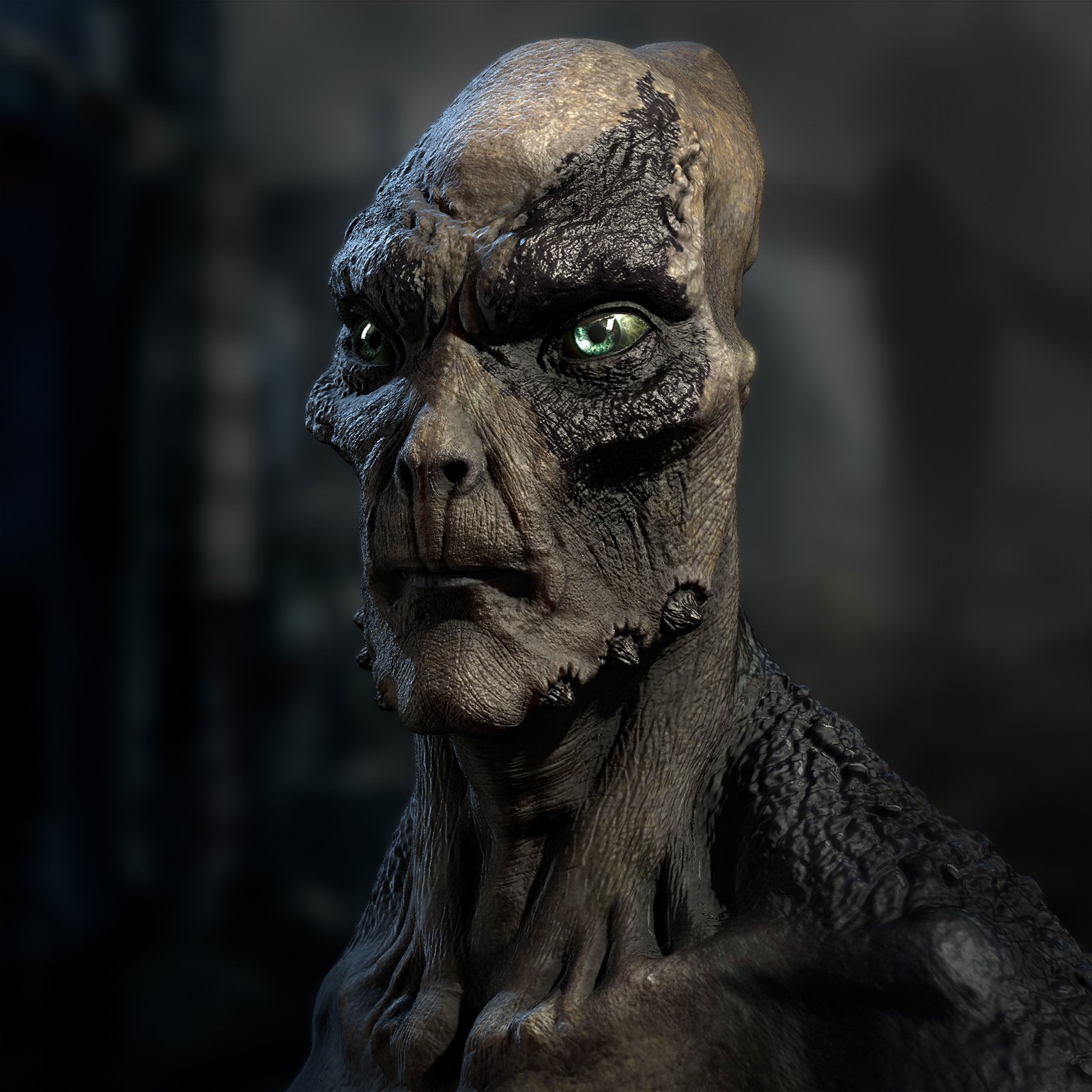
Image courtesy of Renato Eiras
UI Paths...
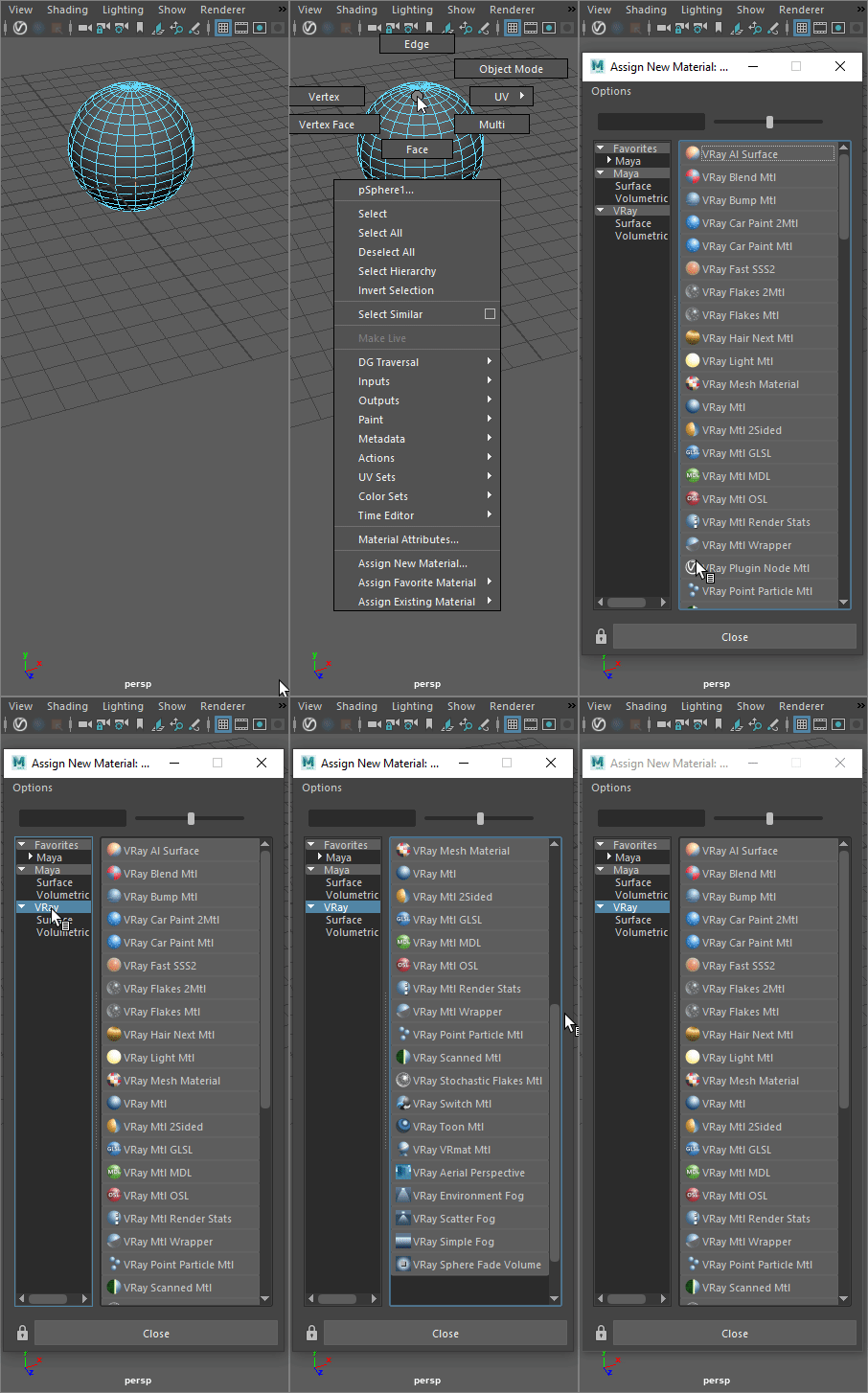
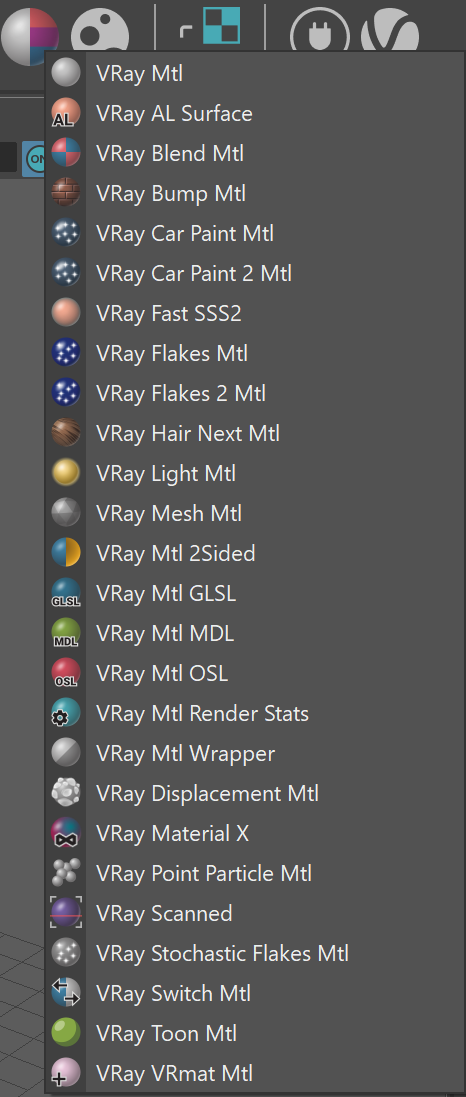
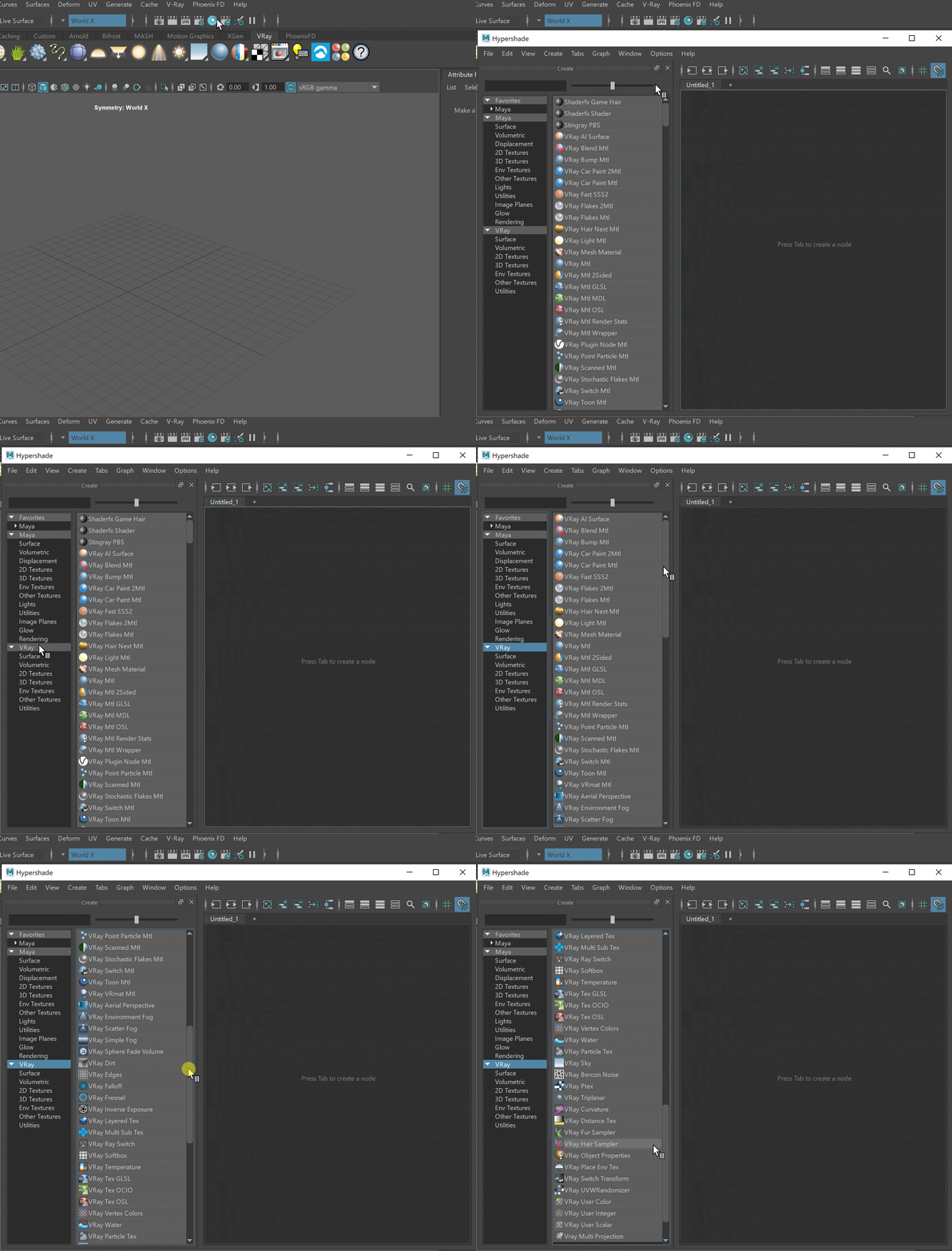
Base Parameters
Base Material – Allows the user to select the base material to which the bump/normal effect will be added.

Bump and Normal Mapping
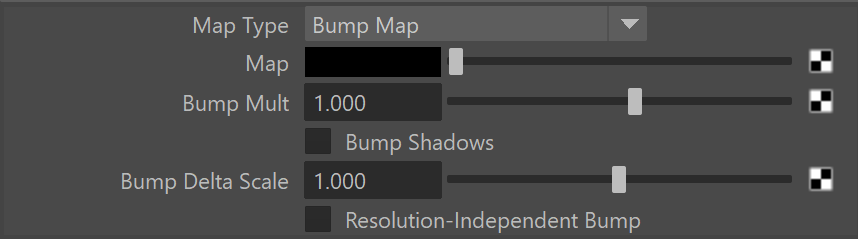
Map Type – Allows the user to specify whether a bump map or a normal map effect will be added to the base material.
Bump Map
Normal map in tangent space
Normal map in object space
Normal map in screen space
Normal map in world space
Map – Specifies the bump/normal map that is going to be used.
Bump Mult – A multiplier for the bump/normal effect.
Bump Shadows – When enabled, V-Ray will consider the bump maps when rendering shadows produced by objects with the bump material applied to them. For more details, please see the Bump Shadows example below.
Bump Delta Scale – Scale for sampling the bitmap when using bump mapping. The exact value is calculated automatically by V-Ray, but can be scaled here.
Resolution-Independent Bump – Ensures consistency of the bump effect regardless of the camera’s distance or rendering resolution. The texture’s details don’t vary when zooming in or out on the object. Note that when using a File texture, you must set the Filter type to Off.
Example: Bump Shadows
When Bump Shadows are enabled, V-Ray takes into account shadows produced by objects with the bump material applied to them. In the images below, a checker map is used to bump the tiles for slightly different heights, as well as bumping the lines between the tiles. When Bump Shadows is turned on, the reflection of the train on the reflective floor tiles is affected. Whereas when Bump Shadows is not turned on, the bump from the reflective floor tiles plays no part in how the shadows and reflection are rendered.
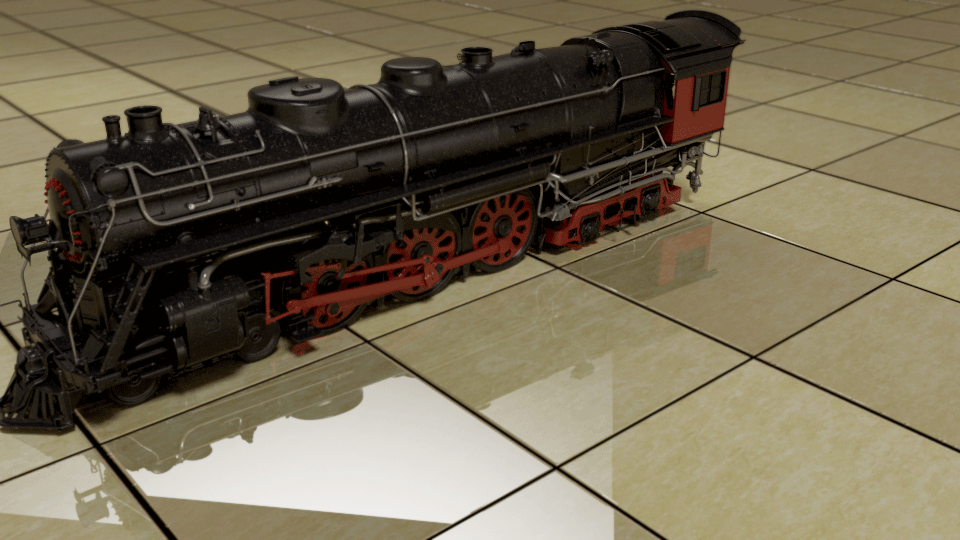
The beauty render with Bump Shadows turned on. Notice how the reflection and shadows have changed in the reflective floor tiles.
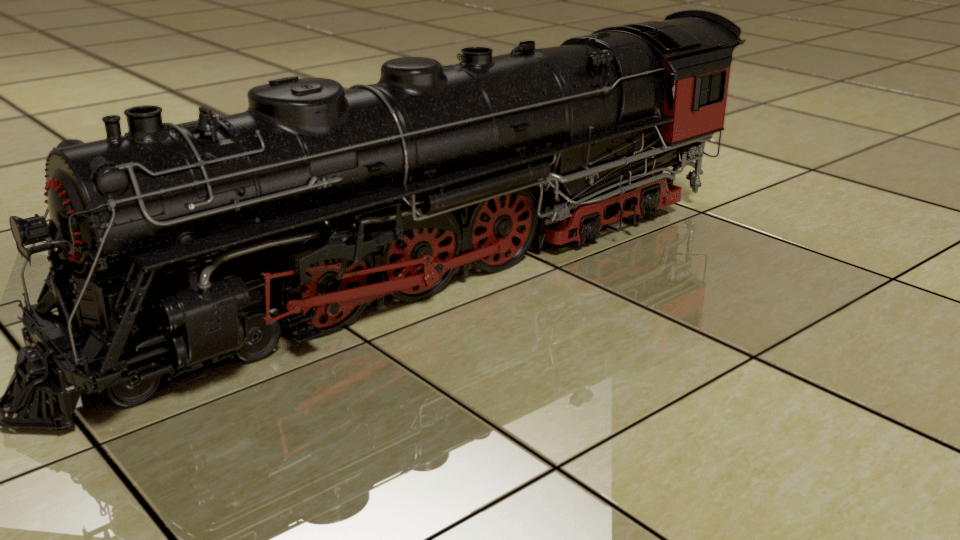
The beauty render with Bump Shadows turned off.
Hardware shading
Viewport color – Specifies the color used in the viewport.
Override viewport color – When enabled, it allows you to specify the viewport color of the material. This option helps visualize more complex shaders in the viewport.
