Use Material Override in the V-Ray Asset Editor to render your scene with an override colour or material.
Overview
In V-Ray Settings, use Material Override to replace the scene materials with a colour or material. From V-Ray 7, you can preserve specific material properties and use predefined presets.
UI path
||V-Ray Asset Editor|| > Settings > Material Override
Parameters
Enable Material Override to override scene materials when rendering. All objects render with the selected override material, or with a default material that uses Color for diffuse shading.
Override Mode sets the override material mode.
Colour uses a diffuse material with the specified colour.
Material uses the selected scene material.
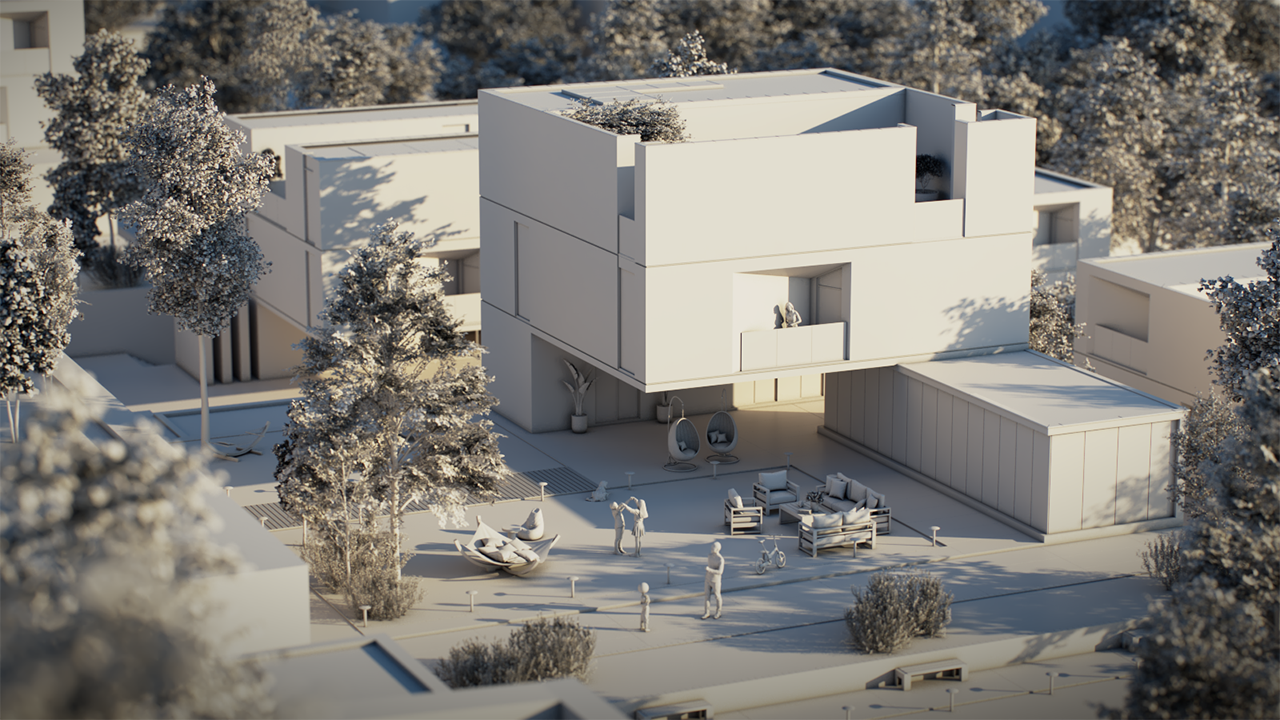
Preset uses a predefined material. The available presets are White, Arctic, Clay, Dark Clay, Plastic, and Wood. See the Override Mode Presets example below.
Split Refractive enables a custom override option for all refractive materials.
Colour sets the override material's colour. It is available when Override Mode is Color. See the Override Mode Color example below.
Material sets the material that replaces the original project materials when rendering. It is available when Override Mode is Material. All objects render with the selected material, except materials with Can be Overridden disabled. See the Override Mode Material example below.
Refractive Color sets the colour of the material that overrides refractive project materials when rendering.
Enable Round Edges to apply edge rounding to the override material. It is available when Override Mode is Preset.
Effects Scale adjusts the dirt and edge rounding radii and the override material's texture sizes. It is available when Override Mode is Preset. Use it if the default effects size does not suit your project.

Example: Override Mode Color
This example shows different material overrides with Override Mode set to Color.
Click the images to view them at full size.

Color RGB: 110, 175, 215

Color RGB: 215, 215, 115

Color RGB: 215, 215, 115, Refractive Color RGB: 110, 175, 215

Original Render
Example: Override Mode Material
This example shows different material overrides with Override Mode set to Material.
Click the images to view them at full size.

Pain Pink Glossy material, Glass Turquoise Frosted Refractive material
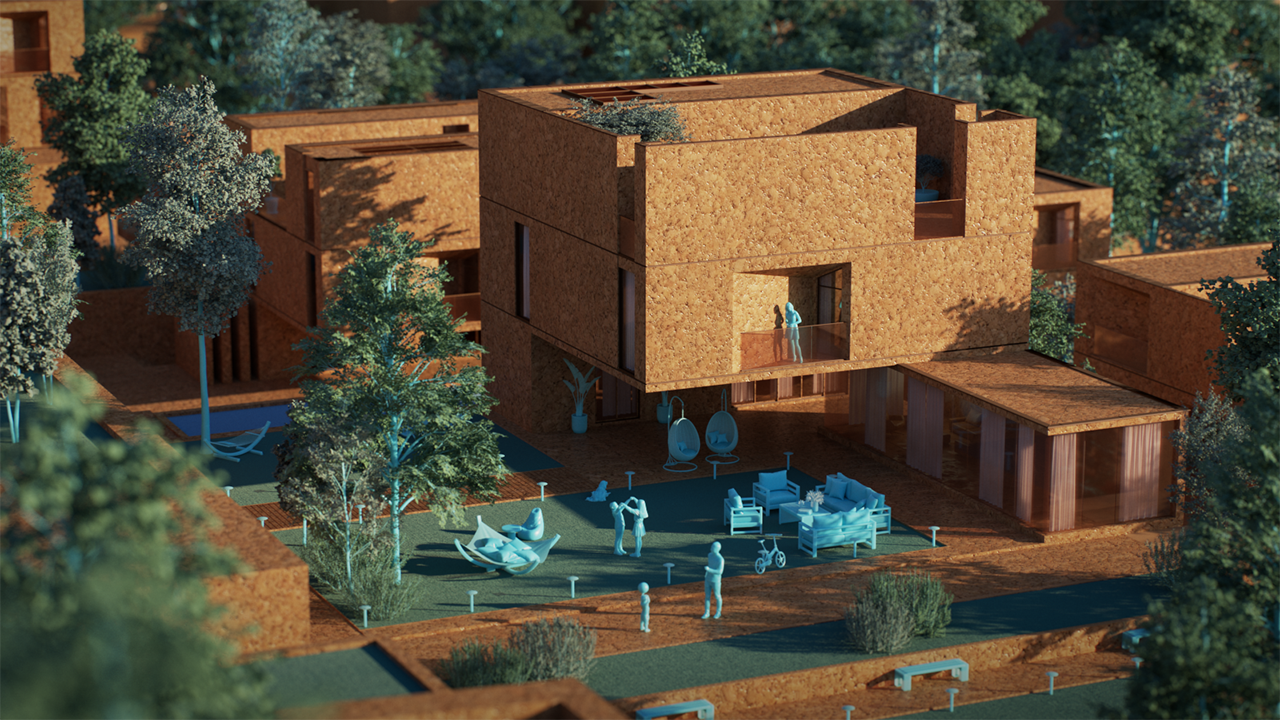
Cork Material, Acryl Tinted Refractive Material
Original Render
Example: Override Mode Presets
This example shows the available presets with Override Mode set to Preset.
Click the images to view them at full size.
White

Arctic Preset
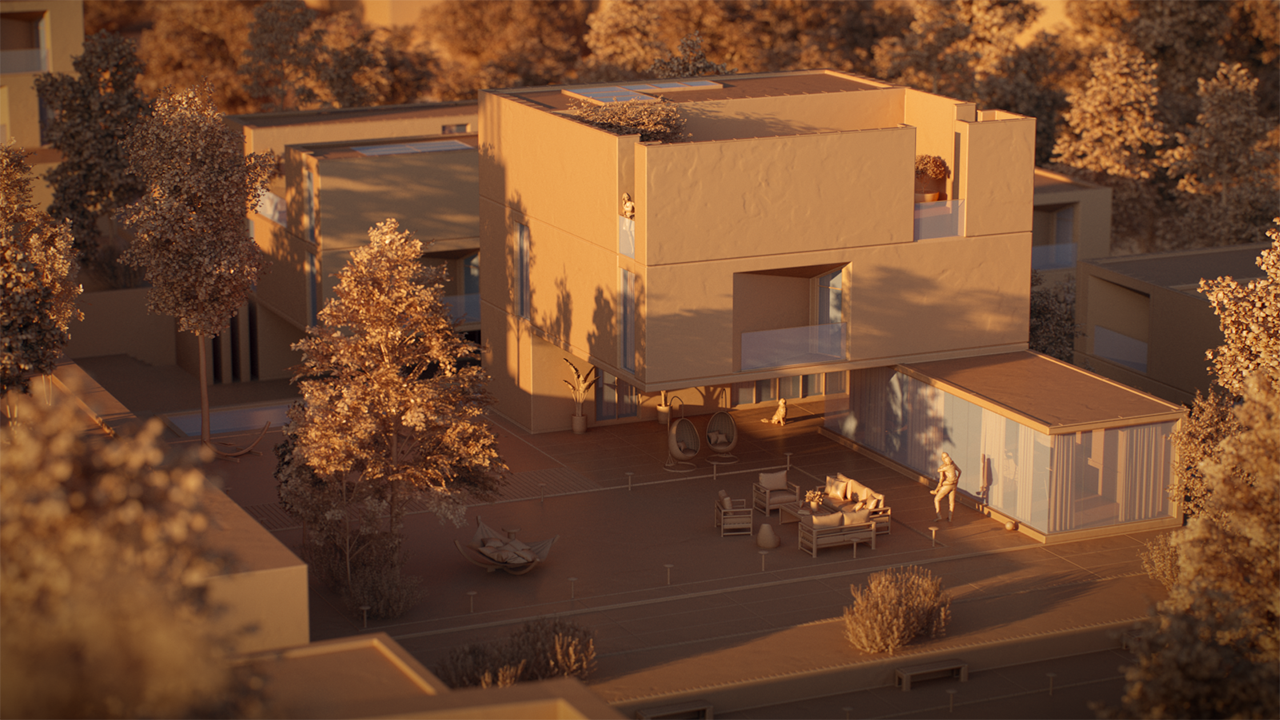
Clay

Dark Clay
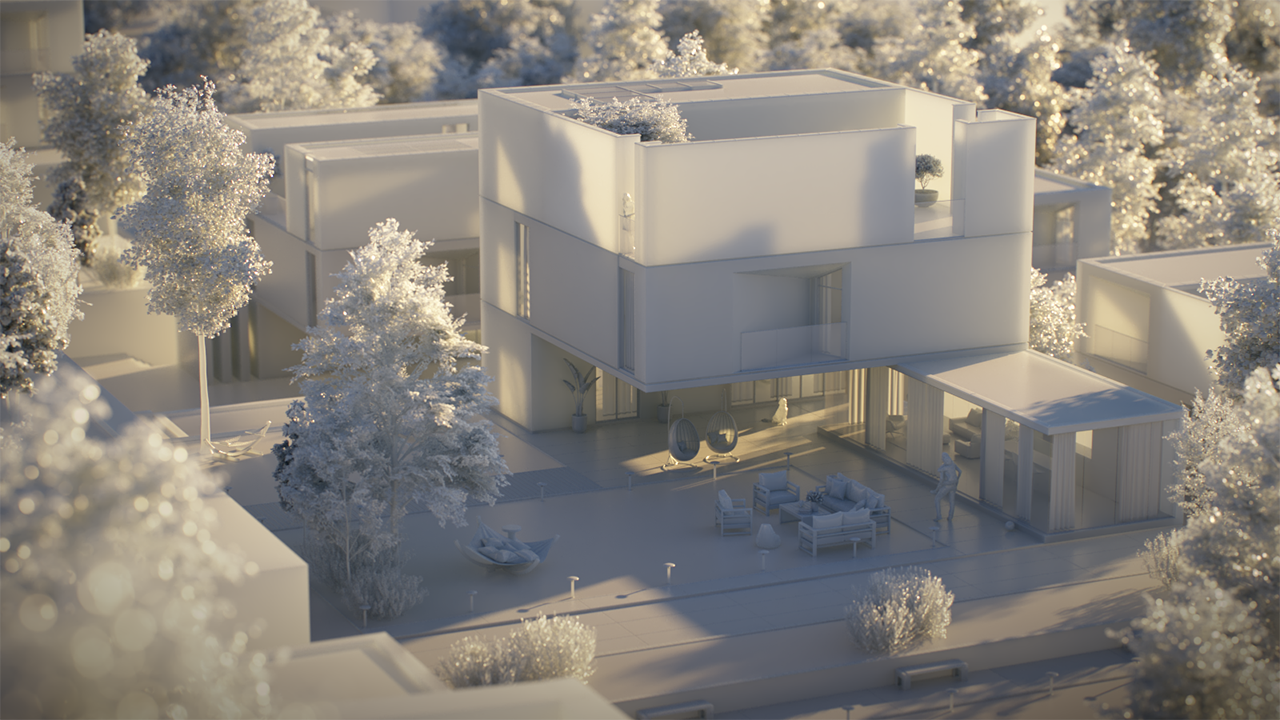
Plastic

Wood
Original Render
Preserve Properties
Select a checkbox under Preserve Properties to keep that material property's original appearance. See the Preserve Properties example below.
Enable Bump to preserve the Bump property's original appearance.
Enable Reflection to preserve the Reflection property's original appearance.
Enable Refraction to preserve the Refraction property's original appearance.
Enable Opacity to preserve the Opacity property's original appearance.
Enable Self-illumination to preserve the Self-illumination property's original appearance.

Example: Preserve Properties
This example shows how Preserve Properties works with different material properties selected.
Click the images to view them at full size.

Original Render
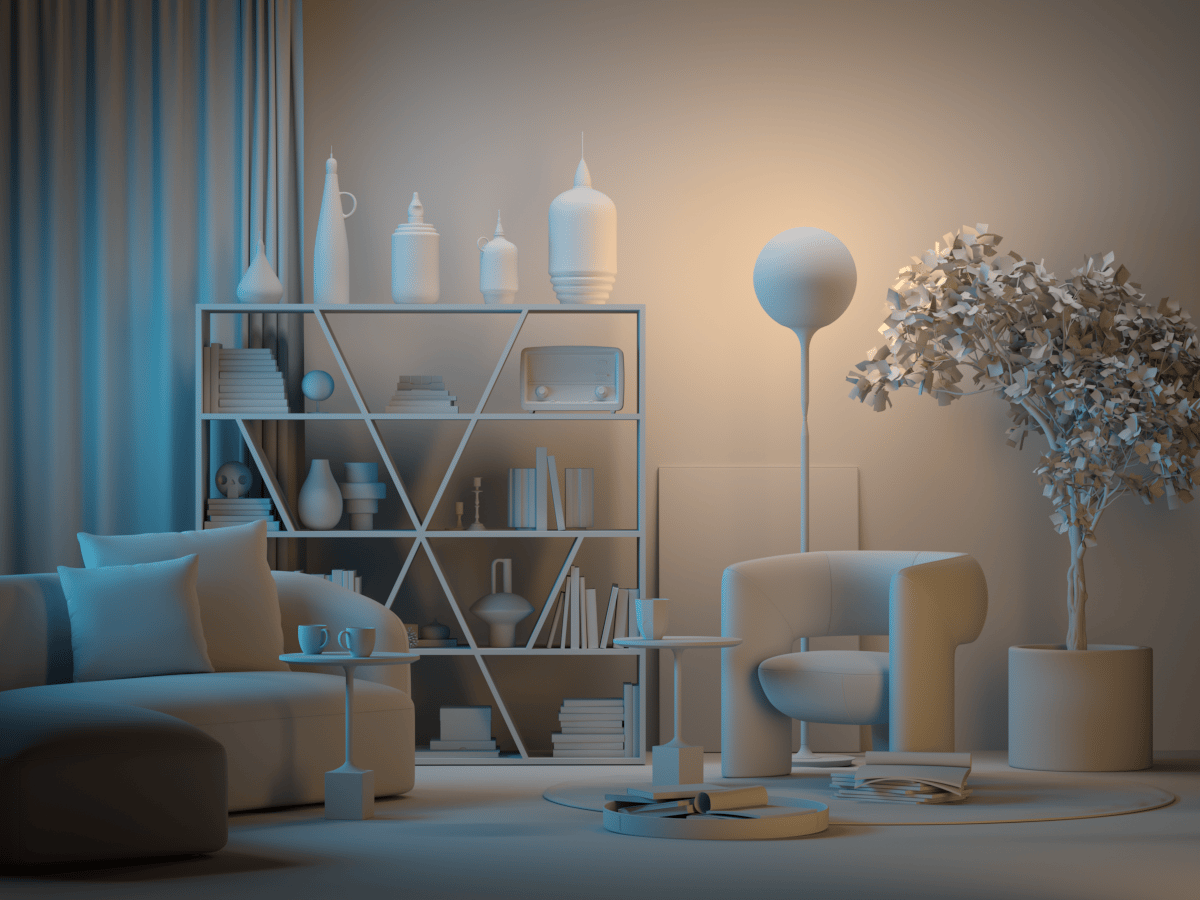
Material Override
= On;
Mode
= Color R200; G200; B200

Material Override
= On;
Preserve Properties
= Bump
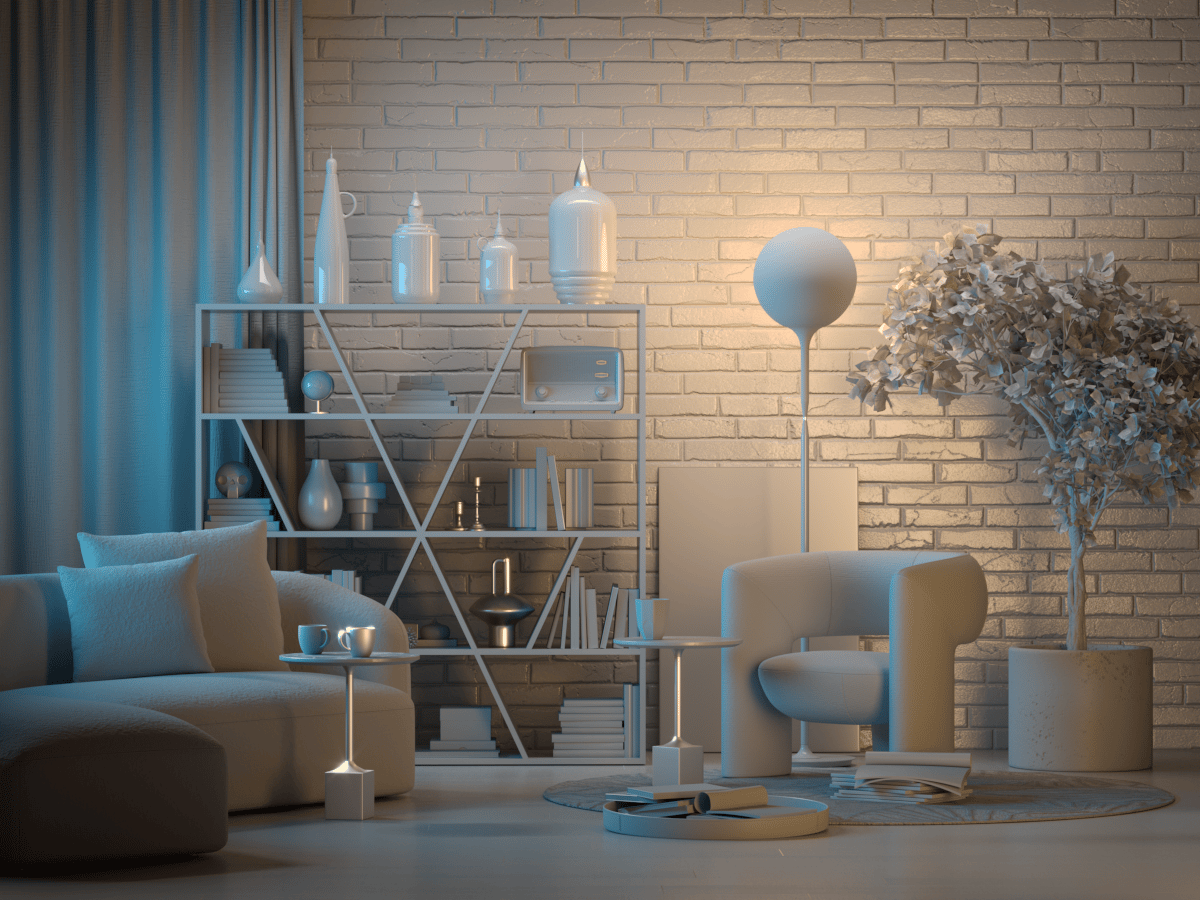
Material Override
= On;
Preserve Properties
= Bump; Reflection

Material Override
= On;
Preserve Properties
= Bump; Reflection; Refraction

Material Override
= On;
Preserve Properties
= Bump; Reflection; Refraction; Opacity
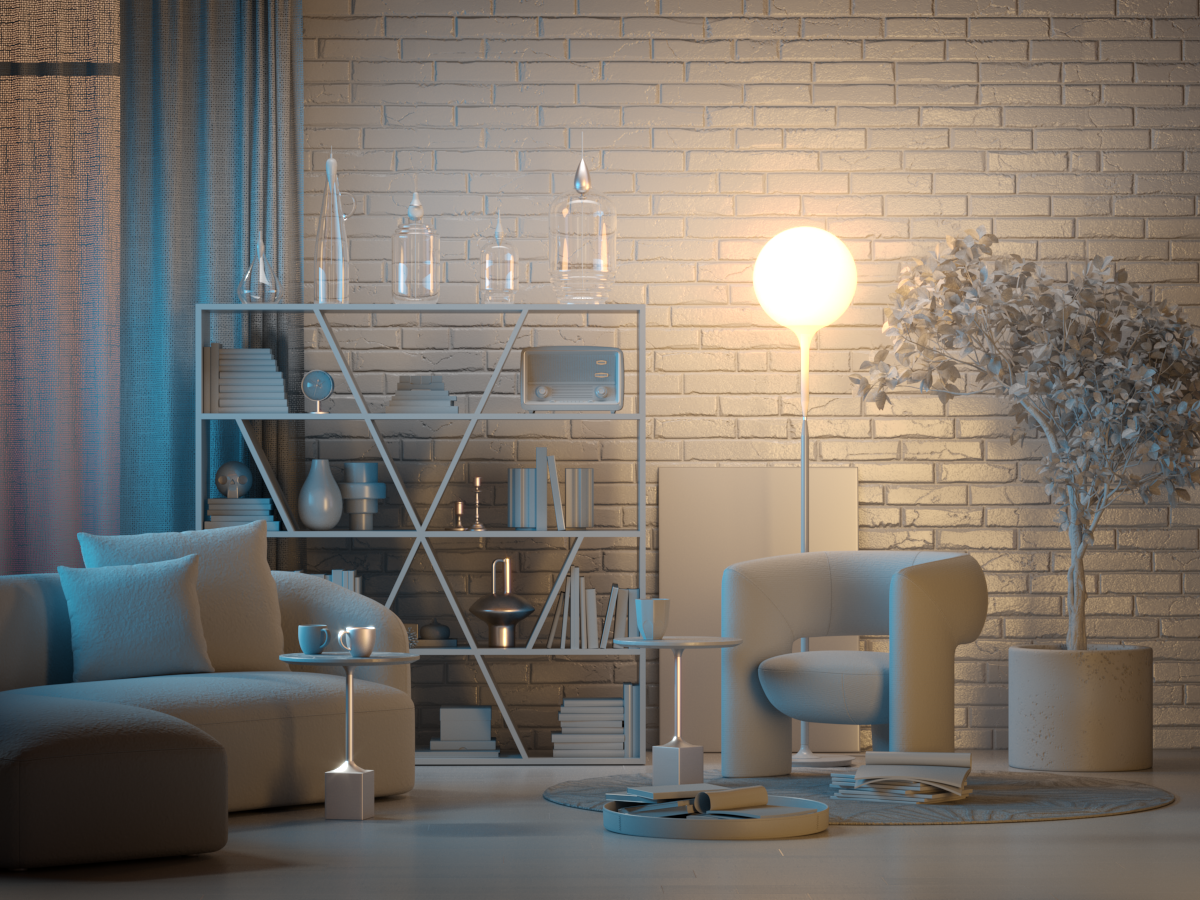
Material Override
= On;
Preserve Properties
= Bump; Reflection; Refraction; Opacity; Self-illumination