Use the Volumetric Environment rollout in the V-Ray Asset Editor to adjust Aerial Perspective and Environment Fog.
Overview
The Volumetric Environment section in the V-Ray render settings contains the settings for Aerial Perspective and Environment Fog.
V-Ray Aerial Perspective simulates how the Earth's atmosphere affects objects viewed from a distance. The effect resembles fog or haze. It works with the V-Ray Sun to approximate aerial perspective.
VRayEnvironmentFog simulates particles in the atmosphere, such as fog and dust.

UI path
||V-Ray Asset Editor|| > Settings > Volumetric Environment
Parameters
Type sets the environment volume shader type.
Aerial Perspective simulates how the Earth's atmosphere affects objects viewed from a distance. The effect resembles fog or haze. It works with VRaySun and VRaySky to calculate colour and brightness.
Environment Fog simulates media that scatter light, such as fog or atmospheric dust. By default, it scatters light from all light sources in the scene.

Aerial Perspective
Sun sets the Sun object in the scene that connects to the Aerial Perspective effect.
Visibility Range sets the distance, in metres, at which fog absorbs 90% of the light from objects behind it. Lower values make the fog denser. Higher values reduce the aerial perspective effect. See the Visible Distance example below.
Atmosphere Height sets the height of the atmosphere layer in metres. Use lower values for artistic effects. V-Ray converts the value internally to match the current SketchUp units. See the Visible Height example below.
Light Multiplier controls how much sunlight the atmosphere scatters. The default value of 1.0 is physically accurate. Use lower or higher values for artistic effects.
Filter Color affects the colour of light that is not scattered.
Affect Environment controls whether the atmospheric effect applies to camera rays that hit the sky. When disabled, the effect applies only to camera rays that hit objects. The VRaySky texture already accounts for scattered sunlight. You can enable this option for artistic effects, especially at low visibility ranges. See the Affect Environment Rays example below.
Affect Background controls whether the effect applies to camera rays that hit a background other than VRaySky. It is enabled by default. You can disable it for artistic effects.

Example: visibility distance
Visibility distance in metres.


Example: visibility height
Visibility height in metres.
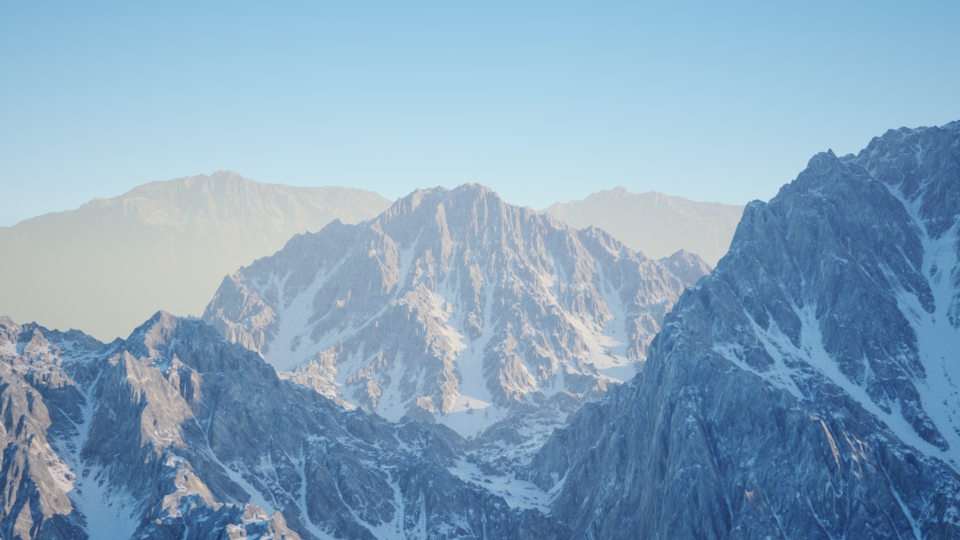

Example: Affect Environment Rays


Environment Fog
Colour sets the fog's colour when light sources illuminate it.
Emission controls the fog's self-illumination. You can use it instead of global illumination (GI) to simulate ambient illumination inside the fog.
Emission Multiplier multiplies the Emission colour.
Distance controls fog density. Higher values make the fog more transparent. Lower values make it denser.
Height sets where the fog starts along the Z-axis. The fog extends downwards indefinitely from that height.
Scatter GI
Scatter GI lets the fog scatter global illumination. This can be slow. In many cases, you can use Emission instead to simulate illumination inside the fog. When Scatter GI is enabled, V-Ray uses the selected global illumination algorithm (Irradiance Map, Light Cache or Brute Force) to speed up GI calculations inside the fog.
Scatter Bounces controls the number of GI bounces calculated inside the fog when Scatter GI is enabled.
Affect
Affect Camera Rays controls whether the fog is visible to camera rays.
Affect Background controls whether fog obscures the background. When disabled, the background remains unobscured.
Affect Secondary Rays controls whether fog affects shadow, GI, reflection and refraction rays.
Affected By
Lights sets which scene lights affect the fog. Use it when you want some lights to affect specific objects and others to affect the environment fog.
All Lights makes all scene lights affect the environment fog.
No Lights prevents scene lights from affecting the environment fog.
Selected Lights makes only the lights you select from the list affect the environment fog.

Notes
- V-Ray Aerial Perspective calculates faster than V-Ray Environment Fog, but its result is an approximation. V-Ray Aerial Perspective cannot produce volumetric shadows.
- SketchUp always calculates scene units in inches.