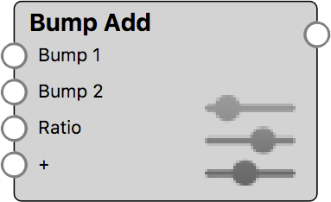
Use Bump Add in KeyShot to combine two bump texture maps or procedural textures. Adjust Ratio and Weight to control how much each bump contributes.
Bump Add settings
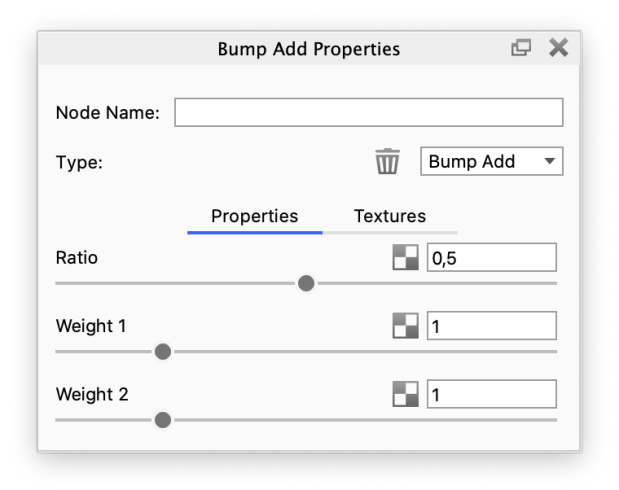
Ratio and Weight control how much each input bump map contributes to the final bump result. Ratio: Use the Ratio slider to balance the contribution of both input bump maps. The default value of 0.5 gives both bump maps an equal contribution. At 0, only Bump 1 affects the material. At 1, only Bump 2 is visible. Weight: Each Weight parameter multiplies its bump texture's Bump Height. The default value of 1 keeps the bump height set on the texture. A Weight of 0 removes that bump's effect. Values above 1 increase the bump effect in the final result. |
Bump Add example
These examples use Bump Add on a Plastic material to show how Ratio and Weight affect the result.
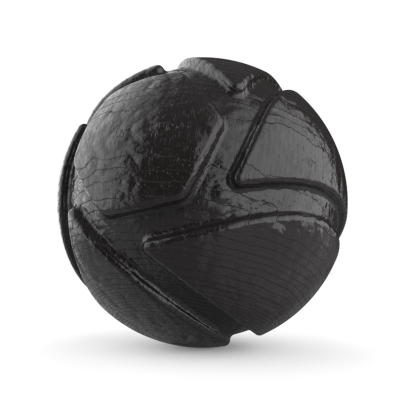
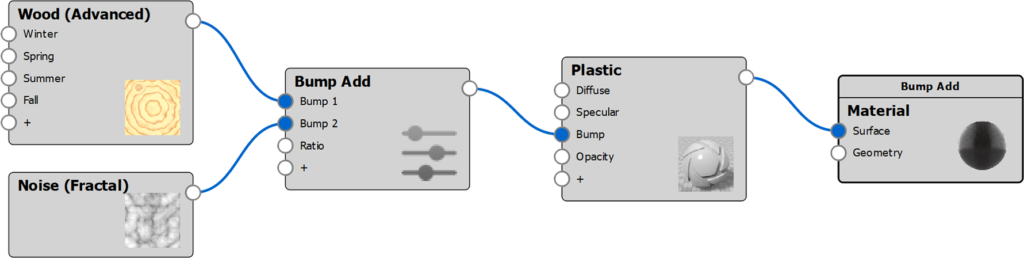
Plastic material with two bump textures |
Variations
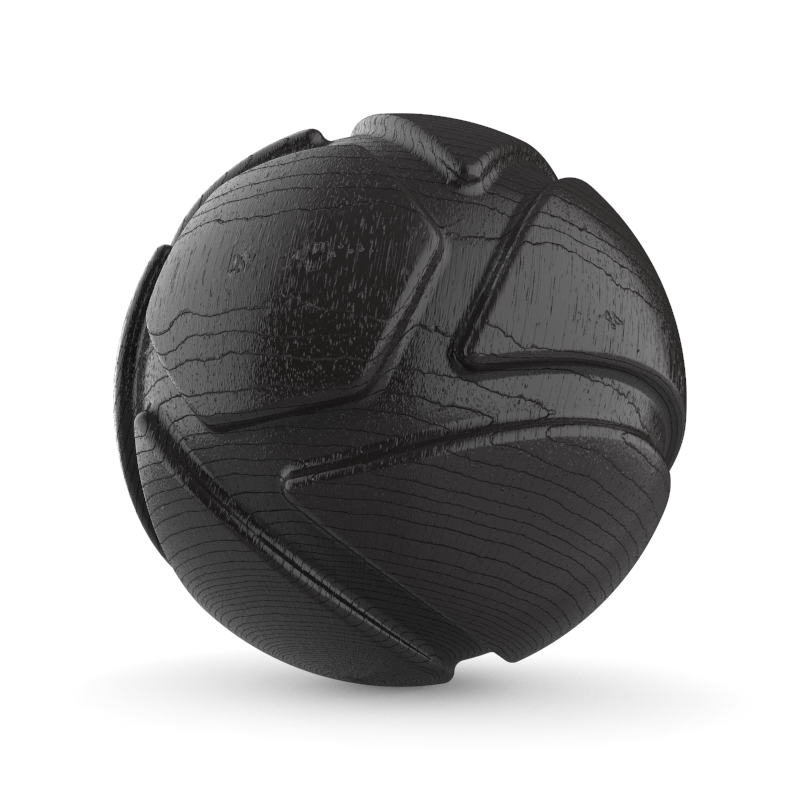
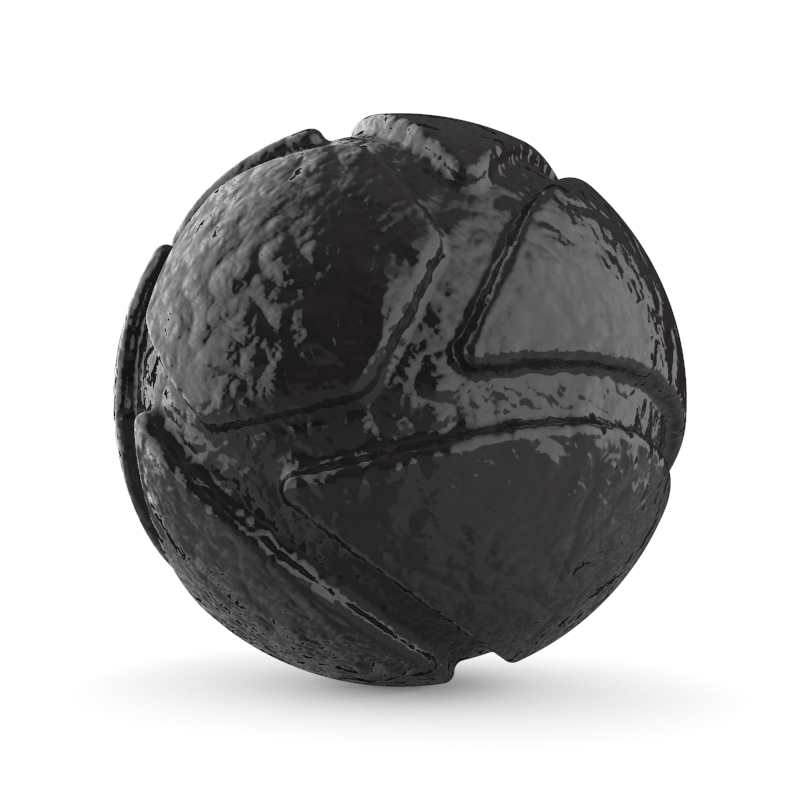
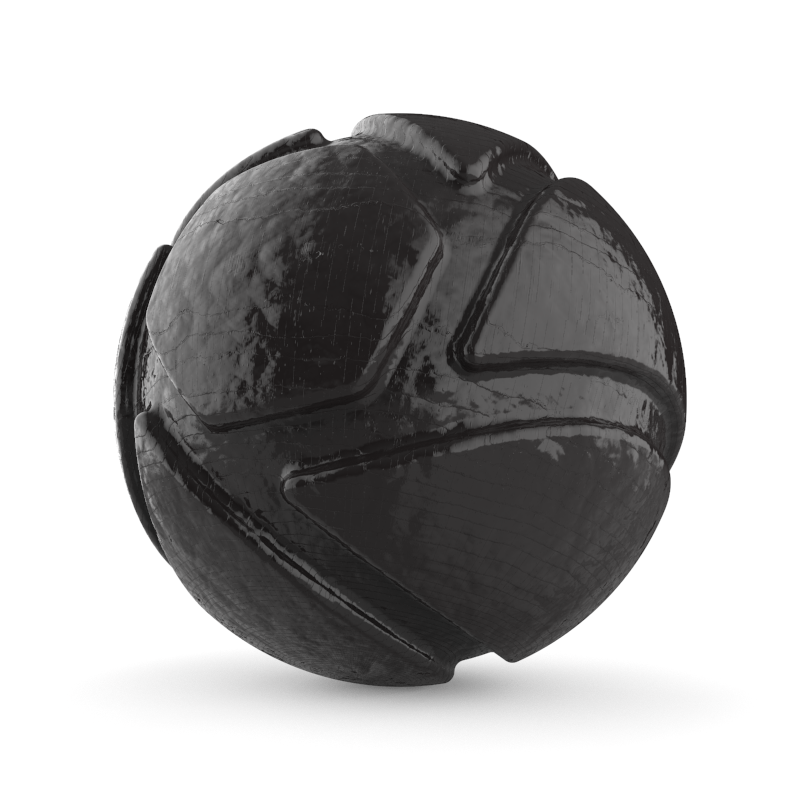
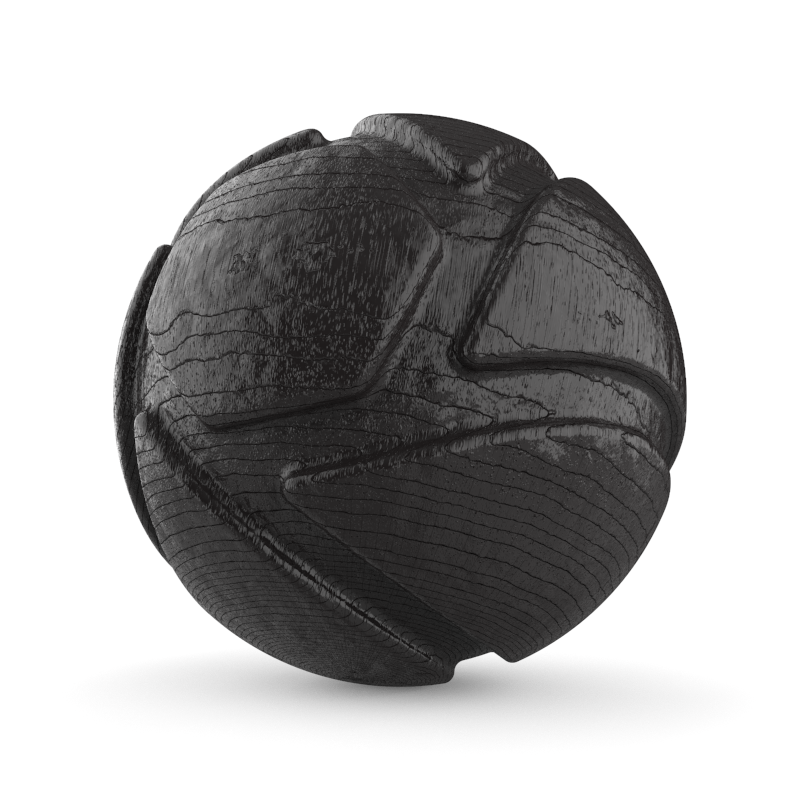
Bump Add with Ratio = 0 | Bump Add with Ratio = 1 | Bump Add with Weight 1 = 1 (Ratio = 0.5 and Weight 2 = 1) | Bump Add with Weight 1 = 10 (Ratio = 0.5 and Weight 2 = 1) |