Use the Color Fade animation node in KeyShot to change the colours of your custom material swatches over time.
Updated 3 August 2026 2 minute read
Use the Color Fade animation node in KeyShot to change the colours of your custom material swatches over time.
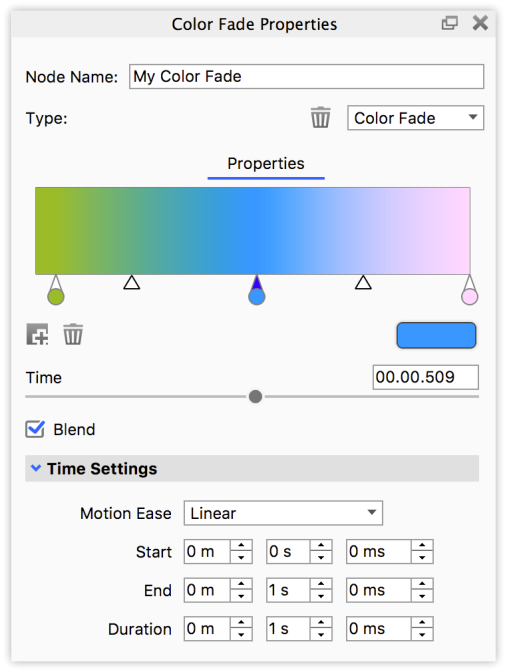
Color Bar
Set which colours fade into each other and when. Click the dropper circle to select it, then use the colour swatch to choose a colour.
The triangles mark where the 2 colours mix 50-50. Drag them to adjust the blend.
Add Color Stop To fade between more than 2 colours, click the Add stop button below the colour bar to create another colour swatch. Click and drag the colour pins and the gradient apex slider to adjust the animation effect.
Delete Stop To remove a colour stop, select it and click delete.
Time Select a colour stop and enter when it reaches the selected colour on the timeline (colour bar). This gives you more precise control than dragging individual colour stops.
Blend Select Blend to blend the colours into each other. Otherwise, the colour changes instantly at the colour stop.
Time Settings
Use these settings to control the animation's timing and duration. See the Motion Ease types.
 in KeyShot to change the colours of your custom material swatches over time.
 Add Color Stop
 Delete Stop