KeyShot Studio
Color To Number
The Color To Number node converts color values to number values. This is usually done implicitly such that black is zero and white is 1, however there are times where you need more control. This is quite useful, for example, with roughness maps where you can use Color To Number to easily map a gray scale image to go...
Last updated 3 August 2026
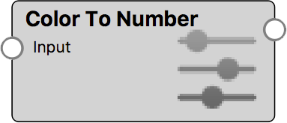
The Color To Number node converts color values to number values. This is usually done implicitly such that black is zero and white is 1, however there are times where you need more control. This is quite useful, for example, with roughness maps where you can use Color To Number to easily map a gray scale image to go from e.g. 0.05 to 0.10 – this would be hard to do otherwise.
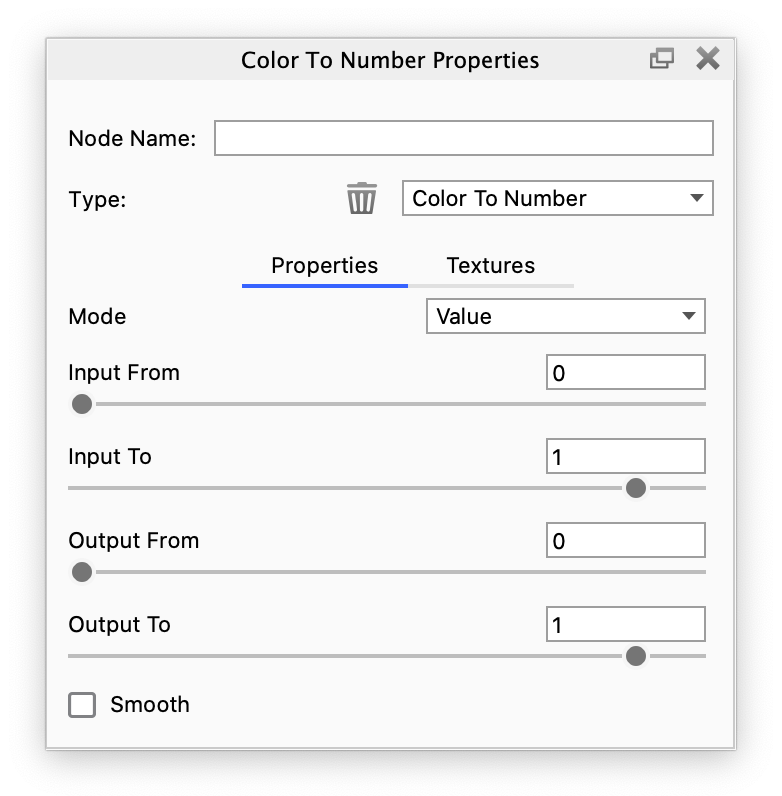
Color To Number Example with Roughness
The example shows a model with a polished metal material onto which a roughness texture will be applied to achieve micro-imperfections on the surface. The third image shows the effect of directly applying above texture to the Roughness parameter of the metal material.
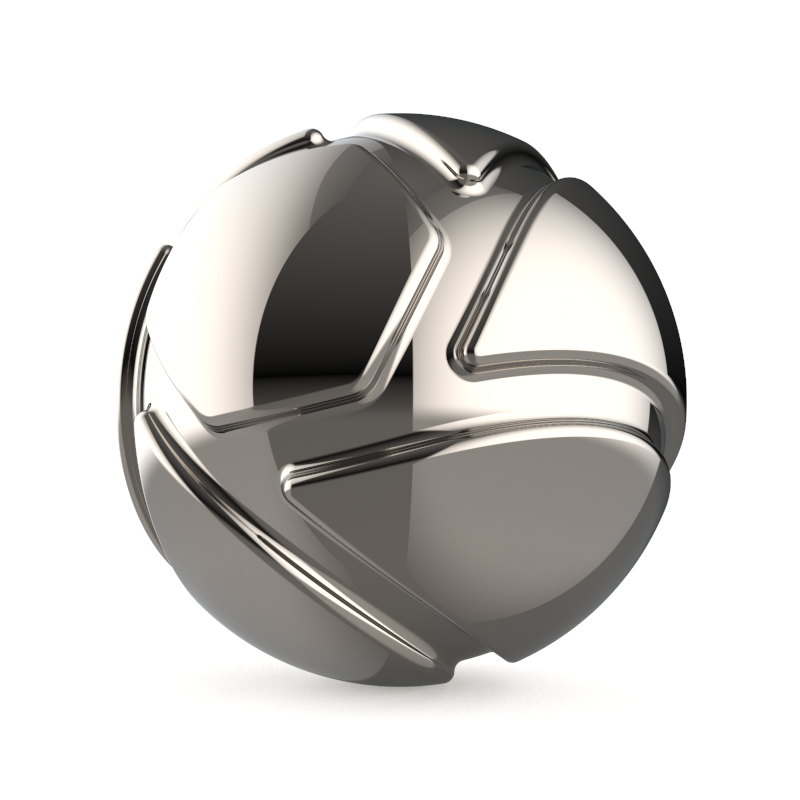
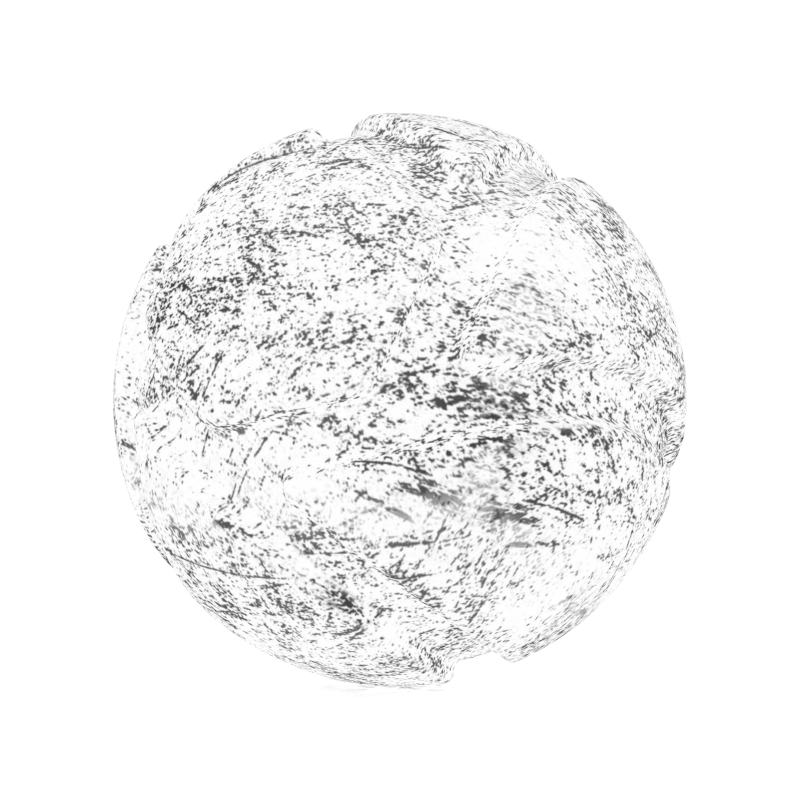
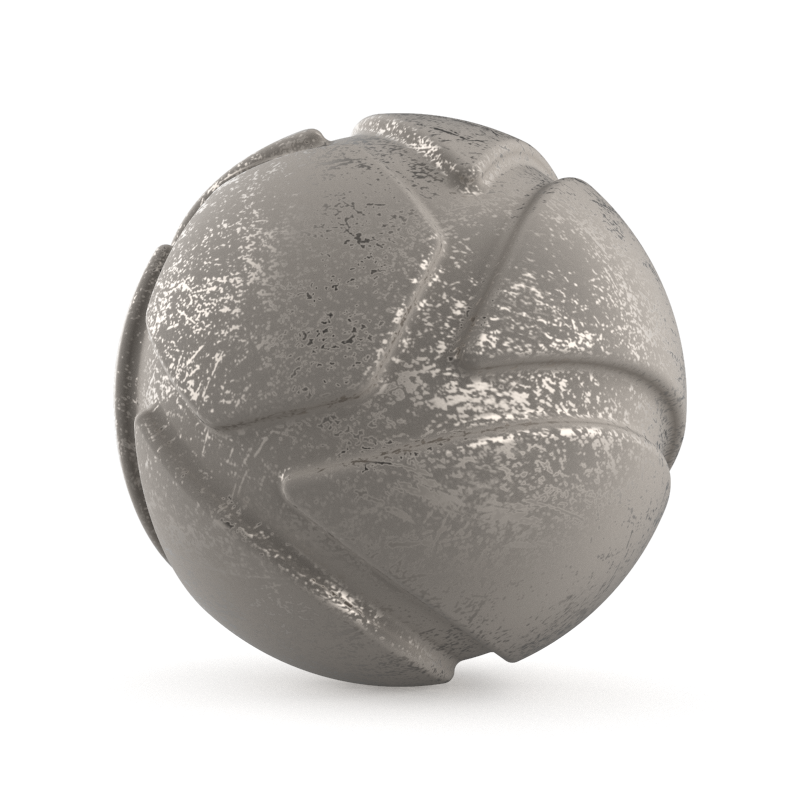
Polished metal material | Flat material showing Roughness texture to be used | A texture drives the Roughness of the metal material |
The examples show the effect of using a Color To Number utility node between the texture and the Roughness parameter.
Color To Number effectively allows to limit the extent of the parameter it drives. The driving values will never exceed the range defined by the Output From and Output To parameters.
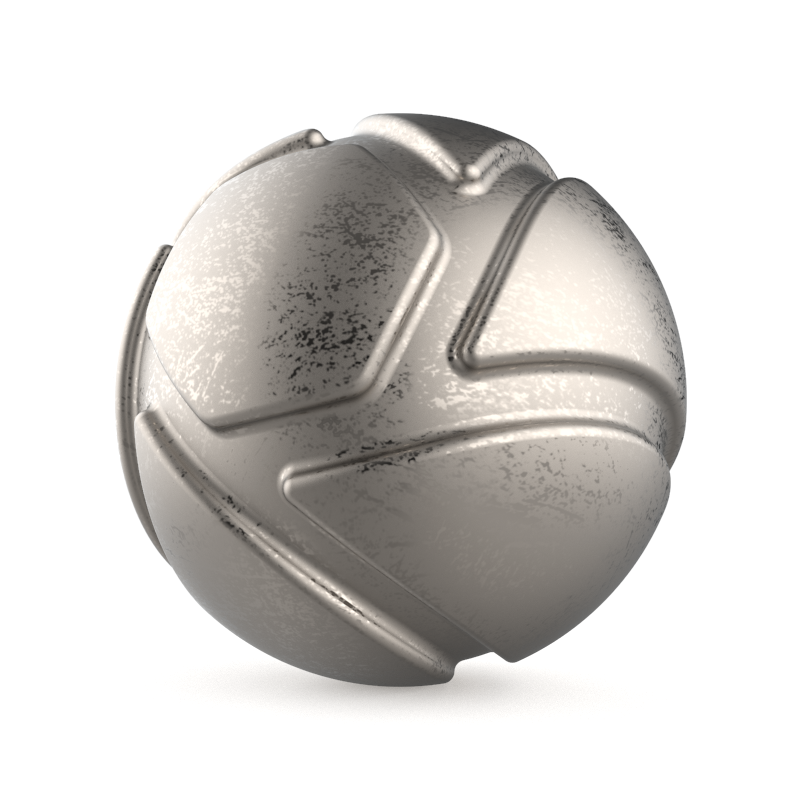
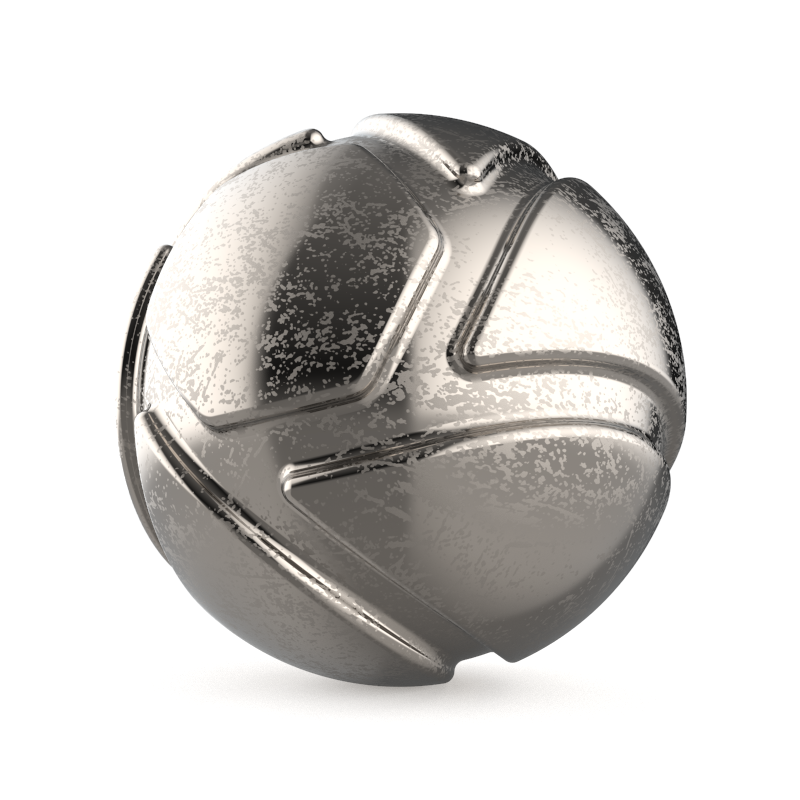
Color To Number with Output From = 0.01 | Color To Number with Output From = 0.25 |

The basic Material Graph structure for using Color To Number for Roughness:
Texture > Color To Number > Material