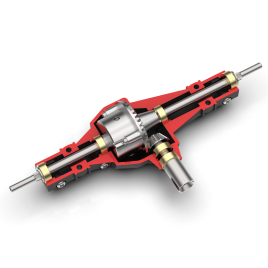
The Cutaway material lets you subtract geometry from your model without changing the original geometry. |
Set up the Cutaway material
Add the geometry you want to use for the cut. Position it so it cuts into your model, then assign the Cutaway material to it.
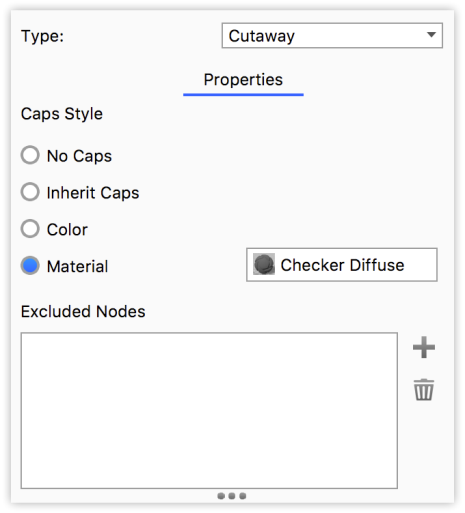
Caps Style
Excluded Objects Exclude objects if you only want to cut into some parts of your model. Click the |
 add button and select the nodes to exclude. To remove a part from the exclusion list, select it and click the
 delete button.
Limitations
- Cutaway caps do not support opacity maps.
- Cutaway materials do not support Fade Animations.
- Use Show Caps with fully closed surfaces (solids). Caps may show artefacts with geometry that is not closed.
- You cannot edit cutaways with other cutaways.
- Cutaway does not support Orthographic Cameras.
Known issues
- If you have two co-planar parts and exclude one from the cutaway, using Inherit Caps or Material caps may cause artefacts on the surface of the excluded material.
- Shadows: The Cutaway material may affect shadows on the environment ground. If the cutaway object touches the environment ground, it cuts into it as it does regular parts.
- Workaround. Add a ground plane (Edit > Add Geometry > Add Ground Plane) and exclude it from the cutaway.
- Camera inside cutaway object: When the Camera is inside the cutaway object, Color caps do not appear. If you use Material caps, all objects in the scene appear with the cap material.
- Excluded objects:
- Objects excluded from the cutaway show incorrect reflections of the inside of the object being cut.
- Shadows on excluded objects appear incorrectly.
- Basic Glass and Thin Film appear as metal when applied to an object excluded from the cutaway. This issue occurs in Product mode only.