Skip to content
07-848 2005

KeyShot Studio, User Interface

Environments tab

Use the Environments tab in KeyShot to find preset and saved environments in your library.

The Environments tab in KeyShot shows all preset environments and any environments you have saved in your library.
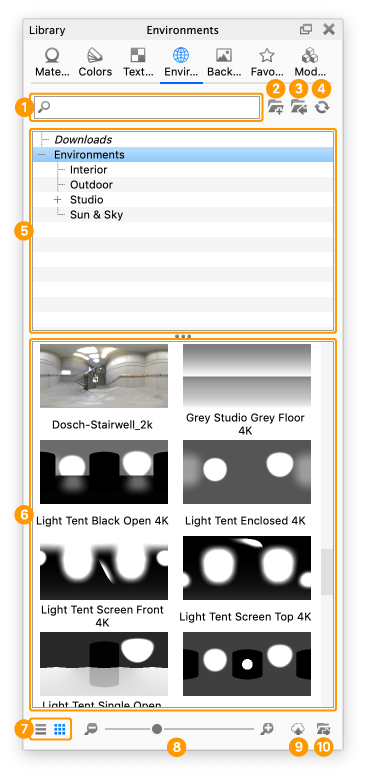
Library environments
  1. Search
    Enter a keyword to find an environment by name.
  2. Add Folder
    Click to add folders for your custom environments.
  3. Import
    Import an HDR, HDZ, EXR or DDS file.
  4. Refresh
    Refresh the environment list after making changes.
  5. Folder Tree
    Shows how your environment folders are organised.
  6. Environment Thumbnails
    Shows thumbnails of the environments in the selected folder.
  7. List/Thumbnail Toggle
    Switch between thumbnail and list views.
  8. Zoom Slider
    Drag the slider to resize the thumbnails. Use +/- to change their size in steps.
  9. Upload to Cloud Library
    Click to upload a custom environment to the Cloud Library.
  10. Export
    Export an environment file.

Procadsys customer support

Still need help?

Licences, renewals and billing

Our New Zealand team looks after your KeyShot licences, renewals and invoices.

Monday to Friday, 9:00 am to 4:30 pm NZ time, excluding New Zealand public holidays.

Technical problems

Installation errors, crashes and other technical problems with KeyShot are handled by KeyShot support.