Use Flakes in KeyShot to build an object from flakes of a specific material. Add the Flake node to the geometry socket of the Root node.
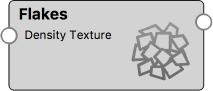
Flake settings
Flake shape
Choose square or spherical flakes. To use UV maps on the flakes, select Square.
Size The Size slider controls the size of the flakes. | |
Size Variation The Size Variation slider varies flake sizes by a fraction of their set size. The animation shows flake size variation changing between 0.1 and 3. | |
Density The Density slider controls how close the flakes are to each other. The animation shows flake density changing between 1/cm and 10/cm. |
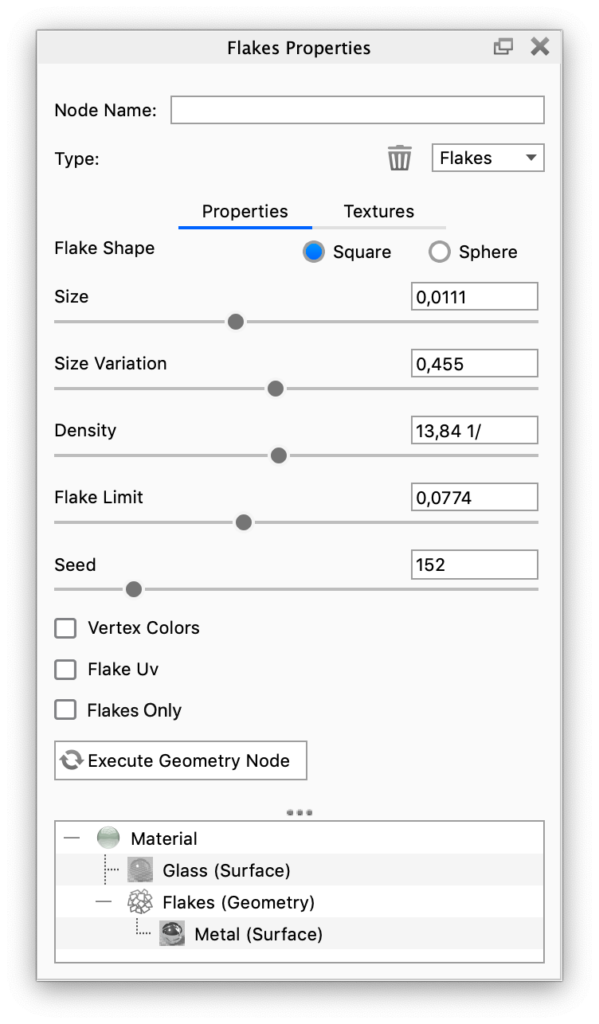
Flake Limit The Flake Limit slider limits the number of flakes per object. The limit does not apply to the total for the material in the scene. The count is expressed in millions. Seed The Seed slider randomises the distribution of flakes within the geometry. |
Vertex Colors
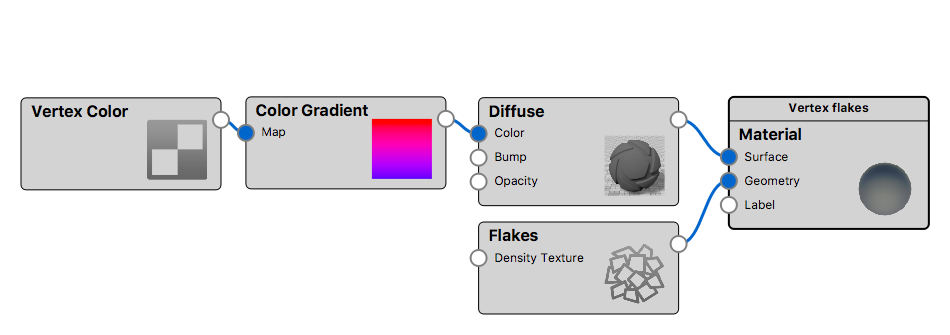
Enable vertex colours to give the flakes different shades. In the example below, vertex colours combine with a colour gradient to make the flakes grey, light blue and dark blue.

Flake UV
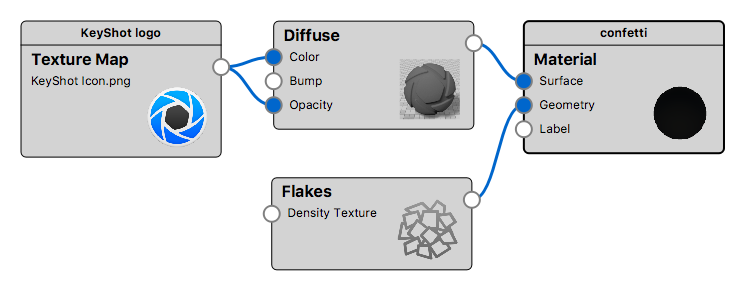
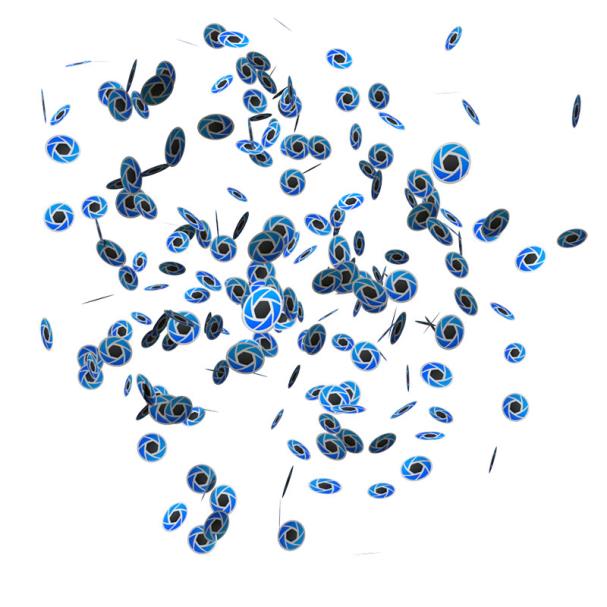
Enable Flake UV to use UV maps on your flakes. In the example below, the KeyShot Logo is applied to each flake as a UV map. The same texture is used as an alpha opacity map to make the flakes round.
Flakes Only
Use the Flakes Only checkbox to show or hide the enclosing geometry when you generate flakes.
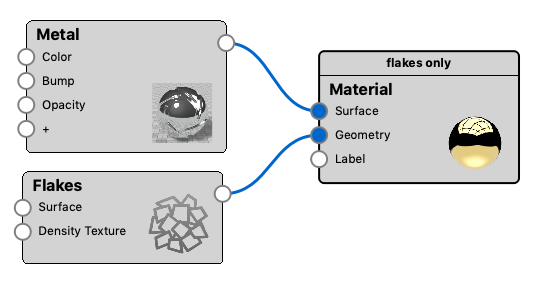

If you disable Flakes Only, the flakes appear inside the original geometry. They are only visible if the base material is at least partly transparent.
Connected nodes
Surface
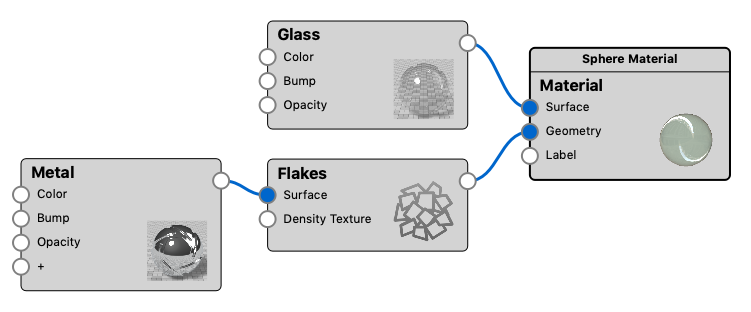
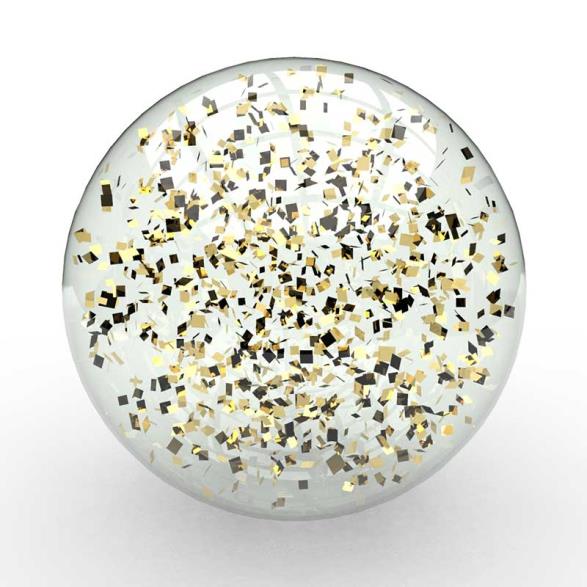
Add a surface to the flakes. If you show the enclosing geometry, the flakes share its base material by default.
In this example, the Surface slot on the Flake node gives the flakes a different material from the base material.
Density Texture
Add a texture to control flake density if you want an uneven distribution inside the object. The Density Texture acts as a mask. Black areas show no flakes. Lighter areas increase the number of flakes until 100% white reaches the density set on the flake node.