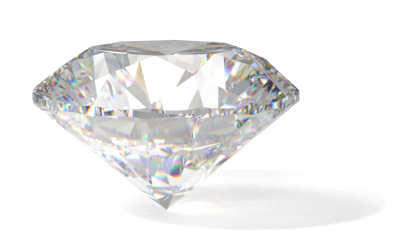
Use the Gem material type in KeyShot to render gemstones. It is related to the Solid Glass, Dielectric, and Liquid material types, with settings optimised for gemstones. The Abbe Number (dispersion) control produces the prismatic 'fire' effect. |
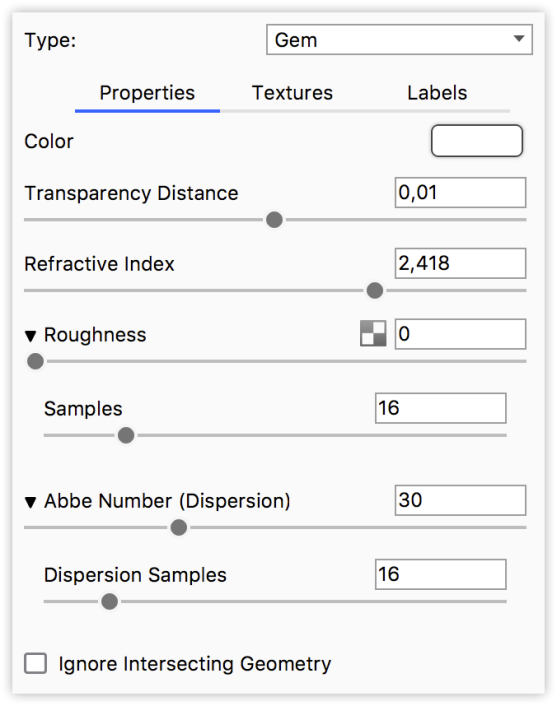
Color This controls the gemstone's overall colour. Light takes on this colour when it enters the surface. The transparency setting also affects how much colour you see. Transparency Distance This slider was formerly called Transparency. After choosing a colour in Color, use Transparency Distance to adjust its saturation and strength based on the part's thickness. Lower settings make the colour stronger in thin areas of the model; higher settings make it fainter. This physically accurate setting simulates how water changes from a pale colour in the shallows to deep blue in the ocean. Without it, you could see the bottom of the deepest ocean as easily as the bottom of a swimming pool. Refractive Index This controls how much light bends, or refracts, as it passes through parts with this material. The default of 1.5 (the Refractive Index of Lapis Lazuli) is a general setting; adjust it for the gemstone you want to render. See the International Gem Society's Table of Refractive Index for Gemstones. |
Roughness
Roughness spreads surface highlights, as it does on non-transparent materials. It also spreads the light transmitted through the material. Use it to create a frosted glass look.
Samples
Use a low setting for a more imperfect, noisy result. Use a high setting to reduce noise and grain for a smoother frosted look.
Abbe Number (Dispersion)
The Abbe number controls how light disperses as it passes through the surface, producing the prismatic colour or 'fire' effect seen in gemstones. A value of zero disables dispersion; low values produce strong dispersion, and higher values make it more subtle. Start around 35-55 for a subtle effect.
Dispersion Samples
Use a low setting for a more imperfect, noisy result. Use a higher setting to reduce noise and grain for a smoother look.
Ignore Intersecting Geometry
Enable this setting to ignore overlapping geometry. This is useful for a diamond ring's prong setting when the model does not include the deformation caused by securing the gemstone. The prongs and gemstone overlap in the model.