
Ground with shadows and reflections rendered with a Backplate Image | Use the Ground material to create a ground surface for rendered objects. It catches shadows and reflections and blends with the Environment Background. Shadows and reflections also have transparency when you render to an image format that supports it. Click Edit and select Add Ground Plane to add a ground plane to your KeyShot Studio scene. You can also apply the ground material to imported geometry. |
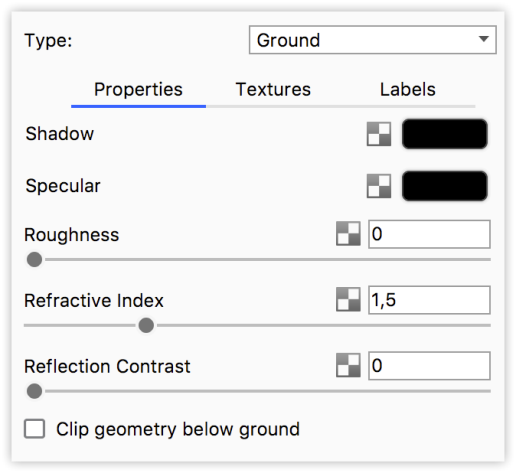
Shadow Color Sets the colour of the shadow cast by the object. Click the colour block to change the colour. Specular Color Sets the colour of specular light reflections on the material. Black removes specular reflections, so the material does not look reflective or shiny. White gives the material 100% reflectivity. Refraction Index Controls the shape of objects reflected on the surface. |
Reflection Contrast
Adjusts the contrast of specular reflections to make reflections clearer on light backgrounds.
Clip Geometry Below Ground
Hides any geometry below the ground plane material from the camera.
Ground Illumination
When Ground Illumination is on, light rays that bounce off the ground produce indirect lighting.