Install KeyShot Studio
The KeyShot Studio installer guides you through installation.
On Windows, the installer asks you to review the following:
- End-User Agreement
- Install for everyone using the computer or just for the current user
- Location of the KeyShot StudioInstallation folder
- Location of the Resource folder. This folder contains textures, environments and other resources for KeyShot Studio. It is also the default destination when you unpack .ksp files. Learn more about the Resource folder.
- Enabling access for KeyShot Studio services in firewall settings
On Mac, KeyShot Studio installs in the applications folder. The resources folder is in "Application Support".
Activate your licence
If you have an earlier version of KeyShot Studio installed, the Migration Assistant appears when you first launch the new version. It helps you keep your familiar setup and transfer your licence information so you do not need to enter it again. Learn more about the Migration Assistant.
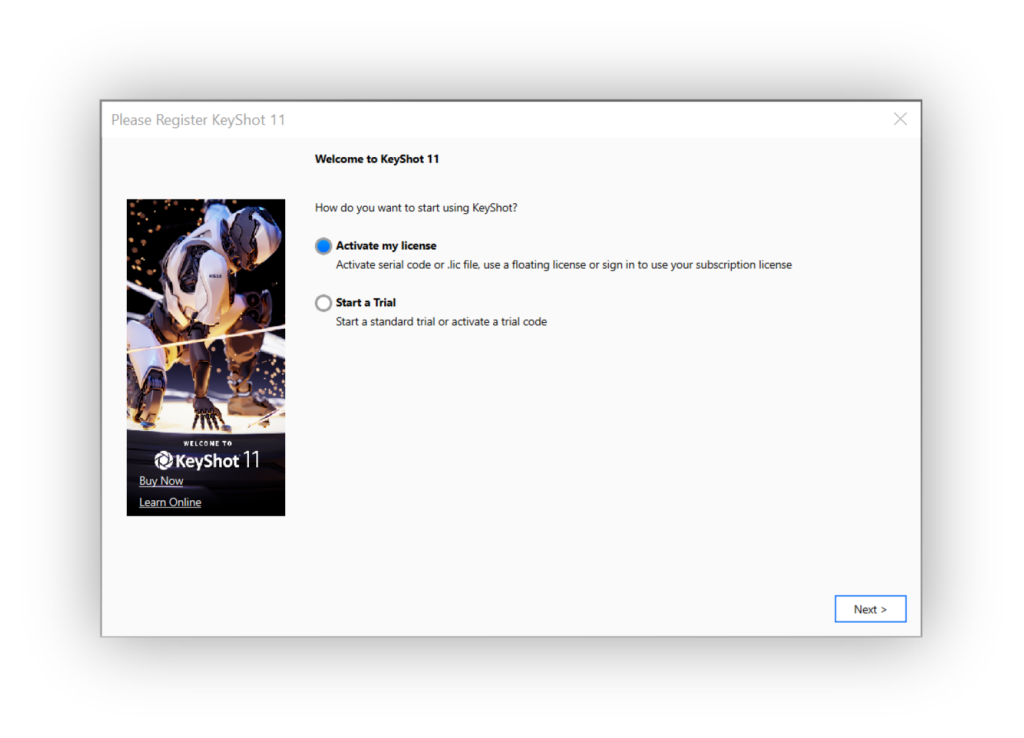
When you first launch KeyShot Studio on a new machine, it asks whether you have a licence or want a trial. If you have bought KeyShot Studio or have access to a Floating licence, select Activate License. Otherwise, select Get a Trial for a free trial.
Licence types
- Node locked: The main licence type is a node locked licence (serial code or .lic file). It is tied to your device and can only be active on one machine at a time. You can transfer it repeatedly between up to three machines on different platforms. Learn how to activate your Node Locked Licenses.
- Floating license: Your company can share floating licences within the office. Learn more about floating licences.
- Subscription license: This licence is tied to your KeyShot account. You must sign in to KeyShot Studio to use it. It can only be active on one machine at a time, but you can use it on up to three different devices that you manage. Learn more about subscription licences.
Try KeyShot Studio
For information about KeyShot Studio trials, select Request a trial.