KeyShot Studio
Render Layer Output
This option is only available if you have assigned parts or models to a render layer. Select All Render Layers checkbox to enable layer output. Select the gear icon to show the Render Layer Settings dialog and select the Alpha (Transparency) Mode for the layers.
Last updated 3 August 2026
This option is only available if you have assigned parts or models to a render layer. Select All Render Layers checkbox to enable layer output. Select the gear icon  to show the Render Layer Settings dialog and select the Alpha (Transparency) Mode for the layers.
Alpha Modes
The Render Layer alpha modes include:

The example shows the Still Image rendering of two interlocking rings. |
|
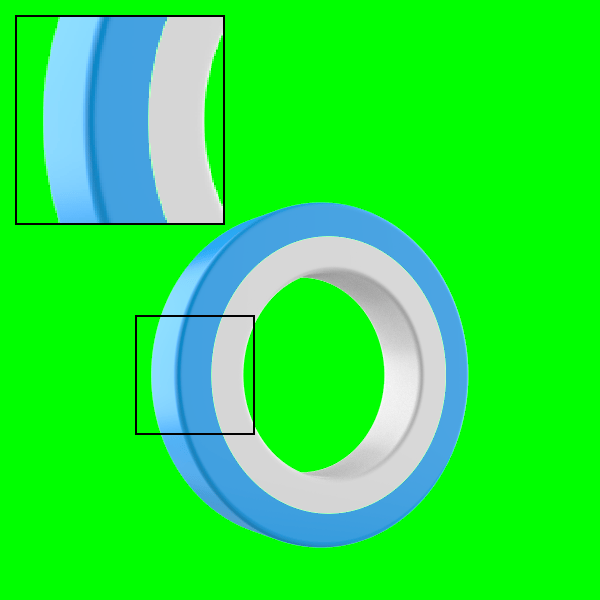
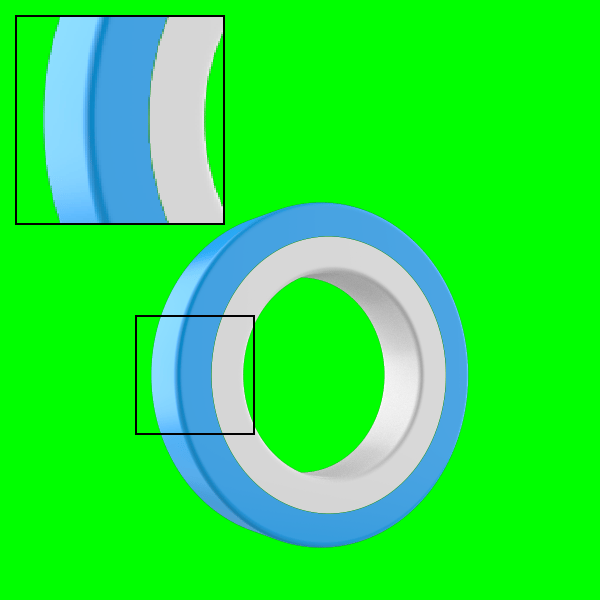
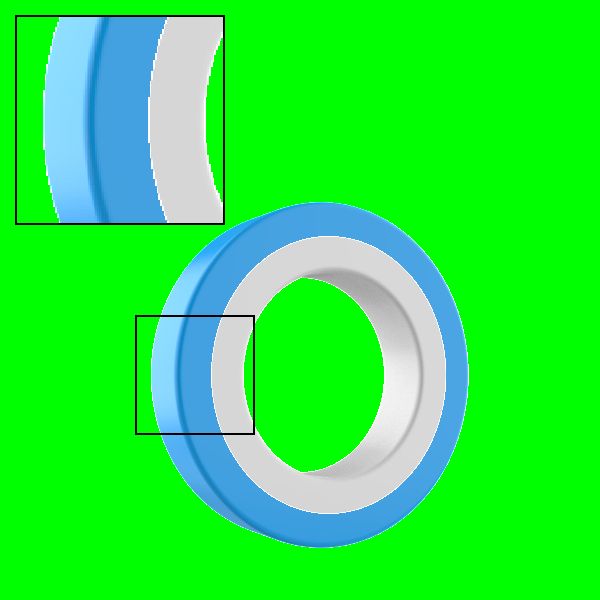
“Straight Alpha – Unmatted” enabled, the Render Layer edges don’t show fringing (black matting), and the green background color bleeds through the anti-aliased gap between the two Render Layers. | “Premultiplied Alpha – Matted with Black” enabled, the Render Layer edges show black fringing, and the green background color bleeds through the anti-aliased gap between the two Render Layers. | “Aliased – Opaque Fringe” enabled, the Render Layer edges show opaque and aliased fringing, and there is no gap between adjoining Render Layers, so that the green background color does not bleed through. |
Render Layer Example
The examples below show the different render layers of above scene.
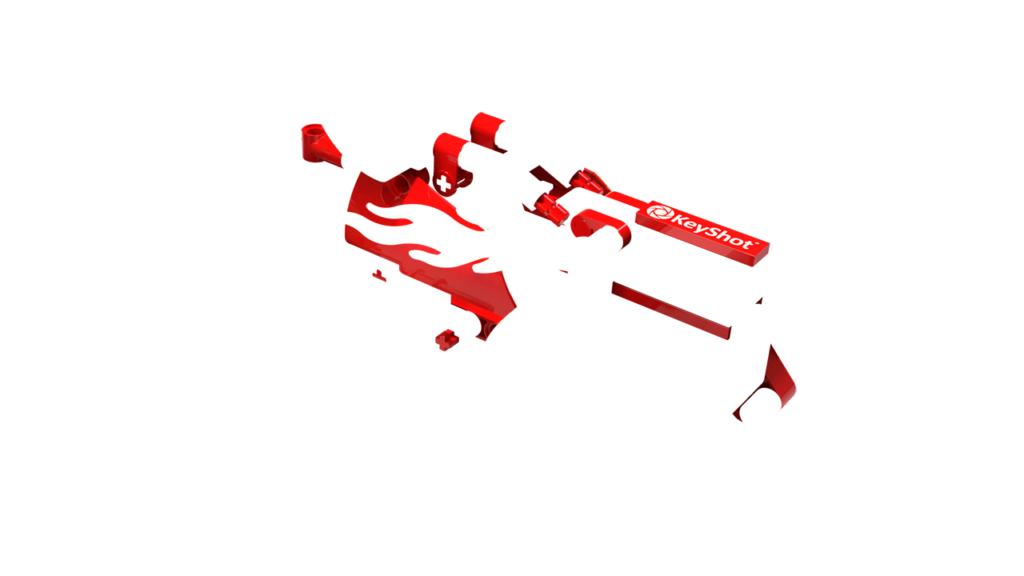
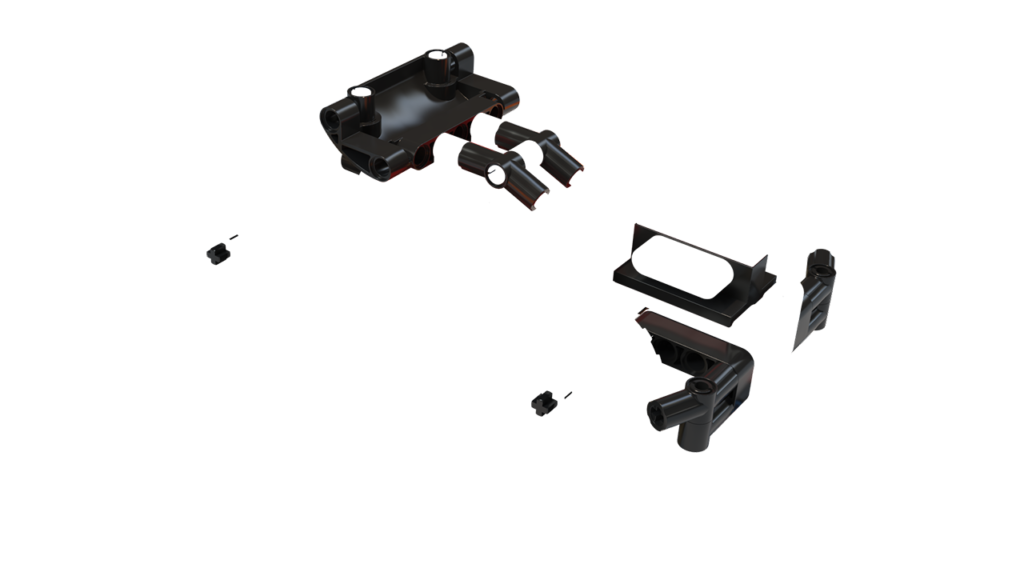

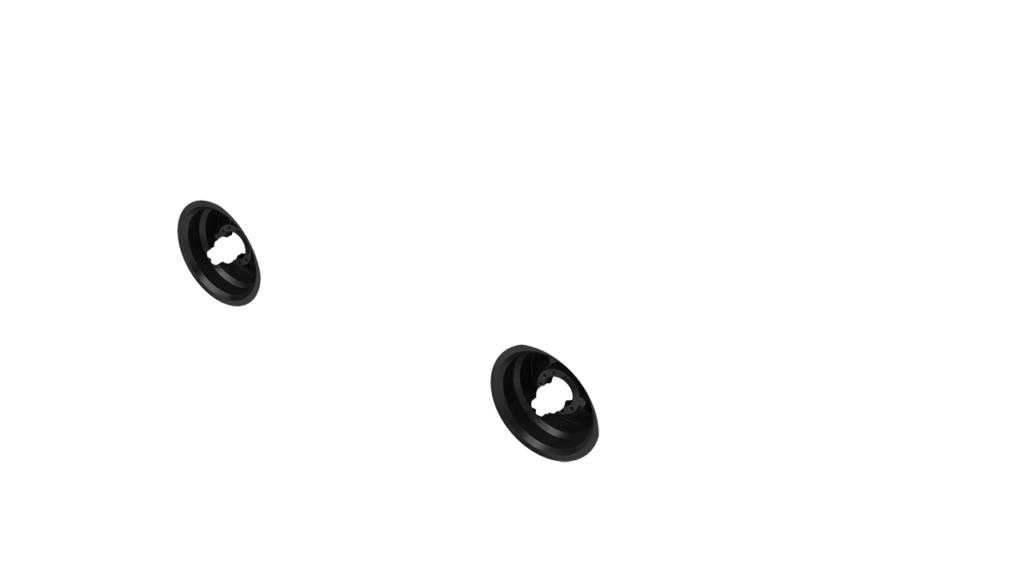
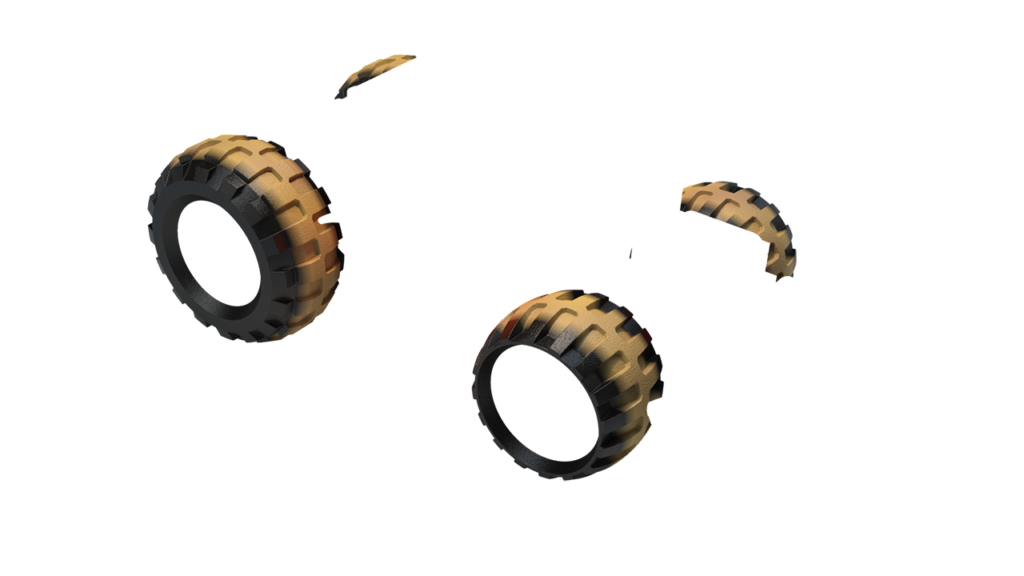
Render Layer “Body Panels” | Render Layer “Black Parts” | Render Layer “Flames” | Render Layer “Wheels” | Render Layer “Tires” |