Use the Light Manager in KeyShot to view all light sources in your scene and adjust the main settings for each light material.
Using the Light Manager
Show or hide the Light Manager with the  Light Manager button in the ribbon, Window > Light Manager in the main menu or the shortcut Shift+L.
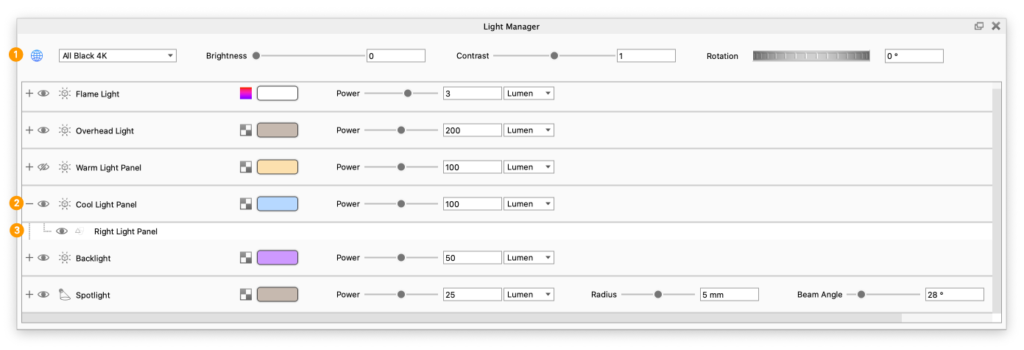
Lighting overview in the Light Manager demo scene (LightManager.bip)
- At the top of the Light Manager, set the current environment and adjust its brightness, contrast and rotation. Read more about environment settings.
- The Light Manager shows all light materials in the scene's active Model Sets. Each material has a name, an icon showing its type, a visibility toggle and controls for its main settings. Double-click a material to open it in the Material panel, where you can adjust all its settings. The Light Manager includes these light types:
- Expand a material to see the parts it is applied to and toggle each part's visibility. Double-click a part to select it in the scene tree.


Light gizmos
You can also view and adjust point lights, IES lights and spotlights in the Real-time View.
When you enable View > Show Light Sources (shortcut: L), each light source appears as a wireframe. Select a light in the Real-time View, Scene tree or Light Manager to activate its gizmo. You can then adjust some light settings directly in the Real-time View.
Read about each light gizmo: