Use Multi-Materials in KeyShot (Pro feature) to swap materials, create variations or compare colours without destructive changes. Each Multi-Material holds several materials you can switch between.
Convert to a Multi-Material
Choose one of these ways to convert a material to a Multi-Material:
- While editing a material, select the three-arrow Multi-Material icon
 above the Material Type drop-down to convert it to a Multi-Material.
- Right-click an item with the material in the Real-Time View and select convert to Multi-Material.
- Use Shift+drag and drop to drag a material from the library onto an item in the Real-time View and convert its material to a Multi-Material.
- Right-click a material in the In Project Library and select Convert to Multi-Material.
Add sub-materials to a Multi-Material
Choose one of these ways to add a material to the Multi-Material list:
- Drag-and-drop onto Multi-Material list
Drag a material preset from the Materials library into the Multi-Material list. - Shift+Drag-and-drop onto part in the Real-time View
Hold Shift while dropping a material from the library onto a part in the Real-time View to add it as a sub-material. If the part has a single material, it converts to a Multi-Material. - Add new materials via the list
 New Plastic – Adds a standard Plastic material.
 Duplicate Material – Duplicates the selected material, including any textures or labels. The textures and labels remain unlinked.
 Duplicate Material and Link Textures – Duplicates the selected material, including any textures or labels. The textures and labels remain linked.
- Convert multiple materials in the In Project Library
Select multiple materials in the In Project Library, right-click and select Combine selection into a Multi-Material. This combines the selected materials into a Multi-Material and applies it to every object that used any of those materials.
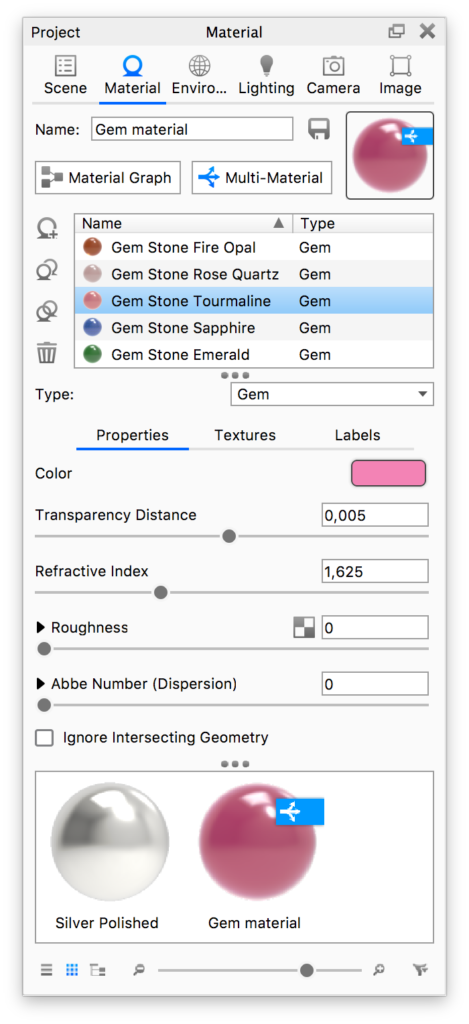
View Multi-Materials
To view or edit a material, select it in the list to make it active in the Real-time View. You can also use the arrow keys to move up or down through the list.
The thumbnail in the In-Project Library shows the active material with a label identifying it as a Multi-Material.
Save Multi-Materials
You can save Multi-Materials just like regular materials. Select the save icon  and choose the folder to save the Multi-Material in.
Remove sub-materials from a Multi-Material
To remove a material from the Multi-Material list, select the trashcan icon  or press Delete. To overwrite all materials in the list, drag another material onto the part. To cancel the Multi-Material setup, select the three-arrow Multi-Material icon to close the list.