
Use the Plastic (Cloudy) material in KeyShot to simulate plastics such as Polycarbonate or ABS with light-scattering particles. Adjust Transmission, Roughness, Refractive Index, Transparency Distance and Cloudiness to control the material's appearance. When editing an existing material, select Plastic (Cloudy) from the Material Type drop-down. |
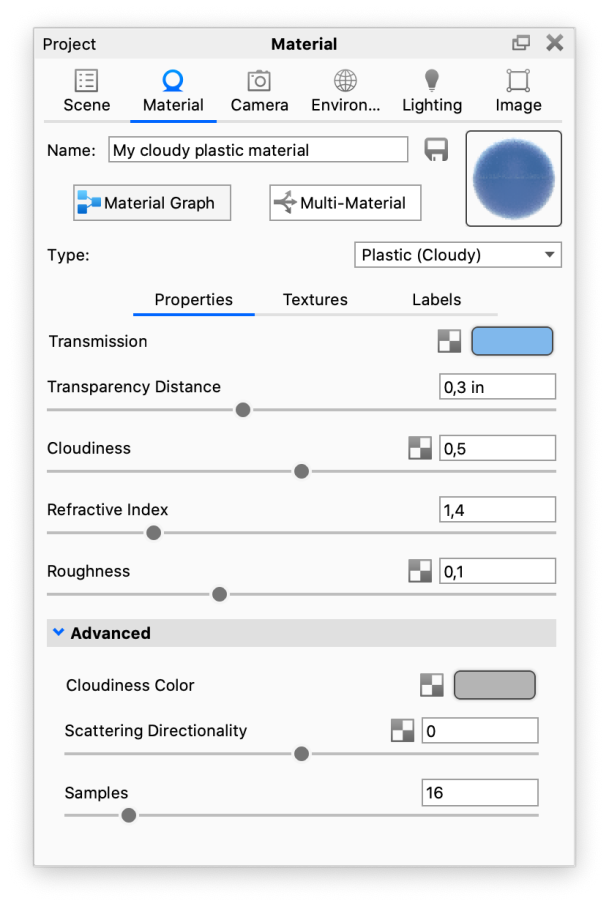
Transmission Controls how much light passes through the cloudy plastic. Lighter colours let more light through. Darker colours let less light through. Click the colour thumbnail to open the colour picker, then select a colour. Transparency Distance Controls the distance at which transparency is affected. Cloudiness Controls the plastic's overall cloudiness. A value of 0 gives no cloudiness. Refractive Index Controls how much light bends, or refracts, as it passes through parts with this material. The default value of 1.5 accurately simulates most plastics. Increase the value for stronger refraction within the surface. Roughness Adds microscopic imperfections to the material's surface as you increase the value. At 0, the material looks perfectly smooth and polished. Higher values scatter light across the surface, making it look rougher. |
Advanced
Cloudiness Color
Sets the colour of the plastic's internal cloudiness.
Scattering Directionality
Controls the direction in which light scatters. A value of 0 scatters light uniformly. Negative values scatter light backwards. Positive values scatter light forwards.
Samples
A low samples setting (8 or lower) tends to make the surface look noisier, rougher and less uniform. Increase the value to reduce noise and distribute the roughness more evenly.