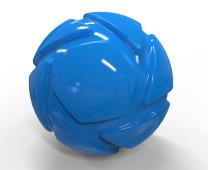
Use the Plastic material type in KeyShot to create simple plastic materials. Set the diffuse (overall colour), add specular reflections, then adjust the roughness. You can also use this material type for materials such as concrete and wood. |
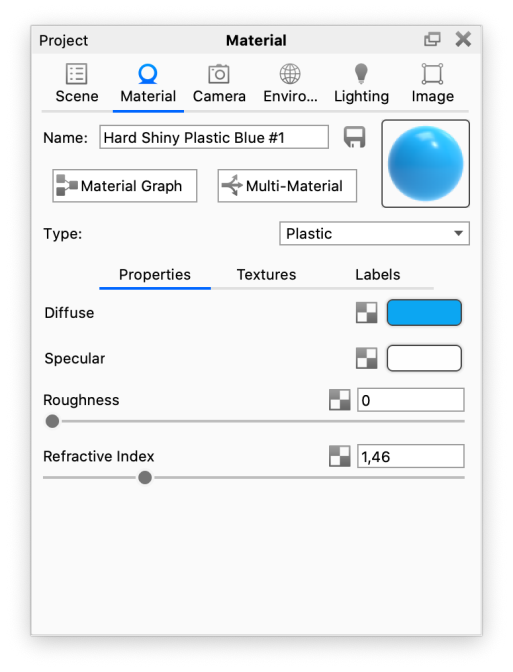
Diffuse This sets the material's overall colour. Click the colour box to open the Color Picker and choose a colour. Specular This sets the colour and intensity of reflections from light sources in the scene. Black turns off reflections. White gives the plastic a very shiny appearance. For realistic plastic, use a shade of grey or white, as its specular reflections have no colour. Adding colour can give the plastic a metallic effect. Roughness Increasing this value adds microscopic imperfections to the material's surface. At 0, the material appears perfectly smooth and polished. Higher values make it appear rougher as light scatters across the surface. |
Refractive index
This controls how much light bends, or refracts, as it passes through parts with this material. The default of 1.5 suits most plastics. Increase it for stronger refraction within the surface.