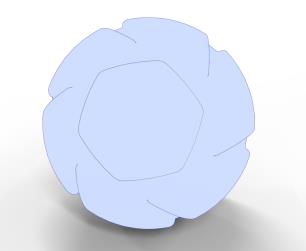
Use the Toon material in KeyShot to apply a solid colour with contour lines to your 3D model. You can control the line width, the number of lines and whether surfaces receive shadows. Use it for sketches, product concepts or technical illustrations. The settings are: |
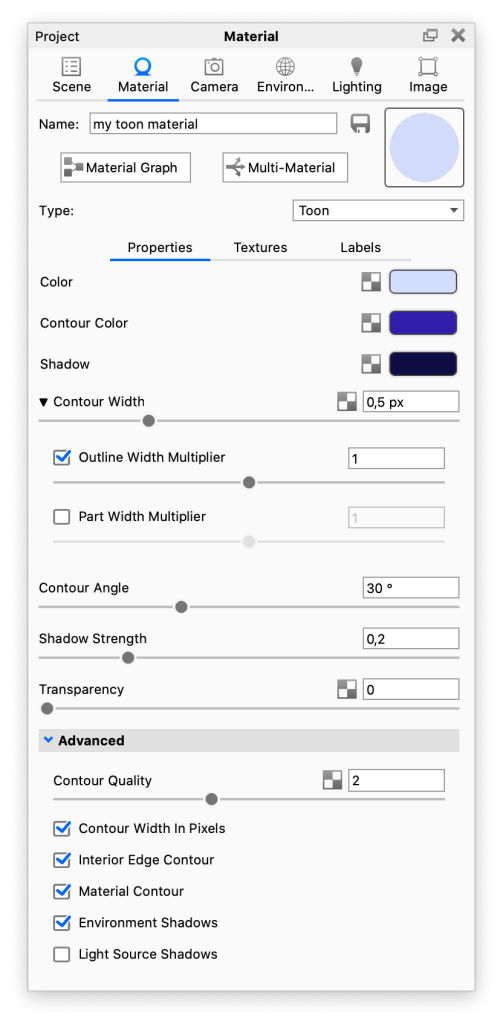
Color Controls the fill colour of the Toon material. Contour Color Controls the model's outline. Shadow Color Controls the shadow colour on the model when Environment Shadows is enabled under Advanced. You can apply a texture to control how the shadow looks. Contour Width Controls the thickness of the contour lines. Outline Width Multiplier Part Width Multiplier |
Contour Angle
Controls the angle of curvature at which interior contour lines appear in the Toon sketch. A lower value shows more interior contour lines. A higher value shows fewer.
Shadow Strength
Controls the strength of each shadow type on the Toon material when Environment Shadows or Light Source Shadows is enabled.
Transparency
Increase this value to let light pass through the geometry. Use it for transparent parts or to show interior views of your model.
Advanced
Contour Quality
Controls the quality of the contour lines. Use a lower value for a rough sketch look or a higher value for cleaner, more precise lines.
Contour width is in pixels
When enabled, contour line widths use pixels. When disabled, they use scene units.
Interior Edge Contour
Shows or hides the interior contour lines in your sketch.
Material Contour
Shows or hides the contour line separating each unlinked Toon material. This has no effect if the Toon materials are linked.
Environment Shadows
Shows shadows the model casts onto itself under the selected lighting environment.
Light Source Shadows
Shows or hides shadows produced by a Light Source (Spotlight Diffuse, Point Light Diffuse, Point Light IES Profile, or Area Light Diffuse). The shadows' appearance depends on the light source settings.