Managing Roles
A user’s role in the Admin Console determines what actions the user can perform in an account. There are four roles available:
Last updated 17 July 2026
A user’s role in the Admin Console determines what actions the user can perform in an account. There are four roles available:
- Account Owner – An Account Owner is the primary point of contact for an account, can perform all actions, and view all account information. Each account can only have one Account Owner.
- Secondary Account Owner – A Secondary Account Owner can perform all actions the account owner can perform except changing the Account Owner. Each account can have any number of users with the Secondary Account Owner role.
- License Admin – A License Admin can add users and assign users product licenses.
- Product User – A Product User can be assigned product licenses but does not have access to the Admin Console and cannot perform any administrative actions.
Role | Use Products | Manage Users | Manage Roles | Assign Products | Manage Subscriptions | Billing and Payment |
|---|---|---|---|---|---|---|
Account Owner | Y | Y | Y | Y | Y | Y |
Secondary Account Owner | Y | Y | Y | Y | Y | Y |
License Admin | Y | Y | Y | Y | N | N |
Product User | N | N | N | N | N | N |
Managing Roles
When you add a user to your account you also assign them a role. If you need to change their role, open the Admin Console and follow these steps:
- Click Users in the left pane.
- Locate the user who needs a role change and click More Options (
 ) next to their entry.
 - Select Edit in Permissions.
- Select a new role for the user.
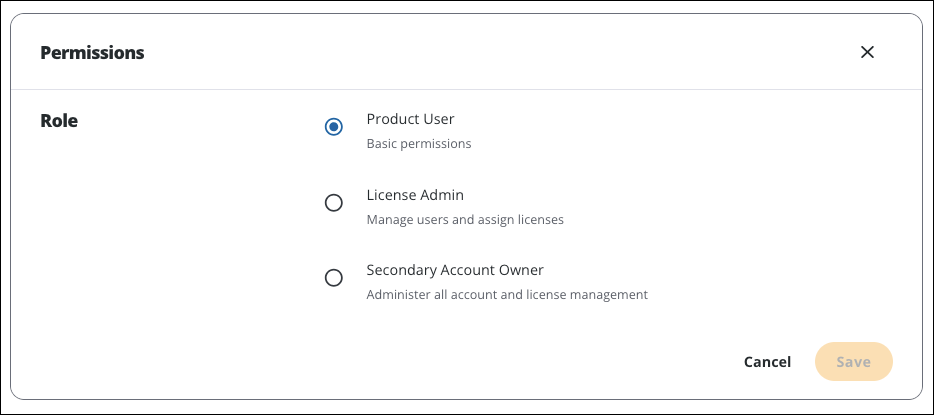
- Click Save, or Cancel to exit without saving.
Account Ownership Transfers
Account Owners can transfer ownership of an account to another user if needed. When an Account Owner transfers ownership, they become a Secondary Account Owner. To transfer ownership follow these steps:
- Select Account Settings in the left pane.
- Under Administrators, select Transfer Account.
- Enter the email of the person you’d like to transfer ownership to.
- Click Transfer Account, or Cancel to exit without transferring ownership.
Account Ownership Transfers
Account Owners can transfer ownership of an account to another user if needed. When an Account Owner transfers ownership, they become a Secondary Account Owner. To transfer ownership follow these steps:
- Select Account Settings in the left pane.
- Under Administrators, select Transfer Account.
- Enter the email of the person you’d like to transfer ownership to.
- Click Transfer Account, or Cancel to exit without transferring ownership.
Still need help?
Technical support from our New Zealand team is available to customers with a current Procadsys SketchUp Plus subscription: Pro Plus, Pro Scan Plus, Pro Civil Contractor Plus, Advanced Workflows Plus or Studio Plus. Self-help articles are public.
Contact SketchUp support