Use SketchUp's account management tools to manage your subscriptions and access to their products and services.
Open the Admin Console directly, or follow these steps to access your account management tools from the SketchUp website:
- Click the Trimble icon in the top right.
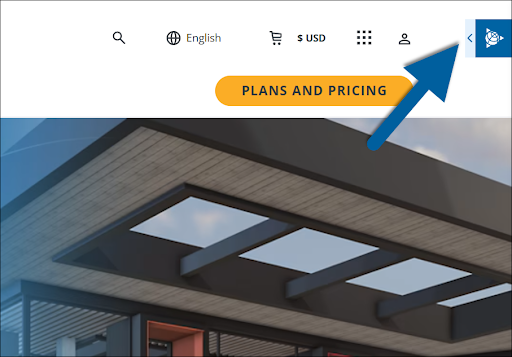
- Click Sign In.
- Sign in with your Trimble ID.
- Click the Trimble icon in the top right again. A new list of options appears.
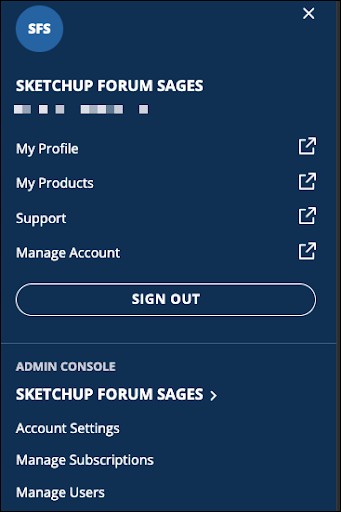
- Click one of these options to open that section of the Admin Console:
- My Profile opens your Trimble Profile.
- My Products opens the My Products page.
- Manage Account opens the Products & Licenses page.
These articles explain how to use SketchUp's account management tools:
- Trimble Admin Console explains how to manage your account with the options available in the Admin Console.
- Account Management Portal explains how to manage your account in SketchUp's older account management platform.
- Navigating the Support Center explains how to find help for all your Trimble products in the Trimble Support Center. You need to sign in to use it.
- Plans Upgrades and Downgrades explains how to upgrade or downgrade your plan and what happens to your account.
- Managing Activations explains how to manage your device activations. SketchUp limits activations to two devices.
- My Products explains how to find the products included in your subscription.
- Refunds and Cancellations explains how to get a refund and what happens when you cancel your subscription.
- How to Delete an Account explains how to delete your Trimble account and remove your SketchUp data.