Getting Started with Trimble Connect
A few things happen the first time you login to Trimble Connect. First, a prompt appears asking you to set up your Trimble Connect profile.
Last updated 17 July 2026
A few things happen the first time you login to Trimble Connect. First, a prompt appears asking you to set up your Trimble Connect profile.
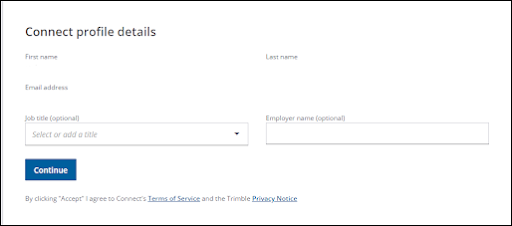
You can fill out any of these fields right now, or can fill them in later. Clicking continue will open the Projects page.
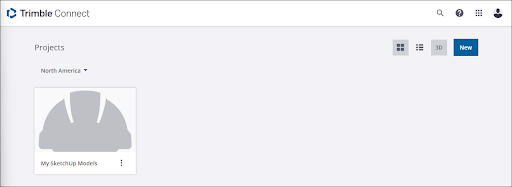
To get you started, Trimble Connect automatically creates a Project for your SketchUp models. The default location for the server where your projects are stored is based on your IP address. You can change the server location at any time.
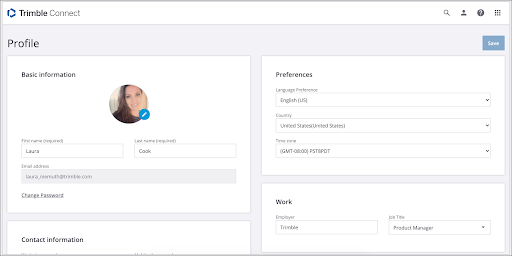
From here you can complete your Connect profile. To open your profile, click the icon in the upper right.

In your profile you can add the rest of your information, set your language, country, and time zone, and add linked accounts.
For more information, see the Getting Started guide in the Trimble Connect Knowledge Center.
Still need help?
Technical support from our New Zealand team is available to customers with a current Procadsys SketchUp Plus subscription: Pro Plus, Pro Scan Plus, Pro Civil Contractor Plus, Advanced Workflows Plus or Studio Plus. Self-help articles are public.
Contact SketchUp support