The Account Management Portal is SketchUp's legacy account management tool. Most subscribers now use the Trimble Admin Console. See Admin Console for more information.
Use the SketchUp Account Management Portal (AMP) to manage who can use your subscription's products. For subscriptions with multiple seats, the account owner manages the account and assigns each member a role in the Members section.
Adding members
To add members, click Add New Users in the upper right of the Members section. Select Add New User from the drop-down menu to add one user, or Bulk Add(.csv) to add multiple users.
To add one user, follow these steps:
- Select Add New User.
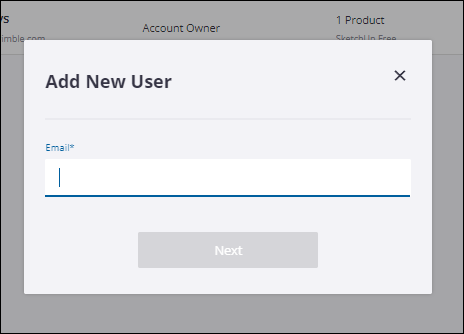
- In the Add New User window, enter the member's email address and click Next.
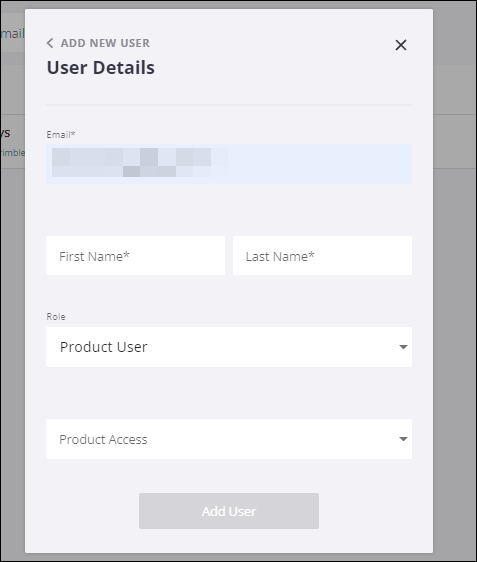
- In the User Details window:
- Enter the user's real first and last name.
- Assign the user a role.
- Choose which products the user can access.
- Click Add User to finish.
If the new member does not have a Trimble ID, they receive an email asking them to create one. They have 72 hours from when the email is sent to create an account using its link. If they miss the 72 hour window, they can request a new activation link. They can also ask their Account Owner, Secondary Account Owner or Administrator to resend it from their listing on the Members page.
Bulk add users
- After selecting Add New User, choose Bulk Add(.csv). The Bulk Add Users window has instructions and a link to download the .csv template.
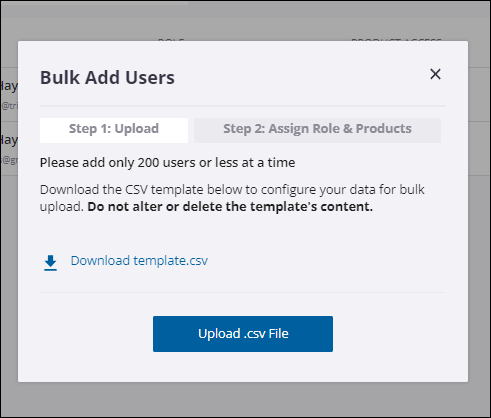
- Download the .
csvtemplate, open it in any .csv editor and enter the user details.
- Click Upload .csv File and select your edited file. The upload may take several minutes, depending on how many users are in the file.
- If you receive an error message, choose whether to fix the errors and try again or skip them and continue the upload.
- When the upload finishes, a window confirms how many new users were added. Assign their roles and product access now, or leave this section blank to assign them later.
- Click Save.
The following limits apply when managing members on your account:
- When assigning Product Access, you cannot select a product unless it has enough available seats for your users.
- You cannot select the Account Owner role.
- You cannot assign added members the Secondary Account owner role if they are an Account Owner or Secondary Account Owner on other accounts.
- You cannot select the Secondary Account Owner role if the user uploading the file has the Company Admin role.