Authenticator App
An authenticator is a mobile application that generates a time-based one-time passcode used to access your account. Google Authenticator and Microsoft Authenticator are examples or authenticator apps.
Last updated 17 July 2026
An authenticator is a mobile application that generates a time-based one-time passcode used to access your account. Google Authenticator and Microsoft Authenticator are examples or authenticator apps. You can use an authenticator app as a Multi-Factor Authentication (MFA) option to protect your Trimble account.
Setting Up an Authenticator App
If you choose to protect your account with an authenticator app, follow these steps:
- Download the authenticator app you wish to use.
- Go to myprofile.trimble.com and sign in using your Trimble ID.
- On your profile page, select Authenticator App . A screen with a QR code will appear.
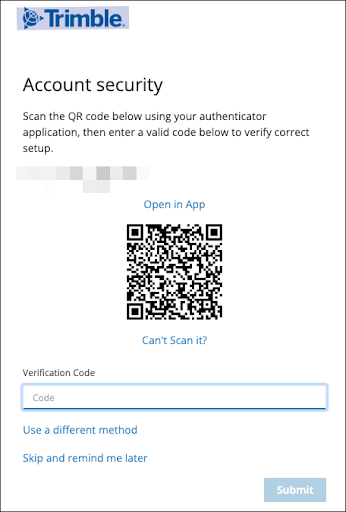
- Open your authenticator app and scan the QR code or select Can’t Scan It? for a code you can enter. The authenticator app will generate a code for your Trimble account.
- Enter the code provided by your authenticator app.
- Select Submit .
Logging In with an Authenticator App
After setting up an authenticator app as your MFA method, login using the following steps:
- Enter your email address and password and select Next .
- Trimble will send a request to your authenticator app, generating a time-based one-time passcode.
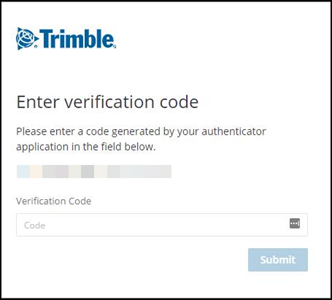
- Enter the passcode and select Submit .
Still need help?
Technical support from our New Zealand team is available to customers with a current Procadsys SketchUp Plus subscription: Pro Plus, Pro Scan Plus, Pro Civil Contractor Plus, Advanced Workflows Plus or Studio Plus. Self-help articles are public.
Contact SketchUp support