Create and edit keyboard shortcuts in the Shortcuts section of Preferences. The following rules apply.
- You can’t start with a number. Numbers are reserved for specific commands or for adjusting measurements.
- You can use modifier keys. Shift, Alt (Windows)/Option (MacOS), Ctrl (Windows)/Command (MacOS) work in combination with other inputs.
- You can’t use shortcuts reserved by your operating system. SketchUp warns you if you try to use one.
- You can reassign existing default shortcuts. SketchUp assigns default shortcuts to some commands. You can change these shortcuts to suit you.
The Shortcuts section of Preferences has these sections:
- Function lists each tool or command available in SketchUp.
- Assigned shows the shortcut for the tool or command you select in the Function section.
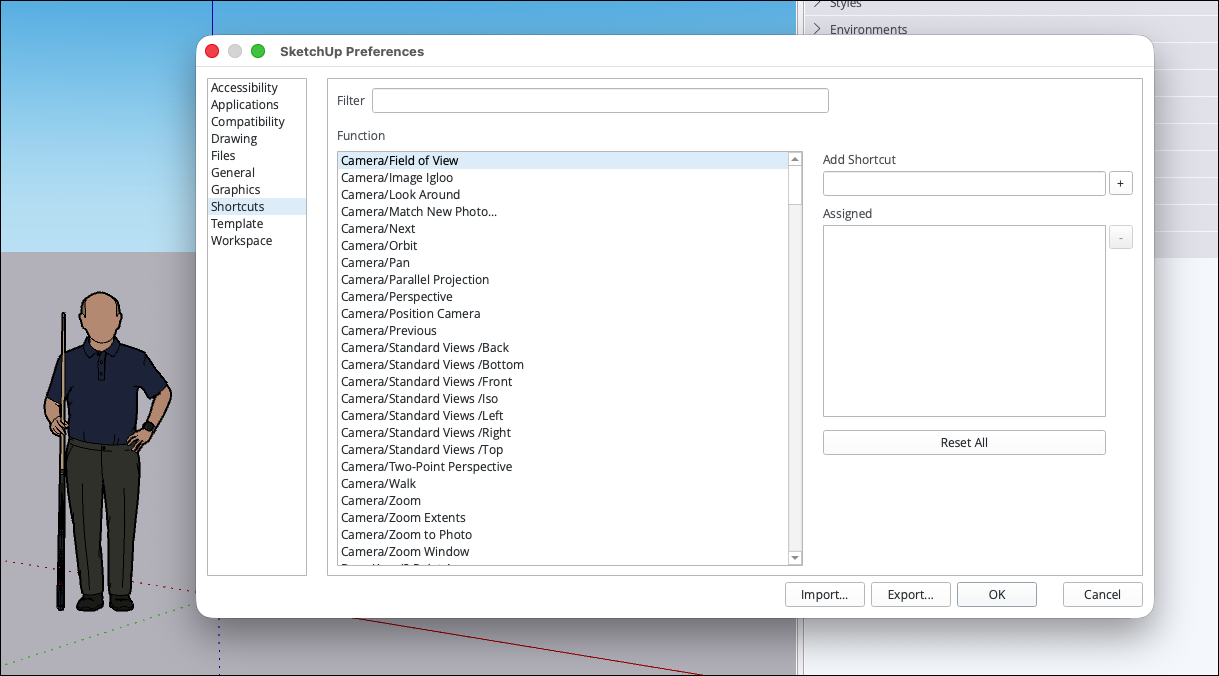
Use the search bar at the top to find a tool or command. Enter a keyword to filter the Function list. For example, typing "zoom" shows only Camera/Zoom, Camera/Zoom Extents, Camera/Zoom to Photo and Camera/Zoom Window.
Once you find the function, follow these steps to add or edit its shortcut.
- Select the command to highlight it. If it already has a shortcut, the shortcut appears under Assigned on the right side of the window.
- Type the shortcut you want to assign in the Add Shortcut box.
- Click the plus icon to add your shortcut.
- If the shortcut is already assigned to another function, SketchUp shows a warning. Click Keep Original to continue or Replace to save the new shortcut.
- Repeat these steps until you have assigned all the shortcuts you want.
To reset all shortcuts to their default settings, click Reset All.