Use the Drawing settings to customise how you draw in SketchUp.
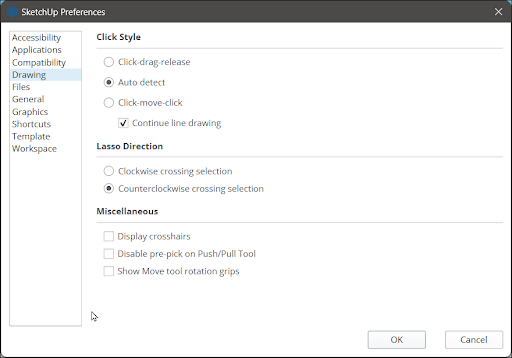
Click Style
The Click Style options control how the Line tool cursor responds to mouse clicks:
- Click-drag-release. Select this option to draw only while you hold the mouse button. Click and hold to set the starting point, drag to draw, then release to set the end point.
- Auto Detect. This is SketchUp's default Click Style setting. It lets you use either of the other Click Style options as needed.
- Click-move-click. Select this option to click and release to set the starting point. Move the mouse to the end point, then click again to set it.
- Continue line drawing. This option is available only when you select Auto Detect or Click-move-click. When selected, each end point becomes the starting point for a new drawing. This box is selected by default for either of the two options.
Lasso Direction
Use Lasso Direction to choose how the Lasso tool selects entities. By default, drawing clockwise selects all entities fully or partly inside the selection area. Drawing anticlockwise selects only entities fully inside it. Use the two options to reverse this behaviour.
Miscellaneous
Use the Miscellaneous options to customise cursor and drawing tool behaviour:
- Display Crosshairs. Adds crosshairs to your cursor that match the axes colours.
- Disable Pre-Pick on Push/Pull Tool. Pre-pick lets you select a face, orbit, then push/pull the face even when it is no longer in view. Select this option to disable pre-pick.
- Show Move Tool Rotation Grips. Shows rotation grips when you activate the Move tool.