Deauthorizing Devices in the AMP
For instructions on how to deauthorize devices in the Admin Console, see Deauthorizing Devices in the Admin Console.SketchUp’s Account Management Portal can help you manage the devices you have authorized for your SketchUp account.Note: You can only deauthorize your own activations, even if you have owner or admin
Last updated 17 July 2026
SketchUp’s Account Management Portal can help you manage the devices you have authorized for your SketchUp account.
To manage your activations:
- Navigate to the My Products section.
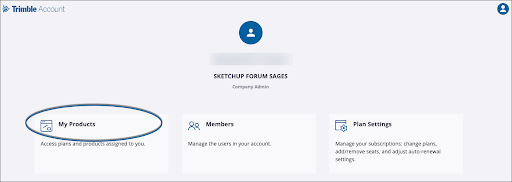
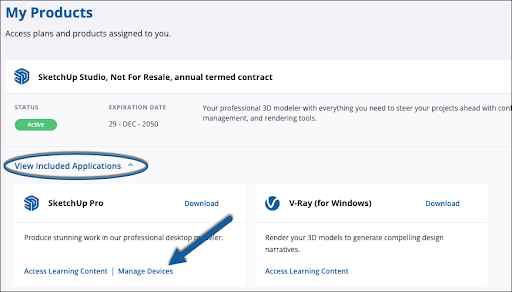
- Click View Included Applications . A list of all products included in your subscription will appear.
- Locate the SketchUp tile and click Manage Devices .
- The Confirm Deauthorization window will appear.
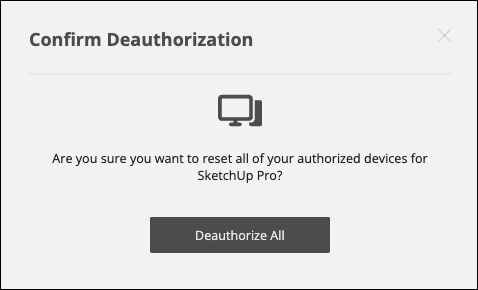
- Click Deauthorize All . A message will appear letting you know your changes have been completed
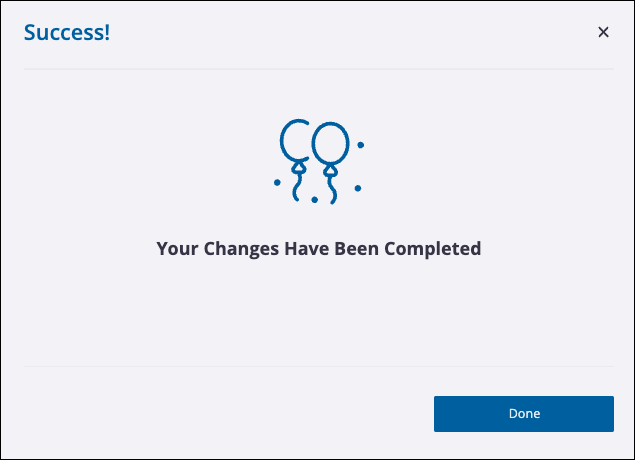
- Click Done .
- Click your profile icon in the top right corner and select Sign Out .
- If you had SketchUp open on a device before you deauthorized all devices, you’ll need to close it, relaunch it, then sign in again using your Trimble ID.
Still need help?
Technical support from our New Zealand team is available to customers with a current Procadsys SketchUp Plus subscription: Pro Plus, Pro Scan Plus, Pro Civil Contractor Plus, Advanced Workflows Plus or Studio Plus. Self-help articles are public.
Contact SketchUp support