Find, install and manage SketchUp extensions in Extension Warehouse. This article explains the Home page, My Downloads page and each extension's details page.
The Home page
The Home page opens when you access Extension Warehouse.
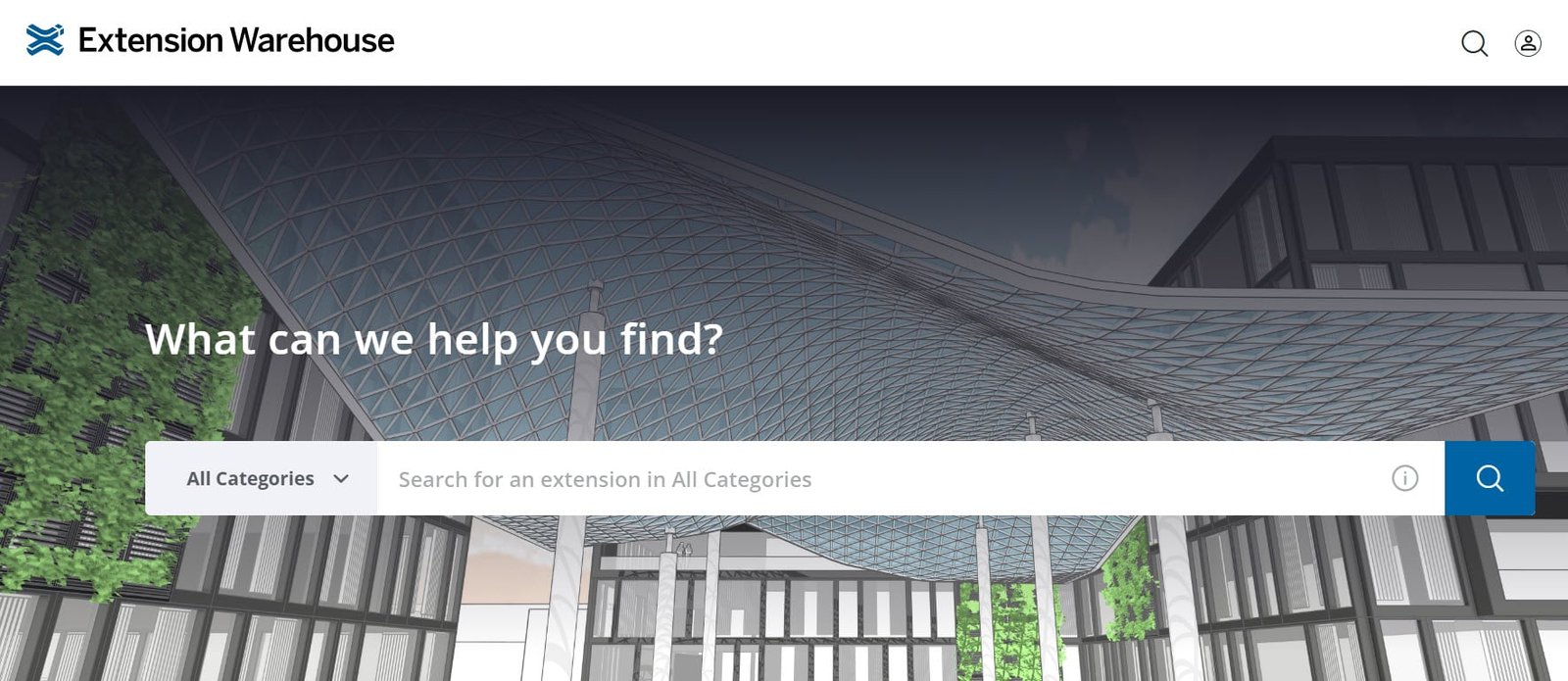
The Home page has the following options:
- Profile options open when you click your name in the top right corner of the Home page. You can view the My Downloads page, change your settings, switch to Dark Mode or log out.
- Search gives you two ways to find extensions on the Home page. Click Search (
 ) next to your name in the top right, or use the search bar in the centre of the page. For details, see Searching or Browsing Extensions.
- Featured and Top Extensions appear in two sections below the search bar. Featured Extensions lists extensions recommended by SketchUp. Top Extensions lists the most popular extensions by number of downloads.
My Downloads
The My Downloads page lists all extensions you have downloaded from Extension Warehouse and your Purchase History.
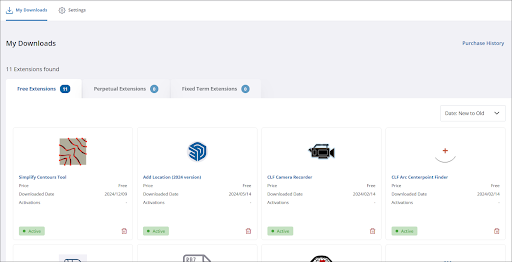
The My Downloads page groups your extensions into three categories:
- Free Extensions are available without a purchase.
- Perpetual Extensions require a one-time purchase to download and use.
- Fixed Term Extensions require a subscription.
Extension details
Each extension's details page explains what you need to know before downloading it and how to download it.
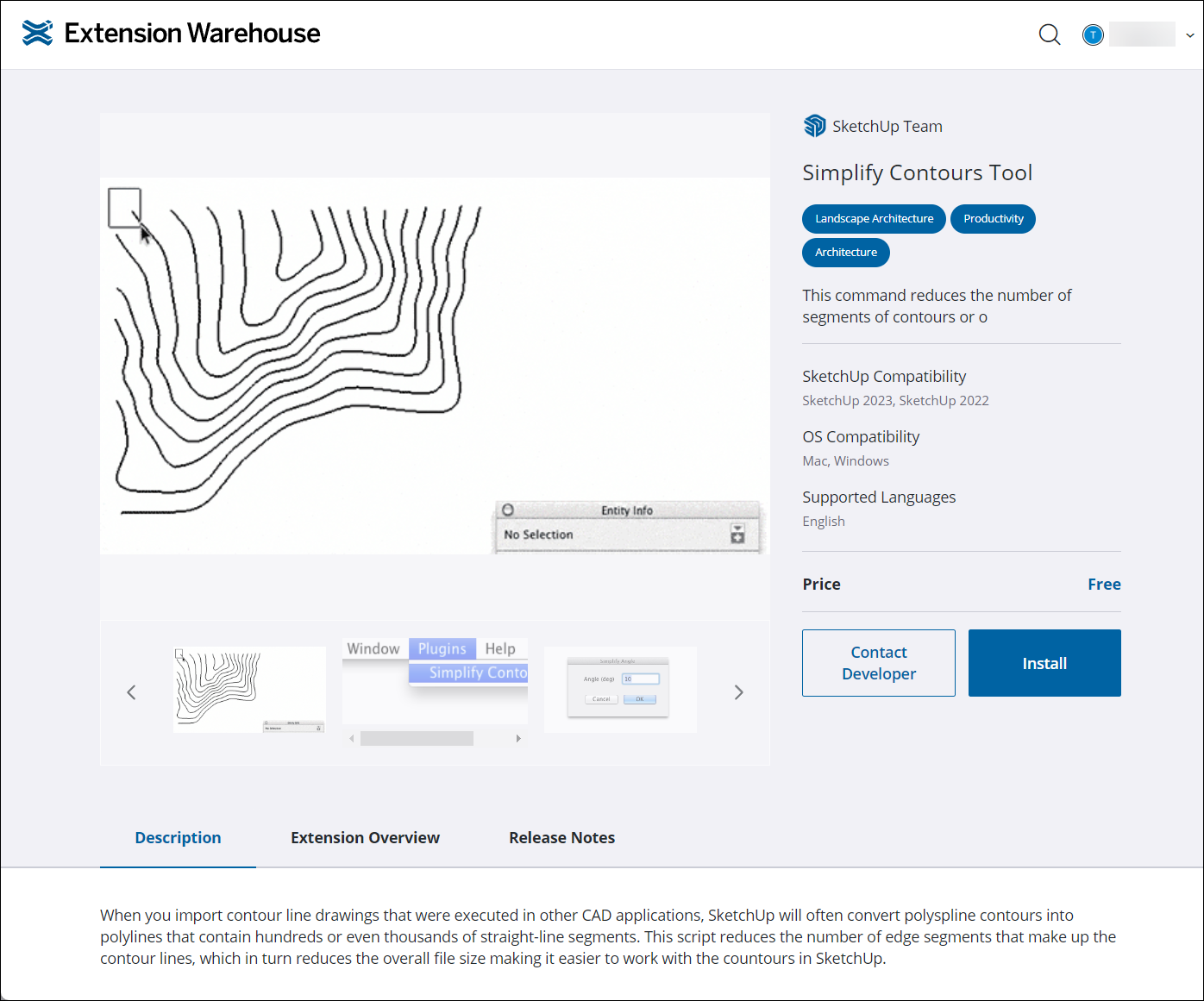
Many extensions include preview images that show how they work, along with the following details:
- Extension Information appears at the top right. It includes the developer's name, the extension's title and a basic description. The description also lists the extension's categories.
- Compatibility details appear below the description. Check these to see whether the extension supports your version of SketchUp and your language.
- Price is listed for most extensions. Many extensions are free to download, but some require a purchase. Some show Listing Page and require you to visit a site outside Extension Warehouse to install the extension.
- Contact Developer lets you message the extension's developer. Click Contact Developer to open a form you can fill out and send.
- Install starts the installation process when you click Install . For details, see Adding Extensions to SketchUp.
- The Description tab explains what the extension does and how it works.
- The Extension Overview tab lists the extension's creation date, number of views, number of downloads and version information. It also lists other extensions from the same developer.
- The Release Notes tab contains release notes from the developer or a link to them.