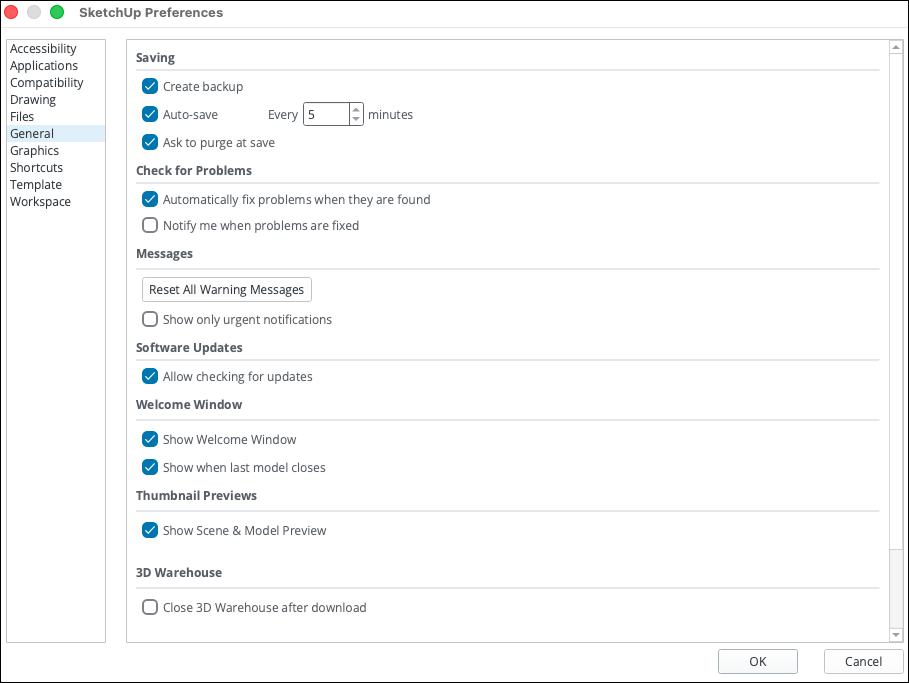
Use the General tab to adjust SketchUp's basic settings.
Saving
Saving includes these file management options:
- Create backup is on by default. Each time you save your model, SketchUp creates a backup of the previously saved version. Backup files use the .skb file type on Windows and add a ~ to the file name on Mac. SketchUp saves them in the same location as the .skp file. SketchUp creates the first backup the second time you save a model.
- Auto-save is on by default and set to 5 minutes. At this interval, SketchUp saves all changes to your model in a temporary file. These files remain after a crash and appear as Recovered in the Welcome window. SketchUp deletes temporary files when you exit SketchUp. Auto-save does not save changes to the file you opened. Save your model early and often.
- Ask to purge at save is on by default. Your model can contain unused entities. Their definitions remain even after you delete the entities, which can increase file size and affect performance. With this option on, SketchUp asks whether you want to purge all unused entities each time you manually save your model.
Check for Problems
Check for Problems controls how SketchUp handles problems with your model:
- Automatically fix problems when they are found is on by default. SketchUp checks for problems when you open a model, during auto-save and when you manually save a model.
- Notify me when problems are fixed is off by default. With this option on, SketchUp shows a warning message whenever it fixes an error to tell you the model has been updated.
Messages
Some actions trigger a warning message. Each message has an option to stop showing that message.
- Click Reset All Warning Messages to show these messages again, including those you previously dismissed.
- Turn on Show only urgent notifications to limit messages to critical warnings.
Software updates
- Allow checking for updates is on by default. With this option on, SketchUp checks for updates whenever you are connected to the internet.
Welcome Window
- Show Welcome Window is on by default. With this option on, SketchUp opens the Welcome Window at startup. Use it to find recovered files after a crash, choose a new template or access recently modified files. You can always open the Welcome Window by selecting Help > Welcome to SketchUp.
- Show when last model closes is on by default. With this option on, the Welcome Window appears when you close the last open modelling tab.
Thumbnail previews
- Show Scene & Model Preview is on by default. It shows a thumbnail when you hover over a scene or model tab.
3D Warehouse
- Close 3D Warehouse after download is off by default, so 3D Warehouse stays open after you download an entity into your model. Turn this option on to close the 3D Warehouse window automatically after you download an entity.