Install the Gaussian Splatting extension and load your first splat in SketchUp. The extension lets you view and adjust high-resolution, photorealistic 3D environments in your models.
System requirements
To use the Gaussian Splatting extension, you need:
- Microsoft Windows. MacOS is not supported.
- SketchUp 2024 or later.
- An active SketchUp Pro, Pro Scan, Pro Advance Workflows, or Studio subscription.
Install the extension
To install the Gaussian Splatting extension:
- Open Extension Warehouse and search for Gaussian Splats.
- Download and install the latest version of the Gaussian Splats extension.
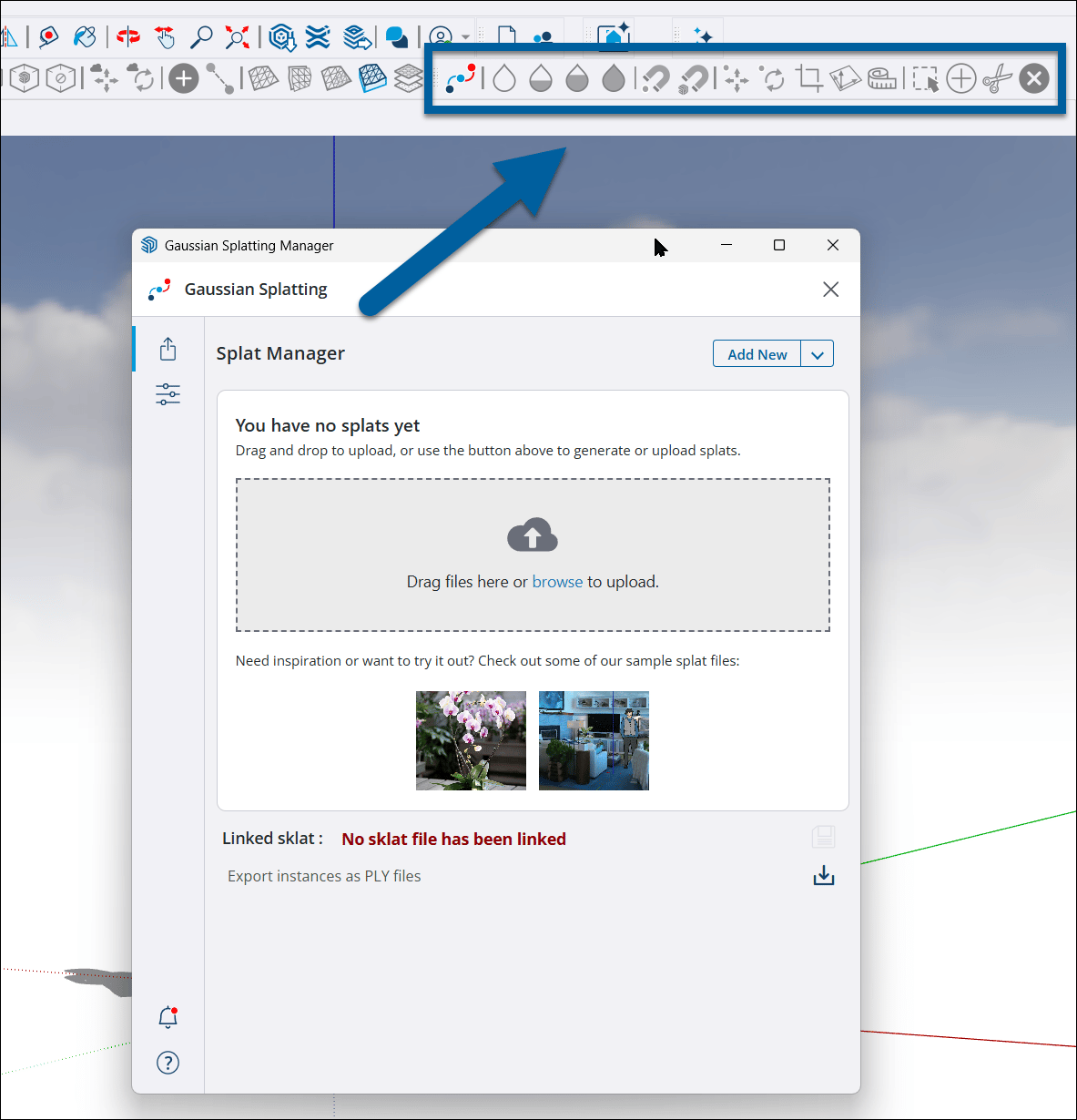
- Close and restart SketchUp. You can then place the Gaussian Splatting toolbar in your workspace.
Load your first splat
The extension needs a splat file. If you are new to Gaussian Splats, you can use the sample files included with the extension to try it.
Your own splat file must use one of these formats:
.ply.splat.spz.sklat.lcc
To upload your first splat:
- Click Gaussian Splatting Manager (
 ) on the toolbar to open the manager window.
- Click Add New in the top-right corner of the manager.
- Select Import File to browse for a splat file on your device, or select Load Sample to practise with a sample file.
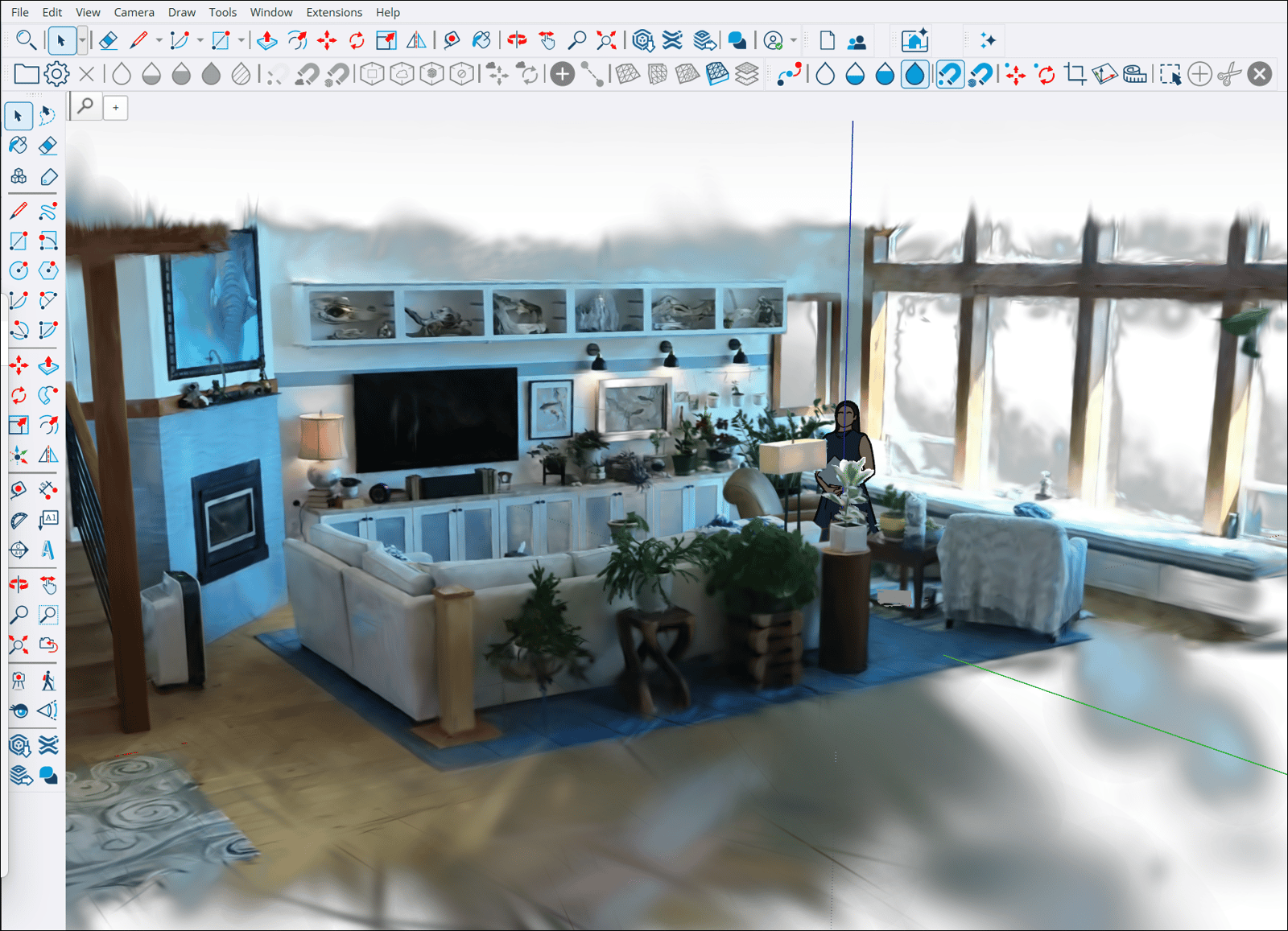
- Select the splat file you want to import and click Open. The splat appears in the modelling window.
Configure your splat
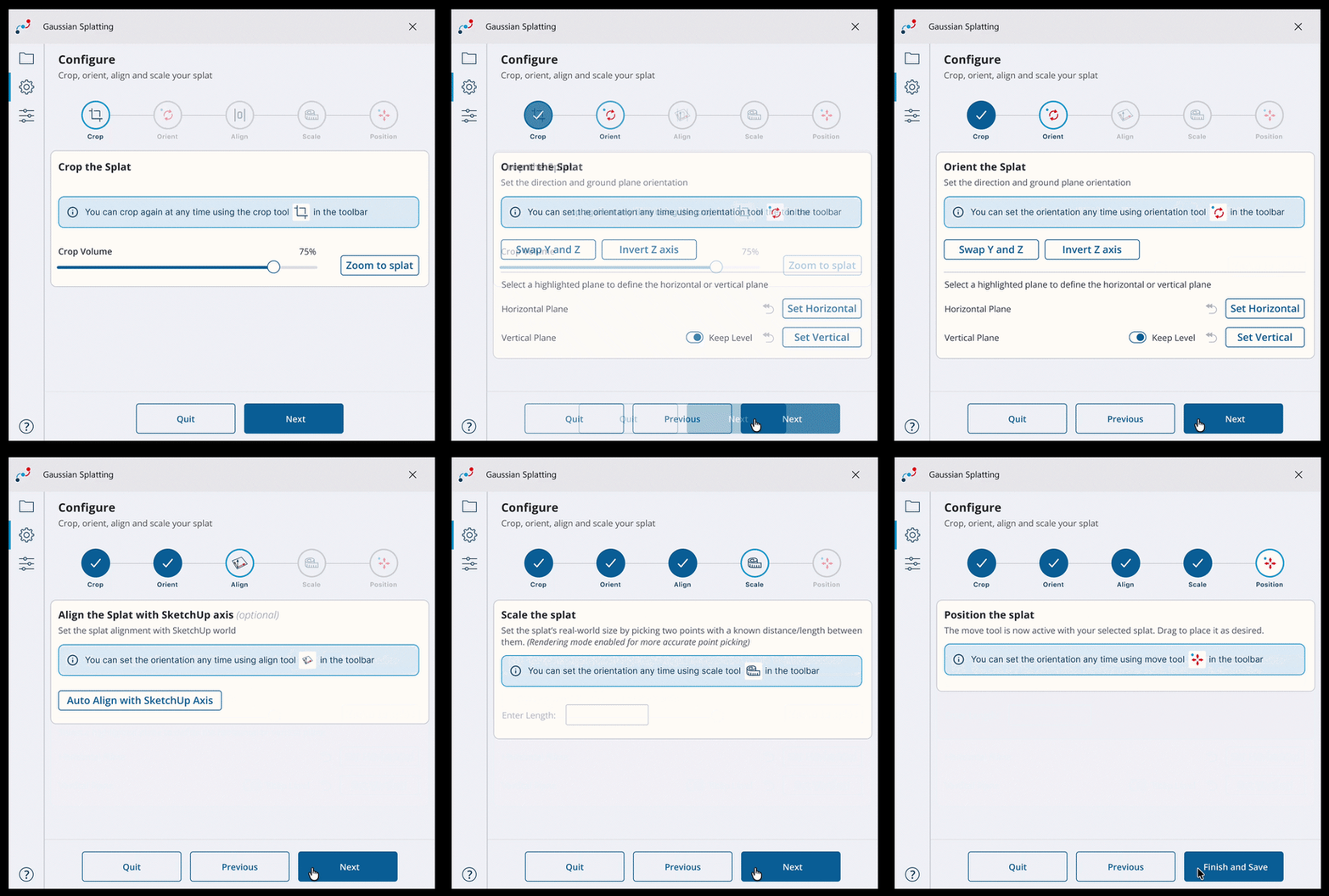
An imported splat may contain artefacts or parts you cannot use in SketchUp. The configuration wizard opens after import. Use it to clean up artefacts and adjust the splat's appearance, scale, position and orientation.
The wizard has 5 steps:
- Crop finds an area with a higher density of points and crops around it so you do not have to search for the object or area you captured. Use the slider to adjust the cropping box so all the parts you need are visible.
- Orient automatically displays planes calculated from recognised faces in the splat. Select a face and specify which plane in your SketchUp model it should align with. Once you select the horizontal plane, you can lock it and select a vertical plane.
- Align helps you align the splat with the global SketchUp axes. The original bounding box may no longer align with these axes after you orient the splat.
- Scale adjusts splats captured with simple images or non-LIDAR video that may be out of scale. Select two points in your splat and specify a dimension. The wizard uses that dimension to scale the entire splat.
- Position lets you move the splat to the position you want with the Gaussian Splat extension's Move tool.
After you upload and configure your splat, it appears in the Gaussian Splatting Manager alongside any other splats in your model. Use the context menu to:
- Run the configuration wizard again.
- Lock the splat to prevent further changes.
- Rename the splat.
- Reset the splat to remove all configuration changes made so far.
- Delete the splat from your model.