Import and export BIM data in SketchUp with Industry Foundation Classes (IFC) files, a standardised format for building components, geometry and price data. SketchUp's native IFC importer supports both IFC2x3 and IFC4 files.
Importing an IFC file
To import classification data from an IFC file into your SketchUp model:
- Click File > Import.
- Select IFC Files (*.ifc, *.ifc.ZIP) from the File Format dropdown.
- Choose the IFC file to import.
- Click Options.
- Preserve Drawing Origin is selected by default. Clear it if needed.
- Under Preferences, choose Use IFC Classes, Use IFC Layers or Don’t Create Tags.
- Click OK to save your choices and return to the Import dialog, or Cancel to exit without saving.
- Click Open to import your IFC file.
When you import classification data from an IFC file:
- SketchUp reuses geometry between components to reduce file size.
- The importer supports SweptDiskSolid geometry. This helps elements such as IfcReinforcingBar and IfcReinforcingMesh appear correctly in your model and in Outliner.
- SketchUp preserves the original IFC file version.
Exporting an IFC file
To export your SketchUp model's classification data as an IFC file:
- Click File > Export > 3D Model.
- Choose another save location if needed. By default, exported files use the location set in Files Preferences.
- Name your file.
- In Save As Type, select IFC File (*.ifc).
- Click Options.
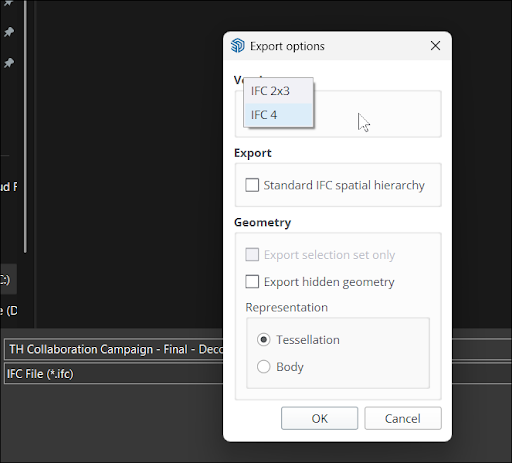
- Choose the IFC version to export.
- Choose Standard IFC Spatial Hierarchy to create entities such as IfcProject, IfcSite or IfcBuilding, even if your model's Outliner structure does not define them.
- Under Geometry, choose whether to export hidden geometry. If you selected a set of entities before exporting, you can export only that set. Choose Tessellation or Body to set how geometry is represented.
- Click OK.
- Click Export to export your file.
When you export classification data as an IFC file:
- SketchUp stores and exports most IFC class attributes.
- SketchUp assigns the correct class name to parts of your model, such as tags, components and materials, as needed.
- Some SketchUp entities may not export. Check your file immediately after exporting it.
- SketchUp supports exporting CRS data using the Trimble Geodetic Library. If your model does not use CRS data, any CRS-specific entities are deleted. For details, see Finding and Using Add Location.