SketchUp saves changes to your shortcut preferences. You can export these preferences and import them into SketchUp on another computer.
If you use the latest version of SketchUp, use File > Migrate Preferences to copy your shortcut preferences from an earlier version.
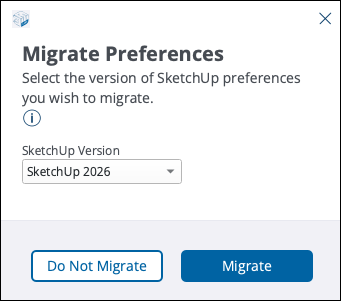
In Migrate Preferences, choose the previous SketchUp version from the SketchUp Version dropdown, then click Migrate to copy its preferences.
You can also use the Shortcuts panel to import and export your shortcut preferences manually.
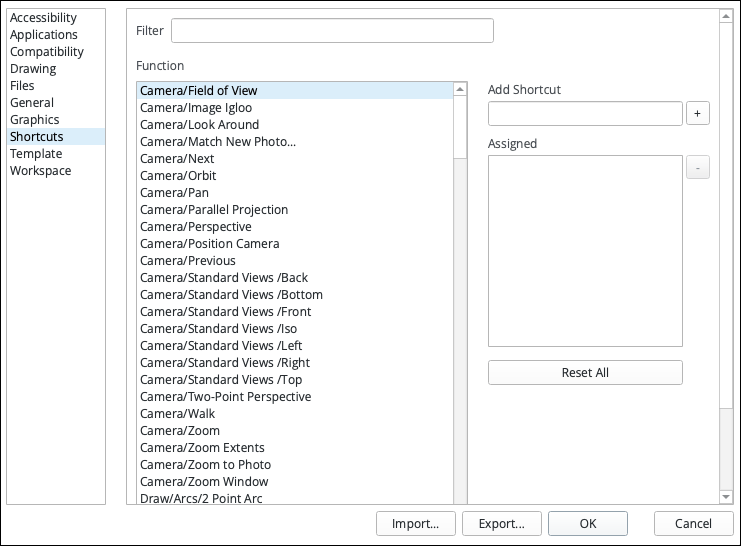
To export your shortcut preferences:
- Click Export.
- Choose where to save your exported preferences.
- Name the file. Choose a name that helps you find it and identify the SketchUp version. If you do not choose a name, SketchUp uses Preferences.dat.
- Click Export to save the file.
To import your shortcut preferences:
- Click Import.
- Find your exported preferences file in File Explorer. If you cannot find it, try searching for ".dat" files.
- Select the file and click Import to import your preferences.