Locating an Invoice
New Zealand guidance for Locating an Invoice: PCS billing and subscription actions, with separate procedures for direct Trimble purchases.
Last updated 17 July 2026
Invoices are an easy way to view your payment history. After a purchase, Trimble sends an invoice to the Account Owner’s email. If you need to review an invoice and can’t access the email that was sent after your purchase, you can review invoices in the Billing & Payment section of the Admin Console.
To download and view invoice details, follow these steps:
- Navigate to accounts.trimble.com and login using your Trimble ID.
- In the left pane select Billing & Payment .
- If you know the order number for the invoice you want to view, locate that order in Order History.
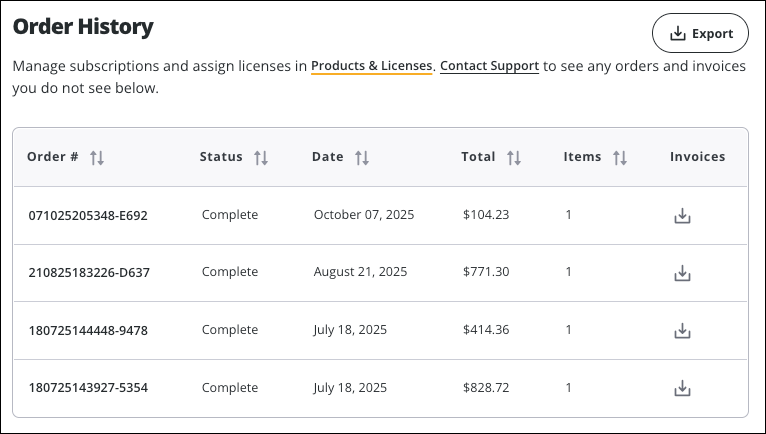
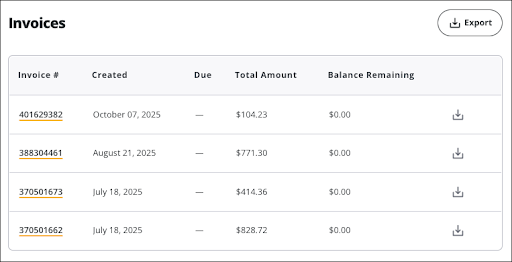
- If you know the invoice number, locate the invoice number in Invoices.
- Click Download (
 ) in the same line as the order number or invoice number that represents the invoice you wish to view to download a PDF of that order or invoice.
- If you want to review all orders or invoices in your account, click Export located in the upper right of each section. An email will be sent to you with an attached .csv containing all requested information.
If you only need some basic information about an invoice, each entry under Invoices includes the following:
- The invoice number
- The date that invoice was created
- The date payment is due, if applicable
- Total amount of the invoice
- Any balance remaining
Still need help?
Technical support from our New Zealand team is available to customers with a current Procadsys SketchUp Plus subscription: Pro Plus, Pro Scan Plus, Pro Civil Contractor Plus, Advanced Workflows Plus or Studio Plus. Self-help articles are public.
Contact SketchUp support