You can set the units of measurement for each SketchUp model. This article explains how to choose units, set precision and check measurements.
Units and precision in Model Info
You can view and change your model's units in Model Info. Select Window > Model Info , then select Units from the options on the left.
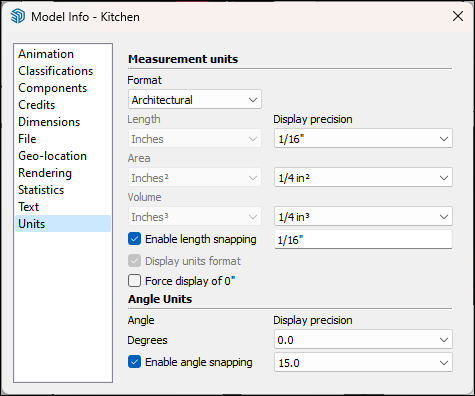
The Units section of Model Info has these options:
- Format. Choose Architectural, Decimal, Engineering or Fractional.
- Length, Area, and Volume. Choose a unit for each measurement type from the drop-down lists. With Decimal format, you can set different units for length, area and volume. For example, you can draw and measure line lengths in centimetres while an entity's area or volume appears in metres.
- Display precision. Choose the measurement precision for each format. Architectural allows precision up to 1/64 of an inch. Engineering allows up to six decimal places.
- Enable Length Snapping. Select this checkbox to make your drawing tool snap to the closest unit at the precision set in the text box.
- Display Units Format. This option is available with Decimal or Fractional format. Select the checkbox to show the unit in ToolTips. Clear it to show only the number.
- Force Display of 0". This option is available with Architectural format. Select the checkbox to show trailing zeros in measurements, such as 3' 0" instead of 3'.
- Angle Degrees. Choose the angle precision from the drop-down list, up to three decimal places.
- Enable Angle Snapping. Select this checkbox to make angles you draw or measure snap to the closest unit at the precision set in the text box.
Other measurement options
SketchUp's 3D modelling tools help you model precisely, check measurements and label dimensions. Use these tools and options:
- Specify a unit in the Measurements box. The Measurements box is at the lower right of the SketchUp interface. How it works depends on the tool you use.
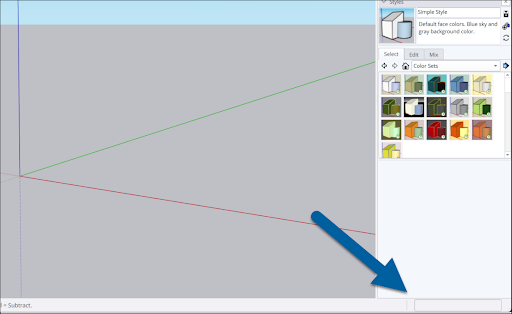
- When you draw a line or shape, enter its exact dimensions and units in the Measurements box. To use a different unit from the default, type the unit with the measurement. You can also use the Measurements box to position entities precisely with tools such as Move or Flip. See Drawing Lines, Shapes, and 3D Objects or Measuring Angles and Distances to Model Precisely for instructions.
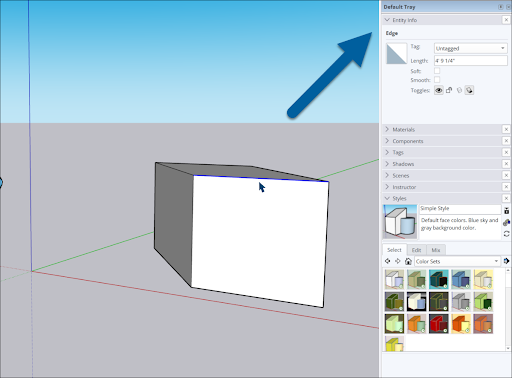
- View exact measurements in Entity Info. Select an entity and open the Entity Info panel to see its measurement, such as a line's length, a face's area or a solid's volume.
- Mark measurements with the Dimension tool (
 ) . Dimensions are measurement labels that update automatically as you create your model. See Adding Text, Labels, and Dimensions to a Model for instructions.
- Understand the Tape Measure and Protractor tool . Both tools help you model precisely. Tape Measure also helps you scale your model.