Use the Materials panel in SketchUp for Web to find, manage and create materials for your models.
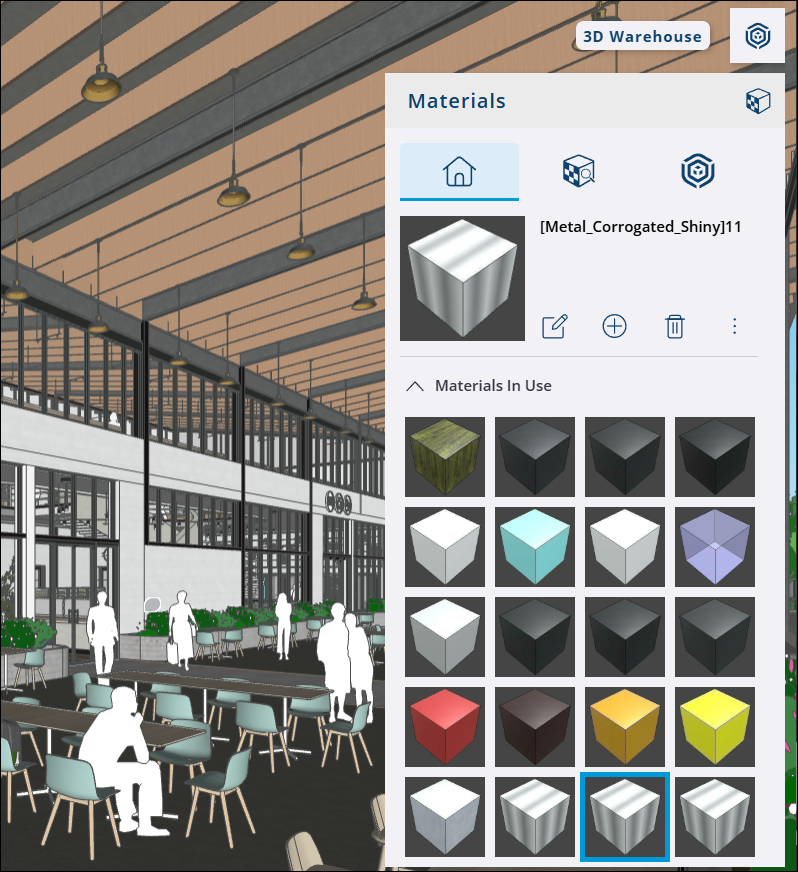
When you first open the Materials panel in a new model, you see a few default materials. Click Browse (  ) to choose from the default material categories. You can also click 3D Warehouse (
 ) to find more materials to download. Materials you add to your model appear under Materials in Use in the Materials Panel.
For help using materials in your models, see Materials, Textures, and Environments.
Working with photorealistic materials
The WebGPU graphics engine in SketchUp for Web supports materials with Physically Based Rendering (PBR) texture maps. The Metalness, Roughness and Normal texture maps can simulate surfaces such as textured paint or stained wood. You cannot use photorealistic materials with the Classic graphics engine.
Some default SketchUp materials and materials from 3D Warehouse may already have PBR texture maps. You can also import .skm files that contain PBR data. If a material has no texture maps, you can generate them automatically in SketchUp or use AI to generate textures.
To generate texture maps automatically, open Settings and enable Automatically Enhance Materials in the Graphics section.
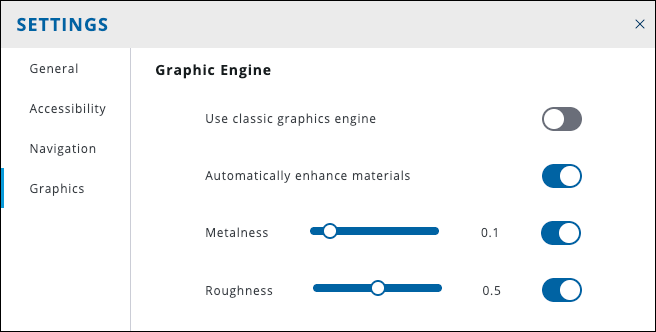
Then use the sliders to set the default Roughness and Metalness values SketchUp uses to add texture maps.
To generate texture maps with AI, select an unenhanced material in the Materials panel and click Edit (  ). The Generate Textures (
 ) option appears in the material's preview image.
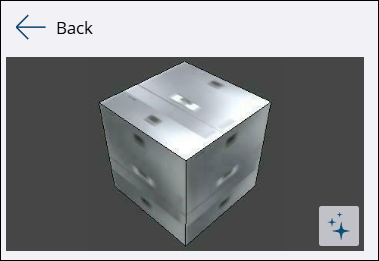
Click Generate Textures to create texture maps for the material with SketchUp AI. For details, see Generate Textures.
Editing photorealistic materials
You can edit a PBR material's texture maps in SketchUp. When you edit the material, each associated texture map has a slider and an on/off toggle.
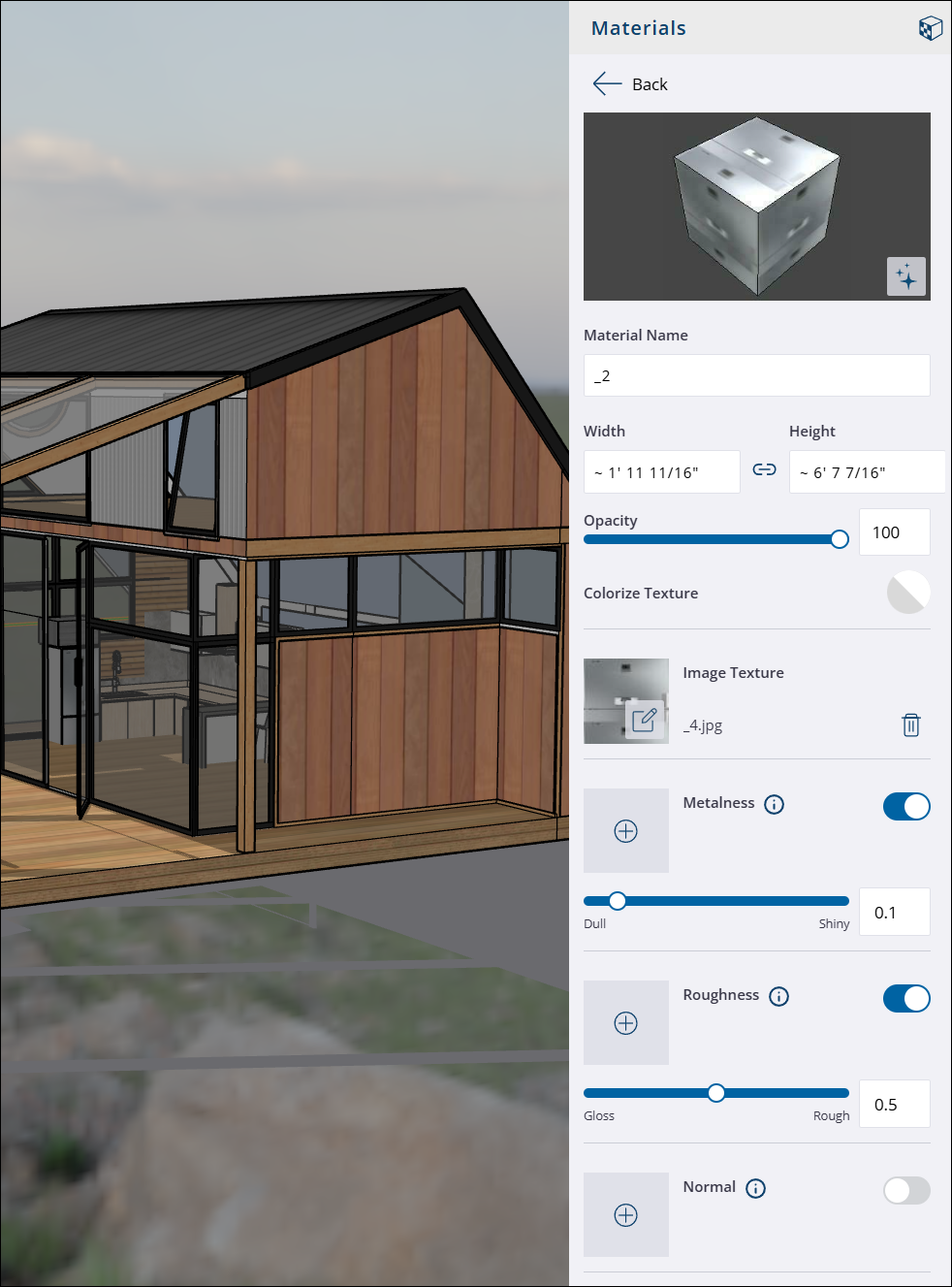
Turn a toggle off to disable its texture map. Adjust the slider to change how much the texture map affects the material.
For help editing materials, see Editing Materials.