Use the Materials panel to find, manage and create materials for your SketchUp models. It is part of SketchUp's Default Tray of panels. On either platform, you can also open it by activating the Paint Bucket ( ) tool.
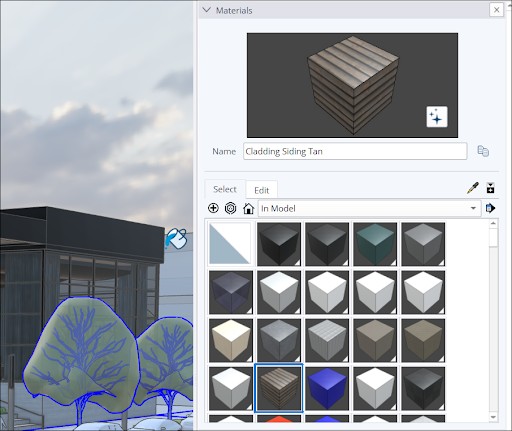
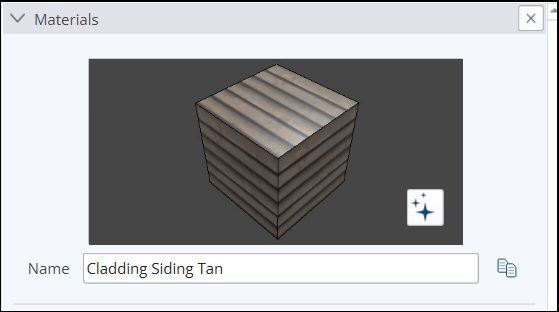
Preview
The preview window at the top of the panel shows the selected material. Below the preview, you can view or edit the material's name. Next to the name, you can select Copy ( ) to copy the material.
Select tab
Use the Select tab to view and manage materials in your model. Use the dropdown menu to browse SketchUp's default material libraries. You can also add materials from 3D Warehouse.
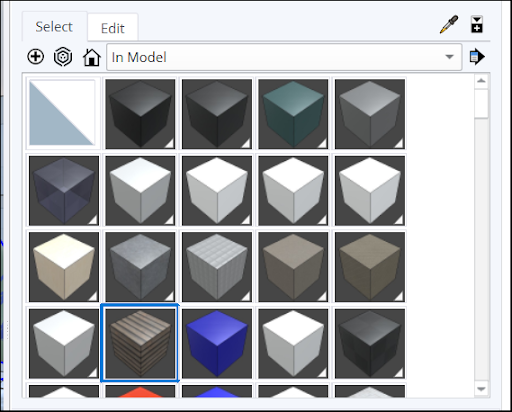
The Select tab also has these options:
- Create Material (
 ) opens the Create Materials window. See Creating Materials for details.
- 3D Warehouse (
 ) opens 3D Warehouse to access SketchUp's full material library. Use 3D Warehouse to find materials for your designs.
- In Model (
 ) resets the panel to show materials in the current model.
- Sample Paint (
 ) activates the Sample tool. Click a face in your model to sample its material. You can then paint that material onto another entity.
Click Details ( ) to open a context menu. Its options let you organise materials into collections or change the Materials panel's appearance.
Edit
Use the Edit tab to adjust material properties such as colour, opacity and textures. You can also assign a Section Fill hatch pattern to the material.
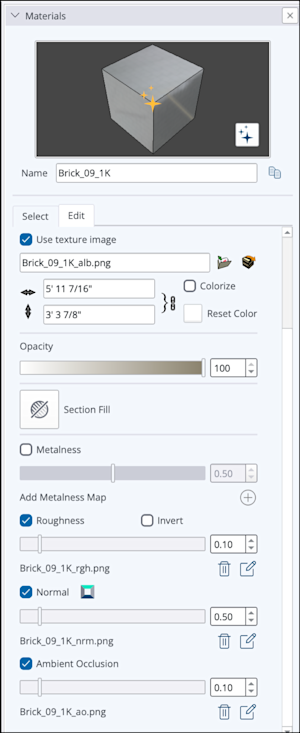
Adjust these properties to match materials to your designs. See Editing Materials for details on the Edit tab.