Passkeys
Trimble recommends setting up a passkey as the preferred Multi-Factor Authentication (MFA) method for your Trimble ID account. Passkeys are encrypted digital keys generated by your device using your fingerprint, Face ID, or PIN.
Last updated 17 July 2026
Trimble recommends setting up a passkey as the preferred Multi-Factor Authentication (MFA) method for your Trimble ID account. Passkeys are encrypted digital keys generated by your device using your fingerprint, Face ID, or PIN. They offer a more secure and convenient alternative to passwords and traditional two-factor authentication.
Setting Up a Passkey
When you first create a Trimble ID, you are prompted to create a passkey. If you skipped this step, you can always create a passkey at myprofile.trimble.com . To create a passkey follow these steps:
- During account creation, or while on your profile page, click Create a Passkey .
- Enter your password. The passkey page will appear.
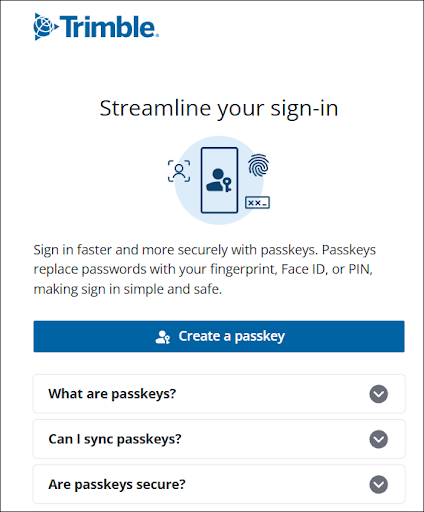
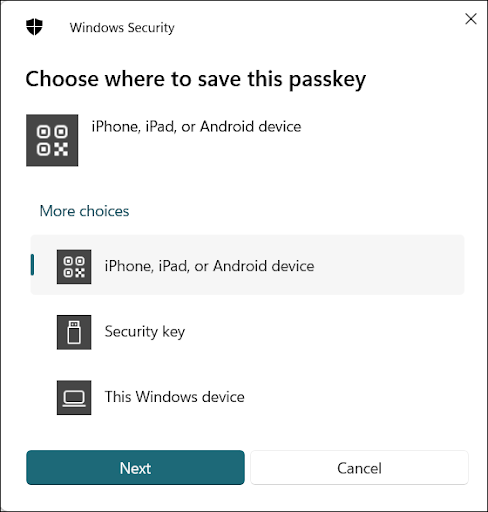
- Choose from the available passkey options based on your device or browser. Here are a few examples of what you may see:
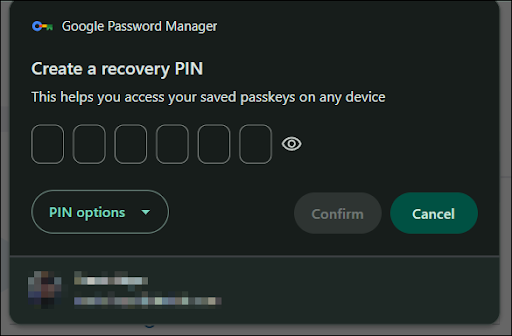
Windows
MacOS
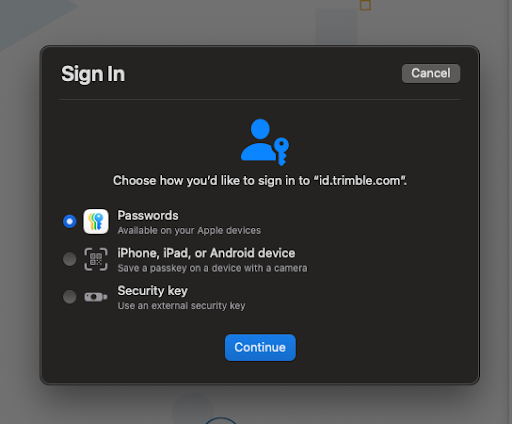
- Follow the prompts from your browser or device to create and save the passkey.
- Enter a name for your passkey and select Continue .
- Select Done .
- To edit a passkey’s name, select Edit (
 ) next to the passkey, enter a new name, and select Save .
 - To remove a passkey, select the X to the right of the passkey, enter your current password and passkey, then select Remove .
Logging In with a Passkey
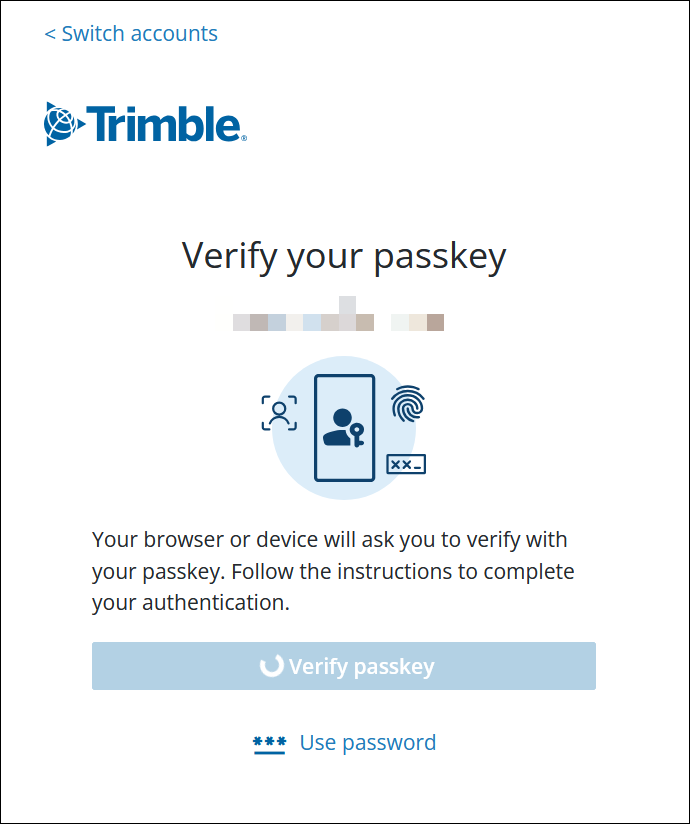
After creating your passkey you can then select Use a Passkey on the login screen to access your Trimble account. A prompt will appear asking for your passkey.
Still need help?
Technical support from our New Zealand team is available to customers with a current Procadsys SketchUp Plus subscription: Pro Plus, Pro Scan Plus, Pro Civil Contractor Plus, Advanced Workflows Plus or Studio Plus. Self-help articles are public.
Contact SketchUp support